How to Use Your Smartphone as a Webcam for Your PC
Learn how to use Windows 11 features, Mac Continuity Camera, and apps like Camo or DroidCam via Wi-Fi or cable to upgrade your video calls.
On this page
The reason is physical: in laptops, the webcam must fit within the thickness of the screen bezel, so the sensor is tiny. A phone doesn’t have that limitation and features much larger optics, with decent autofocus and stabilization.
We’ll start with built-in features, then move on to apps, and finally cover practical matters: where to place your phone, battery consumption, and how to manage audio.
Windows 11: the built-in feature #
Since early 2024, Windows 11 can use an Android phone’s camera as a system webcam, available in all apps: Teams, Zoom, Meet, and web browsers.
You need a phone running Android 9 or later, a Microsoft account on both your computer and phone, and the updated Link to Windows app on Android (it’s already preinstalled on Samsung devices).
On Windows, go to Settings → Bluetooth & devices → Mobile devices, enable Allow this PC to access your mobile devices, and sign in with your Microsoft account.
Select Add device and use your phone to scan the QR code shown on the screen.
Enter the six-digit code that appears on Windows into your phone to complete the pairing.
Go back to Mobile devices, click Manage devices, and toggle Use as a connected camera next to your phone.
In Settings → Bluetooth & devices → Cameras, your phone’s camera will now appear, ready to be selected in video calling apps.
While you are using it, you have basic controls on your phone: switching between the front and rear cameras, pause, and background blur. The connection is wireless, so keep your phone plugged into a charger.

The limitation is that it only works with Android: to use an iPhone on Windows, you still need third-party apps.
Android via cable, no app required #
On Google Pixel devices running Android 14 or later, and on the Galaxy S26, there is an even simpler way: built-in USB webcam mode. The phone presents itself to the computer as a standard webcam, so it works on Mac, Linux, and ChromeOS without needing accounts or extra software.
- Connect your phone to the computer with a USB cable.
- Tap the Charging this device via USB notification and under Use USB for, select Webcam.
- On your computer, select the new webcam in your video calling app. From the phone, you can switch lenses, zoom, and enable high quality mode.
Audio is not passed through: use your computer’s microphone or a headset for audio.
Mac and iPhone: Continuity Camera #
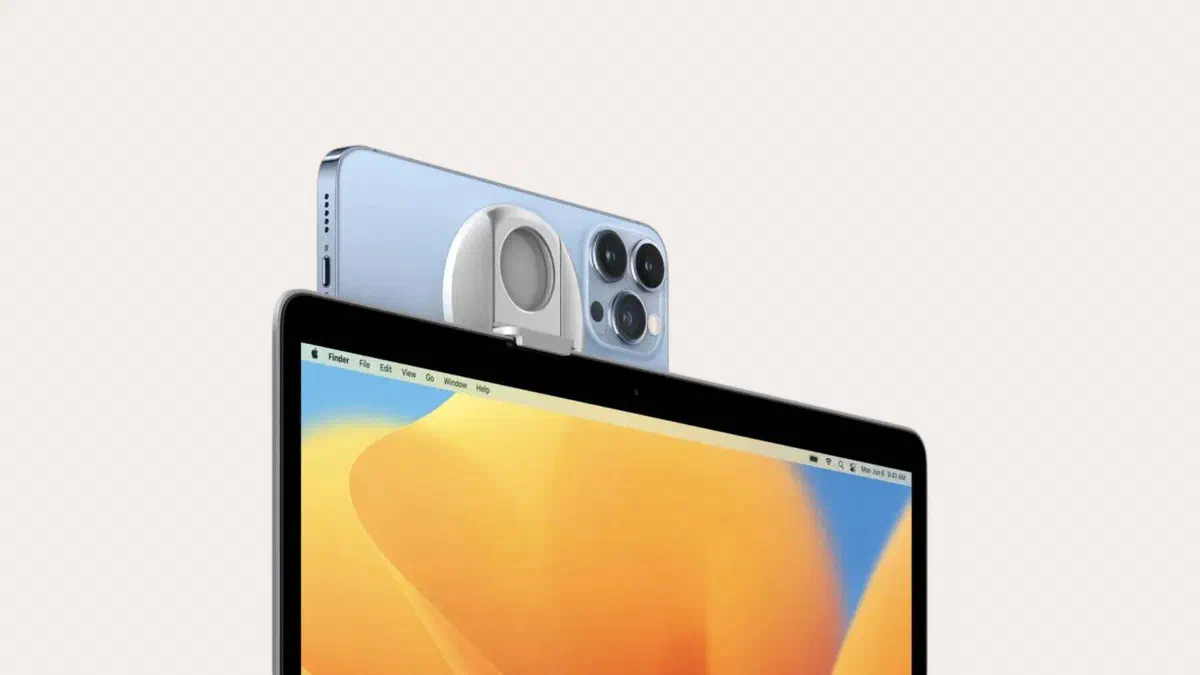
It’s even simpler on a Mac because there is nothing to configure. You need an iPhone XR or newer running iOS 16 or later, and a Mac running macOS Ventura or later: if they use the same Apple Account, have Bluetooth and Wi-Fi enabled, and the phone is nearby, the iPhone will automatically appear in your camera list.
You select it from the app you are using while the phone is locked, held horizontally, and with the rear camera facing you. Additionally, you get features standard webcams don’t have: Center Stage, which follows you as you move (from iPhone 11), Desk View, which shows both your face and your tabletop simultaneously, and Portrait mode.

It works wirelessly or via cable. Using a cable results in lower latency and your phone charges instead of draining: this is the best choice for long meetings. For mounting it to the edge of a MacBook, there are dedicated MagSafe mounts available at low cost.
Third-party applications #
These are useful when built-in features aren’t enough: using an iPhone on Windows, manual exposure and focus, higher resolution, or using it as an OBS source.
| Application | Systems | Notes |
|---|---|---|
| Camo | iOS and Android, with Windows and macOS | The most complete for manual controls: from the computer you can choose lens, exposure, white balance, and color; the free version limits resolution |
| DroidCam | Android and iOS, with Windows and Linux | Lightweight, free with a watermark; the paid version unlocks high resolution |
| iVCam | Android and iOS, with Windows | Good quality, quick setup, also supports vertical framing |
| NDI HX Camera | iOS and Android | Designed for network video production; requires NDI tools on the computer |
They all work the same way: you install the app on your phone and the software on your computer, which creates a virtual camera visible to other programs. The connection works via Wi-Fi or USB cable. EpocCam, which was one of the most popular for years, has been discontinued by Elgato and is no longer available for download.

Cable or Wi-Fi? #
Via USB cable, quality is more consistent, latency is lower, and your phone charges while streaming. For long meetings and live broadcasts, this is the only sensible choice. With DroidCam on Android, you must first enable USB debugging in Developer options.
Via Wi-Fi, you can place your phone anywhere without cables cluttering your space, but you are dependent on the network: if it’s congested, you’ll experience lag and freezes. The phone and computer must be on the same network, and public or corporate networks often block communication between devices.
Battery, heat, and positioning #
Streaming video is one of the most intensive tasks for a phone because the camera, processor, and connection are all working together. During a one-hour meeting, it can get quite hot, and once it reaches a certain temperature, it may automatically lower the quality or stop the stream.
Three simple tips will solve most issues:
- Use a cable. This charges your phone and reduces wireless interference.
- Remove the case during long sessions: it helps dissipate heat much better.
- Avoid direct sunlight on the phone, which adds external heat to its internal temperature.
To set it up properly, a monitor mount or a small tripod with an arm costs only a few euros and is more stable than any makeshift solution. Position the phone at eye level: this improves your framing more than anything else, much more than resolution does. And if you can, add some light in front of you—even a small LED lamp: it matters more than the phone itself.
Audio #
A phone microphone pointed at you from the top of the monitor usually performs worse than a headset or a dedicated microphone: it picks up room reverb and keyboard noise.
The best combination is to keep the two separate: video from your phone, audio from a headset with a mic. In video calling apps, you select both sources separately, so there’s no problem.
If you want to use the phone’s microphone, apps like DroidCam and iVCam also transmit audio: just select it as your microphone in the video call settings. Run a test recording first, because some programs create an audio-video lag that can be annoying.
FAQ #
Is the quality better than my laptop’s webcam? #
In the vast majority of cases, yes—especially in low light, where integrated webcams produce grainy and washed-out images. On a recent high-end laptop with a 1080p webcam, the gap is smaller, but the phone still comes out ahead.
Does it drain a lot of battery? #
Yes, quite a bit: the camera, processor, and transmission are all working at once. For long sessions, keep your phone charging; using a USB cable solves this problem entirely.
Can I use an old phone that I don’t use anymore? #
It is one of the best uses for a retired phone, provided its version of Android or iOS is still supported by the app you choose. Using a phone solely for this purpose also has an advantage: no notifications to interrupt you during meetings.
Does it work with OBS for live streaming? #
Yes, all the mentioned apps create a camera that OBS sees as a standard video source. NDI HX Camera was designed specifically for this, and DroidCam even has a dedicated plugin for OBS.
Can I use the rear camera instead of the front one? #
Yes, and it’s better: the rear camera has a superior sensor and optics. All the solutions described allow you to choose which one to use. With Mac’s Continuity Camera, the rear camera is always used.