Best Video Editing Software for Every Skill Level
From CapCut to DaVinci Resolve, Premiere Pro, and Final Cut: find the best video editing software based on your experience, computer, and budget.
On this page
Before looking at names, ask yourself three questions: what do you need to edit, how powerful is your computer, and how much time do you have to learn? A professional program on a modest laptop will only frustrate you; a simplified editor on a complex project will leave you stranded halfway through.
The big picture #
| Software | Systems | Cost | For whom |
|---|---|---|---|
| CapCut | Windows, macOS, mobile | Free, paid features available | Short and vertical content |
| iMovie | macOS, iOS | Free | First edits on Mac |
| Filmora | Windows, macOS | Watermark in the free version, then a license | YouTubers and content with many effects |
| Clipchamp | Windows, browser | Free, paid plan available | Quick edits on Windows |
| Shotcut | Windows, macOS, Linux | Free and open source | Those who want to learn without spending |
| Kdenlive | Windows, macOS, Linux | Free and open source | Full editing on Linux |
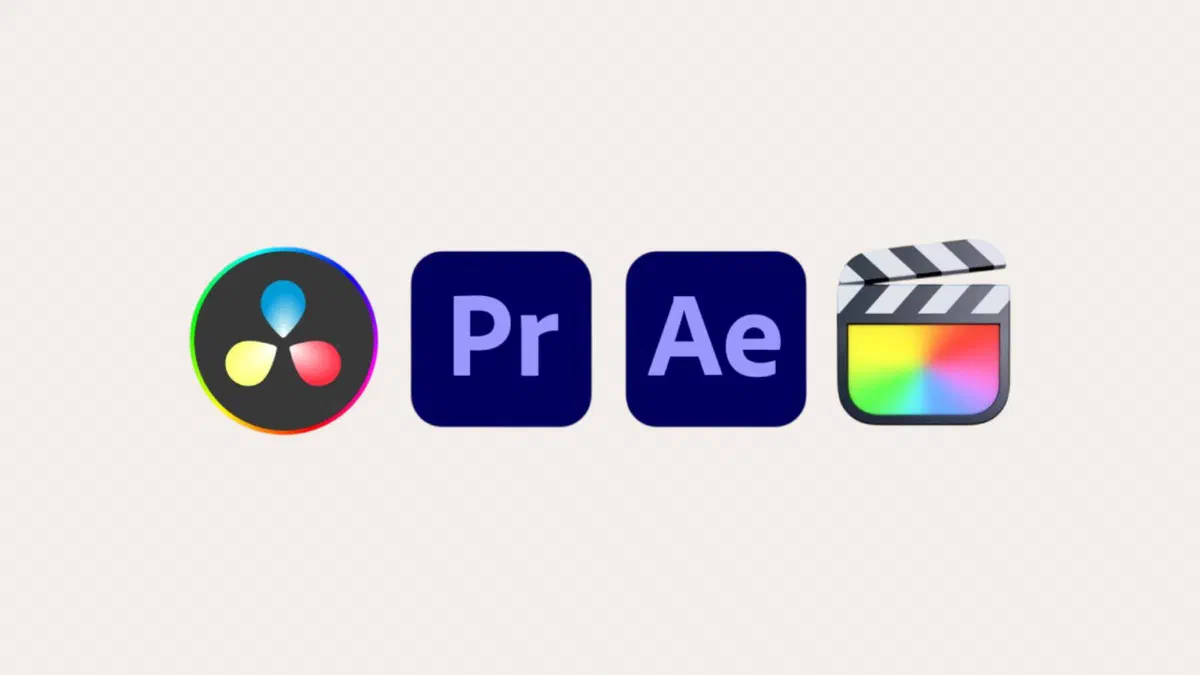
| DaVinci Resolve | Windows, macOS, Linux | Free; Studio €255 one-time payment | Intermediate to professional |
| Final Cut Pro | macOS | One-time purchase or Apple Creator Studio subscription | Those working on Mac |
| Premiere Pro | Windows, macOS | Monthly subscription | Teamwork and professional environments |
If you are starting from scratch #
CapCut was born for short-form content and it shows: automatic subtitles, ready-to-use vertical formats, transitions, and one-click effects. For a video to post on social media, it is the fastest route. Advanced features and various effects are part of the Pro subscription, and before uploading your work material, read the terms regarding content usage, which caused controversy in 2025.
iMovie on Mac, iPhone, and iPad is free, essential, and more capable than it looks for cutting, rearranging, and adding music. Magic Movie automatically edits a video from the clips you choose, Storyboards guide you with ready-made templates (a cooking tutorial, a travel video), and it can adjust the blur of videos shot in Cinematic mode on iPhone. It lacks precise color correction and multi-cam editing, but you can move your project to Final Cut Pro if you eventually need more power.

Clipchamp is Microsoft’s equivalent, included in Windows 11: it also works in the browser, has ready-made templates, and can record your screen. Some content and exports are part of the paid plan.
Filmora sits halfway between simple programs and professional ones: an easy interface, tons of titles, transitions, and effects designed for YouTube, plus more tools with artificial intelligence to mask subjects or remove noise. The free version puts a watermark on the exported video, so it only makes sense if you pay.


If you want to grow without spending money #
DaVinci Resolve is a major step up. The free version combines editing, color correction, visual effects (Fusion), and audio (Fairlight) without watermarks or duration limits. The limitations are the output resolution (up to Ultra HD), 8-bit at 60 fps, and certain advanced features like temporal noise reduction and AI tools.
The current version is 21, and the Studio license costs 255 euros once—no subscription: it’s worth it if you work in 10-bit, high frame rates, or need professional color correction tools.
In return, it requires a decent computer with a dedicated graphics card and at least 16 GB of RAM to work smoothly, and it can be demanding at first: the interface is divided into separate pages for editing, color, audio, and effects, and color and effects use a node-based workflow.

Shotcut and Kdenlive are lightweight open-source alternatives: less powerful, but they run well even on modest computers and don’t require registration or an account. On Linux, Kdenlive is the natural choice.
If you work professionally #
Premiere Pro is the standard in newsrooms and agencies, especially due to its integration with After Effects and the rest of the Adobe suite. It handles 4K, 8K, and VR video, with separate workspaces for editing, color, effects, and audio. It’s a subscription model: once you stop paying, you can no longer open your projects. On the other hand, it is what you will find most often in studios, and if you work with others, that matters.

For mobile, Adobe has retired Premiere Rush: it can no longer be downloaded as of September 2025 and will stop being supported in September 2026. In its place is Premiere for iPhone, which is free and allows you to open your projects in Premiere Pro.
Final Cut Pro is only available on Mac (and an iPad version) and you buy it once or use it with the Apple Creator Studio subscription. It runs incredibly smoothly on Macs with Apple silicon. The Magnetic Timeline, where clips snap together without gaps instead of using traditional tracks, is something you will either love or hate. A ninety-day free trial is enough to find out which one you are.

DaVinci Resolve Studio covers the same ground with a one-time purchase, making it the choice for those who don’t want subscriptions.
What to look for in your computer #
The software matters less than you think: three components actually make the difference.
- The Graphics Card. It accelerates previewing and exporting, and it is the biggest factor regarding 4K editing smoothness.
- RAM. 16 GB is the minimum to work without waiting; 32 GB if you are editing in 4K with multiple tracks.
- Storage. An SSD for your working files changes responsiveness much more than a faster processor.
If your computer is struggling, before switching software try editing with proxy files or low-resolution previews: all the programs on this page allow this, and you will definitely notice the difference.
How to choose based on the project #
- Vertical videos for social media: CapCut, or Clipchamp if you are staying on Windows.
- YouTube videos with plenty of effects, without learning professional software: Filmora.
- First family or vacation edits: iMovie on Mac, Clipchamp on Windows.
- A video channel you want to grow: DaVinci Resolve, even just the free version.
- Working with other professionals: Premiere Pro, for compatibility with those around you.
- Mac only, no subscriptions: Final Cut Pro.
- Low-end computer or Linux: Shotcut or Kdenlive.
FAQ #
What is the best software for beginners? #
On Mac use iMovie; on Windows use Clipchamp: they are free, already installed, and do exactly what you need for your first videos. If you need more effects and ready-made titles, go for Filmora; if you plan to grow, start learning DaVinci Resolve right away.
Are there professional programs that are free? #
Yes, and DaVinci Resolve is the clearest example: the free version doesn’t add watermarks, doesn’t limit project duration, and includes professional-grade color correction and effects. The limitations are resolution beyond Ultra HD, 10-bit support, high frame rates, and certain advanced tools.
What is the difference between Premiere Pro and Final Cut Pro? #
How you pay for them and how you edit. Premiere requires a subscription and runs on both Windows and Mac, with excellent integration with other Adobe programs. You can buy Final Cut once; it only runs on Mac, is highly optimized for Apple hardware, and uses a different timeline than the traditional one.
Do I need a dedicated graphics card to edit video? #
For simple Full HD projects, no—recent integrated graphics are enough (on Macs with Apple chips, even for 4K). It becomes necessary if you work in 4K on Windows, use many effects, or want fast exports: that’s where the difference between minutes and hours matters.
Can I edit directly from my phone? #
Yes, and it makes sense for short videos. CapCut, Premiere Rush for iPhone, iMovie, and built-in mobile editors handle cutting, music, and subtitles quite well for social media. For long projects with many tracks and heavy footage, you still need a computer.
Which format should I export in? #
For the web, MP4 with H.264 encoding remains the most compatible. H.265 produces lighter files at the same quality, but not all platforms and devices handle it the same way: if your video needs to be shared among different people, stick to H.264 to be safe. For YouTube, you can also upload high-bitrate files: YouTube will recompress them anyway.