Virtualization on Apple Silicon: Windows, Linux and macOS
Compare Parallels, VMware Fusion, and UTM to run other operating systems on Apple chips, including the real limits of ARM architecture.
On this page
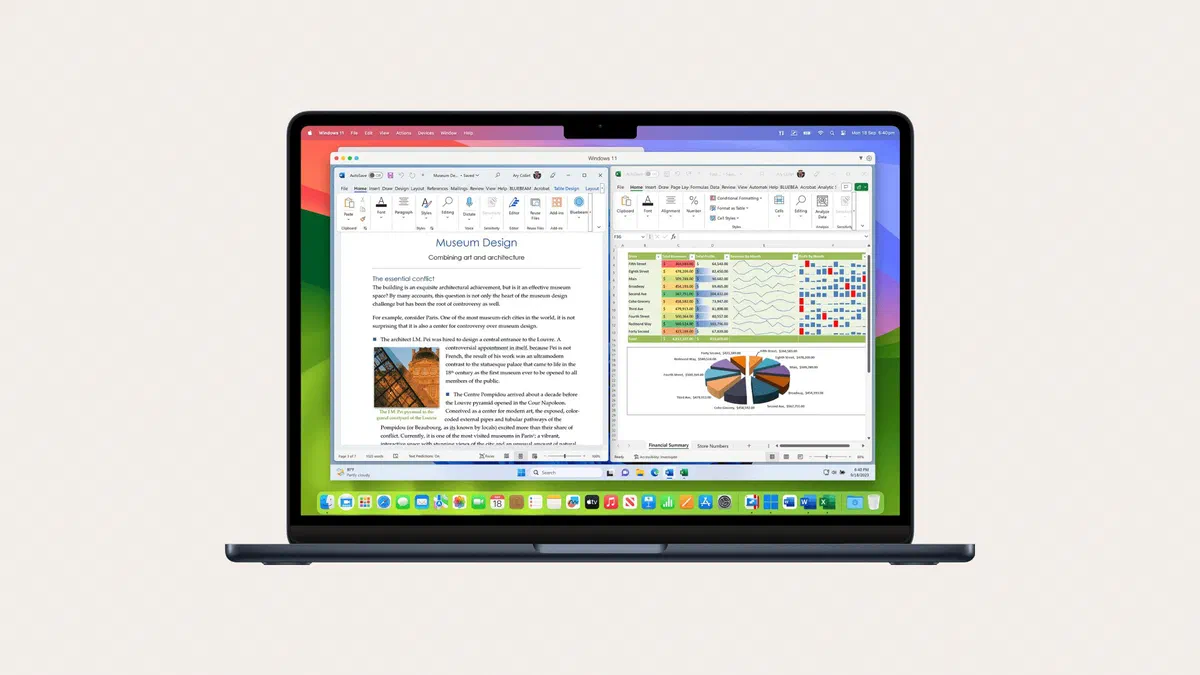
With Apple chips, Boot Camp—which launched Windows directly on the hardware—is gone. Virtual machines remain, and they work well today for two reasons: Windows exists as an ARM version, and its translation layer allows most x86 programs to run anyway.
Main software #
| Parallels Desktop | VMware Fusion | UTM | |
|---|---|---|---|
| Cost | Annual subscription or one-time license | Free for any use | Free and open source, or a few euros on the Mac App Store |
| Guest OS | Windows 11 ARM, Linux, macOS | Windows 11 ARM, Linux | Windows ARM and x86 via emulation, Linux, others |
| macOS Integration | Highly polished | Good | Basic |
| Graphics Acceleration | Best in class, DirectX 11 | Good, with some limitations | Only for Linux, and basic |
| Ease of Use | High | Medium | More complex |
Parallels Desktop #
It is the most polished option: it installs Windows almost automatically, merges the two desktops (with Coherence mode, Windows windows sit alongside Mac ones), and has the best graphics.

It requires payment via an annual subscription or a one-time license, and you can purchase the Windows license directly during installation. It is also one of the solutions officially supported by Microsoft for Windows 11 on Mac. If you use Windows every day on your Mac, this is the option that will waste least of your time.
VMware Fusion #
As of November 2024, it is free for any use—personal, educational, or commercial—in its full version: it is currently the most obvious starting point. To download it, you need a free account on the Broadcom portal (which acquired VMware), and the path to reach the download isn’t the most intuitive.
It does a great job with Windows ARM and Linux, with performance close to Parallels during normal use. The limitations become apparent with heavier graphics, less frequent updates, and the fact that macOS is not supported as a guest OS on Apple Silicon.

UTM #
It is the open source alternative, based on QEMU. It has two modes: virtualization for ARM systems (fast), and emulation for x86 systems, which allows you to run old versions of Windows and legacy systems, but very slowly.

The interface is less intuitive and graphics acceleration is only available for Linux in a basic form, so skip anything that requires a dedicated GPU. For a test Linux server, for experimenting, or for running something very old, it’s excellent and costs nothing.
VirtualBox #
It was missing from Apple Silicon for years. Starting with version 7.1 (September 2024), it runs on Macs with Apple chips, and from version 7.2 (August 2025), it also supports Windows 11 for ARM, but only ARM guest systems: no x86 emulation. Compared to the other three, it lags behind in performance and integration. It makes sense primarily if you already use VirtualBox on other computers or use tools like Vagrant.

Windows on Mac: what works and what doesn’t #
You need Windows 11 for ARM. It is downloaded from Microsoft and requires a valid license: with Parallels, you buy it during installation; with the others, you must provide your own.
x86 programs usually run anyway. Windows for ARM includes Prism, a system that translates software written for Intel and AMD processors on the fly, both 64-bit and 32-bit. You lose a bit of speed, but it works fine for office applications and management software.
The critical point is drivers. Translation applies to programs, not drivers, which must be specifically written for ARM. This is why old drivers for printers and peripherals often don’t work, as do programs that install low-level services (some antivirus and corporate VPNs) and management software tied to hardware dongles. For those who need to run legacy specialized software, this is the main limitation.
No serious gaming. Graphics acceleration exists but is limited, and many recent games use anti-cheat systems that do not work on ARM or within a virtual machine.
Specialized USB peripherals, such as security dongles, smart card readers, and professional tools, sometimes work and sometimes don’t: if you need Windows specifically for these, try them before buying any license.
Linux on Apple Silicon #
This is the best-case scenario: major distributions have well-maintained ARM versions and performance is excellent.
VMware Fusion and Parallels offer almost automatic procedures, where you simply choose the distribution from a list. With UTM, you do everything manually, but it only takes a few steps.
Linux in UTM, step by step #
Download the correct ISO. It must be for ARM64 (sometimes called AArch64): Ubuntu, Fedora, and Debian all offer it. Standard x86 ISOs will only run via emulation. For a lightweight server, Docker, or development, Alpine Linux is also a great option.
In UTM, click Create a New Virtual Machine, choose Virtualize, and then Linux.
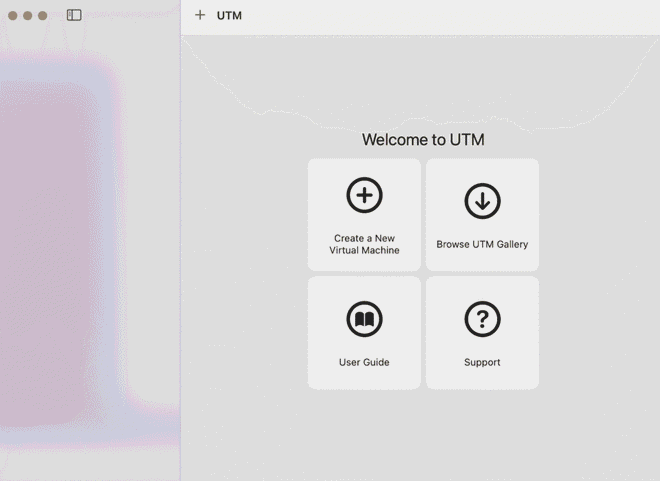
Virtualize and then Linux Leave the Use Apple Virtualization option unchecked: the default QEMU engine is more stable and compatible. Then click Browse and select your ISO.
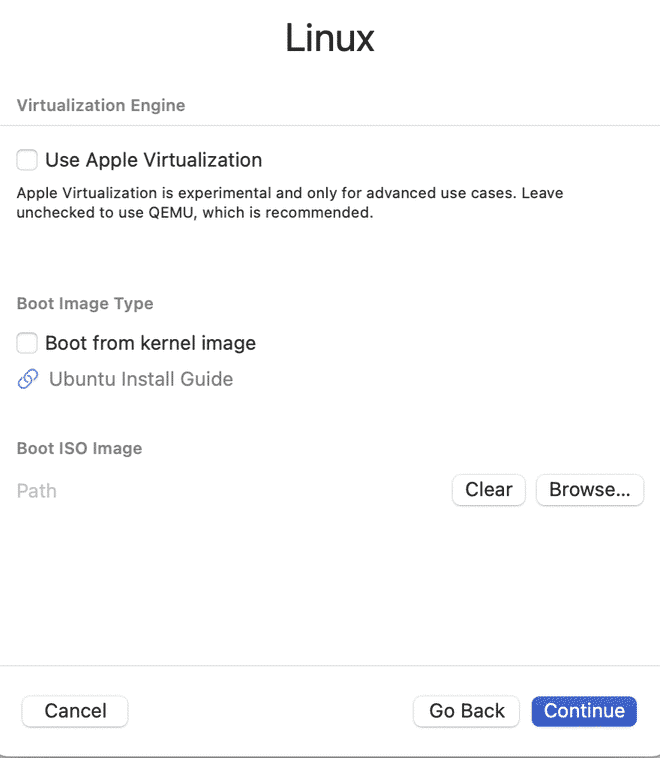
This is where you select the downloaded ISO Memory and processor. For Ubuntu desktop or a development environment, you need at least 8 GB of RAM; for a server, 2 GB is enough. As for cores, usually half of what your Mac has. If you see a black screen or graphical glitches after booting, shut down the VM and disable OpenGL hardware acceleration in the display settings.
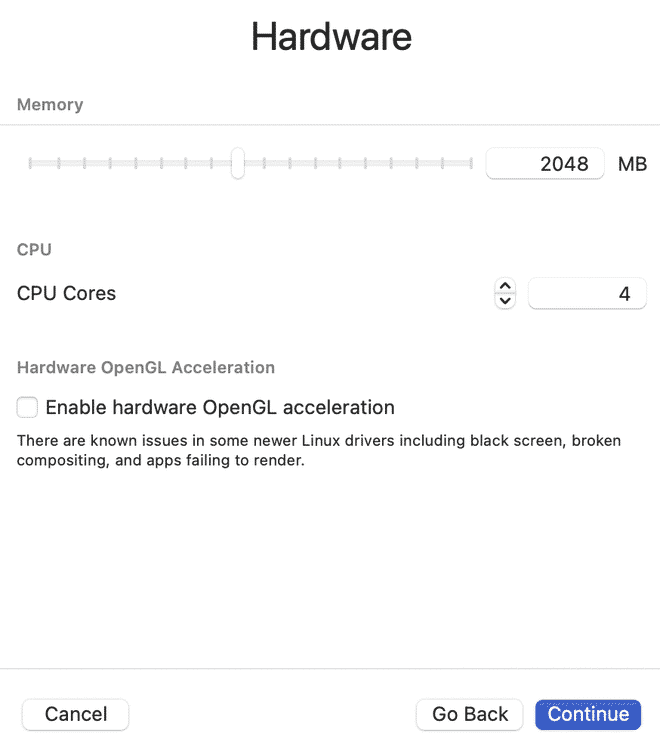
Memory and cores to assign to the virtual machine Disk and shared folder. Ubuntu Desktop needs about 20 GB; an Alpine server might only need 8. If you want, you can choose a Mac folder to share with Linux: to use it inside the VM, you’ll need to install the distribution’s SPICE tools.
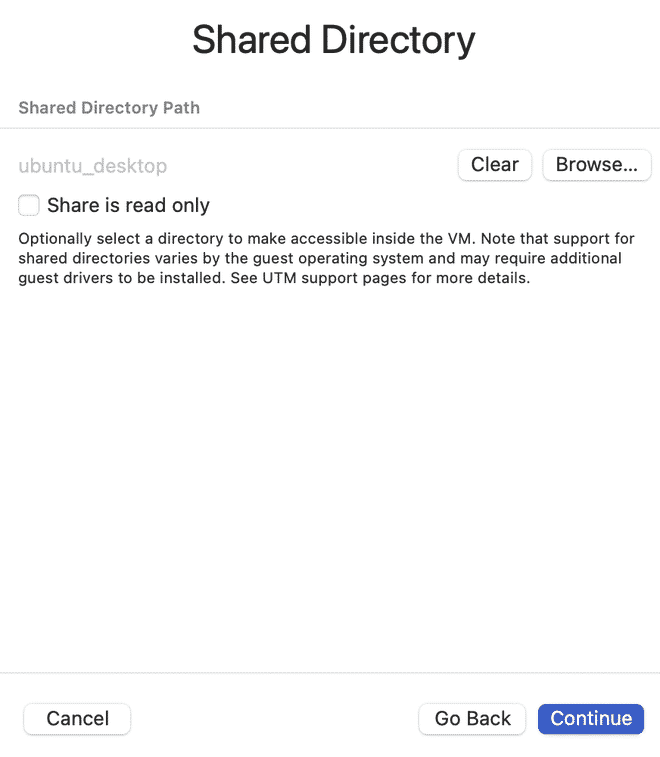
Virtual disk and shared folder with the Mac Check the summary, click Save, and then the Play button: the VM will boot from the ISO, and you can follow the standard distribution installation. Once finished, shut down the VM, remove the ISO from the virtual CD drive, and restart.
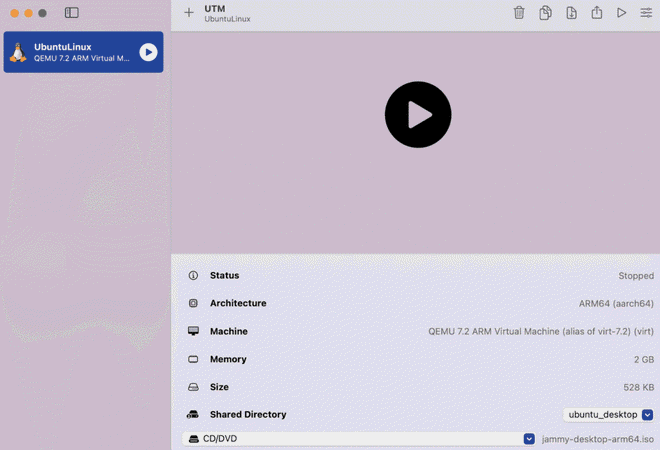
The Play button boots the machine from the ISO 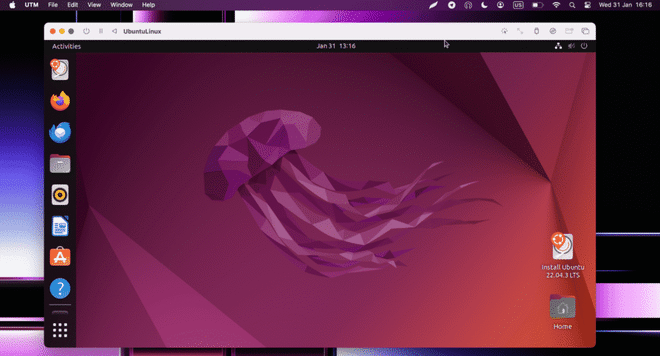
It’s the standard distribution installation process


If you are a developer, there is also a headless option: command-line tools like Lima and OrbStack create lightweight Linux machines designed for containers that start up in seconds. Starting with macOS 26 Tahoe, Apple also has its own tool, container, to run Linux containers in small virtual machines.
Virtualizing macOS #
Macs with Apple chips can run macOS in a virtual machine: this is useful for testing a new version of the OS without risking your main one, or for maintaining a clean environment dedicated to specific work. Parallels and UTM do this; VMware Fusion does not.
There are two limitations. The first concerns your Apple Account: starting with macOS Sequoia, you can access iCloud, Messages, and FaceTime even within the VM, provided both the Mac and the VM are running macOS 15 or later. The App Store, other media services, iCloud Backup, Find My, and Wallet remain excluded. The second is Apple’s licensing, which allows a maximum of two virtual macOS instances simultaneously on the same Mac.
How to choose #
- You use Windows every day and want no complications: Parallels Desktop.
- You need Windows or Linux occasionally: VMware Fusion, free for any use.
- You want to try Linux or something specific without spending money: UTM.
- You already have VirtualBox machines or use Vagrant: VirtualBox, with ARM systems.
- You need to run an old x86 program that doesn’t work on Windows on ARM: UTM in emulation mode, keeping in mind it will be slow and might not work at all.
- You only need Linux for development: try using containers with OrbStack or Lima instead of a full virtual machine.
FAQ #
Can I still use Boot Camp on an Apple Silicon Mac? #
No, Boot Camp is only available on Intel-based Macs. On Apple chips, the only way is through a virtual machine, which actually works much better than it used to thanks to Windows on ARM.
How much memory does a Mac need for virtualization? #
With 16 GB, you can work well by assigning 8 GB to the virtual machine. It’s possible with 8 GB, but it’s tight because the VM and macOS share the same memory. To run Windows and macOS together without any worries, 24 or 32 GB makes a significant difference.
Do I need to buy a Windows 11 ARM license separately? #
Yes, you need a standard license just like any other installation. With Parallels, you can purchase it during the setup wizard; with other programs, you’ll need to buy it yourself and activate it inside the virtual machine.
Do old 32-bit programs work? #
Generally, yes: Prism also translates 32-bit x86 programs. However, those that install low-level drivers or system components will crash. If you need to use management software from many years ago, try it before buying anything.
Do virtual machines drain a lot of battery on a MacBook? #
Less than you might think: Apple chips are very efficient, and an ARM VM sitting idle on your desktop consumes very little. Power consumption increases when the VM is under load—for example, while compiling or running translated x86 programs—and with UTM in x86 emulation mode, the battery will drain quickly.
Can I play Windows games on a Mac using virtualization? #
Not well. Graphics acceleration in virtual machines is limited, and many recent games won’t launch. For gaming on Mac, you’ll have better results with native games, cloud gaming, or compatibility layers designed for gaming, such as CrossOver or Apple’s Game Porting Toolkit.