Desktop Goose: The Naughty Goose Taking Over Your Desktop
Learn what Desktop Goose is, how to install and close it, how to edit the config file, and how to add your own custom memes and notes.
On this page
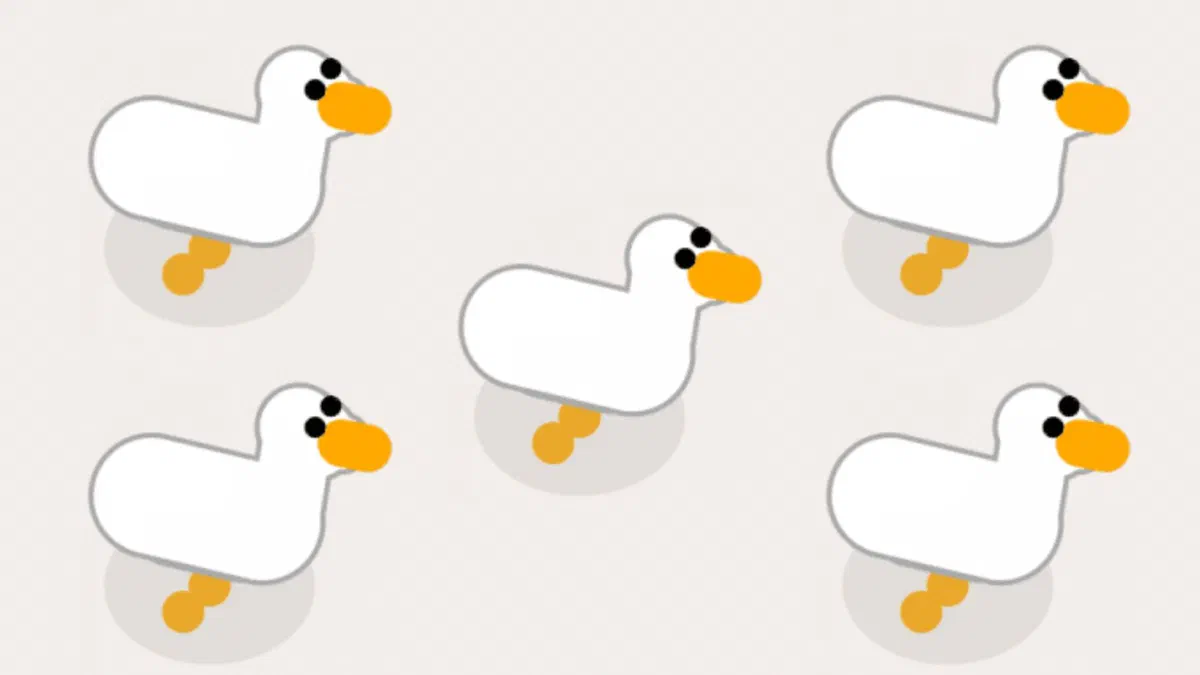
If you’ve played Untitled Goose Game, the vibe is similar. It was created by independent developer Sam Chiet, who goes by samperson on itch.io, with one stated goal: to be a little bit annoying, but in a polite way. It is available as a “name your own price” download, so it’s free if you leave the contribution at zero, and it’s available for both Windows and macOS.
What it does #
After a few seconds, the goose appears and starts living its best life:
- it walks over everything, always staying in the foreground on top of windows;
- it steals your cursor, grabbing it with its beak and carrying it wherever it wants;
- it messes up your screen with muddy footprints;
- it leaves notes in Notepad windows with grammatically incorrect phrases;
- it drags images and memes all over your desktop;
- it honks, with adjustable volume.

There are no levels, points, or objectives. That’s all there is to the program, and it works until you get tired of it.
Installing and, most importantly, closing it #
Download the archive from the official Desktop Goose page on itch.io, choosing the version for your system. You can leave the contribution at zero.
Extract the folder wherever you like. The program doesn’t need to be installed: to remove it, just delete the folder.
Run
GooseDesktop.exe. The goose arrives almost immediately.To close it, hold down Esc for a few seconds until the exit indicator appears. Alternatively, double-click the Close Goose file in the same folder.
If you run the program multiple times, you’ll end up with several geese at once. It’s funny for thirty seconds and unmanageable immediately after; to get rid of them, you have to repeat the closing process for each one.

Adjusting behavior #
Inside the folder, there is a configuration file config.goos that can be opened with any text editor, including Notepad. Each line is a setting in the form of nome=valore.
The first ones to look at are those that decide how often the goose causes trouble and those that turn individual behaviors on or off. For example, if you set Task_CanAttackMouse=False, the goose will stop stealing your cursor, which is usually what gets annoying first.
config-originale.goos. If the goose goes crazy or the program stops working after a modification, just put the backup back in its place instead of redownloading everything.Changes take effect after the next restart: close the goose and reopen it.
Adding your own memes and notes #
This is the most fun part and requires no technical skills: you just need to put files into the right folders inside Assets.
The images the goose drags are located in Assets/Images/Memes. To add your own:
- open the folder and look at the existing files so you can see the format and dimensions;
- copy your images into it (animated GIFs work too);
- restart the program.
From then on, the goose will also use yours: a group photo, an office logo, or that one joke only you find funny.

Notes work in the same way, but with text: the phrases are in text files inside Assets/Text/NotepadMessages. Add a file or a line to create a new phrase; delete the original ones and the goose will only say what you’ve written.
Two tips: keep images small, because a full-resolution photo can cover half the screen when the goose drags it, and always save a copy of the Assets folder before making changes to it.
If you want to go further, there are community mods: the author added a system for writing extensions with new behaviors and even new characters. These are activated via the configuration file and only work on Windows.
Project status #
Development has stalled: Desktop Goose hasn’t received updates in years. It continues to work because it does one thing and it still does it, but no new features or bug fixes are coming. If something isn’t working right on a recent version of Windows or macOS, there is no newer version to wait for.
When not to use it #
- On office computers, especially if they are managed by your company: a program that overlays all windows usually goes against internal policies.
- During a presentation or a video call, for obvious reasons.
- On someone else’s computer without telling them. It seems like a harmless prank, but to those who don’t know what it is, a goose stealing the mouse cursor looks like a glitch or a virus.
FAQ #
Is Desktop Goose free? #
Yes. It is “pay what you want”: you can enter zero as your contribution and download it for free. If you want to support the author, you can leave whatever amount you like.
How do I close it if it doesn’t respond? #
Hold down Esc for a few seconds. If that doesn’t work, use Close Goose in the program folder, or as a last resort, end the process via Task Manager (on Mac, use Activity Monitor).
Does it work on macOS? #
Yes, there is a Mac version. However, community mods only work on Windows, so on Mac you get the base goose and its configuration.
Does it slow down the computer? #
No, it uses very little resources: it’s a tiny program that draws a few images on your screen. The distraction is intentional, but only for you, not for your processor.
Is it a virus? #
No. Antivirus warnings are false positives caused by the unusual way the program uses the mouse and windows. Only download it from the author’s official page, as modified copies of such a popular program are always circulating.