Best Virtualization Software: A Complete Comparison Guide
Compare the best virtualization software for Windows, Mac, and Linux, including Hyper-V, VMware, VirtualBox, Parallels, KVM, and QEMU.
On this page
A virtual machine is a fake computer running inside your own: you can install Windows, Linux, or macOS just like on a real PC, test them out, break them, and restore them without touching your main system. To choose the right software, three things matter: your computer’s operating system, what you need the virtual machine for, and how much you want to spend. On this page, I compare Hyper-V, VMware Workstation Pro, VirtualBox, Parallels Desktop, VMware Fusion Pro, UTM, KVM, QEMU, and, for servers, Proxmox VE.
What is virtualization and how does a hypervisor work? #
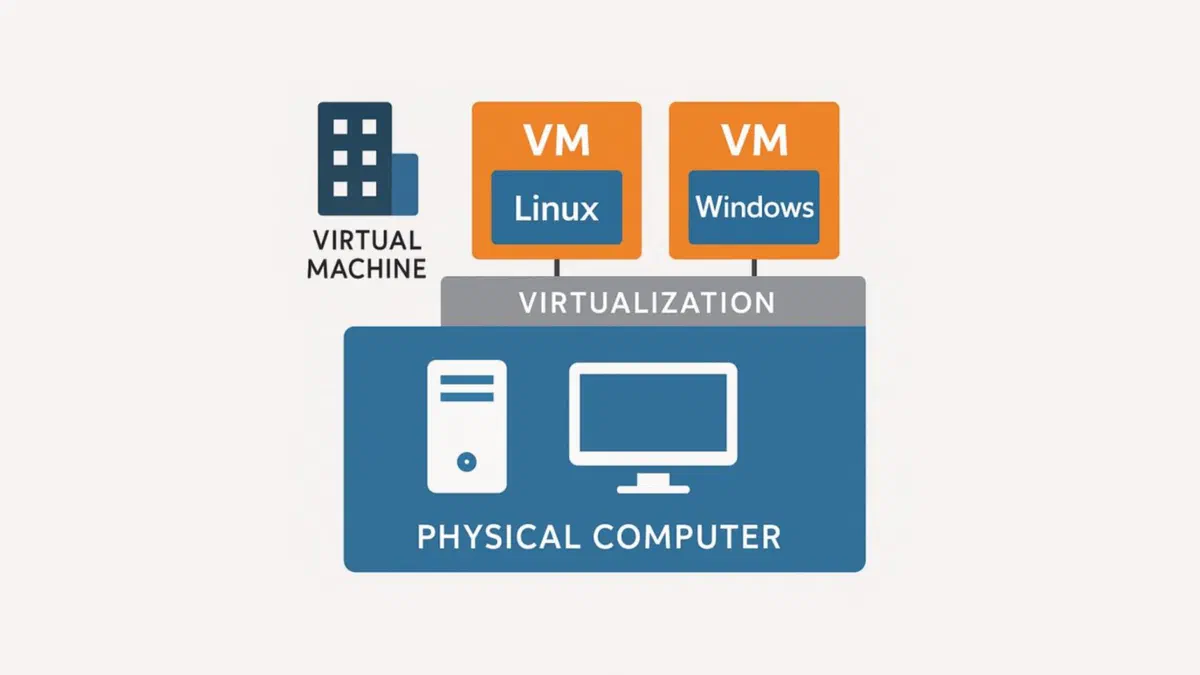
Virtualization places a layer between the hardware and the operating system so that computer resources (processor, memory, disk) are divided into separate units: virtual machines. The software that acts as the intermediary is called a hypervisor.
Type 1 and Type 2 hypervisors #
There are two types:
- Type 1 (bare-metal): works directly on the hardware or is integrated into the operating system. Examples: Hyper-V, KVM, Proxmox VE. High performance, designed primarily for servers.
- Type 2 (hosted): runs on top of an already installed operating system, just like any other program. Examples: VirtualBox, VMware Workstation. Easier to install, ideal for desktop use.

In all cases, you need your processor’s hardware virtualization (Intel VT-x or AMD-V) enabled in the BIOS. On Windows, you can check this in Task Manager, under the Performance tab → CPU, looking at Virtualization.
The best virtualization software for Windows #
On Windows, you have one built-in tool and two free alternatives.
Microsoft Hyper-V #
Hyper-V is included in the Pro, Enterprise, and Education editions of Windows 10 and 11 at no extra cost. Virtual machines run at nearly native PC speeds, and you can manage local or remote hosts using Hyper-V Manager. It is also the foundation for WSL2 and Windows Sandbox. It is not available on Windows Home.
You enable it via Turn Windows features on or off by checking Hyper-V, then restart your computer. Documentation can be found on the Microsoft page on virtualization and Hyper-V. With Quick Create, you can download and install an Ubuntu or Windows virtual machine in just a few clicks.
VMware Workstation Pro #
VMware Workstation Pro supports almost all x86 operating systems and features snapshots, configurable virtual networks, and 3D acceleration with DirectX 11 and OpenGL. After becoming free for personal use in May 2024, Broadcom made it free for commercial and educational use as well starting in November of that year; from 2026, it won’t even require a license key. In exchange, direct support has been replaced by documentation and forums. The old free version, Workstation Player, no longer exists: it has merged into the Pro version.
To download it, you will need a free account on the Broadcom Support Portal, under the “My Downloads” section.
Oracle VirtualBox #
VirtualBox is open source, free, and runs as a host on Windows, Linux, macOS, and Solaris. The interface is a bit dated, but it is reliable and integrates with Vagrant to create reproducible development environments. After installing the system in your virtual machine, install the Guest Additions: these enable video acceleration, shared folders, shared clipboard, and automatic window resizing.
You can download it from the official VirtualBox website. If Hyper-V is active on your PC, VirtualBox will still work but more slowly, as it has to run through it.
The best virtualization software for Mac #
On Macs with Apple silicon, the rules have changed: virtual machines must be for ARM processors, meaning Windows 11 for ARM and ARM versions of Linux. x86 Windows programs haven’t disappeared, though, because Windows 11 ARM translates them automatically.
Parallels Desktop for Mac #
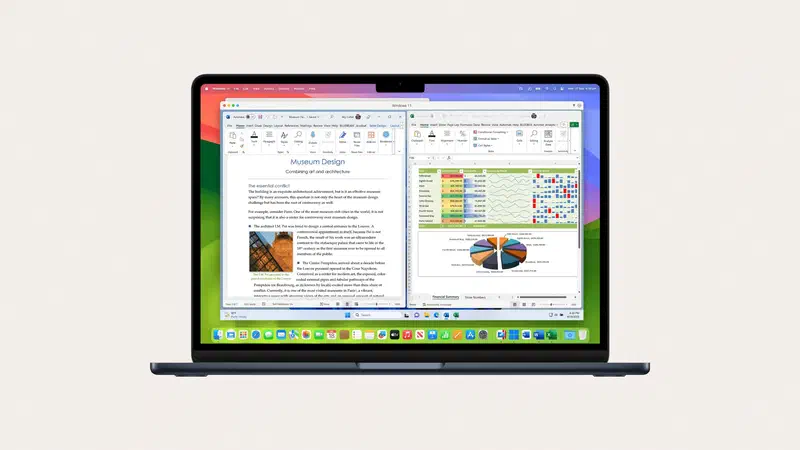
Parallels Desktop is the most integrated with macOS: with Coherence mode, you can use Windows apps as if they were Mac apps by launching them from the Dock and dragging files between the two systems. It automatically configures RAM and CPU based on what you are doing (gaming, work, development). It is currently on version 26, aligned with macOS Tahoe, and it downloads Windows 11 ARM for you. The Standard plan costs about €100 per year, while Pro for developers is around €120; a perpetual license is also available.
Free trials and plans are available on the official Parallels Desktop page.
VMware Fusion Pro #
VMware Fusion Pro is the Mac version of Workstation Pro: it runs Windows, Linux, and macOS, is optimized for Apple chips, and like Workstation, it is free for any use. It features snapshots, OCI containers, and vSphere connectivity. While its integration with macOS is less polished than Parallels, it costs nothing.
This can also be downloaded from the Broadcom Support Portal with a free account.
UTM #
UTM is free and open source, built on QEMU and Apple’s virtualization framework. It runs Linux and macOS at full speed and, through emulation, can also run systems designed for different processors, such as Windows x86 or older PowerPC systems (though much more slowly). For anyone who wants to try Linux on a Mac without spending any money, it’s the easiest option.
Oracle VirtualBox on Mac #
As of version 7.1, VirtualBox also runs as a host on Macs with Apple silicon. However, performance and support for guest systems are still less refined than Fusion Pro or Parallels, which remain the most solid choices for everyday use.
The best virtualization software for Linux #
Linux is the home of modern virtualization.
KVM (Kernel-based Virtual Machine) #
KVM is a Linux kernel module that turns the system into a Type 1 hypervisor. It supports x86, ARM, and PowerPC processors, and you manage it using Virtual Machine Manager (virt-manager) or via libvirt command-line tools. It is the foundation for many open-source and commercial platforms, including cloud services.
Documentation and links can be found on the official KVM website. On Ubuntu, you can install everything with sudo apt install qemu-kvm libvirt-daemon-system virt-manager.
QEMU #
QEMU is a complete emulator and virtualizer: it can emulate processors different from the one you have and, when used with KVM, runs at nearly native speed. It can run without administrator privileges, making it convenient for isolated testing environments. It is powerful but complicated to configure manually, which is why it often works “underneath” other programs like virt-manager, Proxmox, and UTM.
Sources, binaries, and guides are available on the official QEMU website.
Proxmox VE #
Proxmox VE is a complete operating system based on Debian that you install on a dedicated computer: you manage it via a web browser to run KVM virtual machines and LXC containers, featuring backups, snapshots, and clustering. It is free and open source (subscriptions are only required for support and the stable enterprise repository), and it has become the most common choice for home servers and many companies that moved away from VMware following the Broadcom acquisition.
VMware Workstation Pro and VirtualBox on Linux #
VMware Workstation Pro and VirtualBox are also available for Linux, offering the same features as their Windows versions. On Linux, Workstation Pro uses Vulkan for graphics instead of DirectX and is compatible with all major distributions, including Ubuntu, Debian, Fedora, and RHEL.
OpenVZ, which you will see mentioned in many guides, virtualizes using containers on a modified Linux kernel; it is still used by some hosting providers, but today LXC and Proxmox are used for almost the same purpose.
Price and feature comparison: which virtualization software should you choose? #
| Software | Host | Cost | Strengths |
|---|---|---|---|
| Hyper-V | Windows Pro/Enterprise/Education | Free | Integrated, WSL2 base, native performance |
| VMware Workstation Pro | Windows, Linux | Free (personal and commercial) | Snapshots, 3D, virtual networks |
| VirtualBox | Windows, Linux, Mac (including Apple Silicon) | Free, open source | Cross-platform, Vagrant |
| VMware Fusion Pro | Mac | Free (personal and commercial) | Apple Silicon, vSphere |
| Parallels Desktop | Mac | Starting from about 100 euro per year | Coherence, macOS integration |
| UTM | Mac | Free, open source | Simple, can also emulate other architectures |
| KVM | Linux | Free, open source | In-kernel, Type 1 |
| QEMU | Linux and others | Free, open source | Emulates multiple architectures |
| Proxmox VE | Dedicated computer | Free, paid support available | Servers, VMs, and containers via browser |
On a Windows PC, Hyper-V or VirtualBox cover almost everything for free, and Workstation Pro is now even free for work use. On Mac, Parallels remains the most polished option if you use Windows every day, while Fusion Pro and UTM are excellent free alternatives. On Linux, KVM with virt-manager offers maximum control, and for a dedicated server, Proxmox VE is the easiest path.
If you work with containers and Kubernetes, take a look at Docker: it isn’t a hypervisor, but for that type of work, it is often better suited. To try complete operating systems, take snapshots and isolate environments, virtual machines remain indispensable.
Frequently Asked Questions #
Is VMware Workstation Pro free even for business use? #
Yes. As of November 2024, Broadcom made it free for commercial and educational use as well as personal use. However, direct support is no longer included; you are left with the documentation and community forums.
Does VirtualBox work well on Macs with Apple Silicon? #
It runs as a native host starting from version 7.1, but it is still less mature on Apple chips than Fusion Pro, Parallels, or UTM, which remain the most reliable choices for these computers.
Which virtualization software is best for beginners? #
On Windows, Hyper-V if it’s already included in your edition (via Quick Create) or VirtualBox for its simplicity. On Mac, Parallels Desktop is the most user-friendly, though it is a paid product; for a free option, use UTM.
What is the difference between an emulator and a virtual machine? #
An emulator uses software to recreate hardware different from your own—for example, an old console or a processor with a different architecture. It always works, but it is slow. A virtual machine uses your computer’s processor directly through the hypervisor, so it runs at nearly the same speed, but only for systems sharing the same architecture. QEMU can do both.
How much RAM does a virtual machine need? #
It depends on the system you install: Windows 11 requires at least 4 GB, while a lightweight Linux distribution can get by with 2 GB. As a rule of thumb, do not assign more than half of your computer’s total RAM to the virtual machine, otherwise, it will slow down your main system. With 16 GB, you can comfortably run one VM at a time; with 32 GB, you can even run two or three.
Can I catch a virus in a virtual machine? #
Yes, the system inside the virtual machine can get infected just like a real PC. However, usually, the virus stays there, isolated from your main system, and with a snapshot, you can revert to the state before the infection in just a few seconds. To reduce risks when testing suspicious files, do not enable shared folders or clipboards, and disconnect the VM from your home network.