Free Up Windows Space: How to Find Large Files
Discover how to use TreeSize Free, WizTree, and Windows tools to find what's taking up space and know exactly what is safe to delete.
On this page
The right order is this: first look, then use Windows tools for safe cleaning, and only at the very end should you touch your personal folders. If you skip the first step, you’ll end up deleting things that don’t take much space or, even worse, things you actually need.
Analyze the disk #
TreeSize Free #
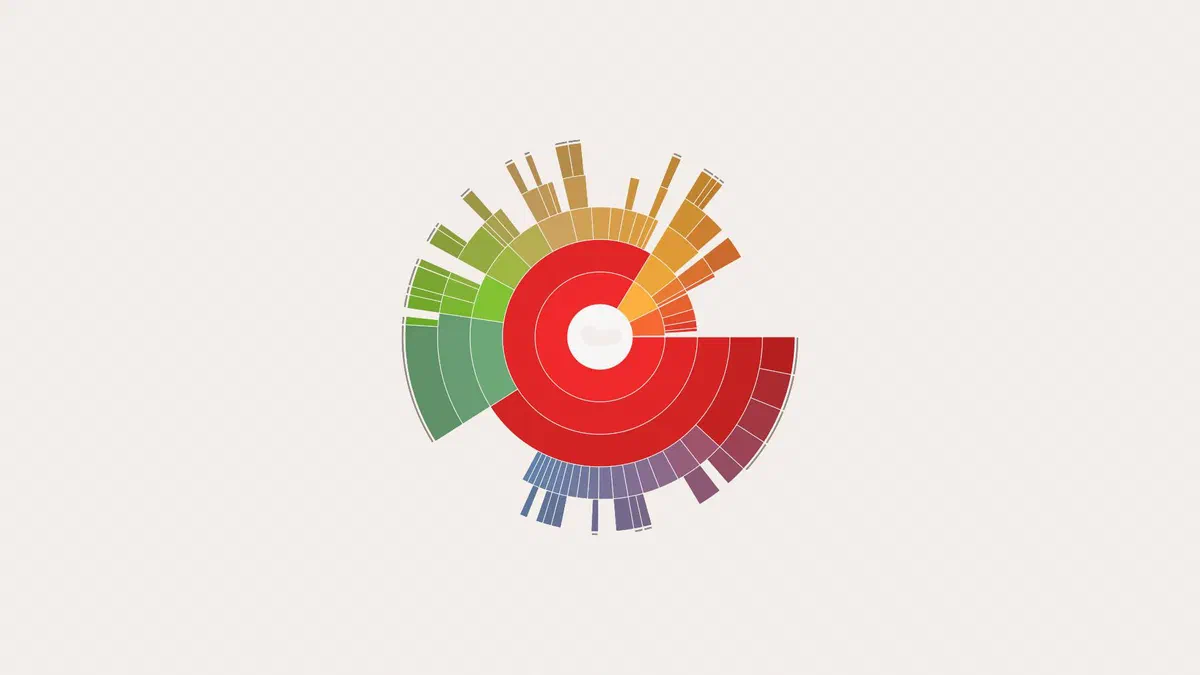
It shows you a folder tree sorted by size, complete with percentages and a map that makes large blocks stand out immediately. You can filter by file type, change the unit of measurement, and double-click to drill down into subfolders. You can download it from the JAM Software website, including a portable version you can keep on a USB stick.

A licensing detail many don’t know: the Free version is permitted for private use only, not commercial, and it is not supported on Windows Server. In a business environment, you will need one of the paid versions.
WizTree #
It does the same thing in much less time because it reads the Master File Table (MFT) directly instead of opening folders one by one. On a drive full of small files, your wait goes from several minutes to just a few seconds. WizTree is also free for personal use only.
If you are looking for an open source alternative that is also free for work, there’s WinDirStat, which became much faster starting with version 2 in 2024.

Built-in Windows tools #
Settings → System → Storage divides space into categories (apps, documents, temporary files, other): this is enough to get an idea without installing anything. From here, you can also access temporary files and Cleanup recommendations, which list large files, rarely used apps, and files already synced to the cloud.

What you can safely delete #
Temporary files. Go to Settings → System → Storage → Temporary files. Check boxes for Windows Update cleanup, Recycle Bin, thumbnails, and previous Windows installations. Leave the Downloads folder alone if you aren’t sure: it’s in the list, but your personal files are inside.
The Windows.old folder. This contains the previous version of your system after a major update and can weigh dozens of gigabytes. It is only useful for rolling back within the next 10 days; once that period passes, Windows removes it automatically, otherwise you can remove it from the same temporary files screen. Do not delete it manually.
Browser and game caches. You clear these through the settings of each individual program. Gaming platforms, in particular, accumulate installation files and shaders that are no longer needed.
Excessive restore points. Search for Create a restore point in the Start menu, click Configure, and lower the maximum usage: this frees up space immediately.
Storage Sense. You can turn it on in Settings → System → Storage: once enabled, Windows will automatically clear your Recycle Bin and temporary files at regular intervals.
The big occupants people forget #
- Hibernation file (
hiberfil.sys): this takes up about 40% of your installed RAM. If you don’t use hibernation, you can remove it via an administrator command prompt withpowercfg /hibernate off. However, doing this also disables Windows Fast Startup. - Paging file (
pagefile.sys): you shouldn’t remove this, but on computers with plenty of RAM, you can reduce its maximum size. - Sync folders: OneDrive, Dropbox, and similar services can keep a local copy of everything. With Files On-Demand, documents stay in the cloud until you actually open them.
- Old phone backups (iTunes backups are located in
%appdata%\Apple Computer\MobileSync\Backup) and forgotten disk images in personal folders: these are often the heaviest items of all.
What not to touch #
Do not touch WinSxS. The C:\Windows\WinSxSfolder looks massive in any analysis program, but that size is largely artificial: it contains links to files located elsewhere, and tools count them twice. If you empty it manually, Windows will become unstable or fail to boot. The only correct way to reduce its size is through the official component cleanup command:
Dism.exe /Online /Cleanup-Image /StartComponentCleanup
For the same reason, leave System32, Program Files (programs should be uninstalled via Settings → Apps, not by deleting their folder) and drivers in DriverStore alone, as there are specific tools for them.
Be wary of “optimizers” that promise dozens of gigabytes of free space with one click: at best, they do what Windows already does; at worst, they remove registry keys and files whose purpose they don’t understand.
When the problem is a drive that is too small #
If your drive fills up again within a few weeks after cleaning, the issue is capacity. You have three options, from cheapest to most expensive:
- Move data to an external drive or a second internal drive, leaving only Windows and your programs on the system drive.
- Change the installation folder for your heaviest games and programs. Steam, Epic, and Xbox also allow you to move already installed games to another drive without redownloading them.
- Replace the drive with a larger one and clone its contents: on a laptop with only one slot, this is often the only solution.
Remember that an SSD filled beyond 90% slows down significantly. Keeping 10-15% of the space free helps it perform as intended.
FAQ #
Is TreeSize Free also free for work? #
No. JAM Software only allows it for private, non-commercial use. For business environments, you need the Personal or Professional versions, which add features like duplicate searching, reporting, and scheduled scans. For a free alternative that is also okay for work, there’s WinDirStat, which is open source.
Is TreeSize Free safe? #
Yes. It simply reads the disk: it doesn’t delete anything on its own; you decide what to remove. Only download it from the JAM Software website or the Microsoft Store.
Can you use it from a USB flash drive? #
Yes, there is a portable version that doesn’t require installation: just download the ZIP file, extract it onto your flash drive, and run the program from there—even on computers that aren’t yours.
Which is better: TreeSize or WizTree? #
They do the same job in different ways. WizTree is much faster because it reads the disk’s Master File Table (MFT), so I prefer it for very full drives. TreeSize offers a richer visualization and, in its paid versions, reporting features. Both free versions are for personal use only.
Is it safe to delete the Windows.old folder? #
Yes, as long as you use Disk Cleanup rather than dragging it to the Recycle Bin. Keep in mind that once it’s gone, you won’t be able to roll back to your previous version if an update causes issues.
Why does my space fill up again after cleaning? #
Usually for three reasons: Windows updates keeping old files, program caches rebuilding themselves, and sync folders downloading everything locally again. Storage Sense handles the first two; for the third, it enables “Files On-Demand.”
Do I need to defragment the drive to free up space? #
No, those are two different things: defragmentation reorganizes data, it doesn’t delete it. And you shouldn’t do it on SSDs at all: Windows automatically applies the correct optimization for that type of drive (the TRIM command).