Install Windows 11 No Microsoft Account
Learn how to install Windows 11 without Microsoft account by creating a local account. Updated guide with command prompt (OOBE) and USB Rufus key.
When you start configuring a new PC with Windows 11, the default requires mandatory access via an online profile. However, the reasons for preferring the creation of a local account are multiple: you may need to prepare a device for a child, set up a computer intended for sale, or simply want to maximize your privacy by reducing data sharing in the cloud.
Fortunately, you can bypass this restriction imposed by Microsoft. In this guide you will find out how to install Windows 11 without Microsoft account using two test procedures: the first uses the Prompt of commands to disable the network during the initial setup, while the second involves the use of a pre-configured bootable USB key.
Method 1: Install Windows 11 with a Local Account via Prompt #
There is an integrated method in the system, known as the OOBE bypass (Out-Of-Box Experience), to avoid connecting the PC to the Internet during the first configuration and forcing the creation of a local offline account. Follow these steps:
- Inizia l’installazione di Windows 11 normalmente, seguendo le istruzioni a schermo, fino a raggiungere la prima schermata in cui ti viene chiesto di selezionare il tuo paese o area geografica.
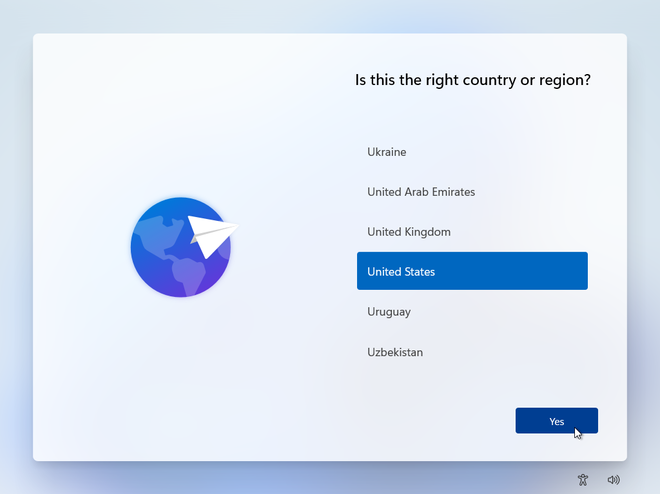
- Apri il Prompt dei Comandi: Premi contemporaneamente i tasti Shift + F10 (su alcuni portatili potrebbe essere necessario premere Shift + Fn + F10) per richiamare la finestra del prompt dei comandi con privilegi di amministratore.
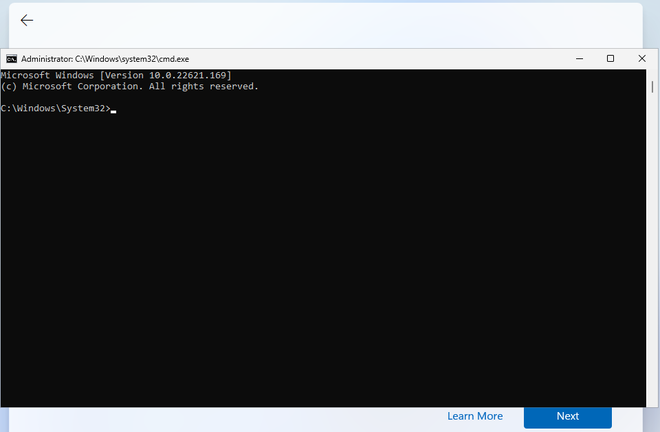
- Disable the Internet connection requirement: Inside the black console, type exactly the
OOBE\BYPASSNROcommand and press Enter. The computer will automatically restart the system.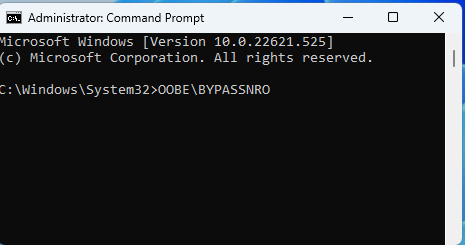
- When you start again at the start screen, repeat Shift + F10 to reopen the command prompt. Now type
ipconfig /releaseand press Enter. This operation will strongly disconnect any active network interfaces.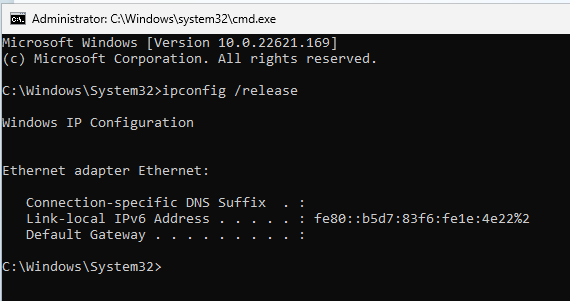
- Close the command prompt (you can click on the X or type exit) and continue with the standard setup, setting your region and keyboard layout.
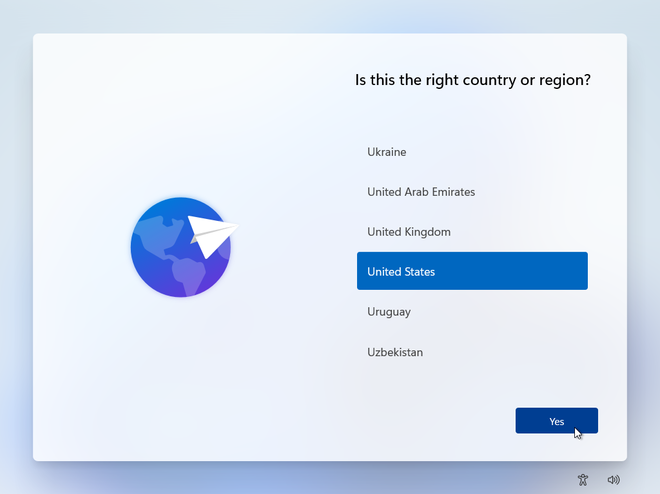
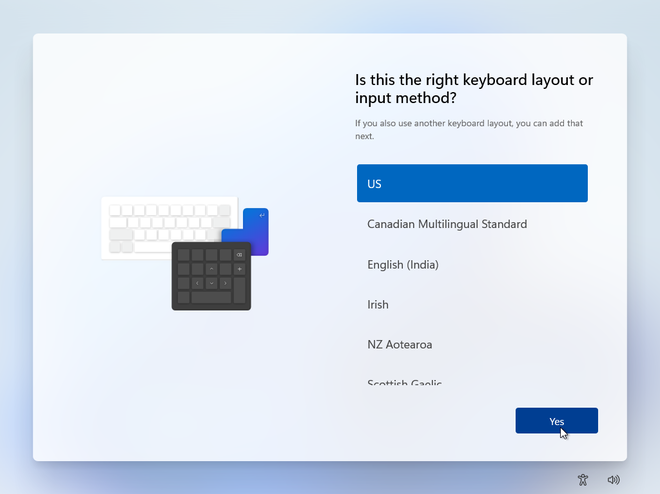
- When the screen appears that requires you to connect to a Wi-Fi or Ethernet network, you will notice a new option below. Click on “I don’t have the Internet” and, on the next screen, select “Continue with a limited configuration”.
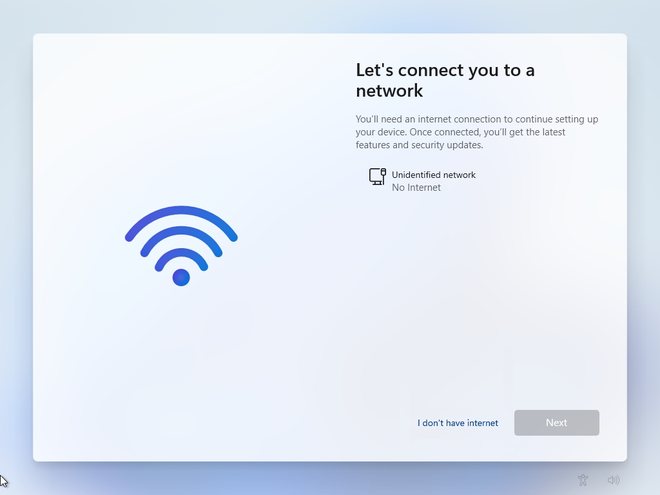
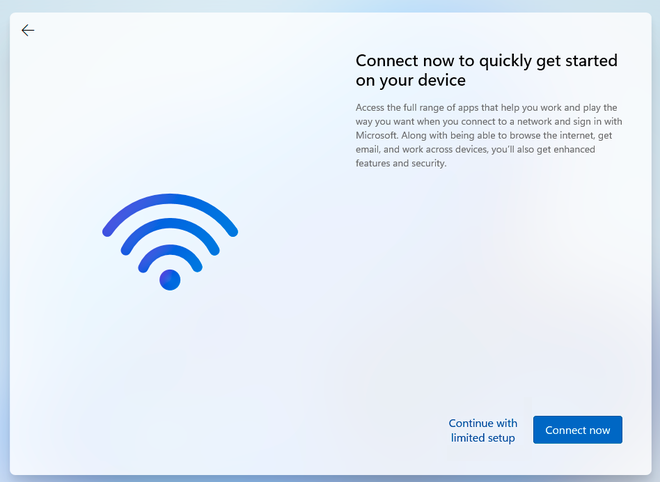
- Enter a username now and, if you want to ensure greater local security, set a password for your new profile.


From this moment on, the installation will be completed normally by loading the Windows desktop without the need to authenticate on the Microsoft servers.
Method 2: Create a modified USB Installation Key with Rufus #
If you need to format or configure multiple PCs and look for an automated solution, you can prepare a bootable pendrive in advance. This tool will allow you to bypass network blocks natively without having to type any line of code during setup.
- Go to the official page and download the original ISO image of Windows 11 from the Microsoft site.
- Proceed to download Rufus, the most secure and reliable open source utility for creating bootable USB units. It is recommended to use version 4.4 or later for full compatibility.
- Insert a USB key with a minimum capacity of 8 GB in your PC. Caution: all data in it will be irreparably formatted and deleted.
- Launch Rufus executable, select your USB key in the “Device/Unity” menu and click “Select” to upload the previously downloaded Windows 11 ISO file.
- Clicca sul pulsante Avvia (Start). Verrà visualizzata una finestra di dialogo con alcune opzioni per personalizzare l’installazione. Spunta l’opzione “Rimuovi il requisito di un account Microsoft online”. Se il PC su cui andrai a installare il sistema è obsoleto, puoi anche flaggare “Rimuovi i requisiti di Secure Boot/TPM 2.0 e RAM” per assicurarne il funzionamento.
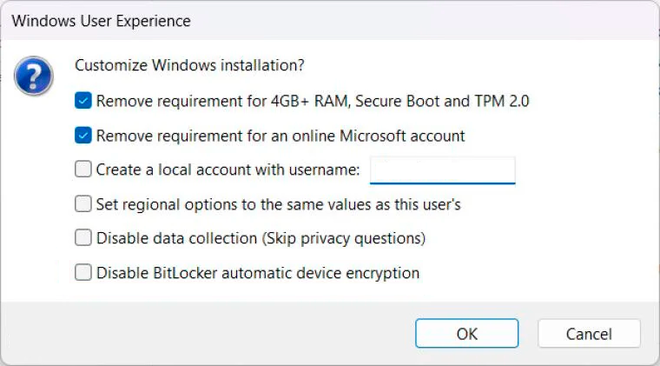
- Confirm the operation. Rufus will take a few minutes to format the drive and copy the system files, returning a perfectly ready-to-use key.

Unplug the key, insert it into the new PC, start it from USB and enjoy a clean and completely untied installation from cloud accounts.
FAQ: FAQ #
Can I add my Microsoft account later? #
Yes, the choice is not definitive. If you need cloud services in the future (such as OneDrive or Microsoft Store), you can switch from a local profile to an online one by going to Settings > Account > Your info and clicking on the option to access a Microsoft account.
Is the command prompt method (OOBE\BYPASSNRO) safe and legal? #
Absolutely. The command is part of the official diagnostic tools provided in the operating system. It does not violate any license of use, does not compromise the security of the PC and does not require the download of unauthorized third-party software.
What do I lose using a local account on Windows 11? #
Opting for local mode, you will renounce the automatic synchronization of settings between devices, silent backup of files on OneDrive, tracking in case of theft (Find my device) and unified login for applications of the Office or Xbox package. All these apps, however, can be used by accessing individually at the time of need.