Mac Lento in the Start? How to Manage Login Elements
Does your Mac take too long to start? Learn how to speed up macOS by managing and removing unnecessary start and login elements. Step by step guide.
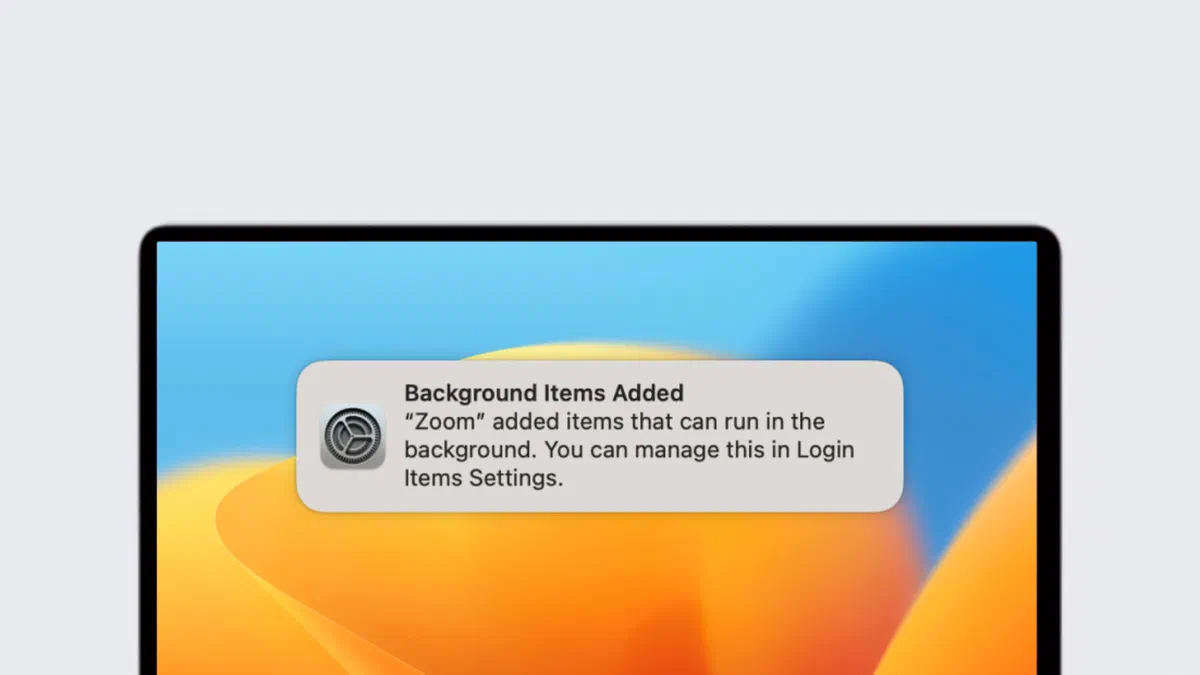
If your Mac takes too much time to start, one of the main causes may be the excessive presence of boot elements and logins. In fact, when igniting the computer, macOS automatically loads different programs, add-ons and background processes. Although most of these are useful, they often accumulate software that we ignore. Optimizing these processes is the first step to speed up Mac startup and improve overall performance.
What are the Starting and Login Elements on Mac? #
The boot and login elements are specific applications or system services programmed to activate themselves as soon as you access macOS. Some are indispensable for the proper functioning of the operating system, but others are superfluous, consuming precious RAM memory and slowing down the Mac during boot. We discover together how to locate, manage them and, if necessary, remove them safely.
How to Manage Login Elements #
macOS 13 (Ventura) or later: #
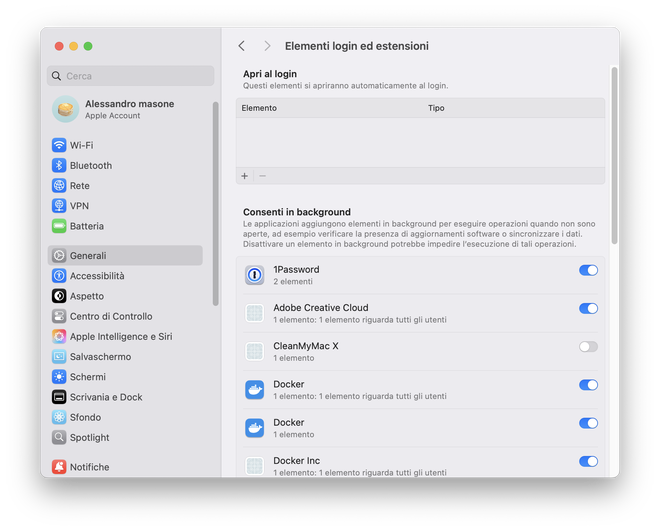
- Vai su Impostazioni di Sistema, clicca sulla voce Generali e seleziona Elementi di Login. In questa schermata troverai due sezioni distinte: una dedicata alle app che si aprono automaticamente all’accesso e un’altra per i software autorizzati a eseguire processi in background anche quando non sono attivamente in uso.

macOS 12 (Monterey) or previous versions: #
- Apri le Preferenze di Sistema, seleziona Utenti e Gruppi e spostati sulla scheda Elementi di Login. Ti verrà mostrato l’elenco dei programmi, file e cartelle che partono in automatico. Ricorda che ogni account utente sul Mac ha la propria lista personalizzata.
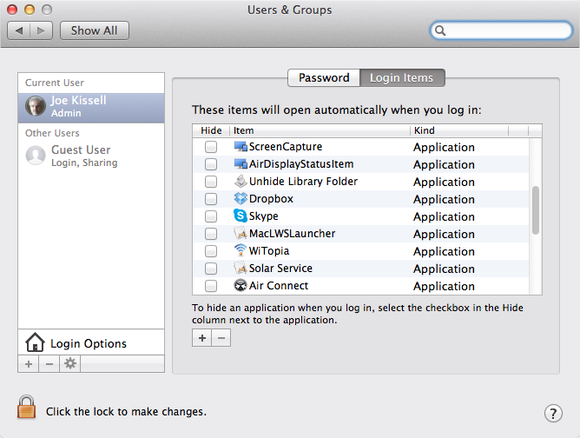

Usually, these elements are automatically integrated after installing a new application (which should always require permission). To remove a login item, just select it from the list and click on the button with the minus sign (-). On the contrary, to add one manually, use the button with the sign plus (+).
Cleaning of the StartupItems Folder #
In less recent editions of macOS, the operating system relied on two specific folders to govern startup: /Library/StartupItems /System/Library/StartupItems Today Apple has deprecated the use of these directories, but some more dated applications may continue to exploit them, weighting the system.
It is good standard to inspect the /System/Library/StartupItems path to discover any unused elements. If inside individuals folders or files belonging to software that you do not recognize or that you have already uninstalled, simply move them to the Recycle Bin. This will prevent their useless loading during ignition of the Mac.
Launchers and Agents (Launch Daemons and Agents) #
Starting with the release of macOS 10.4 Tiger, Apple introduced a much more efficient framework called launchd. This component manages the start of processes through .plist file extension (Property List), which indicates to macOS which processes start and to which exact conditions (e.g. system boot or at certain times of the day).
The plist files can be located in very precise paths:
Untouchable system folders (/System/Library/LaunchDaemons and /System/Library/LaunchAgents): they host vital native processes for macOS. They must never be altered, as their modification could compromise the stability and proper functioning of the operating system.
- User and third-party folders (~/Library/LaunchDaemons and ~/Library/LaunchAgents): include processes related to third-party software installed by the user. These can be disabled or removed with due cautele if you feel that they are no longer necessary.
Caution: act on system directories only if you have a thorough knowledge of what you are doing. Accidental deletion of critical files can cause severe malfunctions.
How to Manage Starting Processes from Terminal #
The most experienced users who want a granular and advanced control over startup processes can use the Terminal application. By typing the launchctl list command, you can view the entire list of processes currently running. To forcefully stop a specific process, you use the launchctl unload command followed by the absolute path of the .plist file.
Here is a handy command example to download (stop) an agent in the background:
launchctl unload ~/Library/LaunchAgents/com.apple.FolderActions.enabled.plist
In case of second thoughts, you will just replace a load with load to restore functionality and reload the process.
Other Hidden Processes that Slow Start #
If you can’t locate a “mysterious” process between classic login elements, launch folders or StartupItems, the cause may reside in one of these two factors:
- Kernel Extensions (kext): Located in the /System/Library/Extensions path, these extensions are loaded during the very first boot phase to provide low-level hardware support and functionality (e.g. third-party drivers). To uninstall them safely, it is always preferable to use the official uninstaller provided by the software manufacturer.
- Cron Job: Although it has been largely supplanted by launchd in modern macOS releases, the classic UNIX “Cron” planning system could still host old residual scripts configured to automatically turn on Mac.
Frequently Asked Questions (FAQ) on Starting Elements #
Is it dangerous to disable boot elements on your Mac? #
Disable apps from the " Login Options" section in System Settings is a completely secure operation. This step simply prevents automatic opening of the user interface at the time of ignition. If you decide to delete .plist files in LaunchDaemons folders, you should be capping Kernel Extensions, procedures indicated only for experienced users.
How do I understand which apps consume more resources at startup? #
The best method is to use the native Activity Monitoring application (which you can find within the Applications > Utility folder). By checking the “CPU” and “Memory” panels in the first minutes after ignition of the Mac, you can immediately isolate the heaviest processes that absorb most of your system’s resources.
If I move an app into the Recycle Bin, is the login element removed automatically? #
Not always. Moving an application in Recycle Bin often is not enough to delete its background support files. This can generate the so-called “orphan trials”, i.e. elements that try to start by no longer finding the program of origin, unnecessarily slowing the Mac. To avoid this problem, delete the login element manually using the (-) button before you delete the app, or use specialized uninstall software.