Windows 11: How to Enable It Now
Learn how to enable End Task option in the Windows 11 application bar to forcefully close blocked programs in a few clicks.
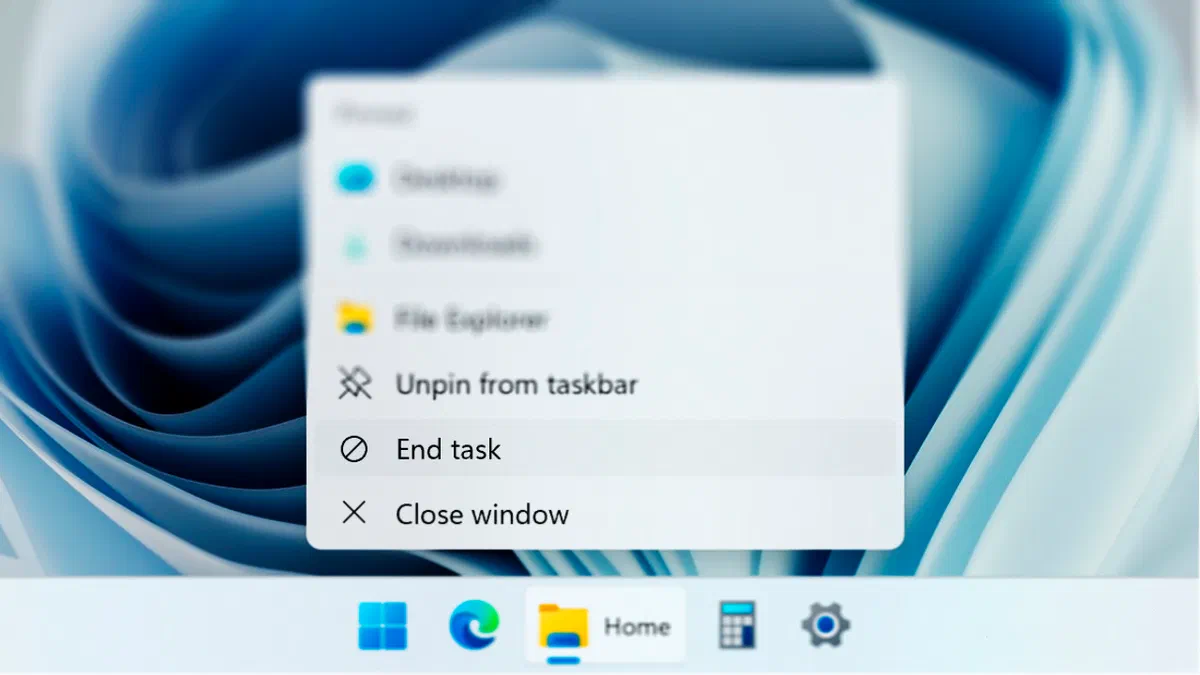
Managing applications on the Windows operating system sometimes requires drastic intervention, especially when software stops and stops responding. If in previous versions it was easy to use the Quick Command Tasks directly from the taskbar, with the initial release of the new system this convenient function seemed to have disappeared. Fortunately, Microsoft has reintroduced the option in recent updates, while keeping it disabled by default. We discover the exact steps to reactivate and optimize system management.
Difference between “Termina Attività” and “Chiudi Finestra” #
Before proceeding with activation, it is essential to understand the technical difference between the “Termina Task” command and the classic “Close Window” option in the correct management of computer processes in the background.
- End of Activity: It performs a forced closure of the program, immediately stopping the associated primary and secondary processes. This action instantly frees the RAM memory and processor resources (CPU), resulting in an indispensable operation to unlock applications that do not respond or to resolve annoying sudden crashes.
- Close Window: Send a standard signal to the software asking him to close the graphic interface safely. In many cases, however, a related process could continue to operate in the background. If an app is completely blocked or “frozen”, this standard command will be totally ineffective.
In summary, the standard window closure is the practice for everyday use, while forced shutdown is an advanced tool essential for troubleshooting and maintaining high PC performance without having to resort to a forced restart of the machine.
How to Enable “Termin Activities” on Windows 11 #
By default, by right-clicking the icon of an active application, the operating system only shows the classic closing item. To unlock the advanced forced closing function, just follow this quick wizard:
- Open the Start menu and click on Settings (alternatively, press the Windows + I keyboard shortcut).
- In the left side menu, navigate the System tab and scroll down until you locate and select the Developer section.
- On the new screen, find the option called Task Term and move the corresponding switch (toggle) to the Activated status.
- If you want to remove this shortcut from the bar in the future, just repeat the same path and turn off the switch.

Use “Termin Activities” on Windows 11 #
Once the configuration is completed, the new command string will be immediately operational in the context menu of the taskbar, exactly in correspondence of each open software, just above the canonical closure. It will become your best ally when a program will enter the annoying state “Not respond”.
If you act directly from the main interface it will save you valuable time, bypassing the need to open and search the problematic process within Business Management (Task Manager). Obviously, in the critical event in which the Explorer.exe himself stops working by preventing you from using the bottom bar, the combined use of the CTRL+MAIUSC+ keys ESC to recall the native Task Manager remains the fastest available security network.
Frequently asked questions (FAQ) #
Is it dangerous for the computer to use the command “Termina Activities”? #
No, use of forced shutdown does not damage hardware components or operating system. However, since the software is stopped at a glance, you will lose any files or changes not saved within that specific application. It is recommended to use this function only in case of abnormal software blocks.
I don’t find the “For developers” entry in Settings: what do I do? #
The quick termination function directly from the taskbar context menu has been implemented in a specific update of Windows 11. If you do not see the developers section, go to Windows Update and make sure you have downloaded and installed the latest stable version of the available operating system.
How can I close a program if the entire application bar is blocked? #
If the bottom bar does not respond to your clicks, press the CTRL + MAIUSC + ESC keys to open Task Manager immediately. From there, you can select the blocked application from the list and click on the "Term Task" button located at the top or bottom of the Task Manager window.