Google Play Games for PC: Play Android on Windows
Learn how to download and install Google Play Games for Windows. Step by step guide to play your favorite Android games directly on your PC.
If you want to bring your favorite Android titles to the big screen, thanks to the official Google Play Games app for Windows you can easily do it. In this guide you will discover the detailed steps to configure the environment and start playing on your computer.
What is Google Play Games for PC? #
The term “Google Play Games” refers to different Mountain View home services. In this article we will focus exclusively on desktop software downloadable on Windows PCs. It is important not to confuse this application with the famous smartphone app, dedicated to the management of progress and achievements on mobile devices.
The desktop operating system client allows you to download and start a vast catalog of titles directly on your computer. The system uses hardware virtualization to emulate the native environment and turn Android games on Windows with optimal performance.
Before proceeding with the installation, make sure you own a computer that can support the emulator. We recommend that you check the minimum system requirements on official Google support to ensure that your hardware is compatible with the platform.
How to download and install Google Play Games on Windows 11 #
- Visit the official Google Play project page to start the procedure.
- Clicca sul pulsante dedicato al Download per scaricare l’eseguibile.
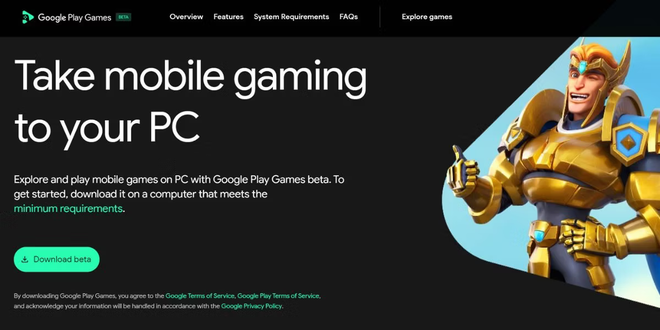
- Wait for the download time, then go to your local folder and start the installation file you just got.
- Click on Accept to confirm your acceptance of the Terms and Conditions of Service.
- Scegli se inviare le statistiche di utilizzo lasciando o rimuovendo la spunta sull’opzione “Aiuta a migliorare la tua esperienza”, dopodiché clicca su Fine.
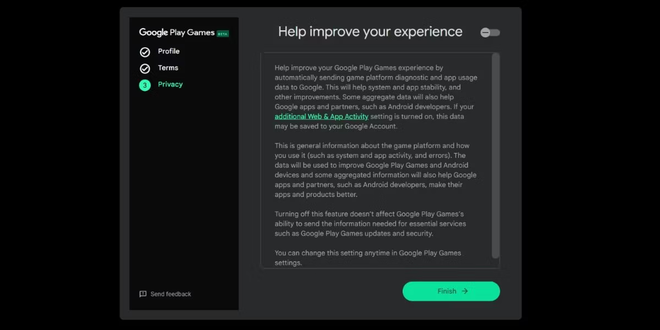


Finish this quick procedure, your system is ready to run mobile video games on your desktop.
How to install and start the Android games via the app #
Through the main interface you can browse a vast catalog and install any officially supported title. The library is constantly updated by Google and already includes hundreds of very popular masterpieces in the mobile landscape.
During the very first installation of a game, the system will automatically configure the virtualization platform of Windows (Hyper-V). It is a native component of Microsoft essential for emulation. This system operation will only be required once.
Here are the essential steps to download your first video game:
- Launch Google Play Games software from the Windows Start menu.
- On the right you will find a series of custom recommendations, based on the games you have already tried on your phone. To explore the entire database, scroll down and select View under the banner “Discover all our games”.
- Clicca sulla locandina del titolo desiderato per accedere alla scheda dettagliata e premi il pulsante Installa.
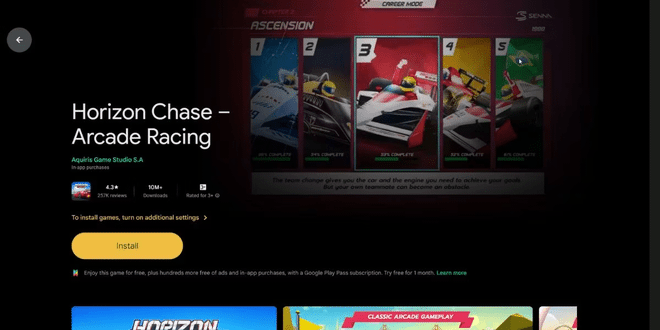
- Se il programma lo richiede, autorizza il prompt “Attivare le impostazioni di virtualizzazione” cliccando su Continua.
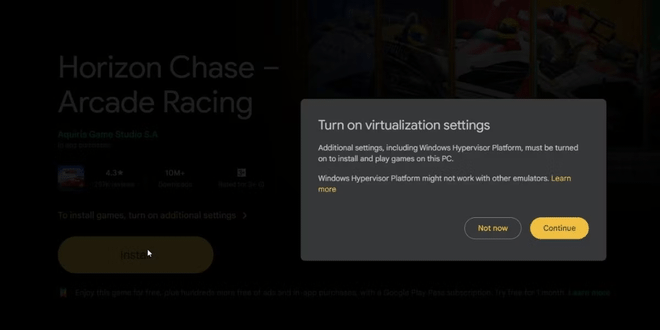
- Confirm the installation of Windows add-ons by clicking Yes.
- Finally, press OK. You will need a reboot of the operating system to apply technical changes in depth.


After rebooting your computer, do this:
- Reopen the Google Play Games desktop application.
- Ritorna sulla pagina del videogioco scelto in precedenza e clicca nuovamente su Installa per scaricare i file di gioco.
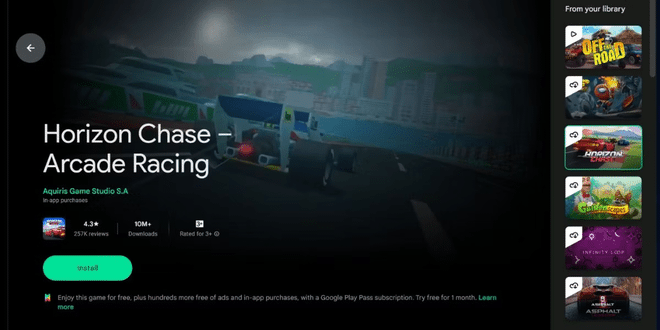
- After download, click on Play to immerse yourself in the game.

By default, the application starts the software in window mode. You can instantly switch to full screen mode using the Alt + Enter keyboard shortcut.
How to customize game controls on Google Play Games #
Switching from touchscreen to mouse and keyboard use may seem atypical at first. Fortunately, the official emulator allows you to recapture the controls according to your specific needs and habits.
Although many titles already offer comfortable internal configuration menus, if you need to manage settings manually you can force the change through system overlay:
- During the game session, press Shift + Tab to recall the options menu.
- Seleziona la voce Rimappa i controlli per visualizzare a schermo l’attuale mappatura dei tasti.
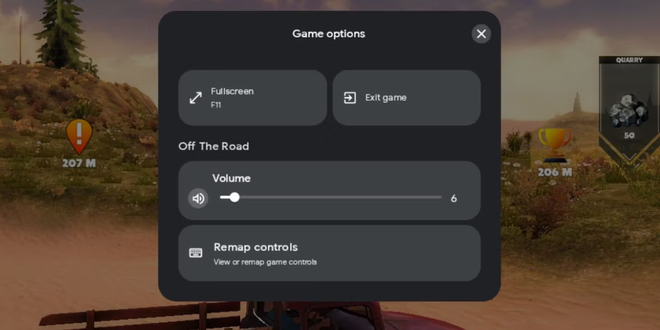
- Clicca sull’azione specifica che intendi personalizzare e premi sulla tastiera il nuovo pulsante che desideri assegnare. Il sistema salverà le impostazioni in modo totalmente automatico.
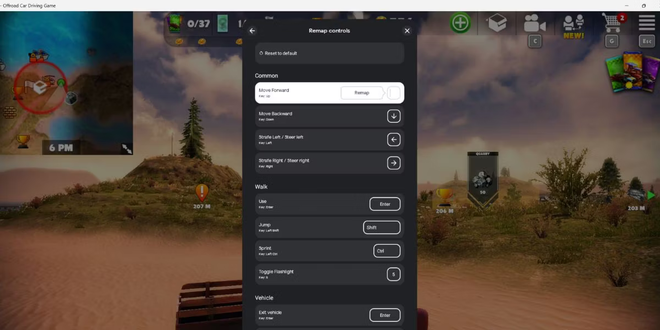
- Finish the changes, close the rebound interface by clicking on the top X and get back to play normally.


The experience of use: Google Play Games for Windows do you agree? #
Overall, software fluidity is remarkable. Full screen graphics are great, while considering that it is still a porting of games originally designed for mobile devices. In some cases you may notice reading graphic inaccuracies (aliasing), but remains a negligible compromise with respect to the stable performance offered by the application.
A small technical defect currently encountered concerns pause management: recalling options with Shift + Tab, some video games continue their running in the background without blocking. It is therefore good to use the native pause menu first within the game.
The real strength of this platform is the shared ecosystem: using your Google account for access, cloud saving, and progress will sync automatically on all your devices. You will continue to unlock the same achievements (objectives) that you are used to on your smartphone.
Compared to other well-known third-party emulators (such as Bluestacks), the official solution proposed by Google is definitely well optimized on the resource allocation front. The program consumes on average between 800 and 900 MB of memory during the game sessions. However, to use the client without bottlenecks, we recommend using a PC with at least 8 GB of RAM.
With Google Play Games you’re finally available a reliable tool to enjoy the great Android successes on your Windows PC monitor. Convincing performance and multiplatform synchronization system is a huge added value. The wait is now for future expansions of the title library.
FAQ: Frequently Asked Questions about Google Play Games for PC #
Can I install any Android apps with Google Play Games for Windows? #
No, currently the application is focused exclusively on video games. You can only install titles that have been optimized, certified and officially included by Google within the desktop catalog. You cannot upload external APK files or generic productivity apps.
Google Play Games for Windows support external controllers? #
Yes, a growing number of titles supported on the platform allows native use of joypads and PC controllers compatible with Windows (like Xbox ones). This complements the convenient customization and traditional use of the mouse and keyboard described in the guide.
Is the application compatible with Apple (Mac) computers? #
Currently, the official application is exclusively designed for Microsoft operating systems (Windows 10 and Windows 11). Google has not released a native version compatible with the macOS operating system of Apple, so Mac users will need to temporarily rely on alternative emulators.