Best Free and Paid Microsoft Office Alternatives
Compare LibreOffice, OnlyOffice, Google Docs, and more. See how they handle complex .docx files and when you should stick with Microsoft 365.
On this page
.docx files every day to people using Word, layout discrepancies become a constant nuisance.Before installing anything, remember that Microsoft offers web versions of Word, Excel, and PowerPoint for free: they are used via your browser with a free Microsoft account; they have fewer features than the installed apps but open and save files without any compatibility issues. If you only open a document occasionally, this will likely suffice.
The comparison #
| Suite | Cost | Systems | Microsoft file compatibility |
|---|---|---|---|
| LibreOffice | Free | Windows, macOS, Linux | Good, with differences in processed documents |
| OnlyOffice | Free, paid plans for groups | Windows, macOS, Linux, web | The best among the alternatives |
| Google Docs | Free | Web, mobile | Fair, loses some complex formatting |
| WPS Office | Free with ads, paid version | Windows, macOS, Linux, mobile | Very good |
| FreeOffice | Free | Windows, macOS, Linux | Very good |
| iWork | Free on Apple devices | macOS, iOS, web | Fair, exports to Microsoft formats |
| Microsoft 365 | Personal €99/year, Family €129/year | All | Native |
LibreOffice #
It is the most complete open-source suite: word processing, spreadsheets, presentations, vector drawing, databases, and a formula editor. You can download it from the official project website, which always publishes two versions: the latest one and the previous version, which is more tested for those who prefer stability over new features.
The native format is ODF, an open standard, but it also opens and saves Microsoft formats without issues. Compatibility is good with standard documents. Differences appear in more complex ones: complicated automatic numbering, anchored text boxes, certain advanced spreadsheet functions, and macros written in VBA.

I recommend it to those who produce their own documents and want a complete tool without paying for subscriptions.
OnlyOffice #
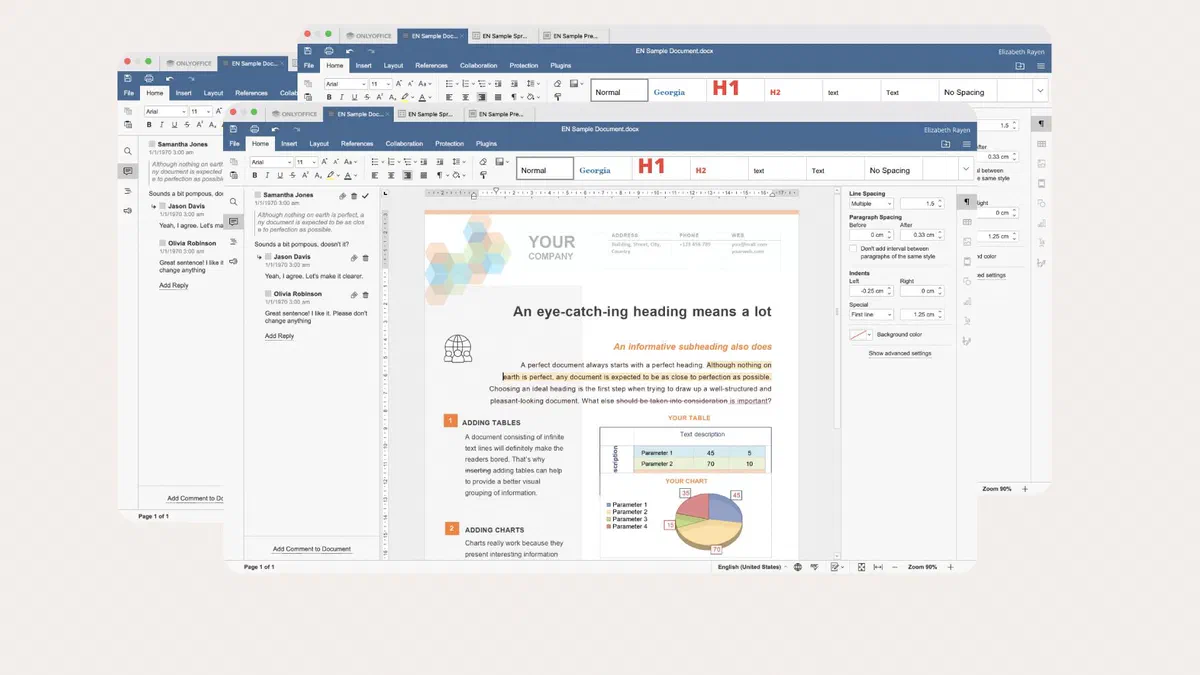
OnlyOffice uses Microsoft formats as its native formats. Because of this, when you open and resave a .docx or a .xlsx, the layout remains intact more often than with other suites. The tabbed interface also resembles Office, so you’ll get used to it quickly.

It is free for personal use. Features for collaborating in groups on your own server are part of the plans for organizations.
If your main problem is sharing documents with people using Office, start here.
Google Docs, Sheets, and Slides #
They work in the browser and perform best when multiple people are writing together: two or three users on the same document, comments, version history, and no attachments to bounce back and forth via email.

The limitation is formatting. When a complex document goes from Word to Google and then back again, something gets lost: section breaks, nested styles, anchored objects. If the document is created and stays within Google, you won’t even notice, but a carefully laid-out contract that needs to return to Word often comes out ruined.
WPS Office, FreeOffice, and iWork #
WPS Office is compatible with Microsoft formats and has an interface that closely resembles Office, as well as a convenient PDF to Word converter. The free version shows ads and has some limitations. Before using it for work documents, read the data processing terms carefully: the company is Chinese and the cloud service is active by default.

FreeOffice by SoftMaker is free, lightweight, and reads DOCX, XLSX, and PPTX files very well. It has a feature that people coming from older versions of Office like: you can choose between the ribbon interface and the classic drop-down menus.
iWork (Pages, Numbers, and Keynote) is free on Mac, iPhone, and iPad and produces highly polished documents, especially presentations. It exports to Microsoft formats with decent results, but if frequent exchange is required, the double conversion becomes noticeable.
When to stick with Microsoft 365 #
In some cases, a subscription remains the most sensible choice:
- you share complex documents every day with clients or colleagues who use Office;
- you have existing VBA macros and automations that alternatives cannot run or only partially support;
- you use advanced Excel functions, such as complex pivot tables, Power Query, and Data Models, where no alternative reaches the same level;
- you work in a company already built on Microsoft, with connected email, storage, and logins.
For individuals, the Personal plan costs €99 per year and the Family plan is €129 per year for up to six people, each with 1 TB of OneDrive space: split among six, the cost per person becomes low. Both plans now also include Copilot, with a limited number of monthly uses.
If you don’t want a subscription, a lifetime license still exists: Office Home 2024 costs about €149 once and includes Word, Excel, PowerPoint, and OneNote for a PC or a Mac, without 1 TB of OneDrive storage and without updates containing new features.
How to reduce compatibility issues #
- Agree on the format at the start. If a document is being passed between multiple people, deciding which format to use right away avoids half of all problems.
- Send a PDF when the document is final. The layout stays identical on any computer and no one can accidentally modify it.
- Use styles instead of manual formatting. A document built with headings and styles survives conversions much better than one formatted paragraph by paragraph.
- Install the same fonts as the other person. Many layout discrepancies are caused by a missing font being replaced by one with a different width.
- Avoid macros in files that need to be shared. They are the part that transfers the worst of all.
FAQ #
Does LibreOffice open Word files without issues? #
Standard documents, yes. With complex ones, layout differences may appear, especially regarding numbering, anchored elements, and elaborate tables. If the file needs to go back to someone using Word, reopen and double-check it before sending.
Is there a free version of Office? #
Yes, the web versions of Word, Excel, and PowerPoint are free with a Microsoft account. They have fewer features than the installed apps and require an internet connection, but they open and save Office files without any loss of formatting.
Do VBA macros work in alternatives? #
Not reliably. LibreOffice has its own macro language and only partially supports VBA: simple cases work, complex ones do not. If your workflow relies on intricate macros, switching suites means rewriting them.
What is the best Excel alternative? #
For everyday spreadsheets, any of them will do. For advanced functions, large amounts of data, and complex pivot tables, Excel remains clearly ahead, and this is exactly where the gap between Office and its alternatives is most noticeable.
Can I use multiple suites together? #
Yes, and many people do: LibreOffice for your own documents, Microsoft web versions when you need perfect compatibility, and Google Docs when you are co-authoring a text. They coexist without any problems; you just need to know which format you are saving in each time.