NTFS, exFAT or APFS: Which File System Should You Choose?
Learn how to format hard drives and USB sticks for your needs: the best choice for Windows, Mac, or cross-platform compatibility.
On this page
A file system is the way the operating system organizes data on a drive: it decides how files are written, what information is stored about each one, and what the limitations are. If you choose incorrectly, you’ll end up with a drive that your office computer can’t read, or a 6 GB movie that won’t copy over.
Essential comparison #
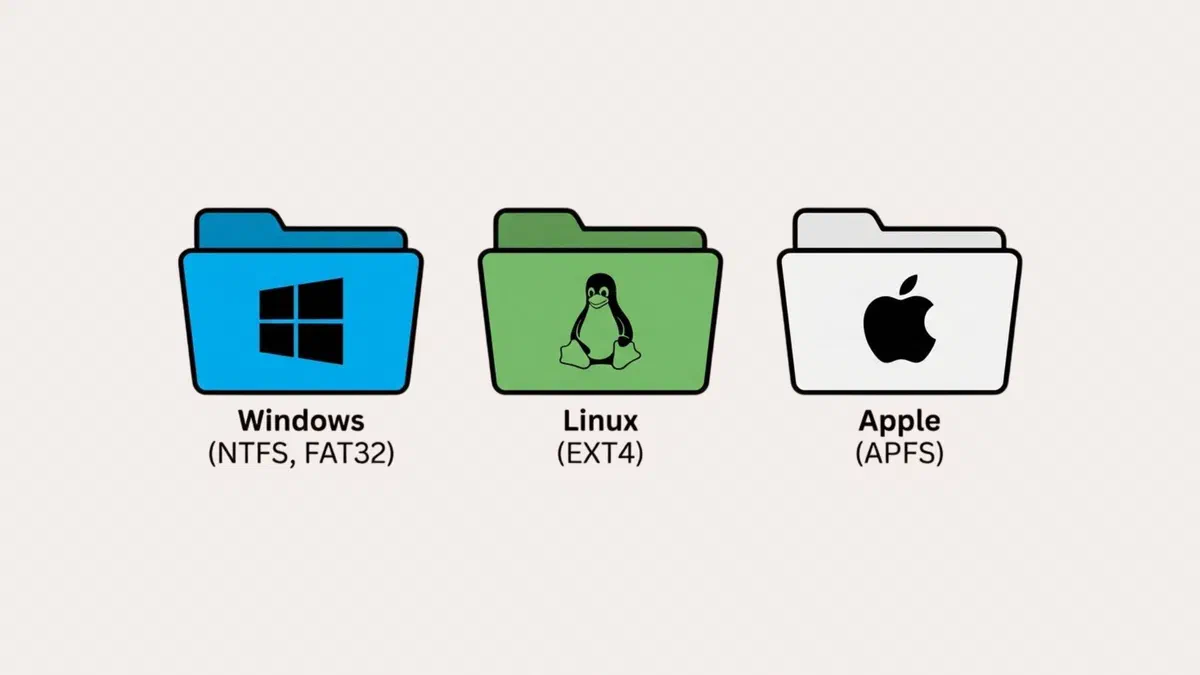
| File system | Windows | macOS | Maximum file size | Typical use |
|---|---|---|---|---|
| NTFS | Read and write | Read only | Practically unlimited | Windows drives |
| APFS | Not supported | Read and write | Practically unlimited | Mac drives and SSDs |
| exFAT | Read and write | Read and write | Practically unlimited | Shared media between systems |
| FAT32 | Read and write | Read and write | 4 GB | Devices that require it |
| ext4 | Not supported | Not supported | Practically unlimited | Linux drives |
exFAT: the choice for shared media #
Microsoft created it in 2006 as an evolution of FAT32. It is the only format that Windows and macOS can both read and write without installing anything, and it doesn’t have the 4 GB file limit. For a USB flash drive or an external hard drive moving from one computer to another, it is the right answer nine times out of ten, and it is also read by Linux and many recent TVs.

There are two weaknesses you should know about:
- It does not keep a journal of operations, making it more fragile in the event of an unexpected disconnection or power failure. Safe removal is not just a formality.
- It does not manage file permissions, so it is not suitable for a system drive.
For those who need it—namely, moving data between different computers—these limitations don’t matter much.
NTFS: the Windows standard #
It has been the format for Windows system drives since 1993. It uses journaling, which makes it resistant to sudden shutdowns; it manages permissions, compression, and encryption, and has no practical size limits. On SSDs, Windows uses the TRIM command automatically to preserve their lifespan.

The problem is Mac: macOS can read NTFS drives but cannot write to them. If you connect an NTFS drive to a Mac, you can copy files to the computer, but not the other way around. Programs like Paragon NTFS or Tuxera add write support, but they are an extra layer between the system and your data: choose them carefully.
APFS and Mac OS Extended #
APFS is the format Apple introduced in 2017 with macOS High Sierra; it was designed for SSDs and is now the default on all Macs, iPhones, and iPads. It handles snapshots (used by Time Machine), copies files instantly without taking up extra space (copy-on-write), has built-in encryption, and dynamically allocates space between volumes.

Mac OS Extended (HFS+), the previous format, is still useful in two cases: external mechanical hard drives, where it sometimes performs better than APFS, and very old Macs from before 2017.
Windows can read neither of these without additional software, so only use them for drives that will stay within the Apple ecosystem.
ext4 and other Linux formats #
ext4 is the default format for almost all Linux distributions, such as Ubuntu and Debian. It features journaling, handles massive volumes, and has very little fragmentation. Windows and macOS cannot read it without additional software, but Windows 11 can mount it through WSL with wsl --mount.

Among alternatives, Btrfs (default on Fedora and openSUSE) and ZFS add snapshots, data integrity checking, and multi-disk management: you’ll mostly find these on NAS devices and servers. Windows also has a more modern format, ReFS, used on servers and for Windows 11 Dev Drives, but for a standard drive, NTFS remains the choice.
FAT32: when it is still needed #
FAT32 was born in the days of MS-DOS and Windows 95. The 4 GB single-file limit makes it unsuitable for general use: high-definition movies, ISO images, or backup archives won’t fit. Additionally, it lacks journaling and permissions.
However, it remains the only format accepted by many devices: car stereos, old TVs, consoles, printers, musical instruments, cameras, and especially flash drives used to update a computer’s BIOS or a router’s firmware. When a manual asks for FAT32, there are no alternatives.
format command. The newest builds of Windows 11 have increased the command limit to 2 TB; alternatively, free programs like Rufus can format large flash drives as FAT32. However, the 4 GB file limit remains.How to format #
On Windows: right-click the drive in File Explorer → Format, choose the file system, and give it a name. For more complex tasks, such as changing partitions, use Disk Management, which you can open by searching for diskmgmt.msc.

On macOS: open Disk Utility from the Utilities folder, go to View → Show All Devices, select the device in the left column (the physical device, not the volume inside it), and click Erase. For exFAT, the correct scheme is GUID Partition Map; for an old device that requires FAT32, use Master Boot Record and the MS-DOS (FAT) format.

Choosing based on use #
- Flash drive moving between Mac and Windows: exFAT.
- External drive for Windows backups: NTFS.
- External drive for Time Machine on Mac: APFS.
- USB drive for car stereos or firmware updates: FAT32, if the manual requires it.
- Shared drive between Mac, Windows, and Linux: exFAT, readable and writable by all three.
- Internal system drive: NTFS on Windows, APFS on Mac. You don’t have a choice.
FAQ #
Can I change my file system without losing data? #
Generally, no: formatting erases the content. Windows has a conversion from FAT32 to NTFS that preserves files (convert E: /fs:ntfs), but this is an exception and you should make a backup first anyway. For all other scenarios, the way to go is to copy your files elsewhere, format, and then copy them back.
Why can’t my Mac write to my NTFS drive? #
Because macOS only supports that format in read-only mode. You have three options: reformat to exFAT if you need the drive on both systems, use a third-party program that adds write support, or simply use the drive to move files onto your Mac.
Is exFAT reliable for a backup drive? #
It works, but it’s not the best choice: without journaling, there is a higher risk of corruption if you unplug it suddenly. For important archives, it’s better to use the native file system of the OS—NTFS or APFS—and, if you need to read it elsewhere, keep a second copy on an exFAT drive.
What is the difference between a quick format and a full format? #
A quick format only erases the file index and takes just a few seconds: your data remains on the disk until it is overwritten, meaning it can still be recovered. A full format rewrites the entire surface; it takes much longer but also checks if the drive is healthy. For reusing a USB stick, a quick format is fine; however, before giving a drive to someone else, perform a full format or a secure erase. On SSDs, secure erasure is done using the manufacturer’s tool.
What is the best format for a memory card? #
It depends on the device: cameras and camcorders usually use exFAT for cards over 32 GB (SDXC) and FAT32 for those below (SDHC). However, the rule remains the same: format it using the device itself rather than your computer, so you get exactly the configuration it expects.