Best Free and Professional Remote Desktop Software
Comparing AnyDesk, TeamViewer, Parsec, and RustDesk: real latency, commercial limits, and which to choose for remote work, gaming, or support.
On this page
What distinguishes these programs is latency—the delay between moving your mouse and what you see on the screen. It doesn’t matter when reading a document; it matters everything when drawing, editing video, or gaming.
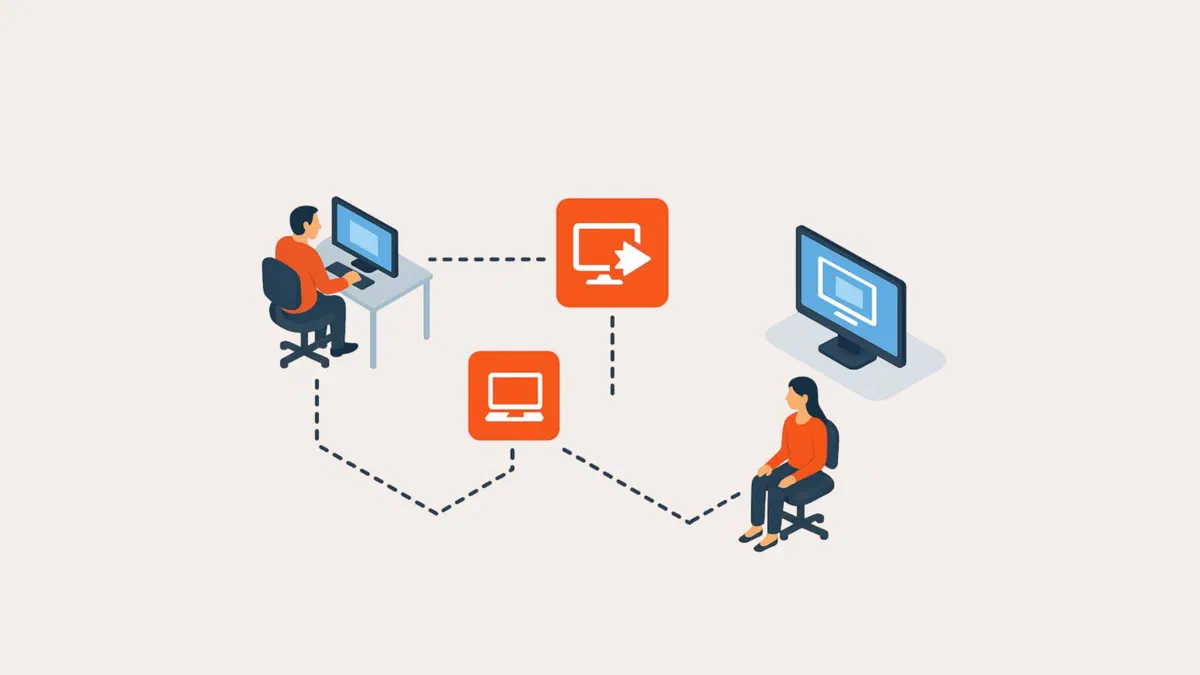
In any case, there are two sides: the host, the computer being controlled, and the client, the computer or phone used to control it.
The comparison #
| Program | Free use | Latency | Best for |
|---|---|---|---|
| AnyDesk | Personal, with limits | Low | Support, occasional use |
| TeamViewer | Personal, with strict controls | Medium | Support, widespread availability |
| Parsec | Yes, for personal use | Very low | Gaming, graphics, video editing |
| RustDesk | Yes, open source and self-hostable | Low | Those who want full control |
| Windows Remote Desktop | Included in Windows Pro | Low on local network | Working on your own network |
| Chrome Remote Desktop | Yes, no limits | Medium | Quick access without complex installations |
| AnyViewer | Yes, with limitations on advanced features | Low | A free alternative to AnyDesk |
| Moonlight + Sunshine | Yes, open source | Very low | Gaming from your home PC |
AnyDesk and TeamViewer #
These are the two most well-known names and they do more or less the same thing: you install them on both sides, exchange a code, and the session starts without touching your router. They feature file transfer, chat, session recording, and apps for Windows, macOS, Linux, Android, and iOS.
AnyDesk is lighter and usually more responsive thanks to its DeskRT codec. TeamViewer has been around since 2005 and is more widely used, so it’s likely that the person you are helping already has it installed. Both have had security incidents: AnyDesk in early 2024, involving stolen certificates and user password resets; TeamViewer in 2024 regarding an internal corporate network issue. Always enable two-factor authentication on your account.

The tricky part applies to both: the free version is for personal use only. If automatic checks suspect you are using it for work (many sessions, many different devices, connections to corporate networks), they will shorten or interrupt your sessions and prompt you to buy a license. This often happens even to those just helping a relative, and removing the warning isn’t always quick.
If you use it for work, buy the license: besides being compliant, it prevents your session from cutting out at the worst possible moment.
AnyViewer is the free alternative most similar to AnyDesk: same logic with device codes, file transfer, and encrypted connections, but with a broader free plan for personal use. Distant Desktop, which was in the previous list, is much less common today.


Parsec #
It was built for remote gaming, and it shows: it compresses video using your graphics card and focuses entirely on responsiveness. On a local network or with a good connection, the delay is so low that you can even play shooters. Since 2021, it has been part of Unity.

With Arcade, you can invite friends to play games on your PC—even local-only games—as if you were sitting on the same couch; everyone uses their own controller from their own home.

The same advantages apply to work: video editing, graphics, 3D modeling—all activities where a half-second delay makes working impossible.

For the best results, you need a graphics card with hardware encoding on the host (which must be Windows or macOS; from Linux, Android, or iPad, you can only connect to others), an Ethernet cable whenever possible, and in the settings, prioritize latency over quality. With low bandwidth, lower the resolution and frame rate instead of dealing with a pixelated image that breaks up with every movement. In the top bar during a session, you can see encoding, decoding, and network times.

The downside: it’s not a support tool. You need an account on both sides, and it isn’t designed for quickly connecting to someone else’s computer without prior setup.
The open source alternative for gaming is Moonlight as a client with Sunshine (or its derivative Apollo) on your home PC: extremely low latency, no account required, and it works from phones and TVs too. If you only play via Steam, there’s also Steam Remote Play, which is already built-in.
RustDesk #
It is the open-source alternative written in Rust, and it does something the others don’t: you can host your own connection server, so sessions don’t pass through someone else’s servers.
If you provide support for work, this is a concrete advantage: no usage limits, no automatic blocks, and all data remains under your control. In exchange, you need a small server and the willingness to maintain it. The Pro version of the server adds a web console, user management, and access logs.

It still works without your own server by relying on the project’s public servers.
Built-in solutions #
Windows Remote Desktop is integrated into Pro and Enterprise editions: a Windows Home PC can connect to others, but cannot be controlled. On a local network, it works perfectly without installing anything, and from Mac, iPhone, or Android, you connect using the Windows App, which replaced the old Microsoft Remote Desktop app in 2025. However, to access it over the internet, protect it with a VPN or a tunnel: when exposed directly, it is one of the most targeted services out there.
Chrome Remote Desktop is free, has no usage limits, and works via your browser on Windows, macOS, Linux, Android, and iOS: it’s the fastest choice when you need to access one of your own computers from any machine. For occasional help, it generates a one-time code. It doesn’t have true drag-and-drop file transfer; for that, it uses a cloud folder.

On macOS, built-in screen sharing is sufficient for connecting between Macs on the same network, and starting with macOS Sonoma, there is a high-performance mode for Macs with Apple silicon.
How to choose #
- Helping a family member occasionally: AnyDesk or TeamViewer, keeping in mind the limitations of free use.
- Support as a professional activity: a commercial license, or RustDesk with your own server.
- Working on a powerful computer from a lightweight laptop: Parsec.
- Remote gaming: Parsec, or Moonlight with Sunshine if you prefer open source.
- Accessing your own computers on a home or office network: built-in Remote Desktop, encapsulated in a VPN if you are connecting from outside.
- Occasional access from any computer: Chrome Remote Desktop.
What affects latency #
- The host connection matters more than the client’s because that is where the video stream originates, and upload speed is especially important.
- Use Ethernet instead of Wi-Fi, on both sides whenever possible.
- Hardware encoding, which offloads the work from the CPU to the graphics card.
- Resolution and refresh rate: lowering them reduces lag more than any other setting.
- Geographic distance, a physical limit that no software can overcome.
FAQ #
Are AnyDesk and TeamViewer free? #
For personal use, yes, but both have automatic checks that, when they detect what looks like professional use, will limit or terminate sessions. Sometimes these flags are triggered even if you are acting in good faith, which is why frequent users often end up buying a license or switching to RustDesk.
Is Parsec good for work too? #
Yes, it’s one of its best uses: low latency is essential for gaming as well as video editing, graphic design, and 3D modeling. However, it isn’t ideal for occasional support because it requires an account to be configured on both sides. For teams, there is the paid Parsec for Teams.
Can I use Remote Desktop over the internet? #
Yes, but not by exposing it directly: it is one of the most targeted services by automated attacks. The right way is to use a VPN that brings you into the office or home network (Tailscale or WireGuard are easy to set up), or an encrypted tunnel, and only connect to the desktop within that channel.
What is the most secure solution? #
One where you control the infrastructure: RustDesk with your own server, or built-in Remote Desktop accessed via a VPN. With commercial services, security depends on the provider: choose one with a solid track record and enable two-factor authentication on your account.
Does the remote computer need to stay turned on? #
Yes, always: you cannot connect to a computer that is powered off. Many network cards support Wake-on-LAN by sending a packet over the local network. This must be enabled in the BIOS and still requires another device to be awake on the same network, such as a router or a Raspberry Pi, to send the command. Also, make sure your PC isn’t set to go to sleep when you are away.