Spotlight on Windows 11: PowerToys Run Guide
Find out how to have the Spotlight search bar on Windows 11 using Microsoft PowerToys. Complete guide to PowerToys Run with Alt + Space.
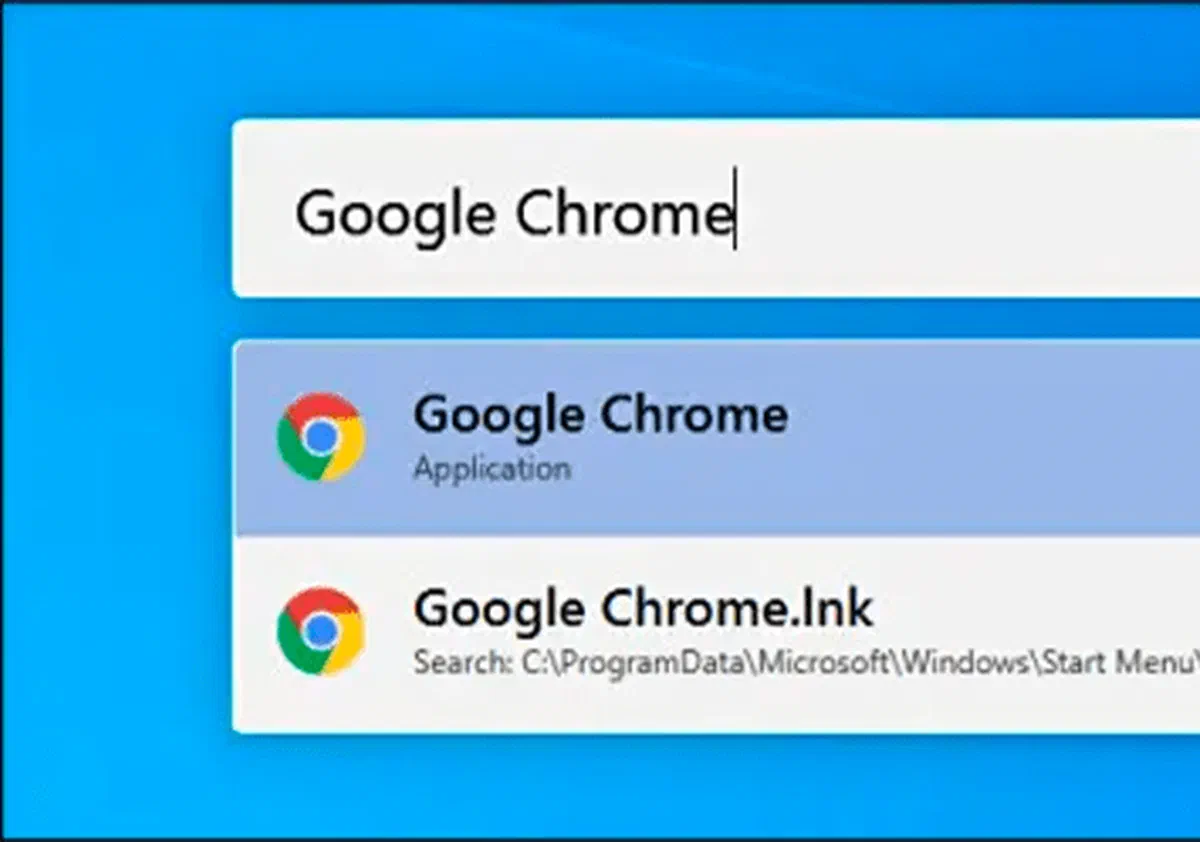
On Mac ecosystems, the famous Spotlight search feature allows you to quickly find and start applications through the remote control + space. If you want a similar experience, know that even Windows 11 can offer you a centralized and efficient search bar that can be activated simply with Alt + Space. The official solution to achieve this is called Microsoft PowerToys: this is how to configure it to optimize your daily productivity.
How to install Microsoft PowerToys on Windows 11 #
Using the PowerToys Run (or PowerToys Run) tool, you can show a floating search bar in any Windows 11 screen by pressing the Alt + Space key combination. This advanced tool allows you to quickly locate applications, files and documents, starting them in a fraction of a second.
To implement this function, you need to install Microsoft PowerToys, a free system utility suite developed directly by Redmond company. You can download free of charge from official page Microsoft PowerToys or official repository on GitHub.

Once the installation is completed, open the application settings. In the side menu, select the PowerToys Run entry and make sure the PowerToys Run enable switch is enabled. In this section you can also customize the keyboard shortcut and the number of results shown according to your preferences.

At this point, you can close the settings window and immediately test your new alternative to Spotlight. Press Alt + Space: you will see a minimalist and elegant design research bar, perfectly integrated with the graphic look of Windows 11.

Type the program name or file you need. You can press Enter to immediately launch the first suggested result, or navigate between the proposed alternatives using the directional arrows of the keyboard or mouse before giving confirmation.

The research utility is not limited to simple quick start. Next to each result, you will notice a set of buttons designed for user power, which allow you to perform advanced system actions with just one click. Here is their operation in detail:
- Copy icon: Instantly copy the exact path of the file in the system notes (function valid only for files and documents).
- Icon Scudo (Execute as administrator): launches the selected application with high administrator privileges, essential to make system changes.
- Icon Folder: Opens the source folder directly in File Explorer, showing you the physical location of the file in the hard drive.
- Icon Console: Opens the folder path directly inside the Command Prompt or Windows Terminal.

PowerToys Run is much more than just a quick start bar. It can excellently replace the classic “Execute” dialog (usually recallable with Windows + R). You can use it to type system commands, network paths or URLs: just invoke the bar, insert the desired syntax and press Enter to run the process instantly.

This is just one of the countless features included in the free suite offered by Microsoft. Thanks to these tools, the user experience on Windows 11 becomes not only more convenient, but extremely productivity-oriented.
FAQ: FAQs about PowerToys and Windows 11 #
PowerToys Run consumes a lot of RAM memory on Windows 11? No, Microsoft optimized PowerToys to make it a lightweight and performing tool. While remaining active in the background to ensure the reactivity of the Alt + Space command, the overall impact on the RAM performance and memory of the operating system is minimal and completely imperceptible in everyday use.
Can I change the key combination to open the bar? #
Absolutely. By accessing the main settings of PowerToys and navigating the “PowerToys Run” section, you will find a dedicated option to customize the keyboard shortcut. You can replace the default Alt + Space with the key combination that you feel most comfortable for your workflow.
PowerToys Run supports fast mathematical operations such as Spotlight on Mac? #
Yes, the search bar includes a convenient integrated calculator. By directly typing a mathematical expression (such as “15*4”) within the PowerToys Run field, you will instantly display the result between the output options, without having to manually open the Windows Calculator application.