Remote Desktop on Ubuntu from Windows: Guide and Setup xrdp
Learn how to configure your Remote Desktop (RDP) on Ubuntu from Windows. Step-by-step guide to install xrdp, configure ports and use the UFW firewall.
Remote Desktop Protocol (RDP) is an essential technology that allows users to establish secure connections and manage computers remotely through a local network or Internet. Originally developed by Microsoft for its operating systems, the RDP protocol is now widely supported and can be successfully used to interface with Linux, macOS, Android and iOS devices.
Basic requirements
- A Windows client computer with a stable network connection.
- A host machine with operating system Ubuntu 22.04 or Ubuntu 20.04 already installed and configured.
- Sudo privileges or root access on the host machine to install the necessary packages.
How to Install xrdp on Ubuntu #
The xrdp package is an open source RDP server for Linux environments that can listen to and accept connection requests from external clients. Since Ubuntu distributions do not include this default utility, you must proceed with its manual installation. To install xrdp on Ubuntu 22.04, follow these steps:
- Access the command line of the server (Terminal) and update the list of Ubuntu software packages:
sudo apt update
- Proceed with xrdp installation using the following command:
sudo apt install xrdp -y

- Check that the xrdp server service is active and running correctly:
sudo systemctl status xrdp

Configure the xrdp Door (Optional but Recommended Action) #
By default, the xrdp server receives input RDP connections on port 3389. Choosing to use a non-standard port for Remote Desktop is a protection practice known as “security through obscurity” (security through secrecy). Although not an infallible defensive measure, changing the door effectively contributes to deviating and mitigating the rudimentary automated brute force attacks from the web.
To educate xrdp to keep listening on a door other than the default one:
- Use a terminal text editor, such as nano, to open and edit the main configuration file (xrdp.ini):
sudo nano /etc/xrdp/xrdp.ini
- Identify the door directive in the
[Globals]section and set the new desired numerical value. In our example, we will check the RDP 49952 port:
port=49952

Press Ctrl+X, type y (to confirm) and finally press Enter to save the changes and close the nano editor.
Restart the xrdp server service to make the new settings just saved:
sudo systemctl restart xrdp
Note: The terminal will not return any confirmation or output message if the service restart is successful.
Configure the UFW Firewall for RDP Traffic in Input #
To ensure remote access, it is essential to check that the security system does not block the connection. Ubuntu is generally active on a UFW (Uncomplicated Firewall) system. You will need to configure the rules of this firewall to explicitly authorize traffic on the designated port and allow the proper handshake RDP.
- Check the current status of the ufw firewall:
sudo ufw status

If the firewall status is inactive (inactive), use the following command to turn it on:
sudo ufw enable
- Allow incoming TCP traffic on port 3389, or on the custom port you chose for xrdp. The underlying command enables connections for the 49952 port we have set previously:
sudo ufw allow 49952/tcp

(Be sure to change the number in the command if you opted for a different RDP port).
- Reload the ufw firewall tool rules to instantly apply new directives:
sudo ufw reload

If you need to reach your Ubuntu station from an external network to the local network (e.g. from outside office or home), please remember that you will need to configure the Port Forwarding (Flat forward) on your main router or update the policies of any perimeter hardware firewalls.
Launch Remote Desktop Connection from Windows to Ubuntu #
Once the server is prepared, this is how to start a RDP connection to your Ubuntu system directly from a Windows client:
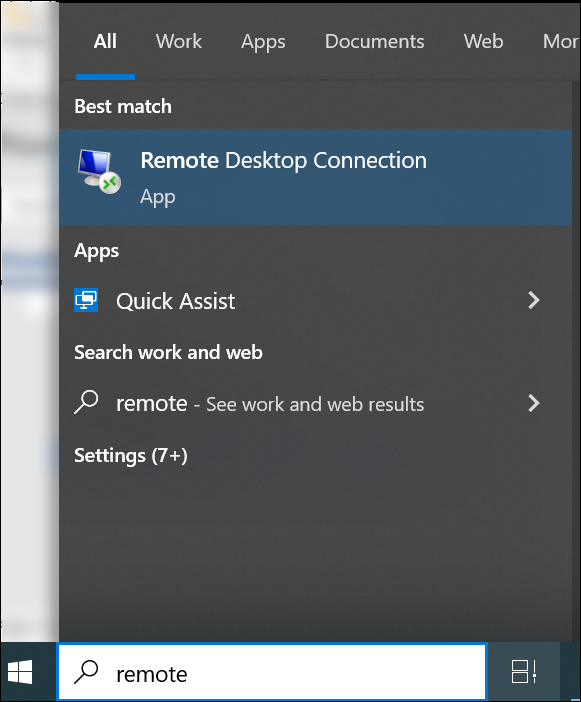
- Type rdp in the search box on the Windows application bar.
- Apri l’applicazione nativa denominata Connessione Desktop Remoto.
- In the Computer field, enter the local IP address (or host name) of the remote Ubuntu system. If you have changed the default listening port in the previous steps, you will have to specify it by joining the IP in this format: Address IP:number port (e.g. 192.168.1.50:49952).
- Nel campo Nome Utente, digita l’account utente Ubuntu associato con cui desideri autenticarti.
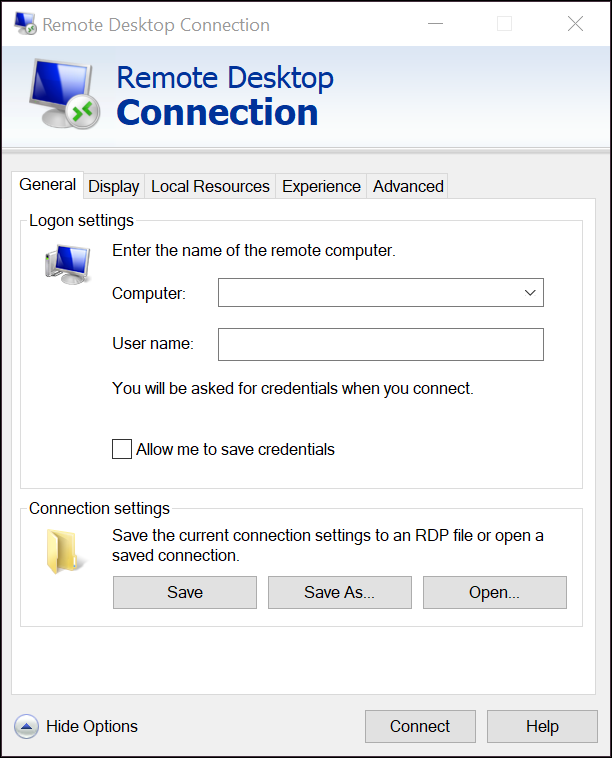
- (Optional) Click “Save Name” to store session details in the form of linked files, useful for future quick access.
- (Optional) Expanding the “Show Options” menu, the Windows client allows you to refine RDP performance according to your bandwidth. The settings are divided into various tabs: View: To adjust screen resolution and color depth of remote desktop window. Local resources: To map and share hardware devices of your local machine (keyboards, microphones, audio, printers or USB key) with the Ubuntu system. Experience: To disable unnecessary visual effects like desktop backgrounds and animations, improving fluidity on slow connections. Advanced: To manage network-level server authentication and RDP Gateway configurations.
- Click the Connect button.


Access and Login in the Linux environment #
In the first attempt to connect the xrdp system login screen will appear. Enter your Ubuntu user password and click OK to proceed.

Congratulations! Now you have total control of your Ubuntu desktop environment (GUI) by comfortably managing it from your Windows station via RDP session.

Tips for Optimizing Ubuntu RDP Connection from Windows #
Internet speed and Latitude: In order for the Remote Desktop experience to be smooth, a stable connection is required. In addition to the bandwidth (which affects graphic rendering), keep an eye on network ping/latency and server CPU load, parameters that deeply affect the response times to click and type.
Solve the “Black Screen” of xrdp on Ubuntu: Many administrators stumble into an annoying black screen after successfully logging off xrdp. This graphical hitch typically occurs if the user with whom you try to log in already has an active session open locally on the Ubuntu machine. Ubuntu Desktop Environment (such as GNOME) does not support simultaneous graphical user sessions for the same account. Solution: Be sure to do the user’s physical logout on the Ubuntu station before initializing the RDP connection from Windows.
Frequently Asked Questions (FAQ) on Remote Desktop Ubuntu #
What is xrdp and why do I need it on Ubuntu? #
xrdp is an open-source and free implementation of Microsoft Remote Desktop protocol. As operating systems Linux communicate natively through protocols such as SSH or VNC, xrdp acts as a “bridge”, allowing native Windows clients (or other compatible RDP apps) to visually hook to the graphic desktop environment of Ubuntu natively and responsively, without installing heavy third-party client software on Windows.
Changing port 3389 makes my server completely secure? #
No. Changing the default RDP port is a basic technique of “offuscation” that only rejects most bots and automated scripts that passively scan the web in search of door 3389 open. To ensure a level of corporate security and avoid intrusion, we strongly recommend that you encapsulate RDP traffic within a VPN (Virtual Private Network) network or a SSH encrypted tunnel, alongside two-factor authentication (2FA).
Can I share the clipboard (copy and paste) between Windows and Ubuntu in RDP? #
Absolutely. The xrdp protocol automatically manages the bidirectional sharing of notes. If it doesn’t work, make sure that before you start the session, the “Appunti” option (Clipboard) is checked within the Local Resources tab between the Advanced Options of the Windows Remote Desktop Connection app.