How to Resize Photos with Photoshop: Step by Step
Learn how to resize photos with Photoshop without losing quality. Practical and fast drive on pixels, resolution (DPI) and image resamping.
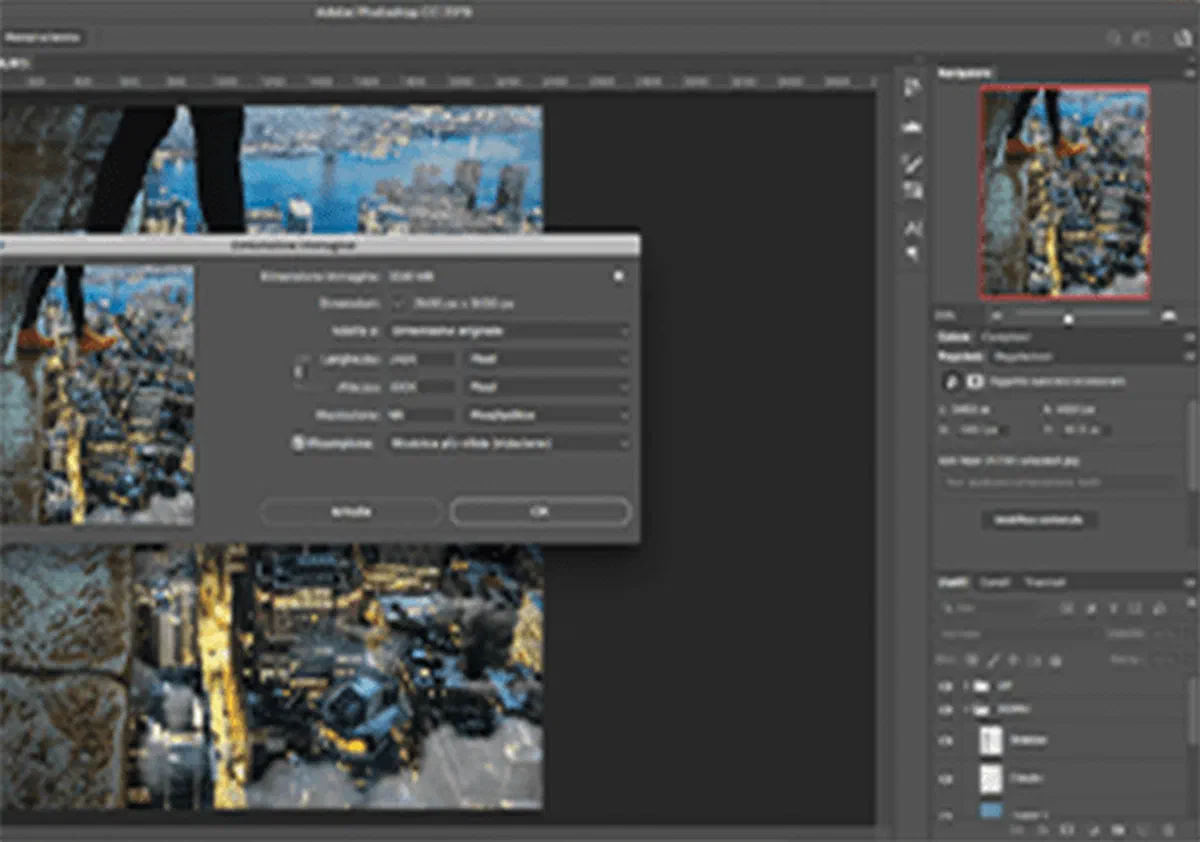
If you are looking for the best solution to change the size of an image quickly and professionally, Adobe Photoshop is undoubtedly the reference software. Whether you need to zoom in or reduce the weight of a photo for the web, Photoshop allows you to do so in a few clicks and with maximum quality control.
Knowing how to resize photos with Photoshop is a fundamental competence, being one of the most frequent photo editing operations in digital editing. Wrong this procedure could compromise the sharpness of your work, returning blurred, coarse or unsuitable results to the press. Do not fear: mastering the correct resize is easier than you think. Let’s find out together how to optimize your files step by step!
Resolution (DPI) and Size (Pixel) of an image #
When you shoot a photo with a digital SLR or scan a document, the device records a specific amount of data, including pixel size and resolution. Understanding the difference between these two parameters is essential, since the way you will configure them depends largely on the final use you will make of the image (graphic, social media or website).
Although they are technical concepts related to computer graphics that would require a thorough study, we try to simplify them to give you the necessary basics to operate correctly and effectively.
Resolution (DPI) #
The Resolution (measured in DPI, Dots Per Inch), indicates the “density”, that is the amount of ink points that a printer manages to distribute in a linear thumb. To ensure a high-quality print, the Adobe official guidelines always suggest you set a resolution of 300 DPIs or more.
Pixel #
The Pixels represent the individual “color points” that make up the grid of your image in width and height. They determine, in fact, the physical size of the file when this is displayed on a screen or monitor.
These two parameters are closely related to each other. Imagine having a photo from 1920×1080 pixels to 300 DPIs: if you decide to lower resolution to 96 DPIs (ideal for web), pixel sizes will fit accordingly. However, if you decide to disable the resamping option, you can only change the resolution by leaving the pixels intact: in this way you will alter only the print density of the file, without changing the screen size.
But now let’s go to practice and get into the live tutorial.
How to resize an image in Photoshop #
- Within your Photoshop workspace, click on the top menu and select Image > Image Size… (or use Alt+Ctrl+I keyboard shortcut on Windows or Opt+Cmd+I on Mac).
- The Image Size dialog box will open. From here you will have total control over key parameters to resize the file: pixel size, resolution and advanced resamping options:

- Change values in Width and Height fields. The “catenella” icon connects the two values: if it is active, the program will maintain the original proportions (aspect ratio) to avoid annoying visual distortions. If you need to insert free measures to alter proportions, click the chain to disconnect values.
- You can customize the measuring unit according to your project: choose between Pixel (ideal for the web), Percentage, Pollics, Centimeters and Millimeters (more indicated for the print), or even Points, Pica and Columns. Just use the drop-down menu to select the desired item.
- Switch to the Resolution field if you need to change the print density of your photo, adapting it to the necessary standard.
- Resamping options indicate to the Photoshop algorithm how to behave when it has to subtract information (during the reduction of an image) or invent and calculate new pixels (during magnification, also called interpolation).
- Once you have checked all the parameters you want, click the OK button to confirm the changes and apply the resize.
Frequently Asked Questions (FAQ) About Resize Images #
What is the best resolution for images published on the web? #
For the web, the industry standard historically recommended is 72 DPI or 96 DPI. Maintaining a lower resolution than printing significantly reduces the weight of the file (in KB or MB), ensuring fast loading of web pages without overloading the server, while preserving an excellent visual performance on the monitors.
How can I enlarge an image in Photoshop without losing quality? #
While reducing an image rarely results in loss of sharpness, enlargement is more delicate. To get the best result, in the Image Size panel select the “Mantieni Details 2.0” resamping option. This feature uses Adobe’s artificial intelligence to detect edges and preserve sharpness, drastically reducing noise and scratching effect.
What is the difference between Image Size and Framework Size in Photoshop? #
The Image Size feature physically scales the photo, recalculating the pixels and changing the weight and visual size of the whole shot. The Framework Size (reachable by Image > Framework Size…), instead, it only modifies the working space around the level, leaving the intact photo: it is useful if you want to “enlarge the work table” to add edges, texts or other graphics to the sides of the original photo.