How to Activate Picture in Picture on VLC
Learn how to activate Picture mode in Picture (PiP) on VLC for Windows, Mac, iOS, iPadOS and Android. Watch your videos while using other apps!
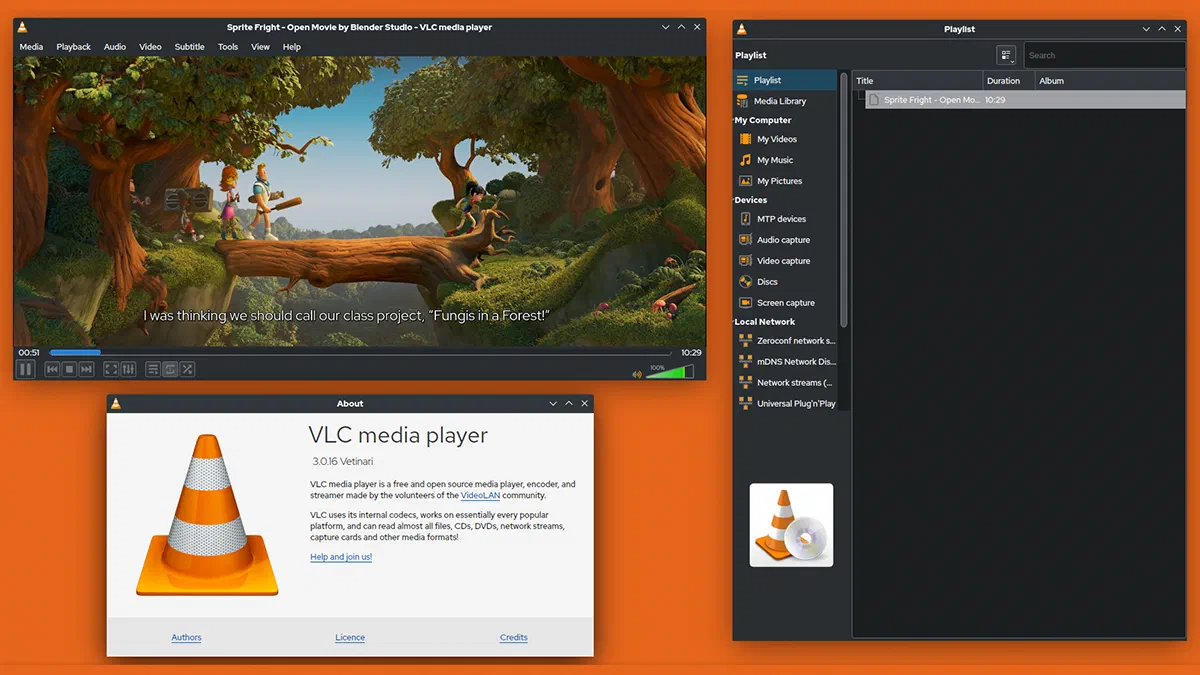
If you are looking for an effective solution to watch your uninterrupted movies while using other applications, the famous open source reader VLC Media Player offers the Picture in Picture (PiP) feature. This mode allows you to reproduce the multimedia content within a small floating window overlapping, allowing you to keep your main working areas active and visible.
Multitasking is now an essential component of our digital routine. Enable VLC Picture mode can increase your productivity exponentially, allowing you to manage multiple tasks simultaneously without ever losing sight of your favorite videos.
In the guide below, we will explore in detail the steps to activate this feature on any desktop or mobile device, ensuring an optimized and limitless viewing experience.
Activate VLC PiP on Windows #
- Launch VLC on your computer and open the video file you want to play.
- Clicca sul menu Visualizza in alto e seleziona l’opzione Sempre in primo piano.
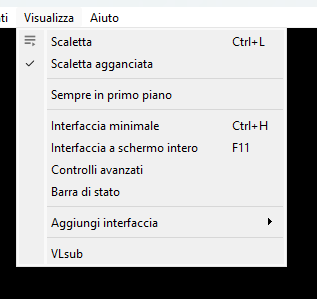
- The video will be displayed inside a floating window that will remain constantly anchored in the foreground over all other windows or programs open on the desktop.
- To further reduce the footprint of the video and hide the commands, go back to the Tools menu, click on Custom interface and edit it according to your viewing preferences.

By applying these quick steps, you can use Picture in Picture mode on your media player and enjoy the contents in a compact and always visible window.
Activate VLC PiP on MacOS #
Also for users of Apple desktop systems, activate Picture mode with VLC Media Player is a quick process. This option is ideal to keep playback in a corner of the screen while browsing the web or processing documents. A smart way to make the most of multitasking offered by Mac tools.
- Open the video you want to play using the VLC version for macOS.
- Metti momentaneamente in pausa la riproduzione e posiziona il cursore del mouse sul menu Video situato nella barra superiore del sistema.
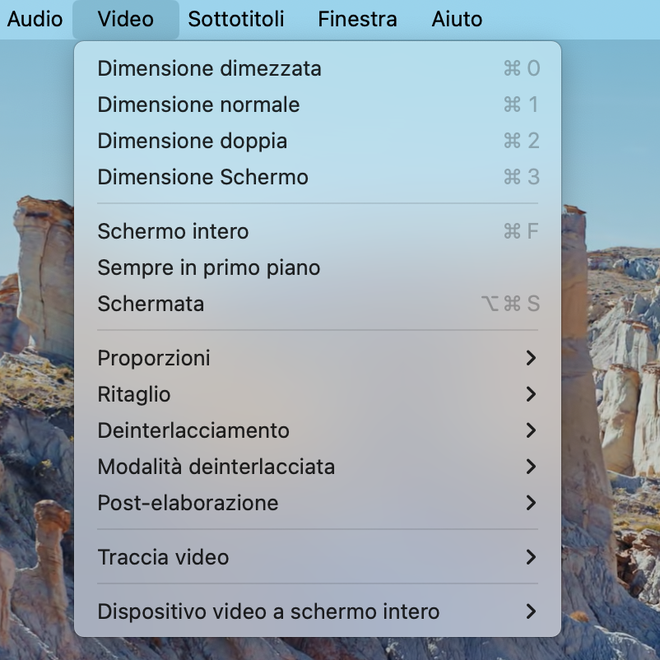
- From the drop-down menu, click the Always Featured option (often referred to as “Float on Top”). This will make the player fluctuate constantly above other apps open on the Mac.

Activate VLC PiP on iOS #
Through the official application for iPhone, you can use the Picture in Picture function to carry out other operations on your smartphone while you continue viewing your content. An essential feature for users always connected.
The app lets you reduce the size of the video player box and move it to the corners of the screen, keeping it active while opening other applications.
It is important to note that on Apple mobile operating systems activation may require specific permissions, as iOS system restrictions often disable auto playback in the background (or PiP) for third-party apps.
- Open the Settings app of your iPhone, access the Quick Commands menu (or Shortcuts) and verify that the Allow Untrustworthy Quick Commands lever is placed on active (green color).
- If it is not already installed, download the VLC Media Player app from the App Store. Subsequently, within the native Settings menu of the VLC app, activate the Play video in the background.
- Finally, launch the playback of your video through the VLC app, tap on the options icon (three dots) and select the Reduce to reader icon command to start the PiP.
Activate VLC PiP on iPadOS #
For owners of iPad Air, iPad Pro or iPad Mini, multitasking management is perfectly suited to Picture mode. Given the unique features of Apple tablets, enabling PiP on iPad requires a slightly different configuration than iPhone.
- Open the Tablet Settings app. Navigate to Generali and select the Multitasking and Dock section.
- Check that the Picture in Picture (or Automatic Video Overlay) function is properly enabled.
- Launch your VLC Media Player application and start playing a video content.
- Tap on the PiP icon placed in the upper left corner of the entire screen interface. The pane will minimize in a compact window, which you can resize with your fingers or move to the various corners of the screen.
Activate VLC PiP on Android #
The Android ecosystem supports the Picture in Picture function for most devices, smartphones and tablets. To ensure the complete compatibility of the service, always remember to check that your terminal has downloaded the latest version of the operating system Android.
- Access the VLC Media Player app and tap the button to enter the internal Settings menu.
- Search and select the setting that allows playback in the background of videos. After that, while viewing a video, tap on the screen and press the icon with the three dots to open the menu of advanced features.
- Press the icon depicting two panes to activate the floating window Pop-up or Picture in Picture.
Once the operation is finished, the video window will automatically shrink. You can drag it to the screen portion you prefer and enjoy maximum comfort while using your messaging, navigation or productivity apps.
FAQ: Frequently Asked Questions about VLC and Picture in Picture #
Does VLC support Picture in Picture on all devices? #
Yes, VLC Media Player supports Picture in Picture (or “floating window in the foreground”) feature on most desktop platforms (Windows, macOS) and mobile (Android, iOS, iPadOS). Steps for activation vary according to the native settings of each operating system.
Why does VLC PiP not work on my iPhone? #
If the PiP mode is not activated on iOS devices, the main reason is usually linked to system permissions. Make sure that the “Picture in Picture” option is activated in the general settings of your iPhone (Settings > General > Picture in Picture) and that you have granted VLC the consents for running in the background.
Can I resize the PiP window on computer? #
Absolutely. When you activate the “Always in the foreground” setting on Windows or macOS, you can click and drag the edges of the VLC window to enlarge or shrink it as desired. You can also customize the interface by removing unnecessary buttons or commands from the Tools menu to make the window even more essential and compact.