How to Create a Free Modded Minecraft Server with Aternos
Learn how to set up a free Minecraft server using Aternos, including mods, maps, managing weekend queues, and the best alternatives.
On this page
Here is how it works: Aternos keeps servers that nobody is using turned off and starts them when someone launches them, so resources are shared among everyone. On weekends, when everyone wants to play together, the queue can get long.
In this guide, we’ll show you how to create a server, how to upload a custom map, how to let players from mobile or console join, and how to reduce wait times.
Create the server #
Go to the Aternos official website, click Play, and register with a username and password. You don’t need to link your Minecraft account.
In the dashboard, click Create and choose a name. You will be assigned an address like
nometuoserver.aternos.me; this is what your friends will type in-game.In the Software section, choose what to run. The main options are:
Software When to choose it Vanilla Unmodified Minecraft Paper The best choice in most cases: the same game, but much lighter and with plugin support Forge or NeoForge If you want to play with mods Fabric Lighter mods that update faster Bedrock If everyone is playing on console, mobile, or Minecraft for Windows Choose the game version: all players must use exactly the same one.
Click Start. The first startup takes a few extra minutes because the world is being generated from scratch. For a random vanilla world, you’re done: share the address and start playing.

Mods, plugins, and maps #
In the server panel, the Mods or Plugins section (depending on the software chosen) has a catalog that can be installed with a single click.
There is one unbreakable rule regarding mods: every player must have the exact same mods, in the same version, on their computer, otherwise they will be rejected when trying to connect. To avoid going crazy, prepare a folder with the mods to pass around to everyone, or use a public modpack that everyone installs from their own launcher. Paper plugins, on the other hand, run only on the server and players don’t need anything installed.
Uploading a custom map #
Adventure and parkour maps often require a specific version of Minecraft—usually not the latest one—because creators take time to update them. Because of this, you should start with the version:
In the dashboard, next to the current server version, click the button to change it.
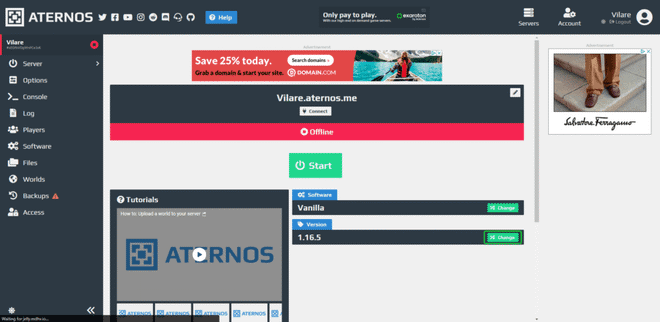
Change the game version from here From the list, choose exactly the version specified by the map creator.
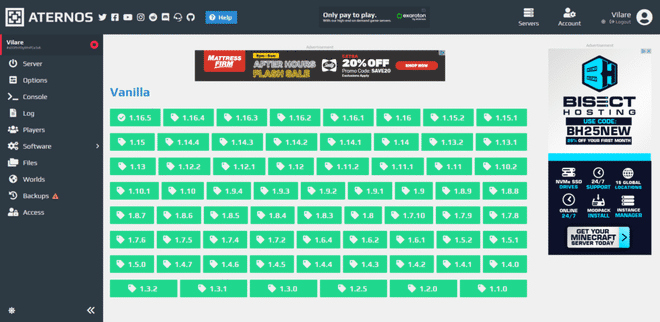
Use the version indicated on the map page In the left-hand menu, open Worlds. First, download a copy of your current world, because replacing it cannot be undone. Then click Upload and choose your map file
.zip.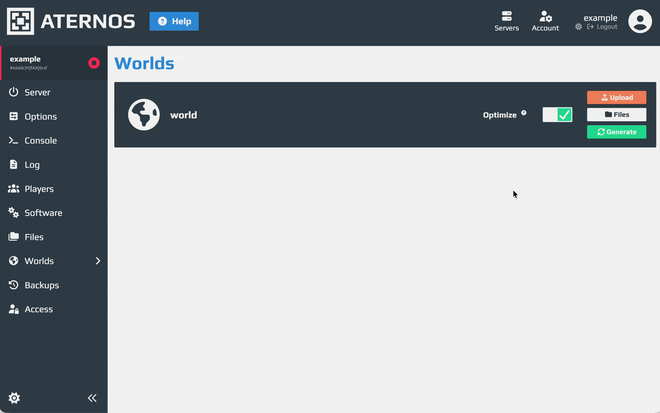
You can upload maps and download backups from the Worlds section Check how the zip file is structured: it must contain the world folder directly, including the
level.datfile and theregionfolder. If the map is buried inside other unnecessary folders, Aternos won’t recognize it and will generate a new world instead.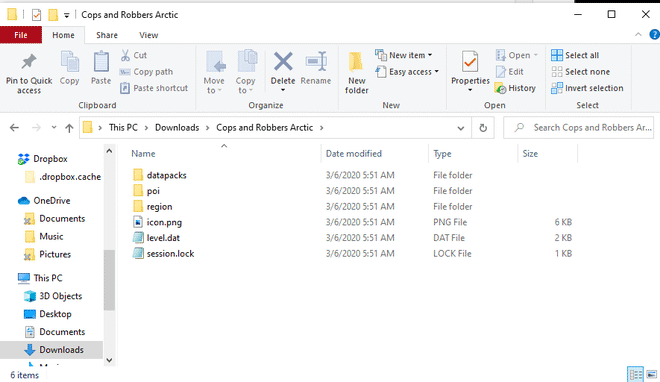
The correct folder is the one containing level.dat Go back to the dashboard and start the server.


Server options #
The Options section contains the settings for the server.properties file: difficulty, game mode, maximum number of players, PvP, and render distance. Lowering the render distance is the most effective tweak for improving smoothness on a free server.
Letting in mobile or console players #
Java and Bedrock are two separate editions that don’t communicate by default. However, on Aternos, you can open a Java server to Bedrock players using Geyser, which acts as a bridge between the two:
- Use Paper as your software (or Fabric, if you only need server-side mods).
- In the Plugins section (or Mods with Fabric), search for Geyser and install it. Aternos also automatically adds Floodgate, so Bedrock players don’t need a Java account.
- Restart the server.
Players on mobile, console, or Minecraft for Windows join using the same address nometuoserver.aternos.me and port 19132, as explained in the Aternos guide to Geyser. Client-side mods, obviously, do not work on Bedrock.
Queues: how they work and how to reduce them #
When you start the server, you enter a queue. Your position depends on how many servers are trying to turn on at that moment: usually, it starts within a couple of minutes, but during peak hours (evenings, weekends, school holidays), the wait can get quite long.
What works:
- Playing during off-peak hours. A weekday afternoon is nothing like a Saturday night.
- Starting early. Put the server in the queue fifteen minutes before the time you agreed upon with your friends. However, once it’s ready, confirm the startup: if no one does this within a few minutes, you lose your spot.
- Don’t close the page. If you leave the queue, you start from the bottom again, so keep the tab open in the background.
- Let only one person start it. One person starts the server, and the others join once it is online. If you want others to be able to turn it on as well, add them via the Access section of the panel.

Then there’s the automatic shutdown: when the last player leaves, the server stops after a few minutes. This is what allows Aternos to be free, but it also means that no automated farms will work while you aren’t around.
When to switch to something else #
Aternos stops being suitable when you want a world that stays active even while you aren’t there, or when you have more than five or six players.
Paid hosting starts at just a few euros per month: the server stays on all the time, memory is guaranteed, and performance doesn’t depend on how many people are on other servers.
A server on a home computer is free and performs as well as the PC you use, but you have to keep it turned on, open ports on your router, and consider security. It makes sense if there is already a computer in your house that stays on all the time. To avoid touching your router settings, you can use playit.gg.
A private network between friends, using tools like Tailscale which create a local network over the internet, lets you play as if you were on a LAN without opening ports. This is great for small, consistent groups, with the world stored on one of your computers.
FAQ #
Is Aternos free forever? #
Yes, with no hidden costs: it sustains itself through ads on the site. The real limits aren’t about price but availability: queues during peak hours and automatic shutdown when the server is empty. An active ad blocker might prevent the server from starting, so disable it for aternos.org.
How many players can it handle? #
It depends on the software and what you build. With Paper and modest settings, five or six people can play without any issues. With heavy mods and very complex worlds, limits are reached sooner in the form of stutters and lag.
Will I lose my world if I don’t play for a while? #
Servers that have been inactive for a long time may be deleted, so log in every now and then and, above all, download a copy of your world from the Worlds or Backups section. A copy on your own computer is the only real guarantee with any free service.
Can I play from a phone or a console? #
Yes, in two ways. If everyone is playing on Bedrock, choose the Bedrock software. If someone in the group uses Java, create a Paper server and add Geyser as explained above: it’s the only way to let both editions play together.
How do I add a friend to the server? #
They just need to type the server address into the Multiplayer menu. If you have enabled the whitelist in the options (which I recommend to avoid unwanted visitors), you must first add their username to the authorized players list in the panel.