How to Install Let's Encrypt SSL on Windows IIS
Learn how to get and install a free HTTPS certificate on IIS using win-acme, set up auto-renewal, and fix common errors.
On this page
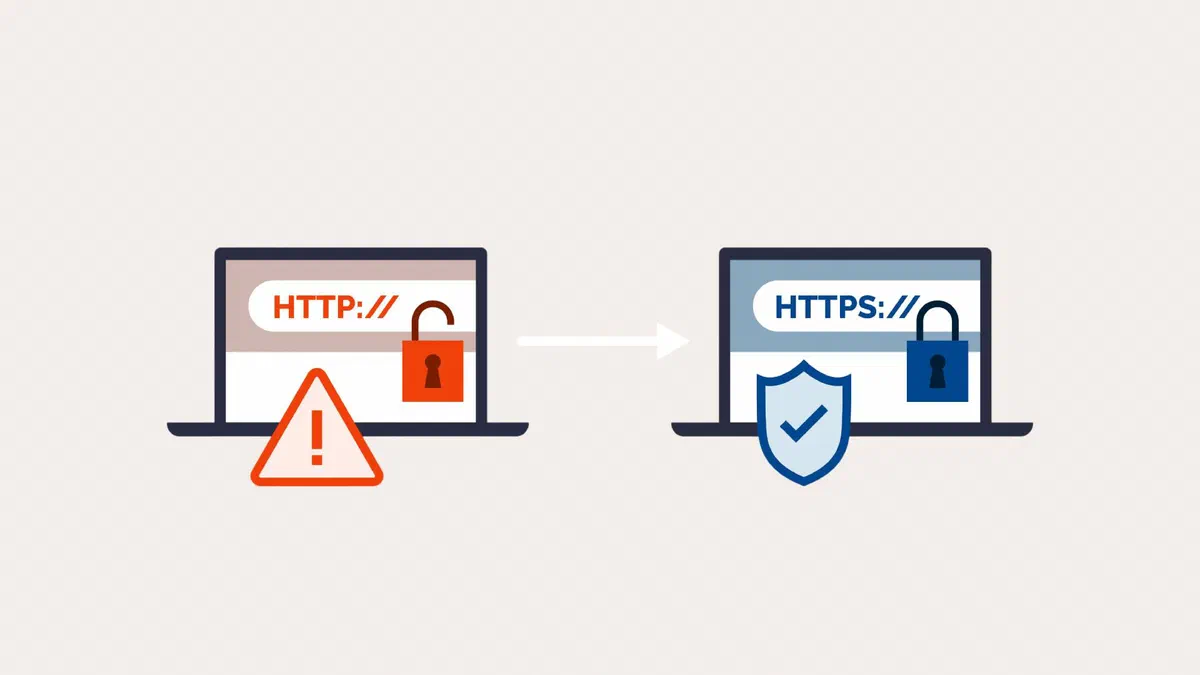
.pfx or .cer) to import, you can find the procedure using the Certificate Manager console further down.A certificate does two things: it encrypts the traffic between the visitor and the server, and it proves that the site is indeed what it claims to be. Without it, browsers will display a warning that scares everyone away.
Let’s Encrypt certificates are free and recognized by all browsers. They last ninety days, and this duration will decrease even further: 64 days starting in 2027 and 45 days from 2028. This short expiration is intentional, making automatic renewal mandatory.
What you need before you start #
- A domain name pointing to the server’s public IP address. Check this first: a certificate is only issued if Let’s Encrypt can reach your site from the internet.
- Port 80 open to the outside, as validation happens through it.
- IIS installed, with a site already bound to the correct domain.
- An administrator account on the server.
Installing the certificate with win-acme #
Download the archive from the win-acme official website and extract it to a folder that you won’t move again, for example
C:\win-acme. Avoid the Desktop and the Downloads folder: the scheduled task will use that path for years.Right-click on
wacs.exeand choose Run as administrator.In the text menu, choose the option to create a certificate with default settings.
win-acme lists the sites configured in IIS: choose the one you want. If the site has multiple domains (for example, with and without
www), you can include them all in the same certificate.Enter a contact email address and accept Let’s Encrypt’s terms. As of June 2025, Let’s Encrypt no longer sends warning emails before expiration, so keeping an eye on renewals is up to you or a monitoring service.
Wait a few seconds: validation, issuance, and installation happen one after another. Finally, win-acme creates the HTTPS binding on port 443 in IIS and the scheduled task for renewal.
Open the site with https:// at the beginning: the padlock should appear without any warnings.
Verifying that renewal works #
Almost everyone skips this step, only to realize three months later when the certificate expires and the site becomes unreachable.
Open Windows Task Scheduler and check that the task created by win-acme exists, is enabled, and runs even when no user is logged in.
Then, perform a real test: from the win-acme folder, open a command prompt as an administrator and force a renewal.
wacs.exe --renew --force
If the command finishes without errors, the mechanism is working. From then on, renewal will start automatically when the certificate has about sixty days left, providing enough margin to fix any potential issues.
DNS validation if port 80 is unavailable #
Sometimes, verification on port 80 cannot be performed: servers behind corporate firewalls, internal sites, or wildcard certificates (using an asterisk, like *.tuodominio.it) that cover all subdomains and strictly require this method.
In these cases, win-acme will ask you to create a TXT record in your domain’s DNS and will check for its presence. You can do this manually, but you’ll have to repeat it every renewal, or automatically if your DNS provider has a supported API (Cloudflare, Azure DNS, Route 53, and several others).
Without automatic renewal, a wildcard certificate becomes a manual task every two or three months: consider whether you really need one or if individual domains are sufficient.
Importing a certificate you already have #
If your certificate was provided by a paid Certificate Authority or a network administrator, you will have a file to import. The procedure changes depending on what you need to do with it.
To use it on an IIS site (file .pfx):
- Open Internet Information Services (IIS) Manager, select the server name in the left column, and double-click Certificates.
- In the right panel, choose Import, select the file
.pfx, enter the password used for export, and confirm. - Select the site, choose Bindings → Add, set the type to https, port 443, the host name, and the newly imported certificate.
To make a root or intermediate certificate trusted (file .cer or .crt):
- Press Win + R, type
mmc, and confirm with administrator privileges. - Choose File → Add/Remove Snap-in (Ctrl + M), select Certificates, click Add, choose Computer Account, and then Local Computer.
- Expand Certificates (Local Computer), right-click on Trusted Root Certification Authorities (or Intermediate Certification Authorities for an intermediate one), and choose All Tasks → Import.
- Select the file, leave the option Place all certificates in the following store selected, and complete the wizard.
To check it, open the Certificates folder within the store you chose and double-click the certificate: you can find the validity dates under the General tab.
Other ways to obtain a certificate #
Certbot. This is the official Let’s Encrypt client, and there is a version for Windows too. It makes sense to use if your server doesn’t use IIS or if you are already familiar with it from Linux.
Your hosting panel. If your site is on managed hosting, the free certificate is usually activated via a toggle in the control panel: you don’t need to install anything.
Paid certificates. These are needed for specific cases: insurance guarantees, organization validation (OV) with the company name in the certificate, or corporate procedures that require them. The encryption is the same as free ones. And they don’t last longer than a year: from March 15, 2026, no public certificate can exceed 200 days—this will drop to 100 days in 2027 and 47 days in 2029—so automation is necessary for those as well.
Common errors #
Validation fails. The domain doesn’t point to the server, port 80 is closed, or a firewall is blocking the request. Try opening http://tuodominio/ from an external network.
The browser reports mixed content. The certificate is working, but some images, stylesheets, or scripts on the page are still being called via http://. These need to be fixed on the website; otherwise, the padlock icon will remain incomplete.
The site still responds via HTTP. Redirection is missing. In IIS, this is set up using the URL Rewrite module, with a rule that redirects requests from port 80 to HTTPS.
Renewal fails after several months. Usually, something has changed: the site was renamed in IIS, the win-acme folder was moved, or the password for the account running the scheduled task has expired.
FAQ #
Are free certificates less secure than paid ones? #
No. The encryption is identical and browsers recognize them in the same way. What changes are the validation type and additional services, not the traffic protection.
Why do certificates expire so quickly? #
Because if a key is stolen, the damage lasts at most until the expiration date. A short lifespan also forces you to automate renewals, which eliminates the classic “forgotten certificate” problem. Once automatic renewal is configured, you won’t even notice it happening.
Can I use the same certificate for multiple sites on the same server? #
Yes, if the domains are included in the same certificate: win-acme allows you to select multiple bindings during creation. However, if the sites belong to different clients, it is tidier to create a separate certificate for each one.
Do I need a dedicated IP address for HTTPS? #
No, that hasn’t been necessary for years. Thanks to SNI, multiple sites with different certificates can coexist on the same IP address, and all browsers support this. In IIS, simply check Require Server Name Indication in the binding settings.
Can I install a certificate without being an administrator? #
Only in your user store (using certmgr.msc), which only applies to you. To use the computer store—and therefore for IIS and all users—you need administrator privileges.
How do I verify that the certificate is installed correctly? #
Open the site and click on the padlock icon to see the issuer and expiration date. For a full configuration check, including obsolete protocols and incomplete chains, you can use the free SSL Labs test.