How to Automate Low Power Mode on iPad
Learn how to enable Low Power Mode on your iPad automatically when the battery reaches a certain percentage using Shortcuts.
On this page
Instead of having to remember to turn it on when your battery is running low, your iPad will adjust itself while you use it. This works on all iPads running iPadOS 15 or later.
Turn it on manually #
You have three ways to do this, from fastest to slowest:
- From Control Center, by swiping down from the top-right corner: if the battery icon is there, a single tap will toggle the mode on and off. If it isn’t, long-press on an empty space in the Control Center, tap Add a Control, and choose Low Power Mode.
- From Settings → Battery, using the dedicated switch.
- By voice, by telling Siri “turn on Low Power Mode”.
When it is active, the battery icon turns yellow.

What changes when it’s active #
The system cuts back on the most power-hungry activities:
- Background App Refresh is suspended;
- Automatic downloads, iCloud backups, and photo syncing are postponed, and emails no longer arrive in real time;
- Visual effects and animations are reduced;
- Brightness is slightly lower and Auto-Lock is set to 30 seconds;
- ProMotion display is locked at 60 Hz on iPad Pro models;
- 5G is limited to when it’s truly needed, such as video streaming, on cellular models;
- The processor runs slower during intensive tasks.
During normal use (reading, browsing, typing, watching videos), you’ll barely notice it. You will notice it in demanding games and video editing, where the iPad performs more slowly.
Set it to trigger automatically #
The Shortcuts app is already installed; if you’ve deleted it, you can download it for free from the App Store. Here is how to do it:
Open Shortcuts and go to the Automation tab.
Tap the + in the top-right corner (or New Automation, if it’s your first one) to create a personal automation.
Scroll through the list and choose Battery Level.
Move the slider to your preferred percentage (30% is a good compromise) and choose Falls Below.
Select Run Immediately: with Run After Confirmation, the automation will send you a notification instead of acting. If you don’t want an alert every time, turn off Notify When Run as well. Then tap Next.
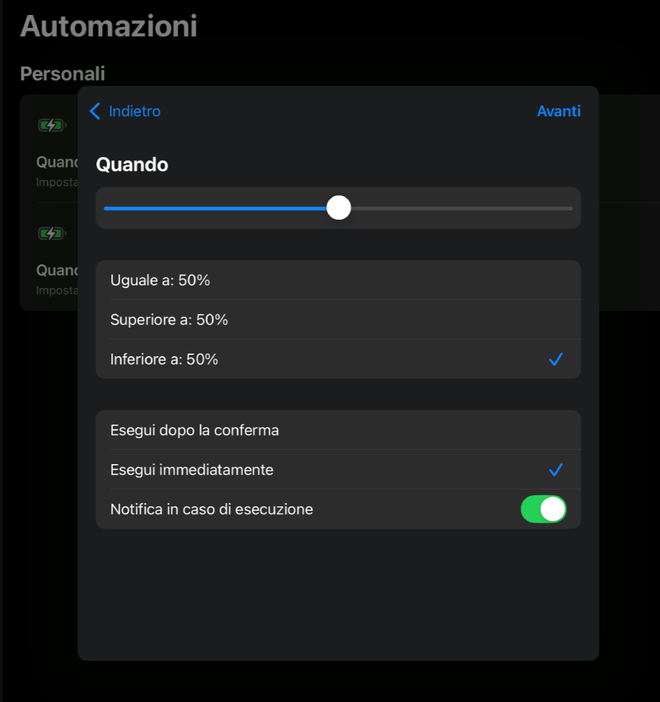
Falls Below and Run Immediately: the two checkmarks that matter For the action, search for Set Low Power Mode and make sure it is set to Turn On.
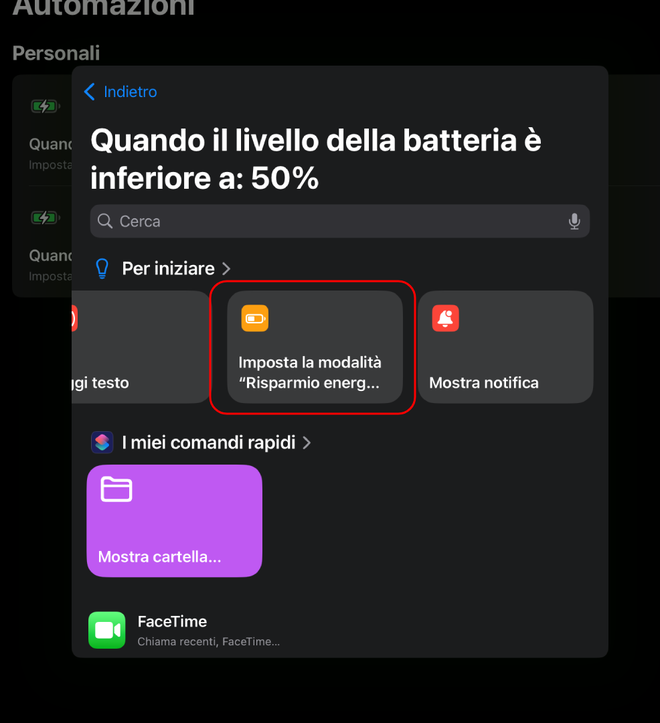
The action often appears among the suggestions Tap Done.


From that moment on, every time the battery drops below your threshold, the mode will turn on without you doing anything.

Other settings that make a difference #
Low Power Mode kicks in when the battery is already low. To make your charge last all day, other settings matter too.
Screen brightness is by far the biggest power consumer on a tablet. Enable Auto-Brightness in Settings → Accessibility → Display & Text Size, and lower it manually when indoors: this matters more than any other change.
Background App Refresh can be adjusted app-by-app in Settings → General → Background App Refresh: most apps don’t really need it.
Location services are managed in Settings → Privacy & Security → Location Services, by setting “While Using the App” instead of “Always” wherever possible.
Notifications consume power every time they wake up the screen: removing unnecessary ones saves more than you think.
Using Wi-Fi instead of cellular data consumes less power when available.
Battery Health #
In Settings → Battery, you can find the usage for every app over the last few hours and days: it is the most direct way to find out what is draining your battery.

To make your battery last for years, two things matter most: avoiding heat, which ruins it more than anything else, and not keeping it at 100% all the time if your iPad stays plugged in for days. Recent systems handle this partly on their own with Optimized Battery Charging, and on newer models, you can also limit charging to 80% via Settings → Battery.
FAQ #
Does Low Power Mode turn off automatically? #
Yes, when the iPad is charging and exceeds a certain threshold, around 80%. Because of this, if you want to decide for yourself when to turn it off, the reverse automation described above is very convenient.
Does it slow down the iPad? #
Only noticeably during heavy tasks: complex games, video editing, or graphics work. For browsing, reading, writing, and watching videos, the difference is minimal, which is why many people keep it on almost constantly.
Can I keep it active all the time? #
Yes, there are no downsides; in fact, with less workload and less heat, the battery suffers less. However, the system turns it off during charging, so it needs to be reactivated—which is exactly why automation is so useful.
Does the automation work even when the screen is locked? #
Yes. Battery-level automations trigger even when you aren’t using your iPad, provided you have selected Run Immediately.
How do I turn off the automation? #
Open Shortcuts, go to Automation, tap the one you created and choose Don’t Run, or swipe left to delete it.
Is it worth closing open apps to save battery? #
No, that is a persistent myth. Background apps are suspended by the system and do not consume power; constantly closing and reopening them uses more energy than simply leaving them alone. It only makes sense with an app that behaves poorly and stays active when it shouldn’t.