How to Remove Creative Cloud from Windows 11 File Explorer
Learn how to remove the Creative Cloud Files folder from your File Explorer sidebar using a registry tweak, including backups and recovery steps.

On this page
When you install Photoshop, Illustrator, or another Adobe program, the Creative Cloud app automatically adds Creative Cloud Files to your File Explorer sidebar. Windows doesn’t provide a way to remove it: it isn’t among the folders you can hide via view options, and right-clicking offers nothing useful.
You can remove it by making a registry edit. It takes two minutes, is completely reversible, and won’t affect your synced files or Adobe programs; only the shortcut in the left column disappears. This works on both Windows 11 and Windows 10.

Backing up the registry #
The Registry Editor allows you to export the relevant section into a file, which you can restore with a double-click if something goes wrong.
Press Win + R, type
regeditand press Enter. When prompted for confirmation, click Yes.In the left column, select
HKEY_CURRENT_USER.Go to File → Export, choose a folder that is easy to find, name the file something like
backup-hkcu.reg, and ensure that Selected branch is selected at the bottom.Save it. This file is your way back: double-clicking it restores everything to its previous state.
If you want extra peace of mind, also create a system restore point by searching for Create a restore point in the Start menu.
Hiding Creative Cloud Files from the sidebar #
The entry in the sidebar depends on a value called System.IsPinnedToNameSpaceTree: with 1 it is visible, and with 0 it disappears. It is located within a key with a code in curly braces that starts with {0E270DAA-1BE6-48F2-AC49-, but the final part varies from one computer to another. For this reason, searching for it is the safest method.
In the Registry Editor, select Computer at the top of the left column so the search starts from the beginning. Press Ctrl + F, type
Creative Cloud Filesand click Find Next.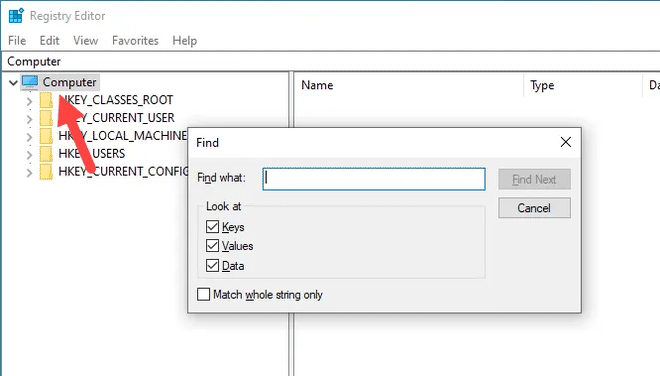
Start from Computer to ensure the search covers the entire registry. The search will stop on a key inside
CLSID, usually inHKEY_CLASSES_ROOT\CLSID\{0E270DAA-...}or its copy inHKEY_CURRENT_USER\Software\Classes\CLSID. In the right pane, you should see the System.IsPinnedToNameSpaceTree value: if it’s not there, press F3 to find the next result.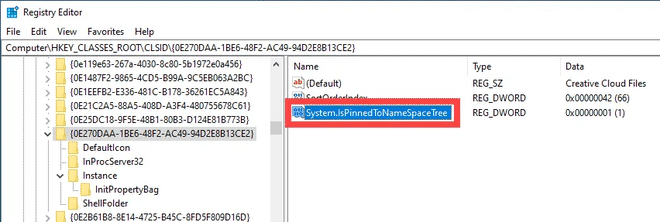
This is the value that determines whether the folder appears in the sidebar. Double-click System.IsPinnedToNameSpaceTree, type
0in Value data and click OK. Make a note of the code inside the curly braces; you will need it if you have to repeat or undo this change.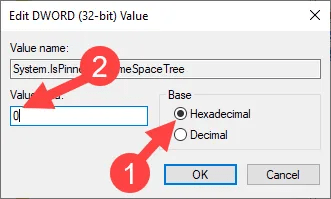
Setting it to 0 makes the entry disappear, while setting it to 1 brings it back. Close the editor and restart File Explorer: open Task Manager with Ctrl + Shift + Esc, find Windows Explorer in the processes list, and select Restart.


Usually, the entry disappears immediately. If you still see it, restart your computer: sometimes Windows only updates the sidebar upon a new login.

If the entry remains even after restarting
In some cases, Creative Cloud also registers the folder among those on the File Explorer desktop. In the Registry Editor, go to HKEY_CURRENT_USER\Software\Microsoft\Windows\CurrentVersion\Explorer\Desktop\NameSpace: if you find a subkey with the same code {0E270DAA-...}, export it as a backup (right-click → Export) and then delete it. Restart File Explorer.
Restoring the entry #
Perform the same steps in reverse: go back to the key, set System.IsPinnedToNameSpaceTree back to 1, and restart File Explorer. If you deleted the key in NameSpace, double-click the file .reg you exported earlier.
Keep in mind that a Creative Cloud app update or the installation of a new Adobe program may automatically reset the value to 1, causing the folder to reappear. If this happens, simply repeat the procedure.
Alternatives to registry editing #
If you aren’t comfortable editing the registry, there are less invasive methods, though they only partially solve the problem.
Disabling file synchronization. In the Creative Cloud app, under the settings in the files section, you can stop syncing. The shortcut usually remains in the sidebar, but the folder will stop updating and consuming disk space.
Preventing automatic startup. In Task Manager → Startup apps, you can prevent the Adobe app from launching with Windows. This uses fewer resources, but the entry stays in File Explorer.
Uninstalling the Creative Cloud app removes the folder, but it also leaves you without the program that manages your Adobe software updates and licenses: this is rarely what you want.
{018D5C66-4533-4307-9B53-224DE2ED1FE6}). Only the key code changes; the value to modify is always System.IsPinnedToNameSpaceTree.FAQ #
Will removing the shortcut cause me to lose my synced files? #
No. This change only affects what is visible in the File Explorer sidebar. Your files remain in their folder on your disk, usually at C:\Users\NomeUtente\Creative Cloud Files, and will sync as before. You can access them by typing that path into the address bar.
Is editing the system registry risky? #
The risk comes from editing random keys, not from this specific operation. Here, you are only changing a single value that determines whether an icon is visible; no system component depends on it. However, the backup described above covers any potential error if you were to edit the wrong key.
Does Adobe synchronization continue to work? #
Yes, it remains active and works exactly as before. If you want to stop it, that requires a separate step within the Creative Cloud app settings.
The folder reappeared after an update: is this normal? #
Note that Adobe app updates can overwrite the value and restore the entry to its original place. Repeat the process: if you have noted down the registry key code, it will only take thirty seconds.
Is there an option within the Adobe application to remove that folder? #
For regular users, no: the Creative Cloud app does not have a setting to hide the shortcut in File Explorer, and this request has been open on the Adobe community for years. Because of this, the registry remains your only option.