macOS Hidden Functions: 7 Tricks to Optimize Mac
Discover the best hidden features of macOS to improve productivity on your Mac. Shortcuts, widgets and tricks to optimize your MacBook.
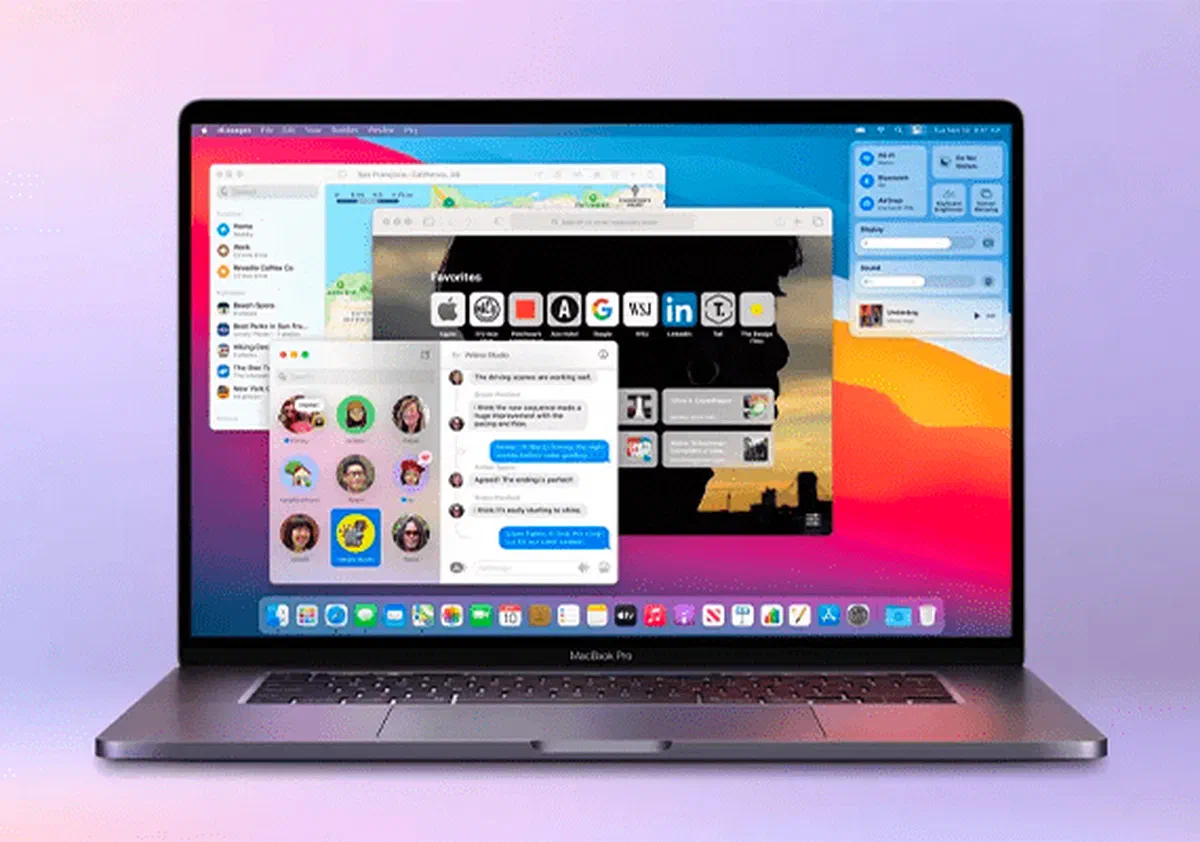
The macOS operating system contains numerous hidden functions that can revolutionize and optimize the use experience of your desktop or laptop computer.
At first glance, the user interface may seem unchanged after numerous updates, but exploring the system in depth you will discover powerful tools integrated by Apple. Whether you’re an early-armed user or a historic MacBook owner, these less-known Mac tricks will save you valuable time and make your workflow much more productive.
1. Add universal media player to macOS menu bar #
During everyday use of your Mac, you do not need to continuously jump between the main application and the audio source to control multimedia playback.

macOS offers the possibility to integrate a universal player directly into the menu bar. Thanks to this practical widget, you can pause, start or adjust the track running on any platform, whether it is the official Apple Music app or a video playing on the web browser.
To activate it, access System Settings (or System Preferences), select Control Center (or Dock and menu bar in previous versions), scroll to “Reproduction” and enable “Show in the menu bar”. From its drop-down menu, you can decide whether to always make it visible or activate it exclusively during active playback.
2. Turns the corners of the screen into powerful shortcuts (active angles) #
There are many key combinations to store, but macOS offers a much faster and more intuitive alternative: Active angles (Hot Corners).

This advanced functionality allows to assign specific actions to the four corners of the monitor. Quickly moving the mouse cursor to one of these corners, your Mac will instantly execute the preset command, optimizing working times significantly.
To configure Active Angles, go to System Settings > Desk and Dock (or Mission Control on the least recent systems) and click on the “Active Angles” button located below.
Through the drop-down menus, choose the angle to customize and assign a quick action. Among the available options, you can start a Quick Note, lock the computer screen, show the Notification Center or start the screen saver, all without touching the keyboard.
3. Add files and folders directly to the Dock #
The Dock, or the famous lower bar of the Apple desktop operating system, is not limited only to applications. You can use it strategically to quickly access the files and folders you use most frequently.

To insert an element into the macOS Dock, find it inside the Finder app. Select the file with one click and open the “File” menu in the top bar. Press and hold the Shift key, the hidden option “Add to the Dock”: select it to create a direct link. The power user can achieve the same result by highlighting the element and pressing the keyboard shortcut Control + Cmd + Shift + T.
4. Use the built-in tool for screenshot and screen recording #
If you are used to capture partial screen snapshots or use QuickTime Player to record the display, it will surprise you to know that your Mac integrates an advanced all-in-one tool entirely dedicated to screen captures.

The usefulness of macOS to capture screenshots and Record the screen is undoubtedly one of the best kept secrets from professionals. Activating it, a floating bar appears with all advanced acquisition options. You can decide to record the entire display, select only one specific portion, include or not the audio from the built-in microphone and highlight the mouse clicks.
You can easily start this application from Launchpad, from the Utility folder, or using the convenient keyboard shortcut Cmd + Shift + 5.
5. Double click to reduce windows icon #
By default, double-clicking the title bar of a window, macOS will adjust its size by filling the screen. This behavior may be unnecessarily useful for those who run many apps at the same time. Fortunately, the Apple operating system allows you to change the function: you can set the double click to reduce the window to icon, instantly lowering it in the Dock.

To activate this customization, navigate to System Settings > Desk and Dock and locate the option " Double-click a window title bar for". From the corresponding drop-down menu, select the “Contrai” action instead of “Zoom”.
6. Automatically launch programs and apps to turn on #
If you always open the same software as soon as you turn on your Mac, there is a setting that can save you valuable time every morning. macOS allows you to automate the ignition by programming the automatic opening of your favorite apps when you login.

Configure your Login elements by going to System Settings > General > login elements (or Users and Groups in older versions of macOS). In the “Open login” section, click the “+” button located below. From the popup window, navigate to the “Applications” folder and double-click the program you want to start automatically.
This powerful utility is not limited to only applications. You can use it to program opening when starting specific text files, documents, images, videos or entire folders from Finder.
7. Instantly call the special character selector #
Inserting icons and special characters textual on the computer can be annoying, especially if the software in use is without it. On a Mac computer this problem does not exist, as the ecosystem has a very useful integrated universal character viewer.

The Apple operating system lets you recall the character selector in any text field you are typing. The fastest way to start this floating window is to simultaneously press the combination of Cmd + Control + Spacer Bar keys.
Alternatively, you can make the shortcut accessible from the top bar: go to System Settings > Keyboard. Click on “Edit” next to “Input Sources” and check the “Show Input menu in the menu bar”. Clicking on the new displayed icon, select “Show Emoji and symbols” to reveal the entire catalog of icons at your disposal.
Frequently Asked Questions (FAQ) about macOS Hidden Functions #
How can I discover other hidden functions of macOS? #
You can regularly consult the official support section on the Apple website, explore the documentation of the pre-installed “Settings” native application on your Mac, or sign up for specialized technological portals to stay up to date on the latest desktop operating systems.
Are Mac keyboard shortcuts customizable? #
Absolutely. macOS allows you to change the system shortcuts by going to System Settings > Keyboard > Keyboard > Keyboard abbreviations. From this advanced section you can customize commands for Mission Control, Spotlight and many other integrated utilities, making your computer tailored to your needs.
Can macOS update delete the configurations of Active Angles and Dock? #
Generally not. macOS’s major updates are designed to safely preserve all user preferences, including custom shortcuts and Dock behavior. However, before performing a relevant system update, it is always highly recommended to make a full security backup using Time Machine.