Custom state Discord: Change Game
Learn how to set a custom game status on Discord from desktop. Follow our step-by-step guide to customize your business.
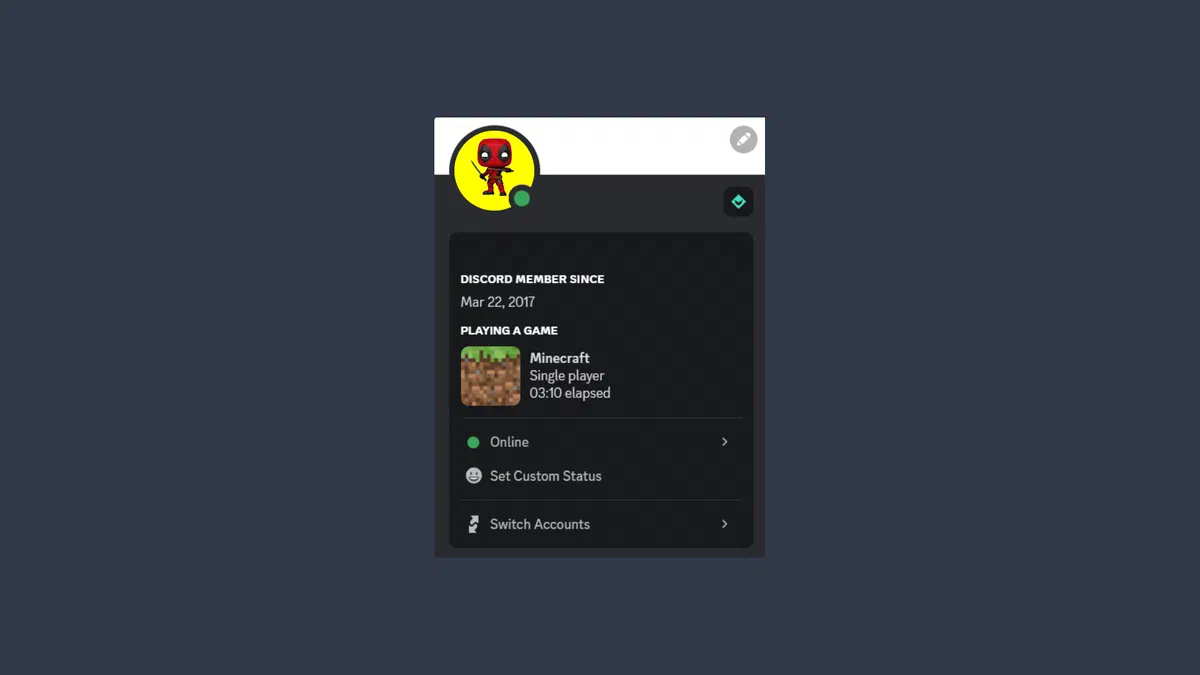
Discord offers its users various tools to customize their online presence, and one of the most appreciated is the ability to show what you are playing. Although the system automatically detects applications running, setting a custom game status allows you to insert creative or fun messages to interact with your community. This guide will illustrate you step by step how to change your current activity using the desktop application, also referring to the official support Discord guidelines.
Access to User Settings #
To start the configuration, it is essential to start the official client on your computer. The option to change the current activity is in fact an exclusive desktop version for Windows, Mac or Linux and is not currently supported through the web application from the browser. Here are the initial steps:
- Start the application: Open the Discord desktop program on your operating system and log in.
- Access User Settings: Locate the gear icon placed in the lower left corner of the main screen, right next to your username and microphone controls, and click it to access the control panel.
Add a Custom Game #
Within the settings panel, you will have to force the system to recognize an active program on your computer as if it were a video game. Follow this procedure carefully:
- Select the game tab: Scroll down the left side bar until you find the section of the task settings and click on the “Recorded Game” option (previously known as Game Task).
- Force detection: Locate the text that indicates that no game has been detected and click on the text link “Add” highlighted in blue. A drop-down menu will begin immediately.
- Select an active process: From the drop-down menu, choose any program currently running in the background on your computer (for example, your web browser, calculator application or text editor).
- Confirm the operation: Press the blue button “Add Game” to save. The chosen software will now be shown in your profile under the heading of the current activity.
Customize Game Name #
The final step is to rename the newly added application to show the desired message to all the server members where you are:
- Locate the added program: Staying on the same screen as the User Settings, see the top green pane that indicates the game currently running.
- Edit the text field: Click directly on the name of the newly added application (for example, the name of your browser). The text will become an editable field. Type in this space your sentence or your custom status.
- Save the changes: Click outside the text field or close the settings. Now, whoever will display your profile will notice your new custom activity instead of the real program. To find out how your profile is displayed outside, see the privacy and security of your account.
Frequently asked questions (FAQ) #
Can I set a custom gaming status from the smartphone application? #
No, at the moment the Discord mobile application for iOS and Android devices does not allow you to manually add or edit the game activity to insert custom messages. This specific manual configuration feature remains an exclusive desktop application.
Can other users see the real program I’m using in the background? #
Absolutely not. If you change the program name (such as your browser) within the Registered Games section, other Discord users will only see the custom text string you typed, thus keeping the software really in use.
Why does my custom status on Discord suddenly disappear? #
The custom game status is strictly bound to the running program you used as " bait". If you close that software (for example, if you have used the note block and decide to close it), Discord will stop tracking the activity and your custom status will disappear from the profile until its reopening.