


The operating system Windows offers endless possibilities of customization, but the start logo (boot) remains inaccessible from normal settings. For change the Windows upload logoIn fact, it is necessary to intervene at a deeper level, dialogue directly with the firmware of the PC.
Fortunately, thanks to an excellent open-source utility called Hackyou can replace the default Windows logo with a custom image in few simple steps. Let's find out the complete guide to make it safe.
Requirements to Customize Windows Boot Logo
Before downloading the program, you must check that your computer meets some essential technical requirements to be able to change the boot screen without errors.
1. Verify BIOS Mode: UEFI Required Support
Software Hack is designed to function only and exclusively on motherboards with uEFI system. Here's how to check the compatibility of your PC:
- Press the key combination Windows + R to open the window Execute.
- Type msinfo32 and awards Send. The screen will open System Information.
- In the right panel, locate the voice BIOS mode and make sure you indicate exactly UEFI.
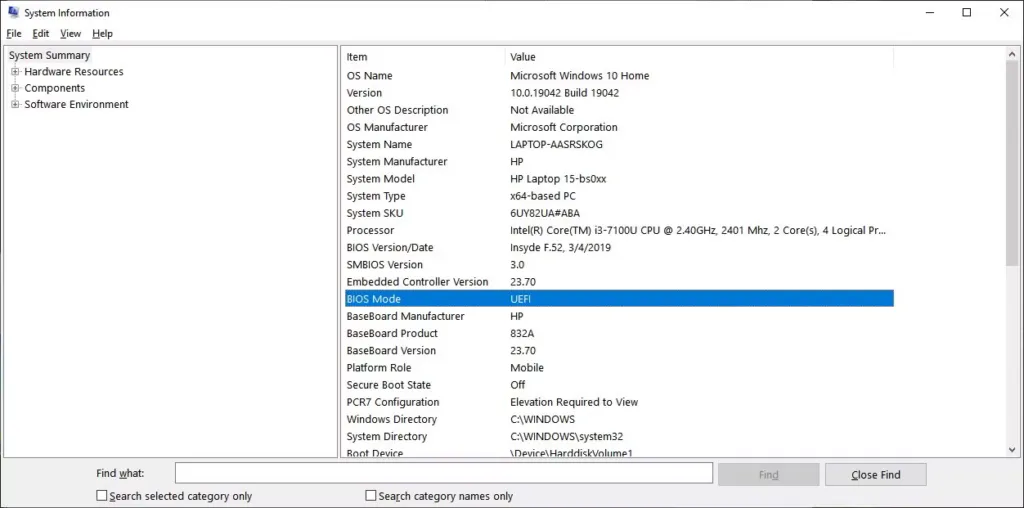
2. How to Disable Secure Boot (Safely Start)
To allow HackBGRT to overwrite the Windows logo, it is absolutely necessary disable Secure Boot (Safe Start) directly from the BIOS/UEFI settings. Remember that this procedure varies according to the manufacturer of your motherboard.
3. Prepare the Image of the New Custom Logo
The new graphics that will replace the standard loading icon must comply with very rigid technical parameters to be recognized by the system:
- Ideal dimensions: The image should be a perfect square, we recommend a resolution of 200×200 or 300×300 pixels.
- File format: Must be exported strictly as image Bitmap to 24-bit (.bmp).
- File name: Rename the image in splash. b.
Attention to Security: Since HackBGRT goes to edit system files of eFI partition, we strongly recommend you create a windows Recovery Point or a USB recovery drive before proceeding.
HackBGRT Installation and Configuration Guide
If you have completed the preliminary steps, you are ready to download and install the software.
- Download the tool: Download the latest HackBGRT release in format
.zipfrom the official repository on GitHub and extract its content in a folder easily accessible. - Start of the Setup: Double-click the file setup. ex content in the newly extracted folder and give administrator permissions when required.
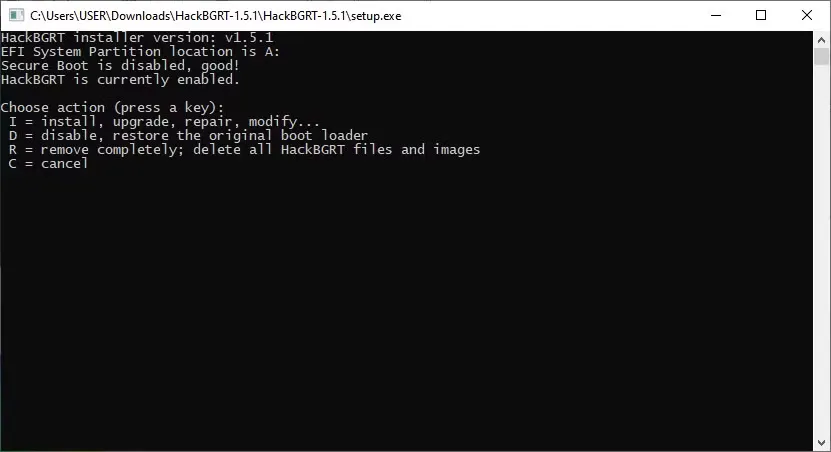
- Execution: A classic black screen of the Command Prompt will open. Press the button I on your keyboard to start the installation process.
- Automatic configuration: It will open the Note Block with the program configuration file. For a basic installation, don’t touch anything: just close the Notepad window.
How to Insert Your Start Logo in Windows
As soon as you close the Notepad, HackBGRT will automatically open the program Microsoft Paint. This phase is crucial because it allows us to insert the custom logo directly into the hidden Windows partition.
- From Paint, click on File > Open and moved to the section This PC.
- You will notice a new temporary system disk (usually named “SYSTEM” or “A:”). Double-click to open it.
- Naviga following the route: EFI > Hack.
- In this directory, paste your file splash. b prepared previously, confirming the will of overwrite existing file.
- Close Paint and any other windows. The Command Prompt will show an installation notice. Press any button to exit.
Finished! At the next restart of your computer, the old Windows logo will finally be replaced by your custom boot screen.
Restore Original Windows Logo
If you encounter problems or simply want to return to the factory logo, remove the change is very easy:
- Launch the file again setup. ex hackBGRT you used for installation.
- In the Black Prompt window, simply press the button D.
- The system will confirm the elimination of customization. Restart your PC and get back windows default logo.
FAQ: Frequently Asked Questions about Changing Boot Logo
HackBGRT slows computer startup?
Absolutely not. The software is limited to replacing the image file loaded during booting from the UEFI system, keeping the normal ignition times of your Windows PC completely unchanged.
Can I use JPG or PNG images for Windows logo?
No, the UEFI system strictly requires an image saved in format Bitmap to 24-bit (.bmp). Any other format, such as JPG or PNG, will simply make the logo invisible during the loading phase.
Disable Secure Boot is dangerous?
Secure Boot is a technical protection against low-level threats during system startup. Disable it to install Hack lowers this specific defense, but for a home user with good navigation practices and an updated antivirus, real risks are extremely reduced.


