


Windows Sandbox is a very useful feature to test the software on Windows 11. This is how to configure it on your PC.
What is Windows sandbox?
Windows Sandbox is a feature introduced with Windows 10 version 1903 and since then it is part of Windows. However, it is only available for Pro and Enterprise editions, so your PC may not support it. However, there are third-party software such as Sandboxie that achieve a similar purpose.
Windows Sandbox is based on virtualization technology, the same type of technology that feeds Hyper-V virtual machines (VM) to create an isolated environment where you can test the software. It may be downloading potentially dangerous software or testing your software that you are developing, which may cause problems with your system.
Unlike a traditional VM, however, Windows Sandbox does not need you to provide an ISO file, a virtual hard drive or anything. Everything is configured automatically and the operating system within Windows Sandbox is the same as you are currently using. It is just a clean copy of your operating system, which is isolated from the rest of your files so that everything stays safe. Although it is not as versatile as configuring a VM with any desired setting, Windows Sandbox is extremely easy to use for anyone. that is a stand-alone advantage.
What you need to run Windows Sandbox
The configuration of Windows Sandbox is extremely simple, but there are some things you need to check first. Your PC processor must support virtualization and this function must be enabled in the BIOS. To verify it, follow the following procedure:
- Right-click the Start menu icon (or press Windows + X on the keyboard), then choose Windows Terminal (Admin) from the menu. Note: in the latest versions like Windows 11 version 22H2 , this option is simply called Terminal (Admin)
- Type systeminfo. ex in the Windows Terminal window and press Send
- At the bottom of Windows, check the section of Hyper-V requirements and make sure all requirements indicate Yes
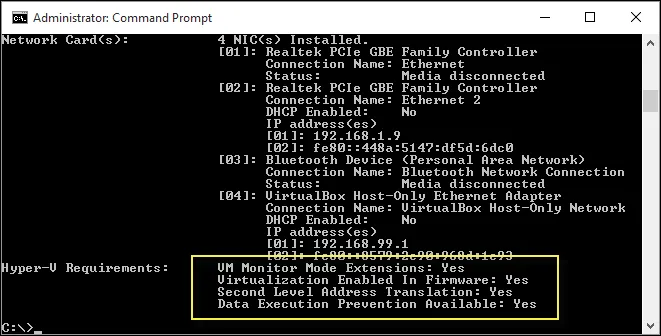
- If you see the option Virtualization Enabled in Firmware says No , you will need to enable it in your BIOS settings.
How to configure Windows Sandbox
In addition to ensuring that your PC is easy to run, configuring Windows Sandbox is actually incredibly easy. Here's what you have to do:
- Open the Start menu and enter optionalfeatures. ex , so press Send
- Scroll down to find the option Windows Sandbox , then select the box next to it.
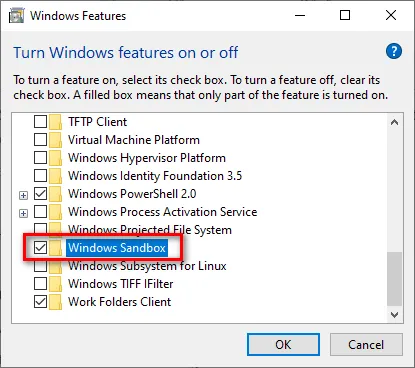
- Click on OK. and wait for the installation of the components. Restart your computer when required.
- Windows Sandbox should now look like an app in the Start menu
- Now you should have Windows Sandbox available as optional Windows feature. Follow the steps described in the previous section to enable the function and you will be fine.
Now you should have Windows Sandbox available as optional Windows feature.


