

Microsoft has released more and more PowerToys for Windows 10 and 11. This open source project adds many powerful features to Windows, from a blocking file renamer to an alternative Alt+Tab that allows you to search Windows from the keyboard.
How to get Microsoft PowerToys
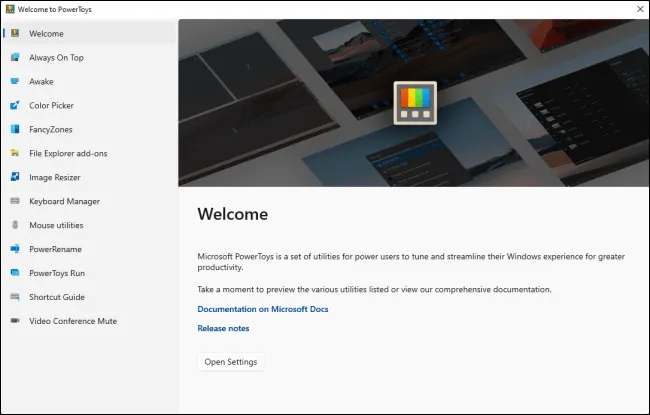
You can download PowerToys from Microsoft Store or get an installation program directly from GitHub and enable the desired features from the PowerToys Settings application. It is free and open source. If you are using GitHub, download the EXE file “PowerToysSetup” from the website and double-click to install it.
You can start PowerToys from the Start menu and will remain running in the background.
To access PowerToys settings after installing and launching the application, locate the PowerToys icon in the notification area (Application bar) on the Taskbar, right-click and select “Settings”.

Always in the foreground, to make any Windows always prominent
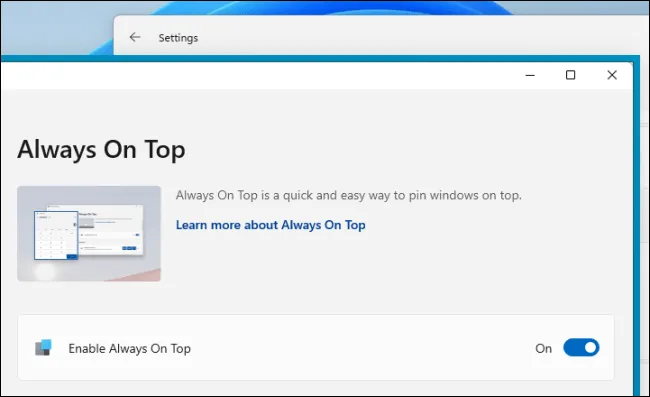
Always in the forefront of Microsoft's PowerToy offers a simple way to make any window always prominent. Just press Windows+Ctrl+T and the window will be at the top of all other windows until you cancel the edit with Windows+Ctrl+T.
When using the shortcut, the window will always in the foreground receive a blue edge and a notification sound will be played. You can disable them, if you want, and also change the keyboard shortcut in anything else.
It is much more convenient than third-party utilities to make Windows always prominent.
Mouse utilities, to find the mouse and track clicks

Sometimes it may be difficult to locate the mouse, especially if you use a high resolution display. Mouse Utilities adds two keyboard shortcuts that make it easier: Find my mouse and mouse highlighter.
To use Find My mouse, tap the Ctrl button twice. Most of the screen becomes grey, leaving behind a bright circle that highlights the position of the mouse cursor.
The mouse highlighter leaves a colorful circle whenever you click. To turn it on and off, press Windows+Maiusc+H by default: you can change this key combination even in the mouse highlighter settings.
Disable audio for videoconference, to activate the microphone and the webcam

Video Conference Mute PowerToy offers you universal keyboard shortcuts (globals) to quickly turn off the microphone and turn off the camera. They work in every Windows application, not only in video conferencing tools such as Zoom, Microsoft Teams and Google Meet.
By default, you can press Windows+Maiusc+Q to turn off the camera and microphone, Windows+Maiusc+A to disable only the microphone or Windows+Maiusc+O to turn off the camera. When you do, a mobile toolbar will appear, which reminds you that you disabled your inputs with the Muto videoconference tool and offers you a quick way to reactivate them
Power Toys has a variety of settings that allow you to configure which microphone and webcam disabled and change these keyboard shortcuts in anything else you prefer.
Awake, a quick way to stop PC suspension
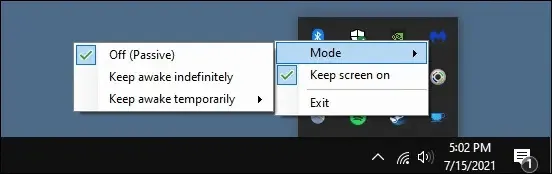
Whether you’re downloading a file or running another long-term activity, sometimes you just don’t want your PC to go in suspension mode. You can go to Settings and tell Windows to never sleep, wait for the task to complete, then go back to Settings and change the setting again. Of course, there are many clicks and it is easy to forget to reactivate the suspension mode.
PowerToys Awake offers you a quick notification area icon that allows you to control sleep settings. You can make sure your PC never goes to sleep until you tell him not to. Or you can configure your PC so that it remains active only up to a predetermined hour you set.
Color selector, a quick color selector at system level

People working with graphics, from web designers to photographers and graphic designers, often have to identify a specific color and use it. That’s why tools like Adobe Photoshop have a color selection tool (goccia per gli occhi) that lets you point the mouse cursor on a part of an image to accurately identify what color it is.
Color Picker is a colliery tool that works everywhere on your system. After enabling it in PowerToys, press Win+Shift+C to open it anywhere. You will see the color code displayed in both hexadecimal and RGB so you can use it in other programs.
Click once and the hexadecimal color code will be copied to the clipboard so you can paste it. If you prefer RGB, you can open the Color Selector screen in the PowerToys Settings window and choose to copy the RGB color code instead when you click.
PowerToys Run, a launcher of rap applications
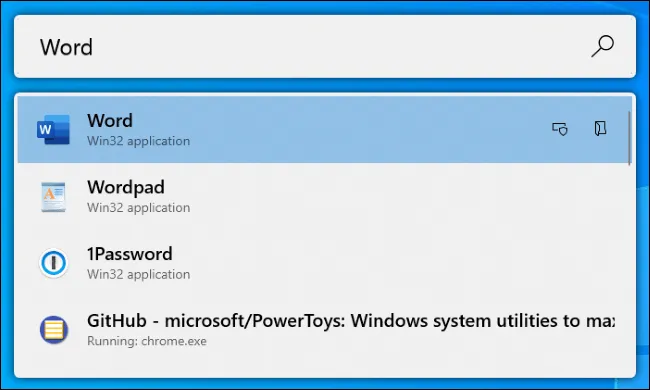
PowerToys Run is a text-based application launcher with a search function. Unlike the classic Windows Run dialog box (Win+R), it has a search function. Unlike the Start menu search box, it is about starting things on your computer instead of looking on the Web with Bing.
In addition to applications, PowerToys Run can quickly find files. You can even find and move to open windows, just search for the title of the window.
To open it, press Alt+Space. This keyboard shortcut is customizable from the PowerToys Run panel in PowerToys Settings.
Start typing a phrase to search for applications, files and even open windows. Use the arrow keys to select an item in the list (or continue typing to restrict it) and press Enter to start the application, open the file or move to the window.
PowerToys Run has some other features, such as a “Open as administrator” button and “Open folder containing” for each option in the list. In the future, it will have plug-ins as a calculator.
Keyboard Manager, to remove keyboard shortcuts
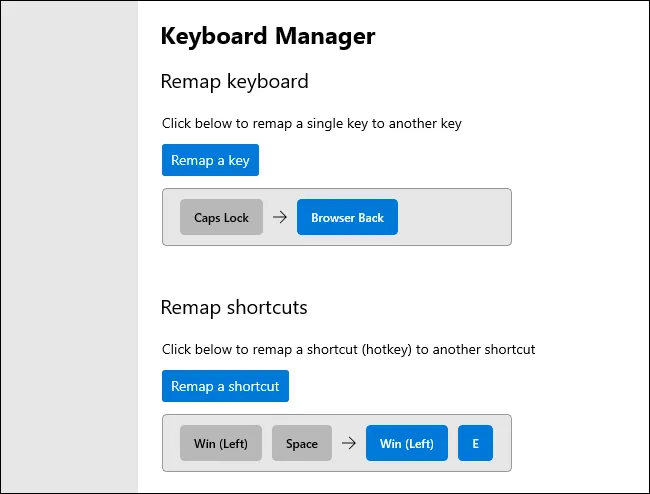
Keyboard Manager provides a simple interface to remove single keys on the keyboard and multi-key shortcuts.
The “Run keyboard” tool allows you to change a single key in a new key. You can make sure that any keyboard key functions like any other key, including special function keys. For example, you can turn the capital lock button that you never use in a browser Back button to navigate more easily on the Web.
The shortcuts pane allows you to change shortcuts from multiple keys in other shortcuts. For example, Win+E normally opens a File Explorer window. You can create a new Win+Space keyboard shortcut that opens a File Explorer window. New keyboard shortcuts can overwrite existing keyboard shortcuts integrated in Windows 10.
PowerRename, a file renamer in block
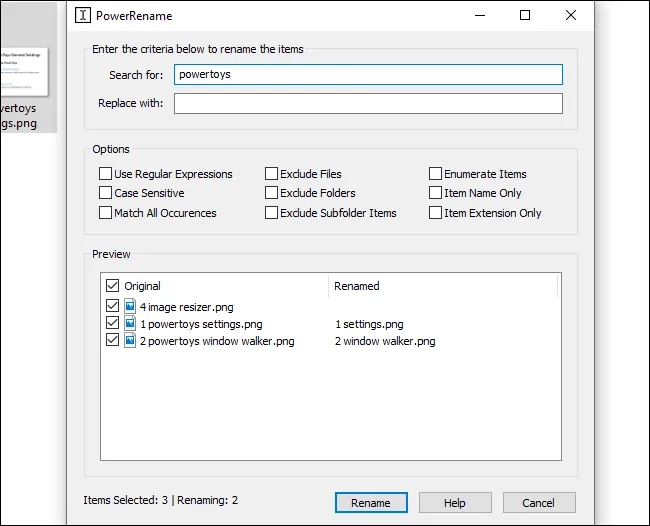
Microsoft’s PowerToys include a batch renaming tool called “PowerRename”. With this enabled feature, you can right-click one or more files or folders in File Explorer and select “PowerRename” in the context menu to open it.
The PowerRename tool window will be displayed. You can use text boxes and control boxes to quickly rename batch files. For example, you can remove words from the name of a file, replace sentences, add numbers, edit multiple file extensions simultaneously and more. You can also use regular expressions. The preview pane will help you to perfect the renaming settings before proceeding with renaming files
This utility is much easier than most third-party batch renaming tools available for Windows.
Image Resizer, a block image resizer
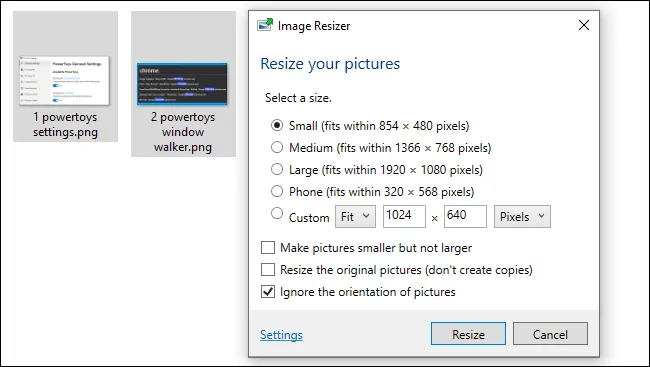
PowerToys offers a quick image resizer that integrates with File Explorer. With it enabled, select one or more image files in File Explorer, right-click and select “Resize Images”.
The Image Resizer window will open. You can then choose a size for image files or enter a customized size in pixels. By default, the tool will create resized copies of selected image files, but you can also resize and replace the original files. You can even click the “Settings” button and configure advanced options such as image encoder quality settings.
This tool is a quick way to resize one or more image files without opening a more complicated application.
FancyZones, a window manager based on zones
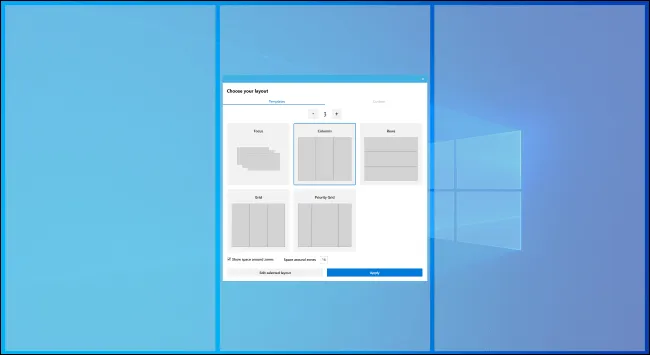
FancyZones is a window manager that allows you to create “zone” layouts for windows on your desktop. Windows normally allows you to “enter” windows in a 1×1 or 2×2 layout. FancyZones allows you to create more complex layouts.
By default, you can press Windows+(which is a serious character, the button above the Tab key) to open the Zone Editor. Then, as you move and release a window, you can hold the Shift key (or another mouse button, like the right mouse button) to see the areas. Releases a window in a zone and will stick to that layout on the screen.
FancyZones offers a quick way to set complex window layouts without accurately resize each window. Just enter the windows in the areas. You can configure all its many options and keyboard shortcuts by opening the PowerToys Settings window and clicking on “FancyZones” in the sidebar.
Quick Choice Keys Guide for Windows Quick Choice Keys
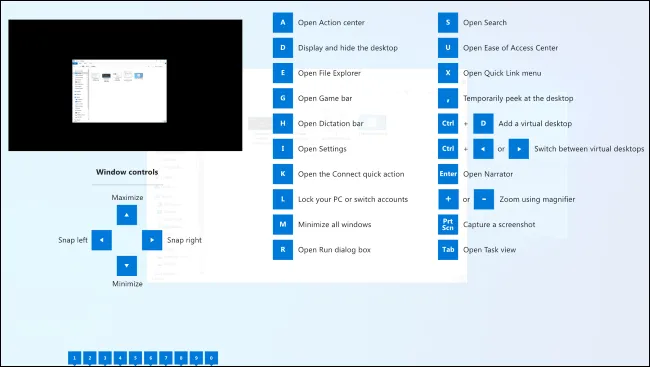
Windows is rich in keyboard shortcuts using the Windows button. For example, did you know that you can press Windows+E to open a File Explorer window, Windows+i to open a Settings or Windows+D window to show your desktop? You can also press Windows+1 to activate the first link to the application from the left on the Taskbar, Windows+2 to activate the second and so on.
The Windows Quick Choice Keys Guide will help you learn and remember these shortcuts. With it enabled, you can hold the Windows key on the keyboard for about a second to display an overlay showing common shortcuts. Release the key to eliminate overlay.
Add-ons of File Explorer, for further previews
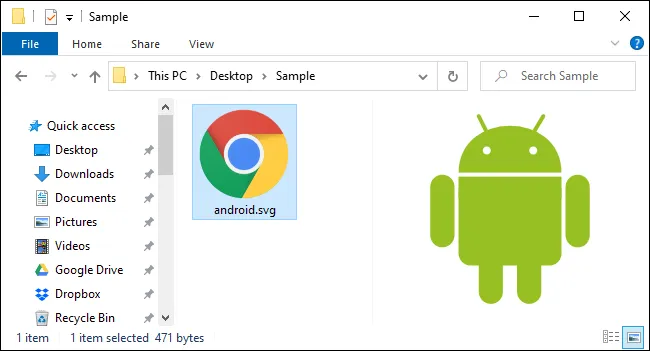
File Explorer has a preview pane, which can show previews of images and other file types directly in File Explorer. Press Alt+P in File Explorer to show or hide it. Select a file and you will immediately see a preview.
With the various add-ons of Explore files enabled in PowerToys, Windows will be able to display previews of SVG images ( scalable vector graphics) , formatted documents in Markdown , PDF documents and G-code files (used by 3D printers).
What happened to Window Walker?
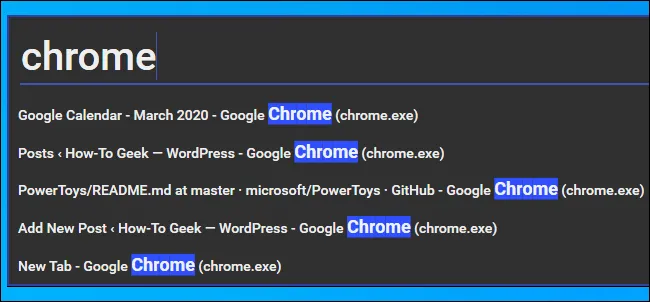
Window Walker is an alternative text-based Alt+Tab with a search function. To open it, press Ctrl+Win. You will see a text box appear.
Start typing a phrase to search for open windows that match it. For example, if you have multiple open Chrome browser windows, you can type “Chrome” and you will see a list. Use the arrow keys to scroll the windows and press Enter to select one.
This tool can be very useful if you have many open windows and are digging to find one in particular. For example, if you have ten different open browser windows and are looking for one showing a certain website, you can press Ctrl+Tab, start typing the website name and find the browser window showing that website.


