

In today’s world, where our mobile devices are indispensable extensions of our lives, battery autonomy remains one of the most felt challenges. Although battery technology is constantly evolving, we often find ourselves wanting a few more hours of use from our iPad, especially when we are out of the house or away from a power outlet.
Apple has long introduced a valuable function to address this need: “Energetic Sprinkle” mode. This feature, already appreciated by iPhone users, is a real life saver that significantly extends the battery life of your iPad, acting on some of the most energetic functions.
What is the “Energetic Sprinkle” Mode and how does it work?
The “Energetic Transparent” mode is a smart solution designed to extend the autonomy of your device when the charge is low. You don’t have to wait for a specific percentage to activate it manually, although the iPad will suggest you do so when the battery drops below 20%.
By activating this mode, the iOS/iPadOS operating system implements a number of measures to reduce energy consumption:
- Limitation of network features: The 5G may be temporarily deactivated (except for content streaming).
- Screen management: The automatic screen lock is set to 30 seconds and the screen brightness is slightly reduced. The refresh rate of the screen could decrease to 60 Hz to contain consumption.
- Activation of animations: Some visual animations are disabled for a leaner and less expensive experience in energy terms.
- Background services suspension: Activities such as updating iCloud photos, automatic downloads and automatic email recovery are paused.
- Background app update: Background apps will not automatically update.
All these optimizations work together to ensure that extra hours of autonomy can make a difference.
Automatic activation: A More Pass for the Maximum Convenience
Many wonder if it is possible to make this function even smarter, automatically activating it when the battery reaches a certain threshold. The answer is a decision Yes, and the solution lies in the app Commands by Apple, a powerful tool to automate operations on your iPad.
Follow these simple steps to create a custom automation that will activate Energy Saving when you need it:
- Open the Commands app: Find and open the “Command” application on your iPad.
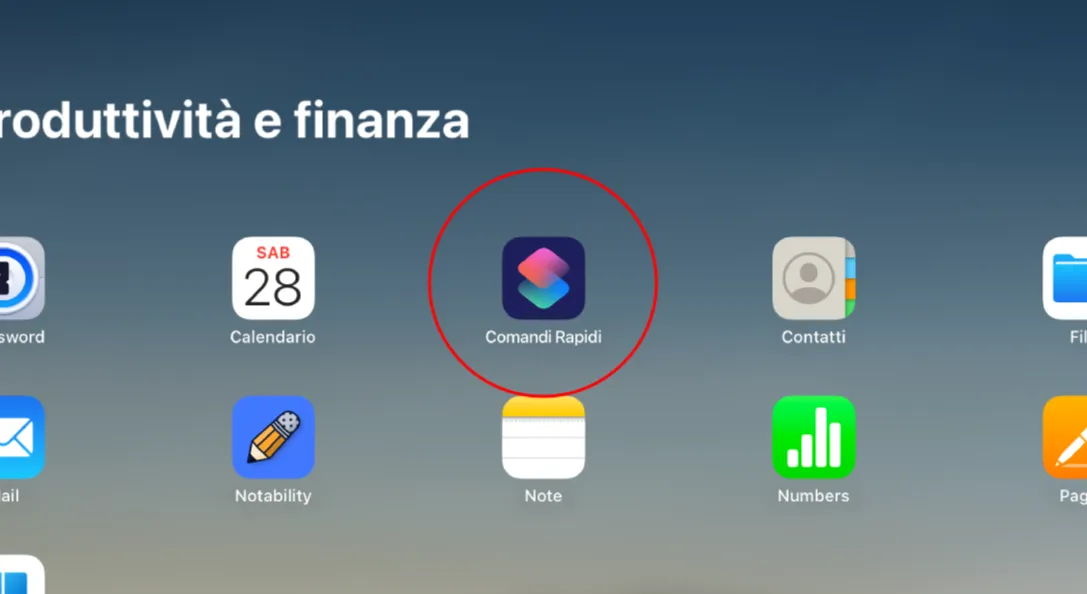
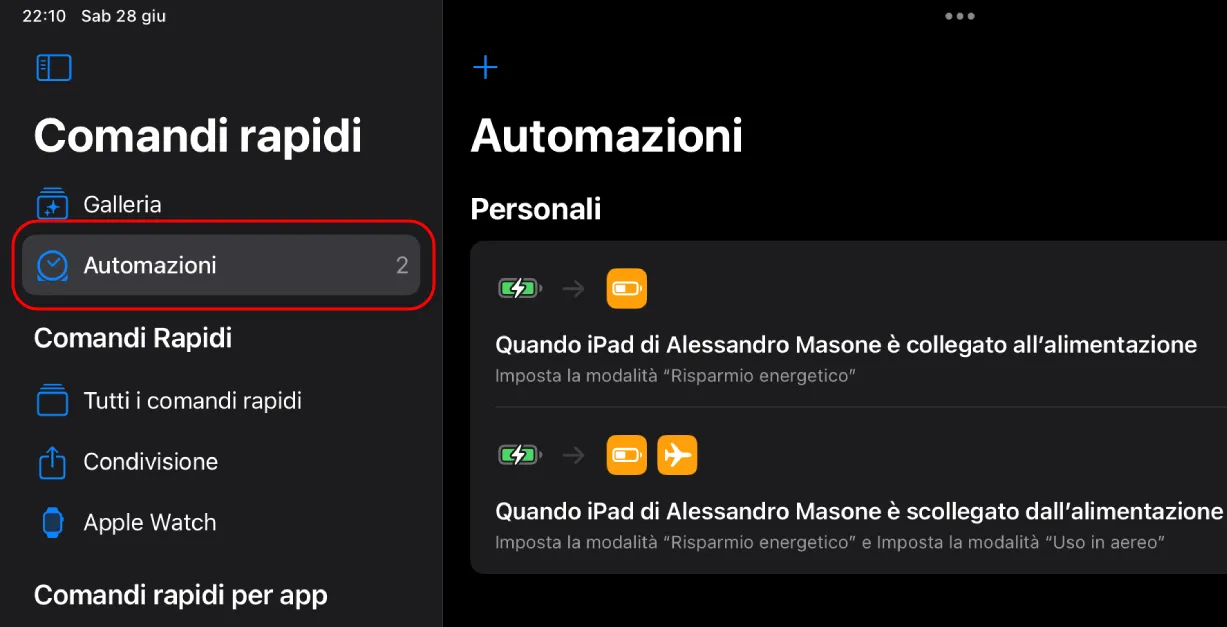
- Access the Automation section: In the bottom bar, tap the tab “Automation”.
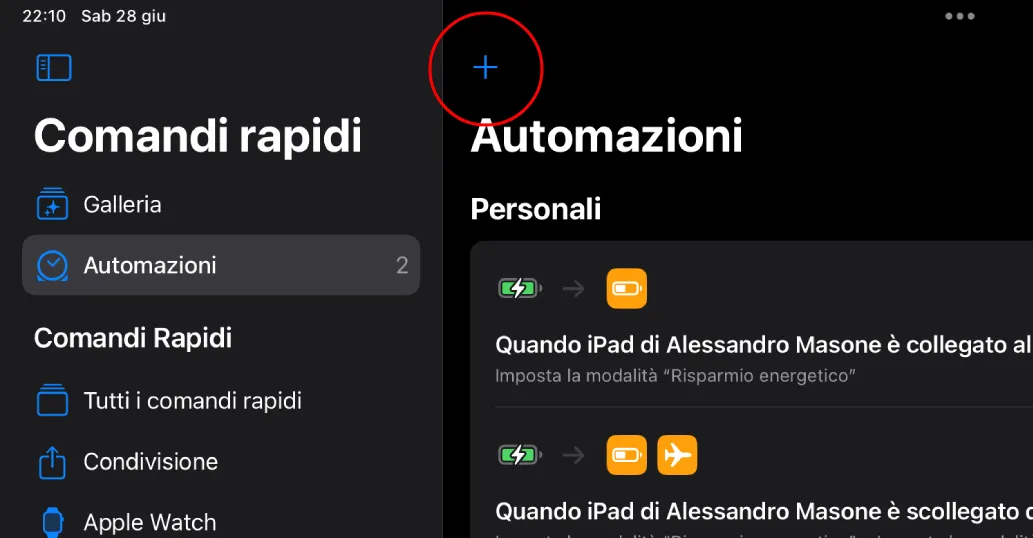
- Create a New Automation: Tap the “+” button in the upper right corner and select “Create personal automation”.
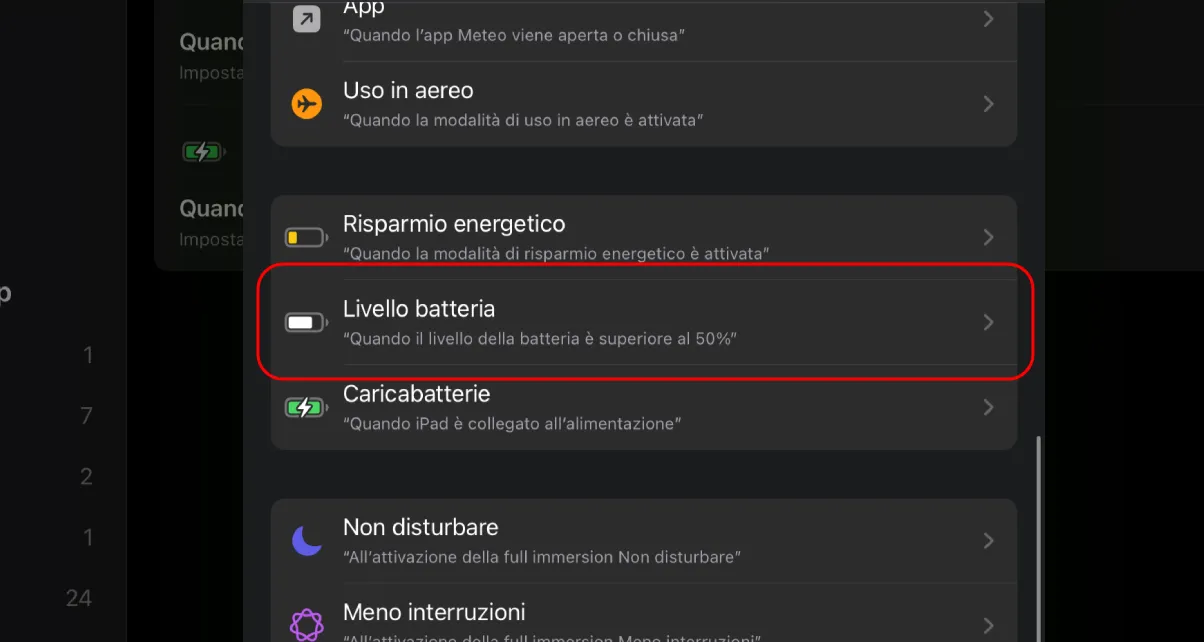
- Choose the Battery Level as Condition: Browse the list of options and select “Battery Level”.
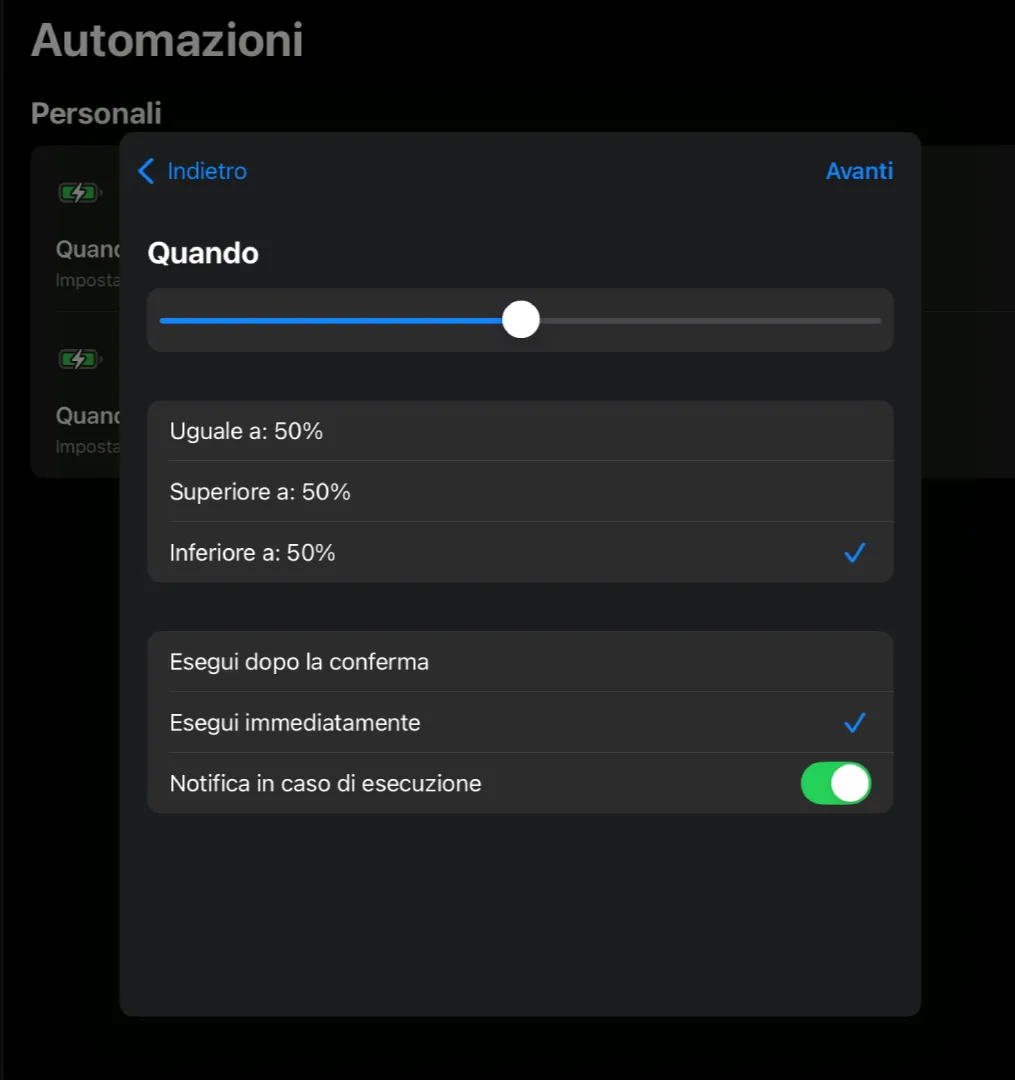
- Set the Activation threshold: Move the cursor to choose the battery percentage below which you want the Energy Saving to activate. For example, if you choose 30%, make sure the “Inferior to” option is selected. Then set “Execute immediately” to automate it completely. Tap “Next” at the top right.
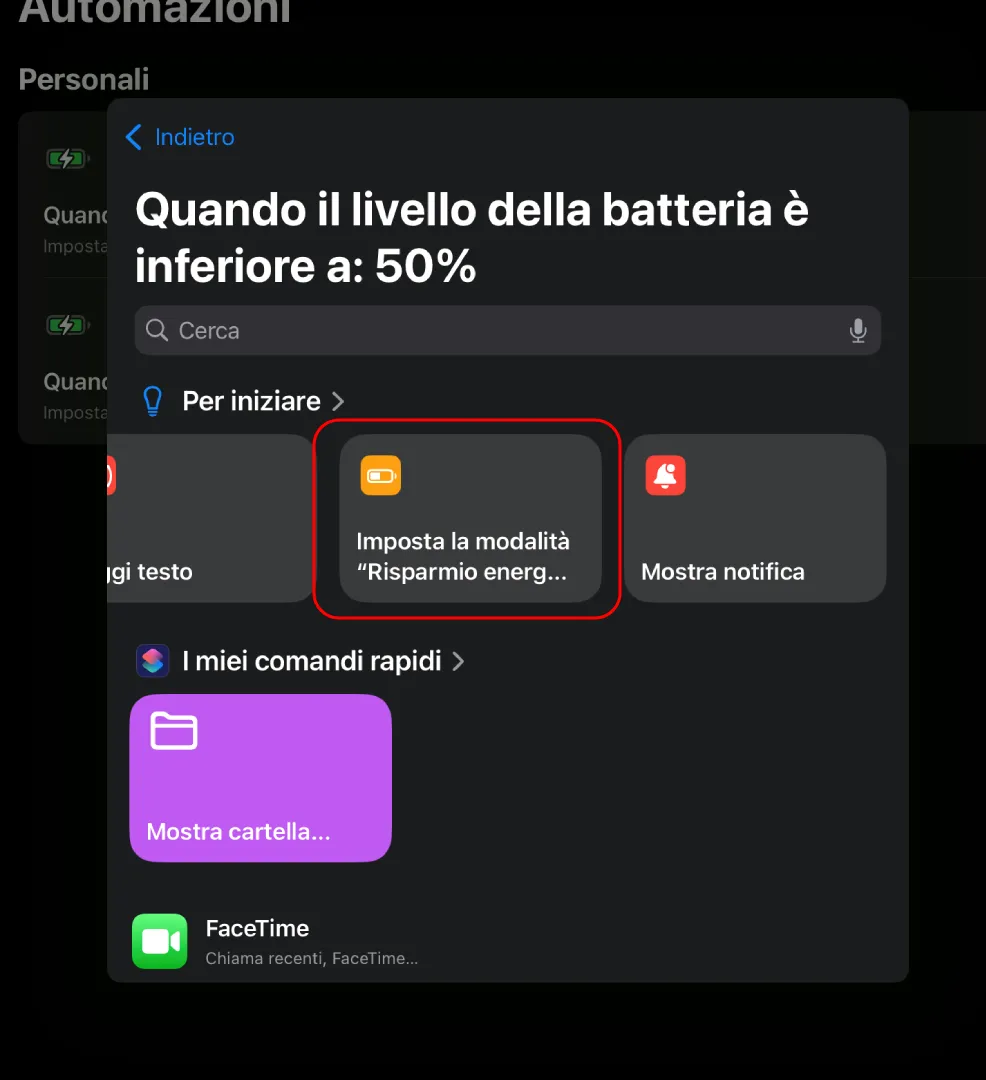
- Add the Action “Setting the mode “Energetic Transparency””: In the search bar below (“Search apps and actions”), type “Set the “Energetic Sprinkle” mode” and select it from the list. Then, tap “Next”.
- Finalize the Automation: Click on the new automation appearance and check the correctness. Tap “Fine” in the upper right corner to save your automation.
There you go! From this moment on, every time your iPad battery drops below the percentage you set, the “Energetic Sprinkle” mode will automatically activate, giving you valuable hours of additional autonomy and allowing you to use your device longer without worries. This simple automation transforms a manual action into a completely smooth and seamless experience.


