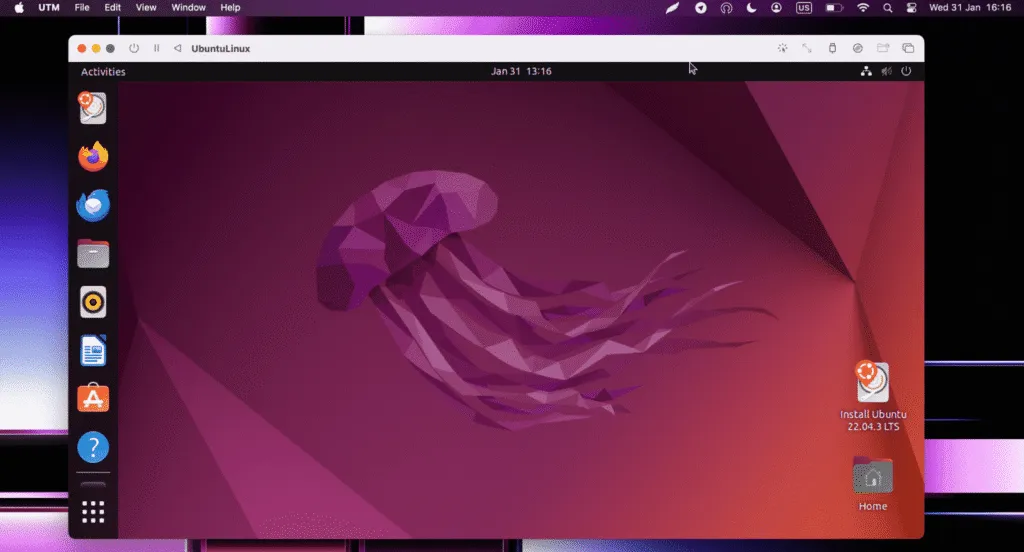
The introduction of Apple Silicon chips (Series M) has resulted in a paradigm shift in the execution of “guest” operating systems. To perform Linux distributions on this architecture, developers must opt between emulation and virtualization.
While the emulation (e.g. through QEMU) mimics the entire hardware via software by translating the instructions, being honest in terms of resources, virtualization partition physical hardware resources (CPU, RAM) using native Apple support.
This guide uses UTM, an open-source solution that allows you to perform ARM64 systems at native speeds.
Step 1: Selection and Preparation of ISO image
Before configuring the virtual machine (VM), it is crucial to select a compatible Linux distribution.
- Architecture: it is imperative to download compiled images for ARM64 (AArch64).
- Page Size Compatibility: The Mac M series support 4kb and 16kb memory page. Non-conform distributions (such as some RHEL 8.x builds) will not work.
- Type:
- Desktop: we recommend Ubuntu Desktop (LTS) for a full graphic experience.
- Servers: Sugest Alpine Linux or Alpaquita Linux for light environments optimized for containers and Java
Step 2: Configuring the Environment in UTM
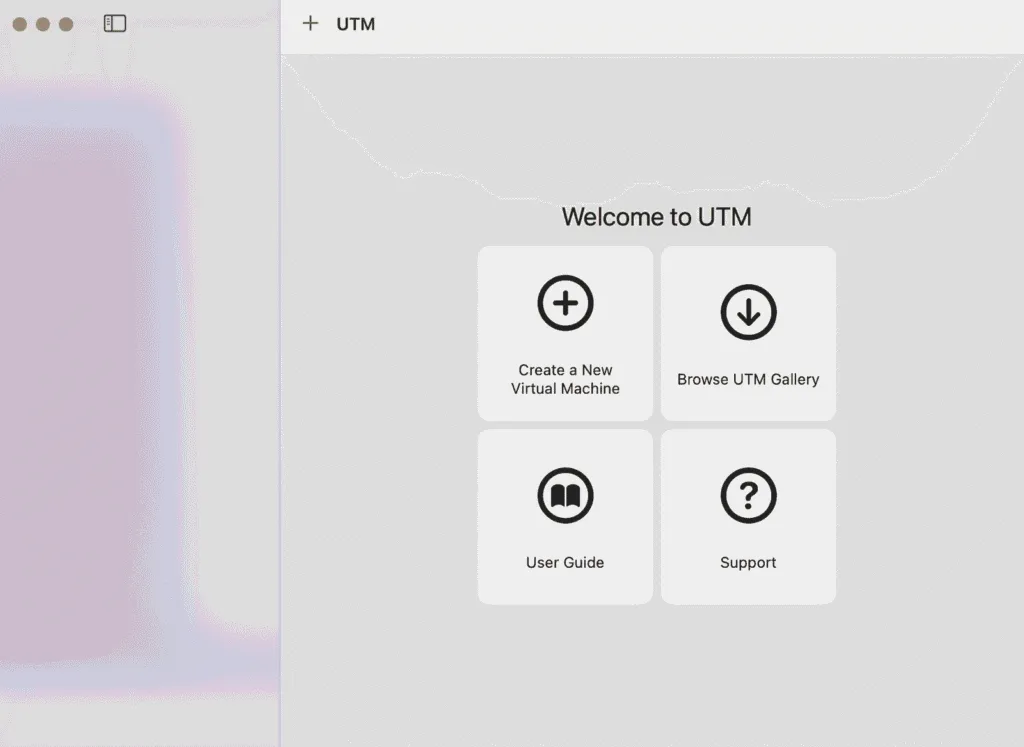
Launch UTM and start creating a new virtual machine by selecting the option “Virtualize” followed by “Linux“.
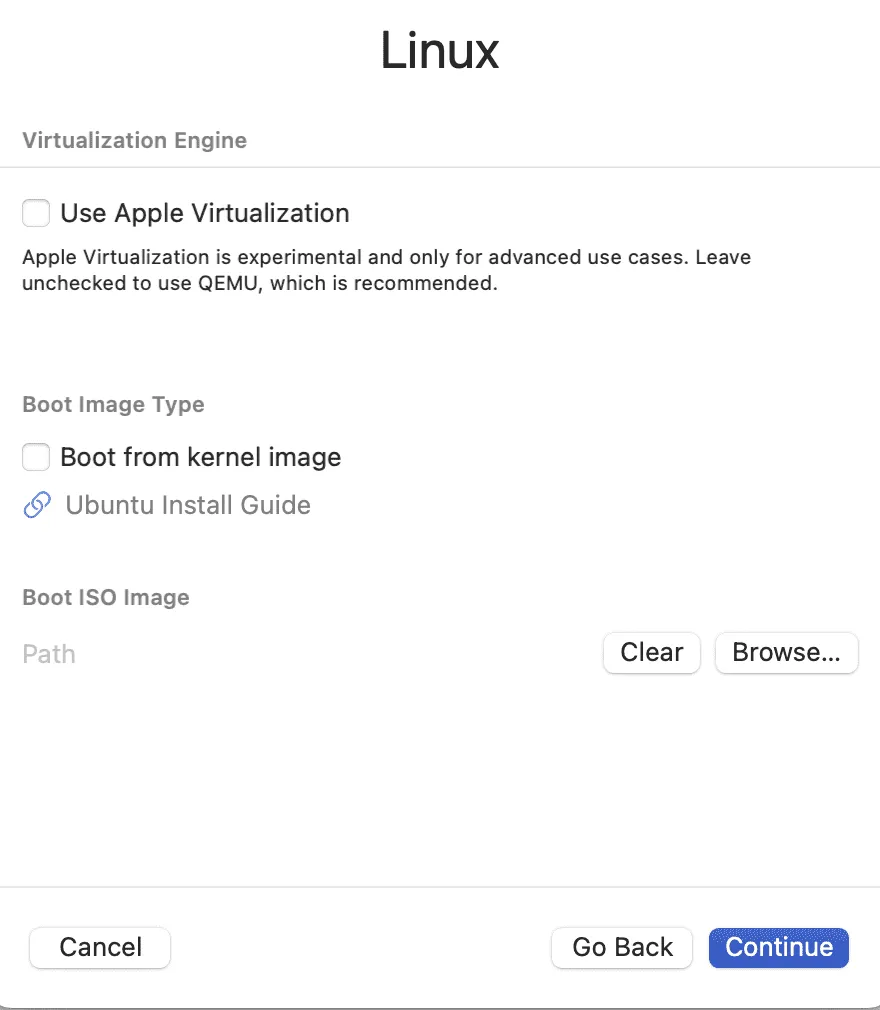
Configuration of the kernel and Book
In the image selection screen:
- Deselect “Use Apple Virtualization“: this function is experimental. The QEMU backend is recommended for greater stability.
- Upload ISO file via the “ buttonBrowse“.
Hardware Resources allocation
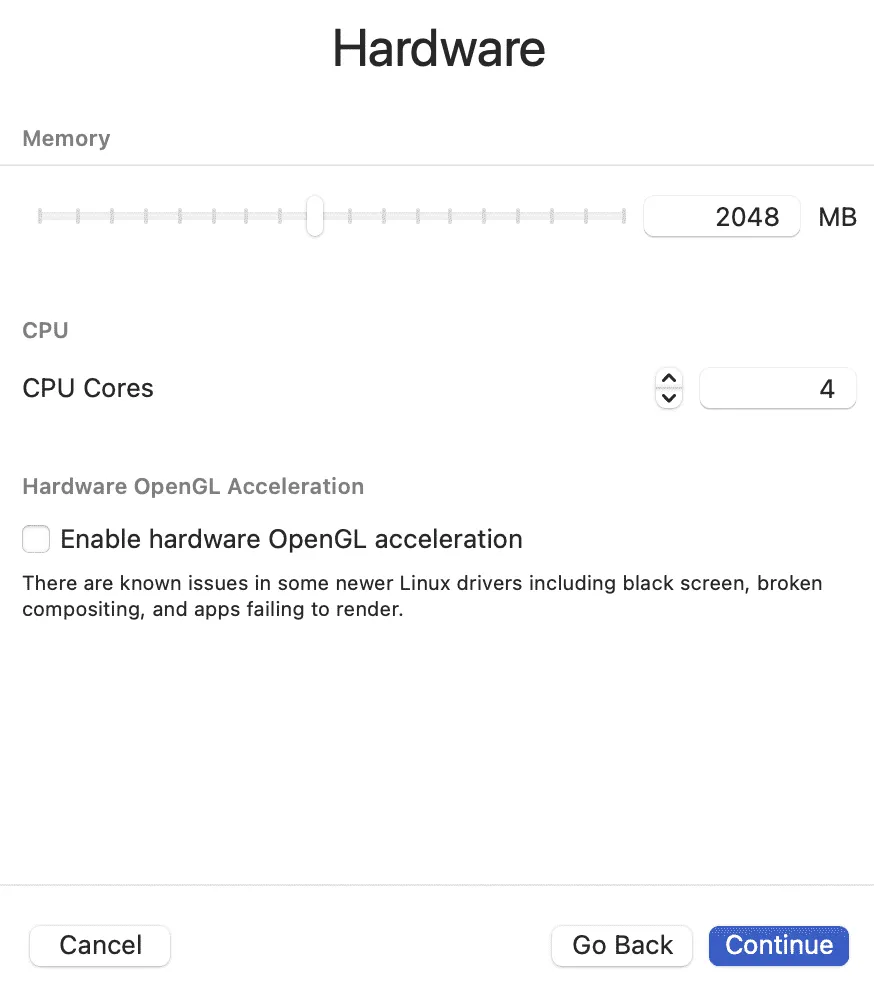
Correct allocation is essential for performance, especially for workloads such as Java compilation.
- Memory (RAM):
- Basic use: 2048MB (2GB) are sufficient for standard operations.
- Advanced development: it is necessary to allocate at least 8192MB (8GB).
- CPU: Assign the 50% available physical cores (e.g. 4 cores).
- Graphics: We recommend caution with the option “Hardware OpenGL Acceleration“. Recent Linux drivers can present incompatibilities that cause black screens or rendering errors; disable the option in case of instability
Storage and interoperability
- Virtual disk: Dimension based on distribution. Ubuntu Desktop requires about 20GB, while for Alpine environments it can suffice small dimensions, although 8GB is a safe value for development.
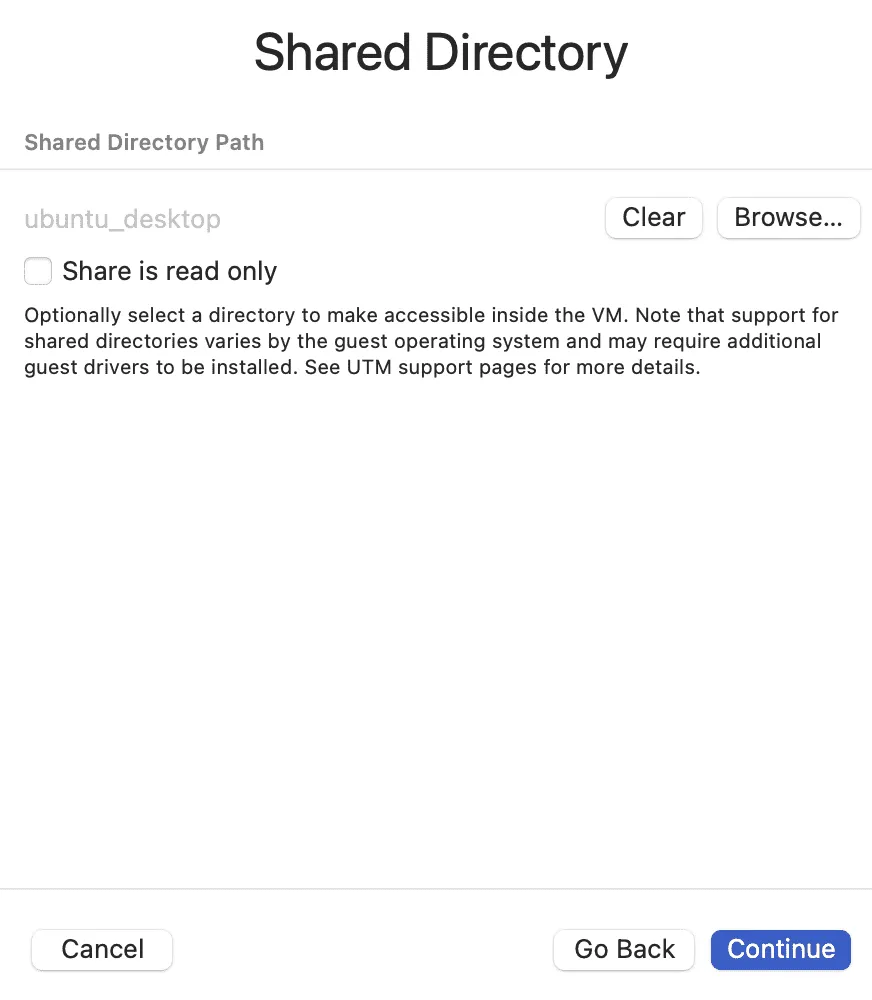
- Shared Directory: Select a local folder to enable file transfer between macOS and Linux. Note that the feature may require the installation of specific guest drivers within the VM.
Step 3: Start and Install
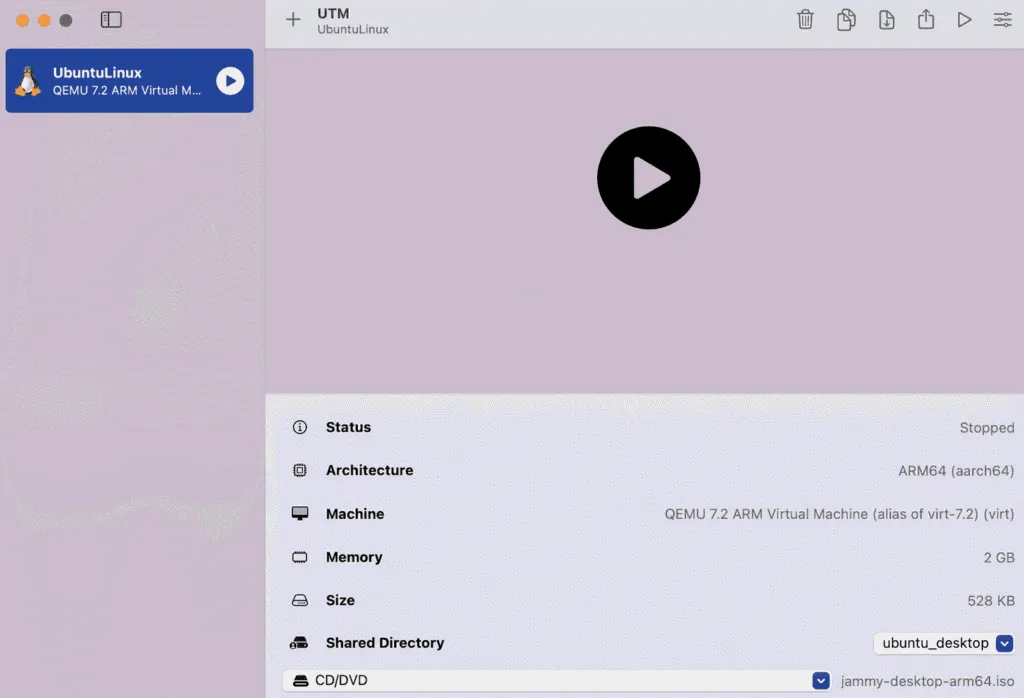
Check the settings summary and save. Launch the VM via the Play button. The system will proceed with the boot of the standard Linux installation.
Complete the installation following the guided procedures of the chosen distribution.