Minecraft offers the opportunity to capture special moments and preserve useful information, such as coordinates of important places. If you use CurseForge to play, screenshots are stored within the launcher folders. Here's how to find them in a few steps.
Starting CurseForge
If you play Minecraft through CurseForge, screenshots are automatically saved in the launcher directories. The first step is to open the CurseForge app.
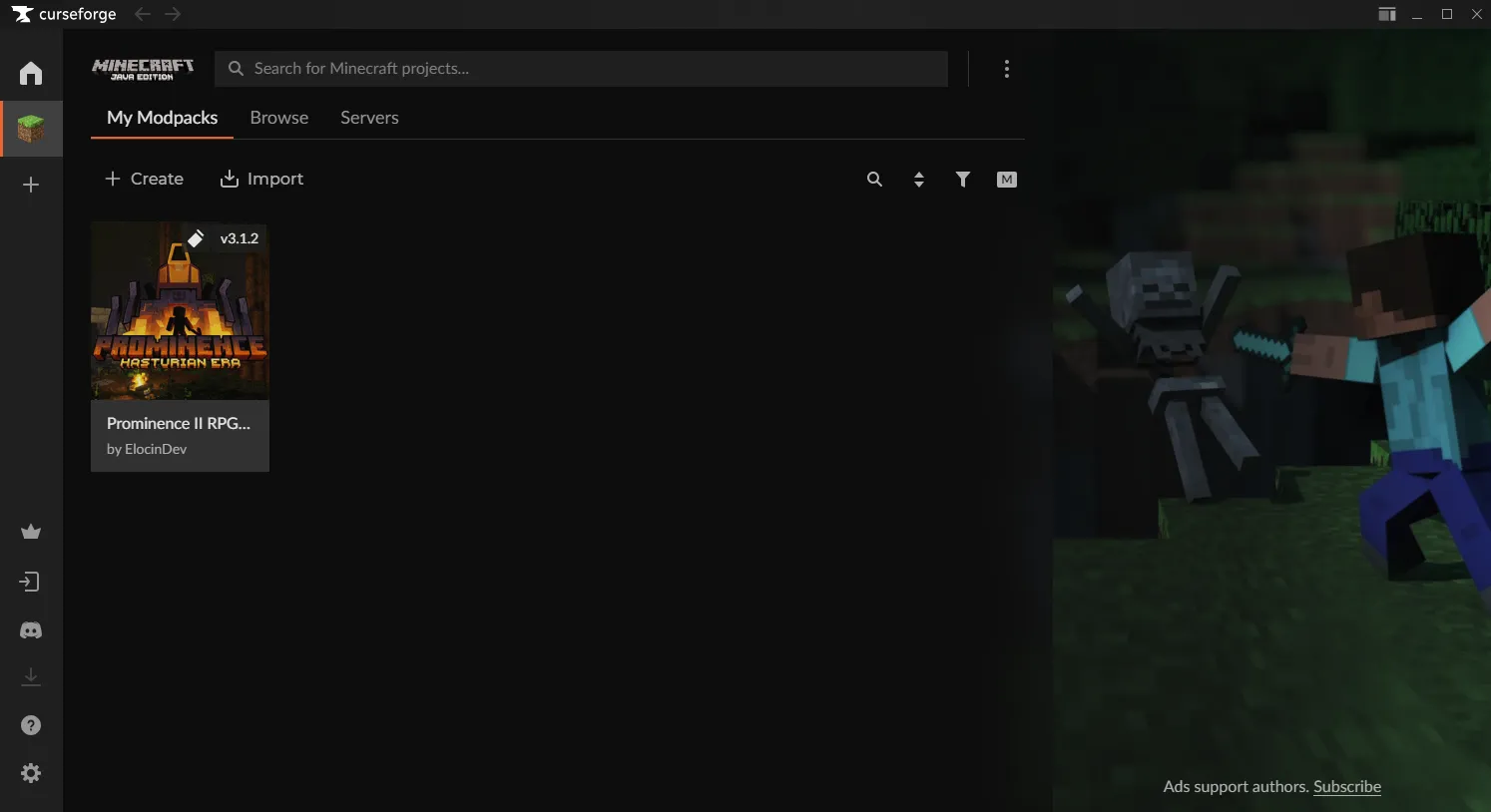
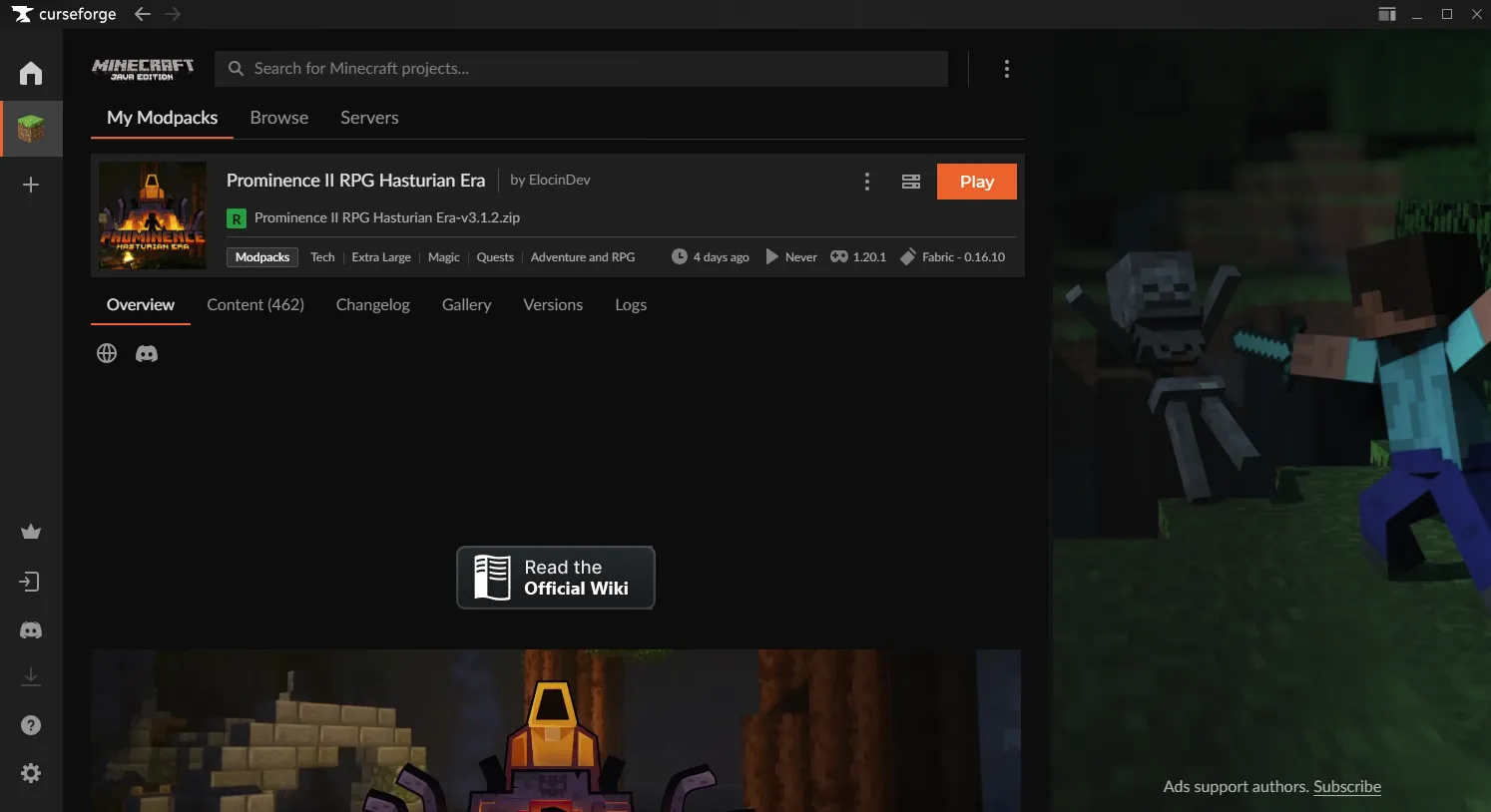
Select the Profile
After starting CurseForge, locate and select the profile or modpack used to play.
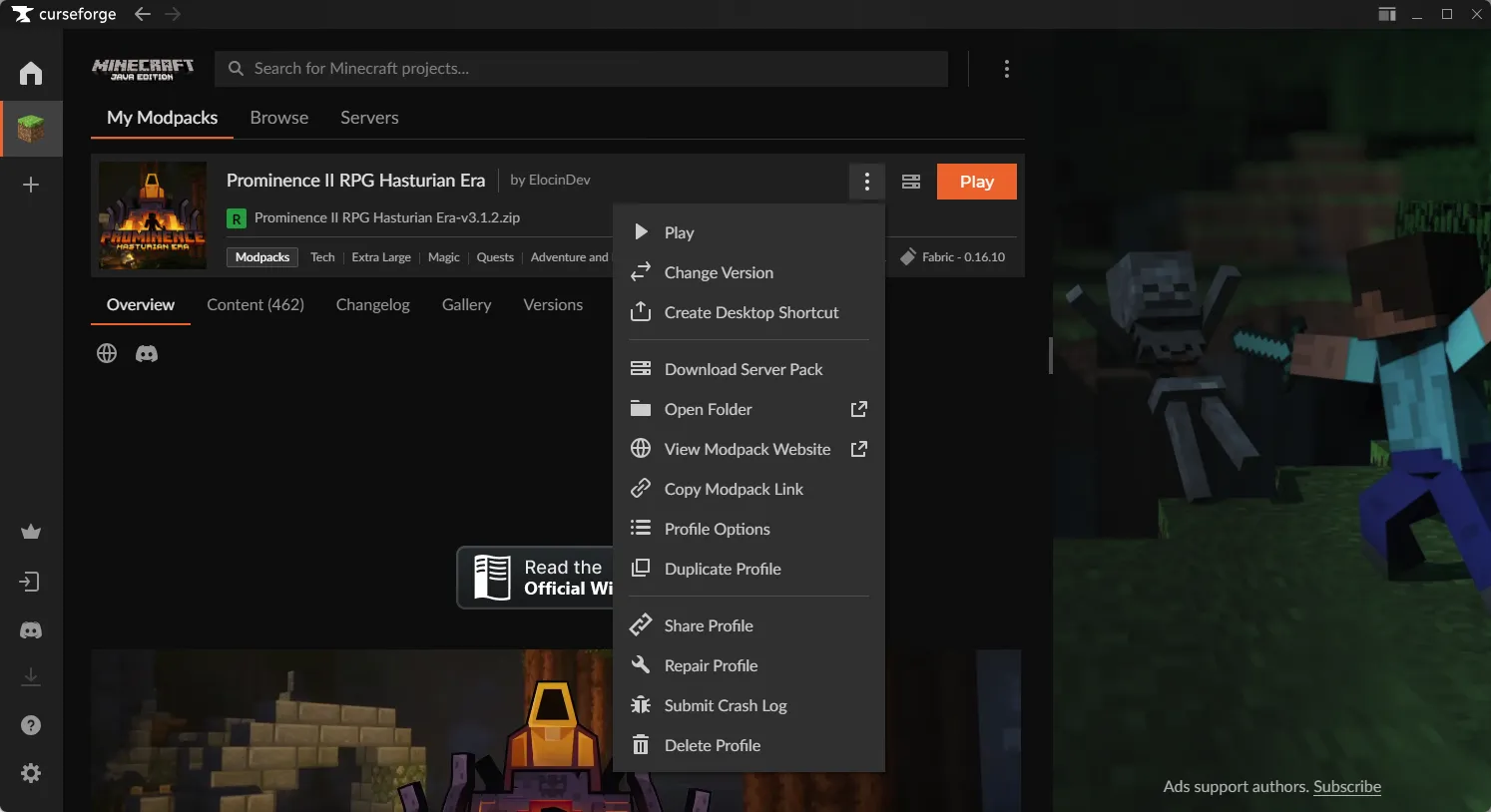
Access the Chart of the Room
Close to the “Play” button, you will find an icon with three dots (...). Click it and choose the “Open Folder” option from the drop-down menu. This action will lead you directly to the game directory for the selected instance.
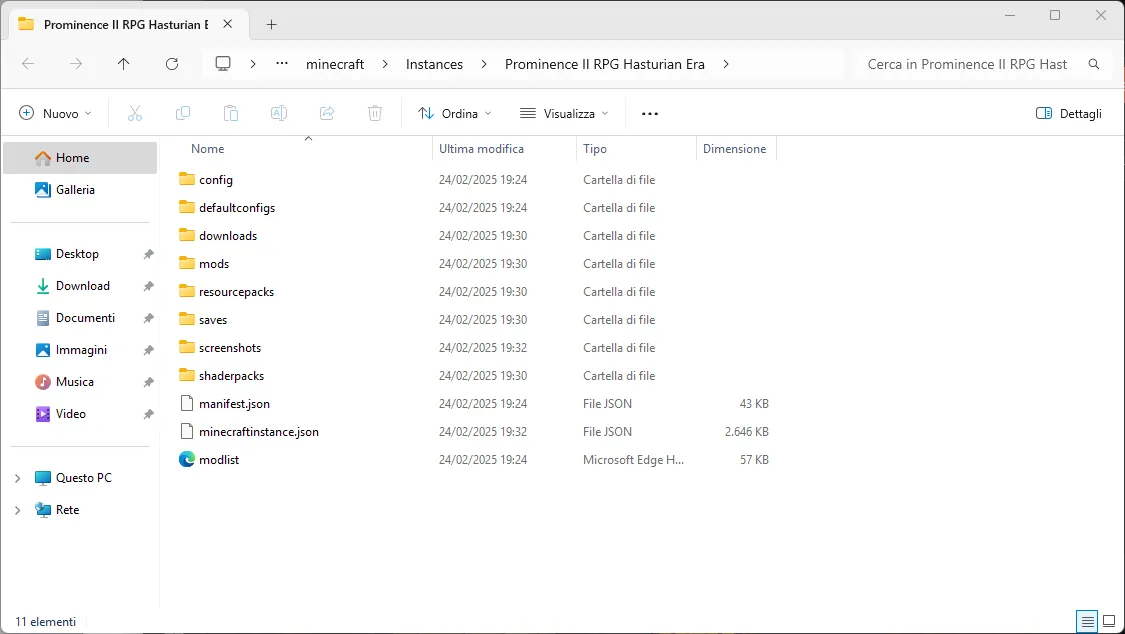
Locate Screenshots Folder
Once inside the folder of the instance, search and open the directory called “screenshots”. Here you will find all the pictures you captured while playing.