

The Remote Desktop Protocol (RDP) allows users to establish secure connections to remote computers on a network. Microsoft has developed RDP mainly for Windows, but it can also be used to connect to Linux, macOS, Android and iOS devices.
Prerequisites
- A Windows client computer with network connectivity.
- A host machine with Ubuntu 22.04 or Ubuntu 20.04 installed.
- Privilegi Sudo or root on the host machine.
Install xrdp on Ubuntu
xrdp is a Linux RDP server that listens to and accepts RDP connections from clients. Usually, Ubuntu systems do not have xrdp installed by default. To install xrdp on Ubuntu 22.04:
1. Access the command line and update the Ubuntu package list:
sudo apt update2. Install xrdp using the following command:
sudo apt install xrdp -y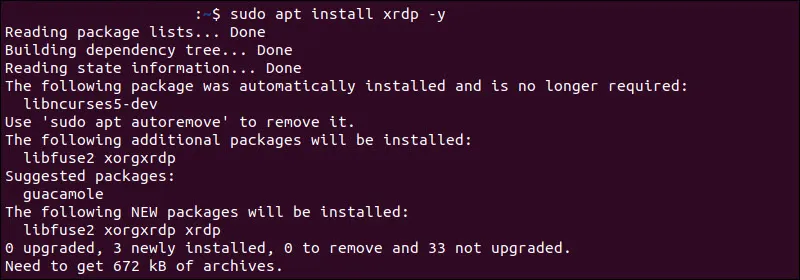
3. Check xrdp server status:
sudo systemctl status xrdp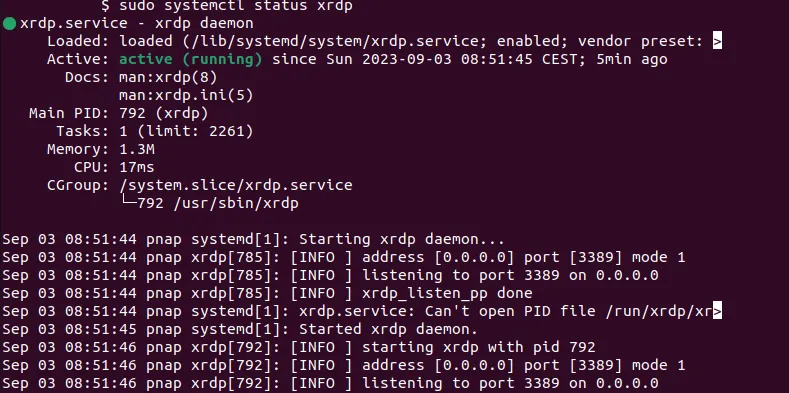
Configure xrdp Door (Optional)
The xrdp server listens to the RDP input connections on the default port 3389. Using a non-standard door for the RDP connection is a form of protection through obscuring. It is not a robust safety measure, but it can protect a system from rudimentary brute force attacks.
To educate xrdp to listen on a different door:
1. Use a text editor, like nano, to edit the xrdp configuration file, xrdp.ini:
sudo nano /etc/xrdp/xrdp.ini2. Find the door directive in the [Globals] section and set the desired value. In this example, the RDP port is 49952:
port=49952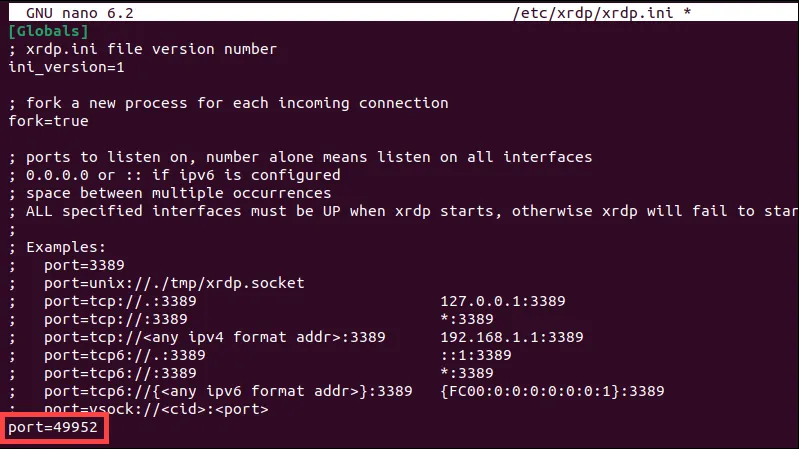
3. Press Ctrl+X, followed by y and then Enter to save changes and exit the file.
4. Restart the xrdp server to apply the changes:
sudo systemctl restart xrdpThere are no confirmation or output messages after restarting the server.
Open a ufw Input Traffic Door
An active firewall on the Ubuntu system, such as ufw, can block traffic on specific ports. Configure the firewall and allow traffic on the desired port to ensure successful RDP connections.
1. Check ufw firewall status:
sudo ufw status
If the firewall is inactive, use the following command to activate ufw:
sudo ufw enable2. Allow traffic on port 3389 or choose a different port for RDP connection. The following command allows RDP connections on port 49952:
sudo ufw allow 49952/tcp
Change the command if you want to open a different port number for RDP connections.
3. Reload the ufw firewall tool to apply the changes:
sudo ufw reload
If you want to access the Ubuntu machine from the outside of your local network, you may need to configure port forwarding on the router or adjust the external firewalls.
Configure Remote Desktop Connection on Windows
To start a RDP connection to a remote Ubuntu system from Windows:
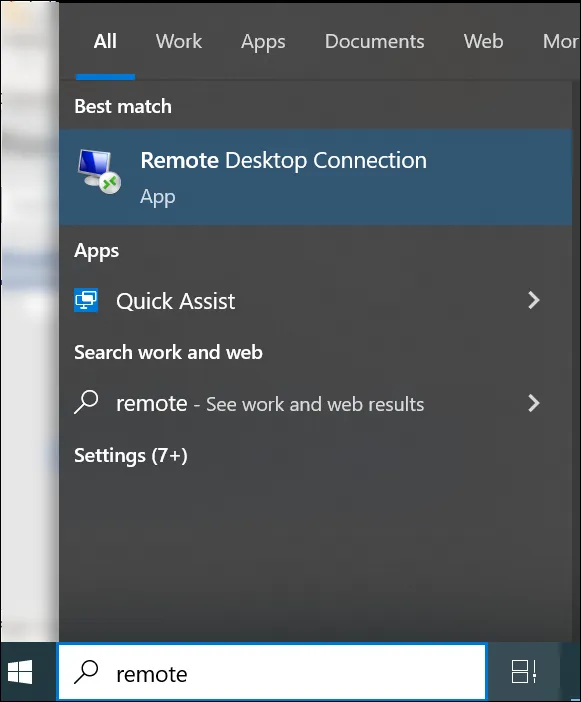
- Type rdp in the Windows search box.
- Open the Remote Desktop Connection app.
- Enter the IP address or the name of the remote Ubuntu system in the Computer field. If you have changed the default port number for RDP connections to Ubuntu, enter the port number after the IP address in the following format: Address IP:number port.
- Type the username of Ubuntu for the RDP connection.
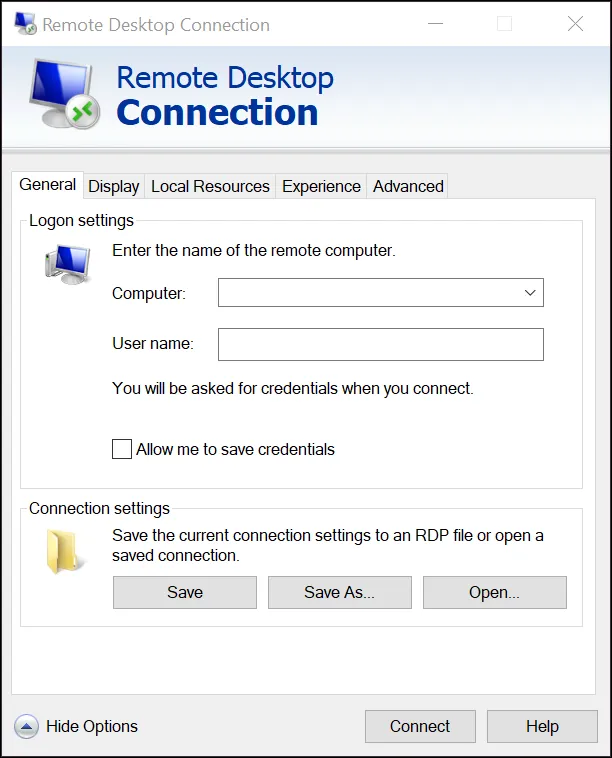
- (Optional) Save connection details for future use.
- (Optional) The Remote Desktop Connection App (RDP) in Windows allows users to configure the RDP session. The main configuration options are divided into different tabs:
Viewing. Adjust the size and color settings of the remote desktop window.
Local resources. Decide which local devices (keyboards, audio and printers) share with the remote system.
Experience. Modify visual effects as desktop background and anti-aliasing based on network speed.
Advanced. Optimize server authentication settings, configure a RD Gateway server and more. - Click Connect.
Access
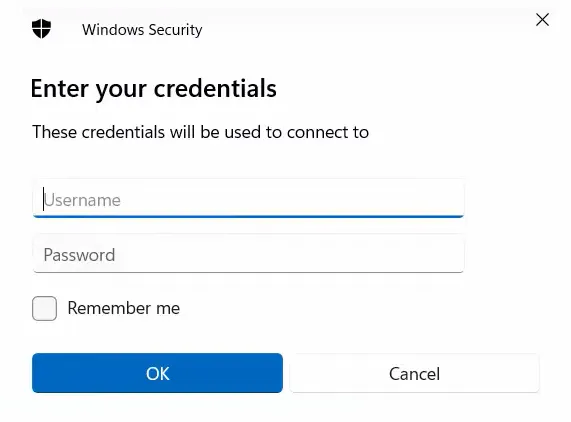
Enter the password for the Ubuntu RDP user and click OK.
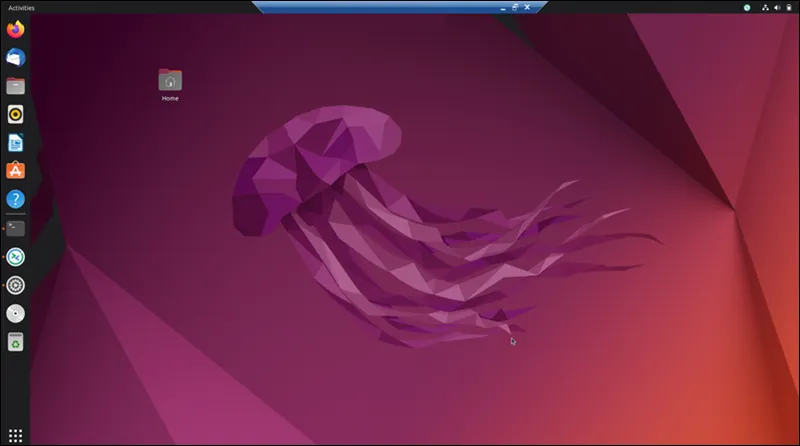
Now you can interact with the Ubuntu machine through the established RDP session.
Ubuntu RDP from Windows tips
Internet speed Ideal for RDP Connections Some activities require a minimum level of responsiveness and visual quality. In addition to bandwidth, server loads and network latency affect RDP performance.
Resolution of the Error xrdp Black Screen Users can meet a black screen when using xrdp with specific Ubuntu configurations. The screen appears after a RDP session has been successfully established and prevents users from interacting with the Ubuntu system.


