

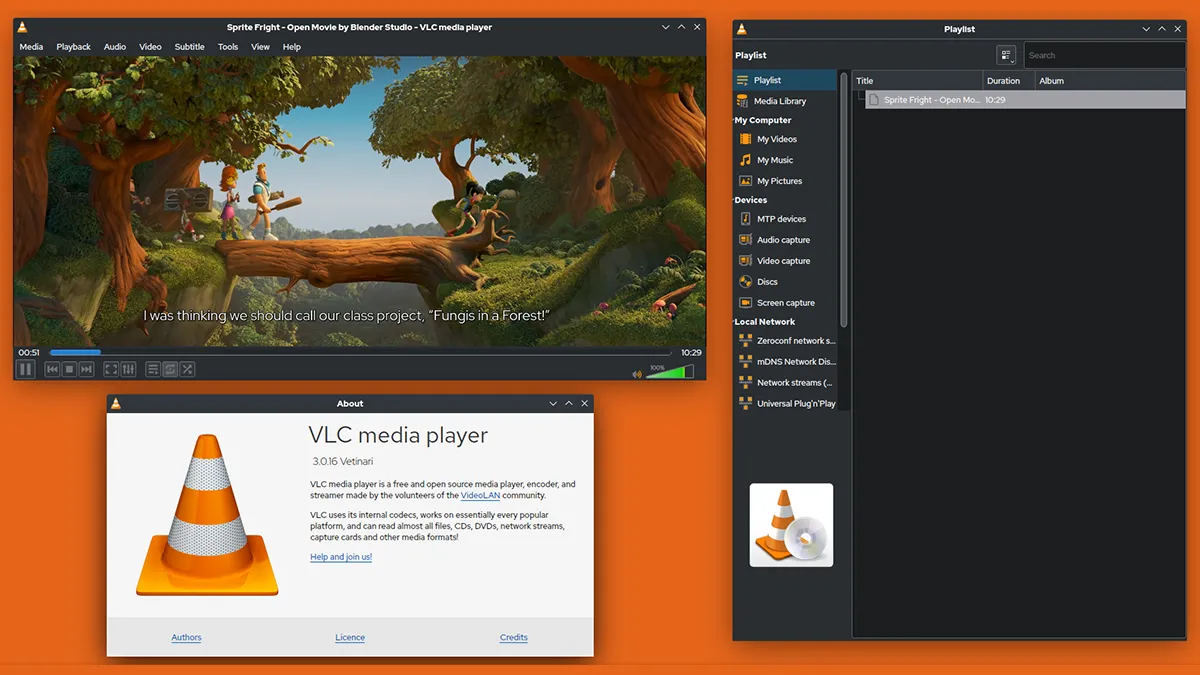
If you want a solution to watch seamless videos while using other applications, VLC offers a feature called Picture in Picture (PiP). This mode allows you to view the multimedia content in a small overlapping window while using other apps simultaneously.
Multitasking has become common in our daily routine, and enabling VLC Picture mode can increase productivity, allowing you to manage multiple tasks simultaneously.
In the following article, the steps will be illustrated to enable this function on any device, offering greater comfort when using VLC.
Activate VLC PiP on Windows
- Launch VLC and open the video file you want to watch.
- Click on View and select the option Always in the forefront.
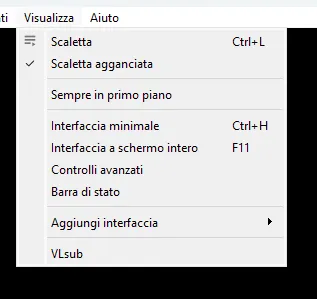
- The video will be displayed in a floating window that remains in the foreground over all other open windows.
- To further reduce video size, go back to the menu Instruments and select again Customize interface and change it to your liking.
Following these steps, you can enable Picture in Picture mode on your VLC media player and enjoy your videos in a floating window over the other windows.
Activate VLC PiP on MacOS
If you are a Mac user, you can easily activate Picture in Picture mode with VLC Media Player. This allows you to keep the video playing in a small floating window while working on other applications. It is a great way to multitaskare and make the most of your time.
- Open the video you want to watch with VLC.
- pause the playback video and place the mouse cursor on the option Video at the top of the window.
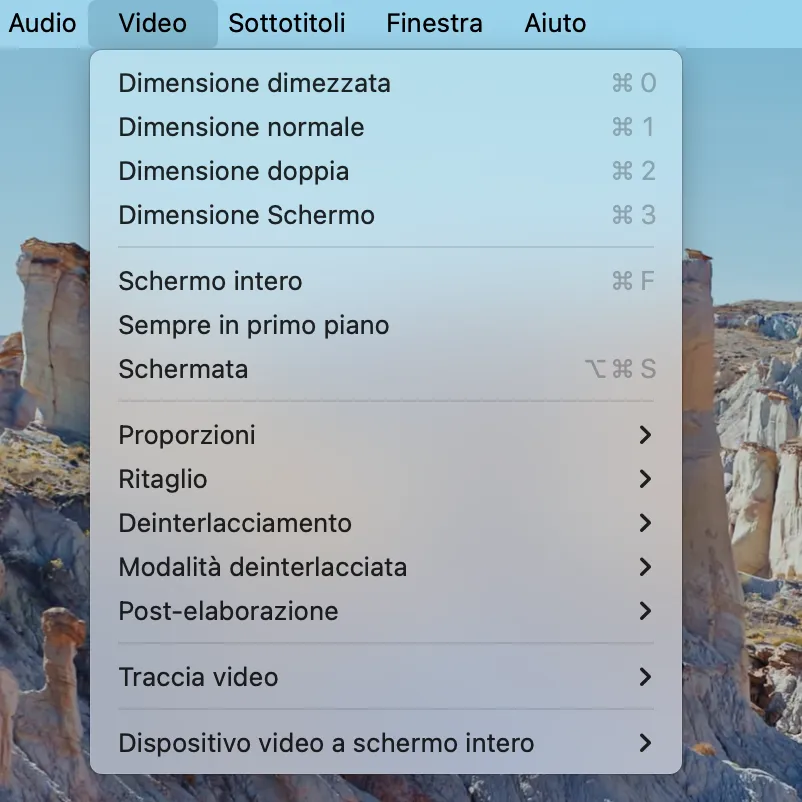
- Select the option Always in the forefront from the menu. This allows your video to float over other applications on Mac.
Activate VLC PiP on iOS
You can activate Picture in Picture mode with VLC on your iPhone. This feature can be useful if you want to make multitasking while watching your favorite videos.
You can reduce the reader and keep watching the video while using other apps on your phone.
Activation of this feature may require some additional steps, especially considering that the new version of iOS usually comes with the Picture in Picture function disabled by default.
- Open the app Settings on your iPhone and tap the option Shortcuts, ensuring that the option Allow unreliable shortcuts is activated (green).
- Download the VLC Media Player app from the App Store if you haven’t already. Inside the menu Settings of VLC, enable option Play VLC videos in the background.
- Finally, open the VLC app, tap on the icon of the three dots and then Minimize reader.
Activate VLC PiP on iPadOS
If you are an iPad Air, Pro or Mini user and want to make multitasking while watching your favorite videos, Picture in Picture mode is the ideal solution. Unlike the iPhone, enabling PiP on your iPad is a different process.
- Open the app Settings on your device. Tap on General settings and then Multitasking and dock.
- Select the option Picture in Picture.
- Launch VLC Media Player and play the video file.
- Tap the PiP icon in the upper left corner of the full screen video window. This will reduce the video in a smaller window that you can move and resize.
Activate VLC PiP on Android
If you are an Android user, you can use the Picture in Picture feature on your phone or tablet. However, so that this feature works, make sure you update your device to the latest version of the software.
- Open the menu Settings within the VLC Media Player app.
- Select the option to enable VLC video playback in the background. Then, tap on the three dot icon at the top of the screen to view multiple options.
- Tap to activate the small icon window Picture in Picture.
Now you can minimize and move the window as needed to customize your viewing experience while multitasking on your phone.


