

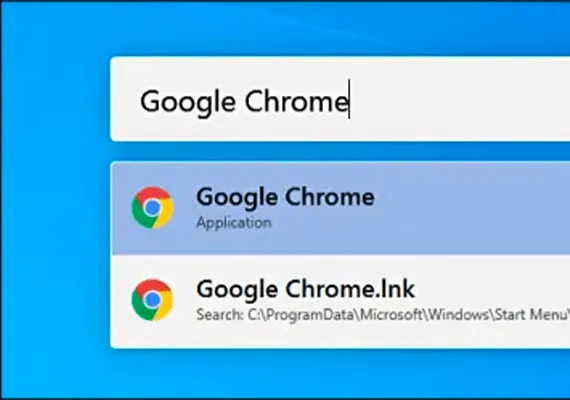
On a Mac, a system-level search and startup feature called Spotlight is just a shortcut with Command + Space. Thanks to PowerToys, Windows 10 can have a similar search and execution bar even when you press Alt + Space. This is how to configure it.
The power of Microsoft PowerToys
With a PowerToys module called PowerToys Run, you can press Alt+Space and see a pop-up search bar displayed from anywhere on Windows 10. Once displayed, you can search for applications and documents and run them or open them quickly.
To get this practical search bar, you will need to install PowerToys, a free Microsoft Windows 10 utility collection. You can download it Github.
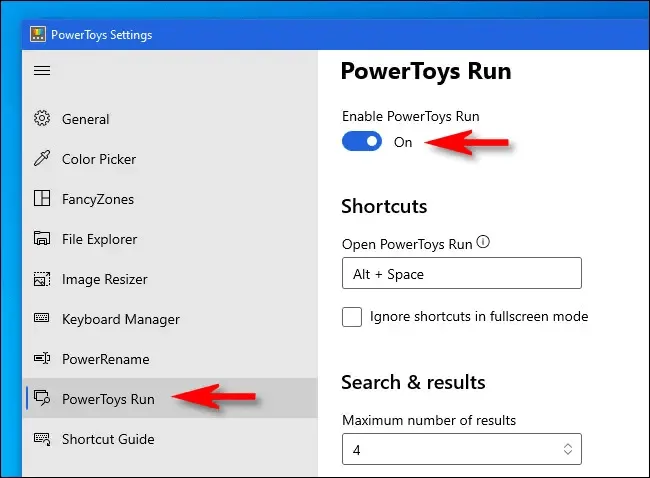
Once PowerToys is installed, start PowerToys Setup and select “PowerToys Run” in the sidebar. So make sure “Enable PowerToys Run” is activated.
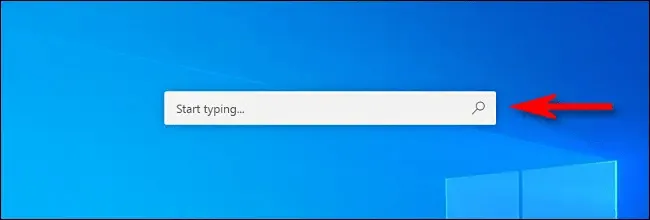
Next, close PowerToys Setup and try your new search bar. Press Alt + Space and a minimalist search bar will appear in the center of the screen.
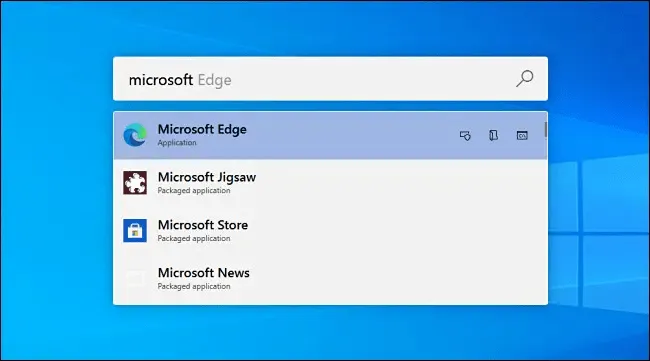
After typing a search, you can press Enter to start (or open) immediately the first result, or you can choose from the results in the list with the mouse or cursor keys and press Enter.
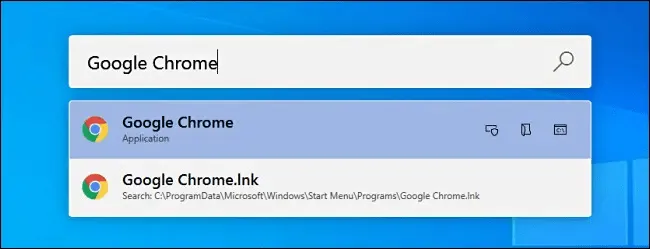
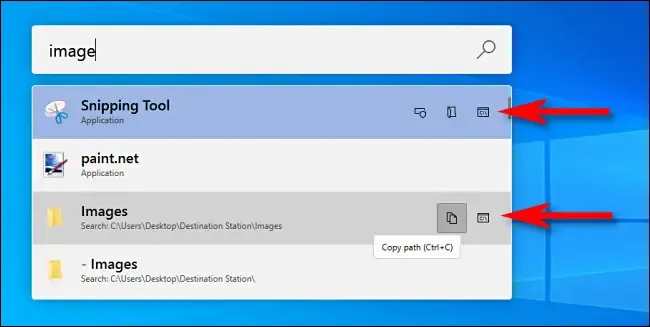
You can also use different “power user” buttons that appear next to each result to perform certain useful actions. That's what they do.
- Icon Copy: copy the file path in the notes (only apply to documents).
- Box with a Shield: Run the app as administrator (only apply to programs).
- Folder: opens the folder containing, revealing the file or app location in File Explorer.
- C: Box: opens a path to the file or document in a command prompt.
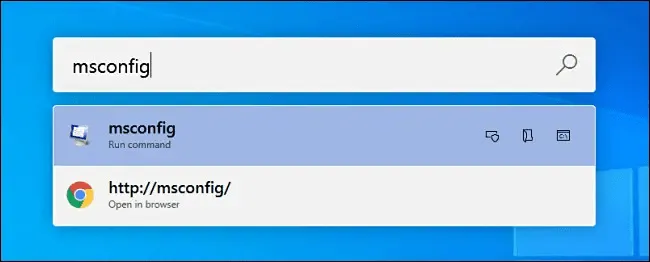
But don't think about PowerToys Run just as a glorified search bar. You can also use the PowerToys Run box to replace the Windows+R “R” dialog box. Just pull up the box with Alt + Space, type a command and press Enter and the program will run instantly.
It’s just another way PowerToys offers a more comfortable and powerful Windows 10 experience. Have fun!


