

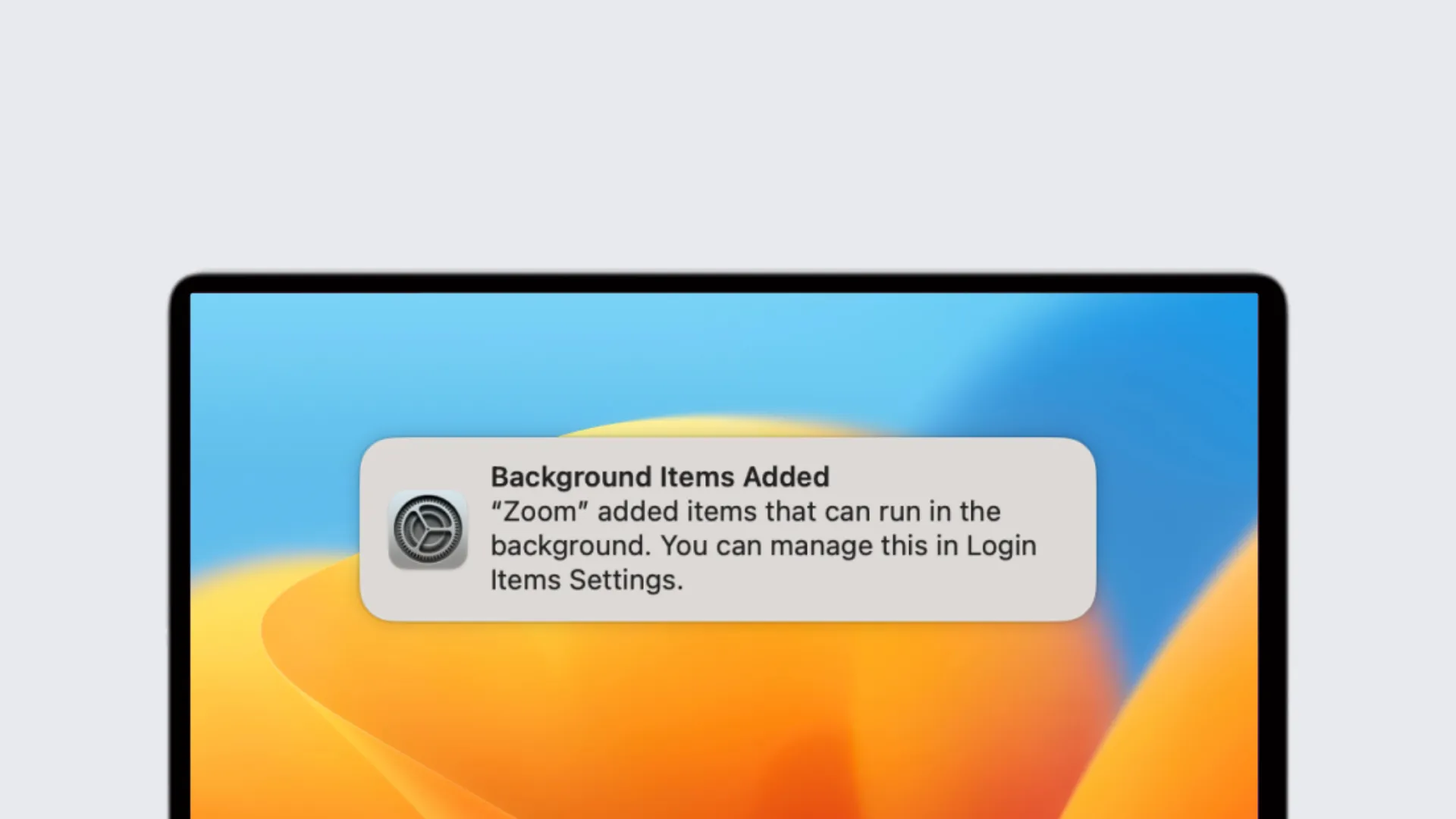
If your Mac takes too much time to start, one of the causes may be the presence of too many startup and login elements. When you turn on your Mac, various programs, add-ons and invisible processes are executed automatically. Although this is generally desired, there may be elements that you do not remember adding yourself. These elements can affect system performance and contribute to a slower start.
What are the Starting and Login Elements?
Boot and login elements are programs or processes that automatically start when you access your Mac. Some of these may be necessary for correct operation of applications, while others may be useless or unnecessary, slowing down your Mac. Here's how to handle and remove these elements.
Login elements
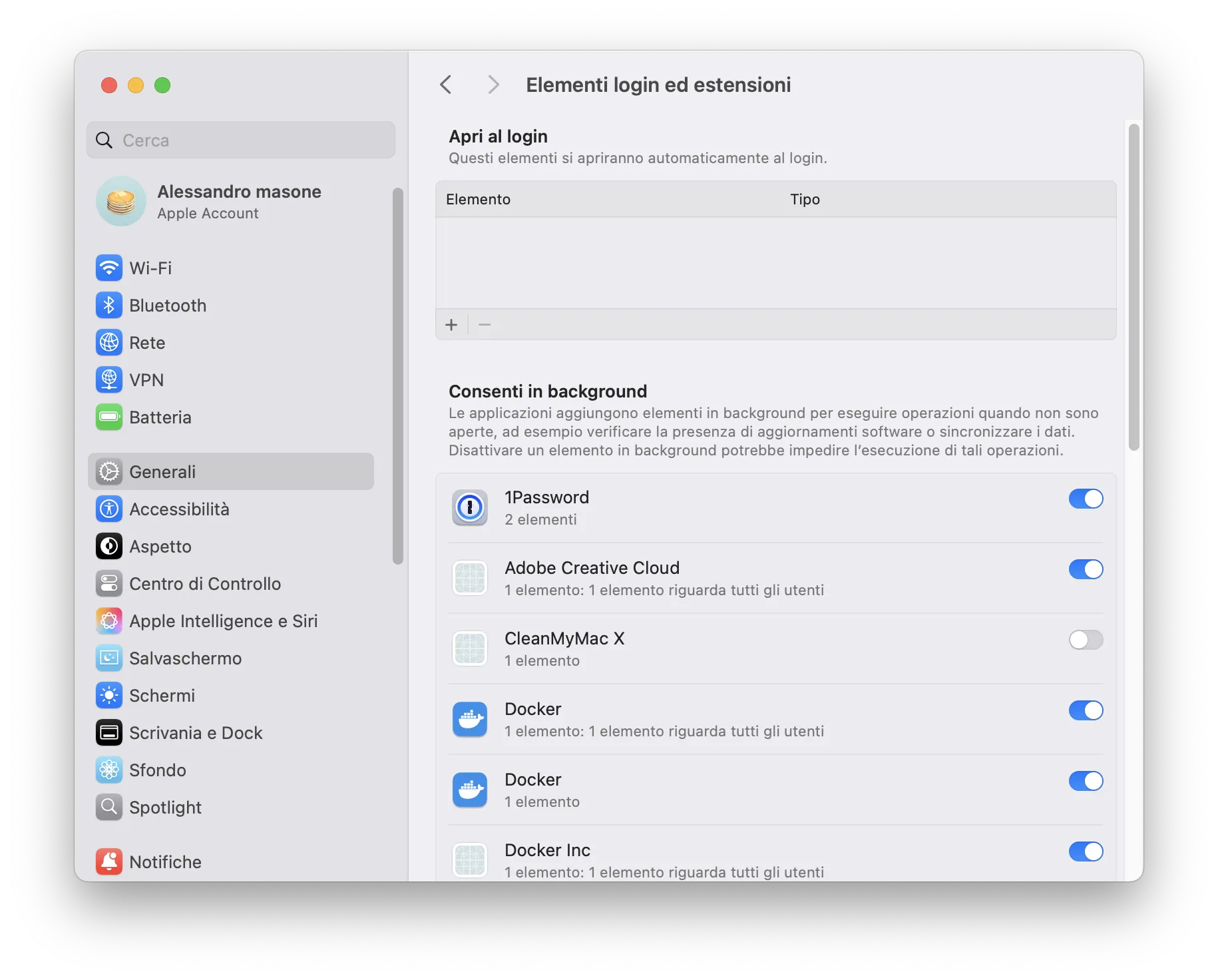
macOS 13 (Ventura) or later:
- Go System Settings, then click on General and select Login elements. Here you will find two sections: one for applications that automatically open to access and one for applications running background processes even when they are not actively in use.
macOS 12 (Monterey) or previous versions:
- Go System Preferences and click on Users and Groups, then on the tab Login elements. Here you will find a list of applications, files and folders that automatically start to access. Each user account has its own set of login elements.
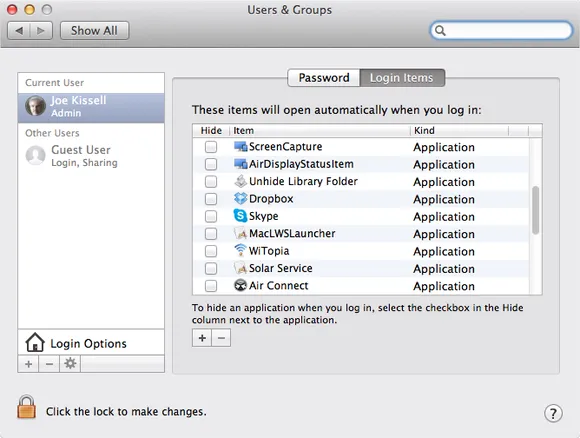
The elements are usually added after installing a new app, which will ask you permission to enter them in the list. You can remove an item by selecting it and clicking the minus sign (-). If you want to add a new item, just click on the sign plus (+).
The Folder StartupItems
In previous versions of macOS, the system used two main folders
/Library/StartupItems
/System/Library/StartupItems
to contain the start elements. Apple deprecated the use of these folders, but some older apps may still use them.
You can check the folder
/System/Library/StartupItems
for any unused elements. If you find something you don’t recognize or use anymore, you can move it to the Recycle Bin to prevent it from being automatically loaded on startup.
Launchers and Agents (Launch Daemons and Agents)
Starting with macOS 10.4 Tiger, Apple introduced a new system called launchd, which manages process startup via file p. (Property List). These files specify the processes to start and the conditions to do so (for example, when you start the system or at certain times).
The files p. can be found in three main folders:
- /System/Library/LaunchDaemons and /System/Library/LaunchAgents: They contain system processes and should not be modified, as they may be essential for the proper functioning of the operating system.
- ~/Library/LaunchDaemons and ~/Library/LaunchAgents: They contain processes related to third-party software that can be disabled or modified if not necessary.
Attention: Do not edit or remove the files contained in the system folders without a thorough knowledge of their operation.
How to Manage Starting Processes
If you want to view and manage startup processes in an advanced way, you can use the Terminal. For example, you can use the command launchctl list to see a list of all processes currently running, or launchctl unload followed by the complete path of a file p. to stop a trial.
Example of command to download an agent:
launchctl unload ~/Library/LaunchAgents/com.apple.FolderActions.enabled.plistTo restore it, use launchctl load instead of unloading.
Other Starting Processes
If you cannot locate a mysterious process between login elements, launch folders or StartupItems, it may be due to one of the following factors:
- Kernel extensions (kext): These files are present in /System/Library/Extensions and are loaded during startup to provide low-level hardware and functionality. To remove third-party extensions, it is better to use the appropriate uninstall program provided by the manufacturer.
- C: This is a planning system used in macOS, although it has been largely replaced by launchd. However, there may be residual scripts that are executed at startup.


