

MinGW is a native C/C+ compiler (GCC) that provides import libraries and freely distributed header files for creating native Windows applications. In this tutorial, we will see how to install MinGW for C/C++. Here are a few steps to successfully install MinGW on our device.
How to install MinGW tools for C/C + +
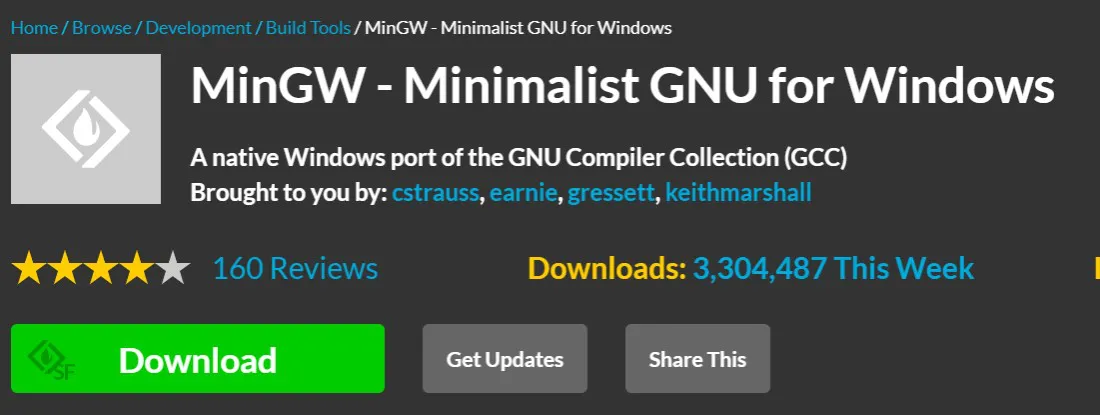
Step 1: Visit the website MinGW and click Download. The download will begin in 5 seconds.
Step 2: Double-click to open the exe file of MinGW and click Install. It will automatically start downloading all configurations for MinGW.
Step 3: After all configurations have been downloaded, click Continue. Now the MinGW installation manager will appear.
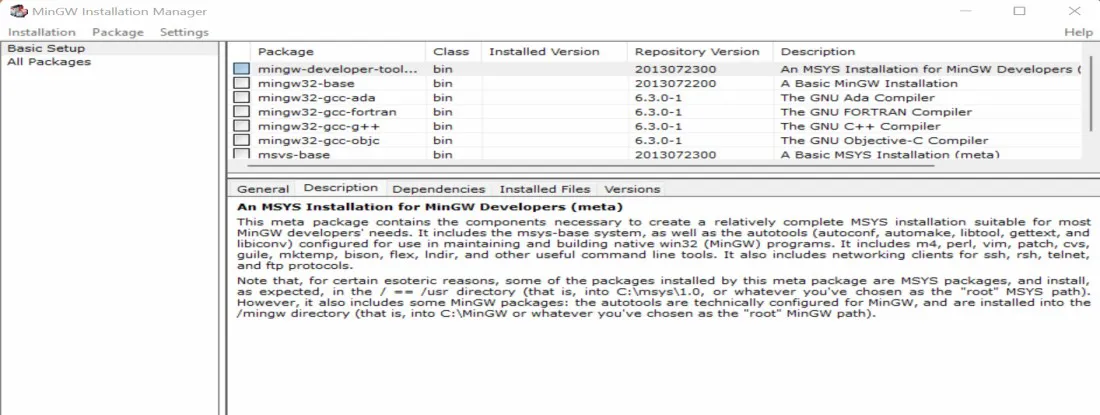
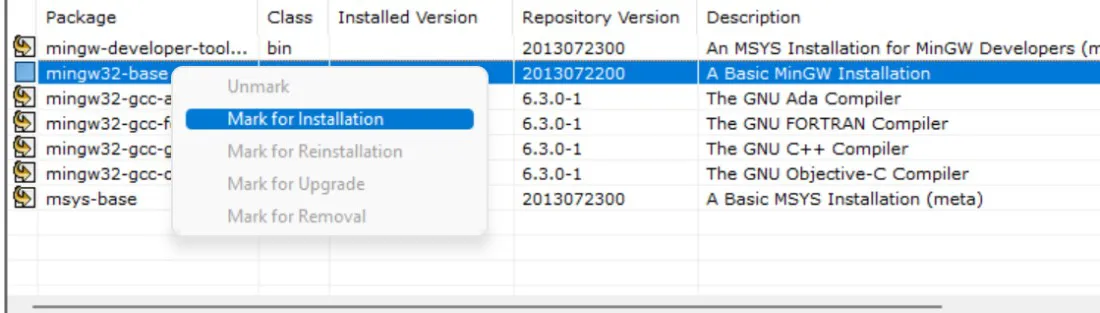
Step 4: In the installation manager, right-click each option and then click on “Sign for installation”.
Step 5: In the Installation section, click Apply changes and then select Apply. It will start downloading all files, the process could take 5-6 minutes. Once completed, click Close.
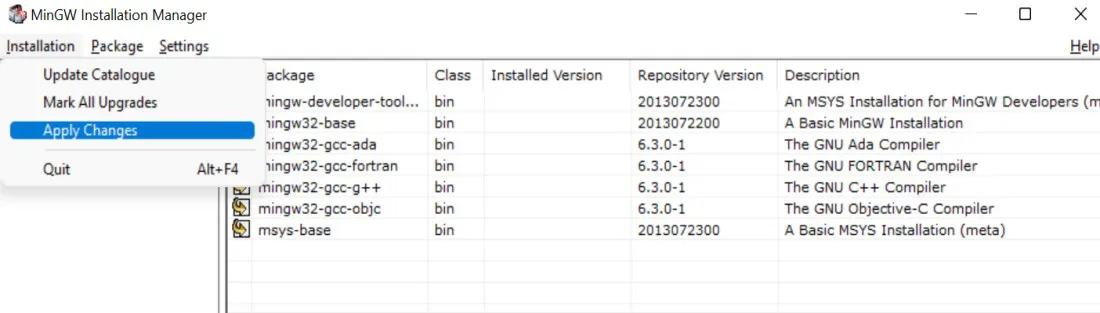
How to change environment variables for MinGW
After the successful installation of MinGW, the next step is to change the environment location for MinGW.
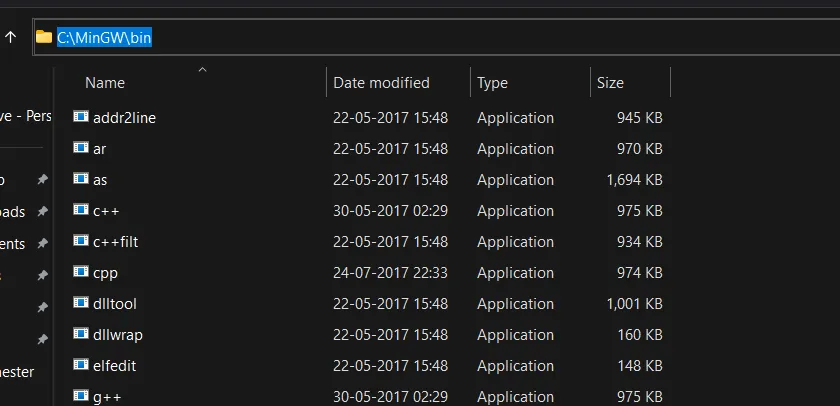
Step 1: Go to disk C on your device and search for the MinGW folder. Within the MinGW folder, go to the bin folder and copy the path.
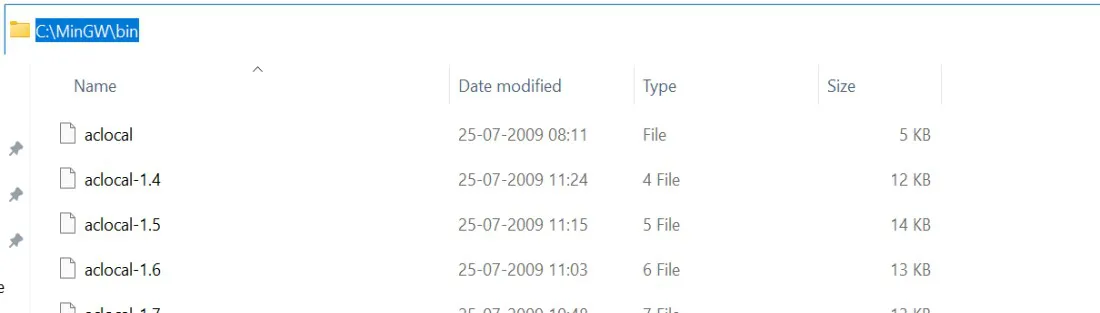
Step 2: Go to the control panel, then go to System, then Advanced System Settings and finally Environment Variables.
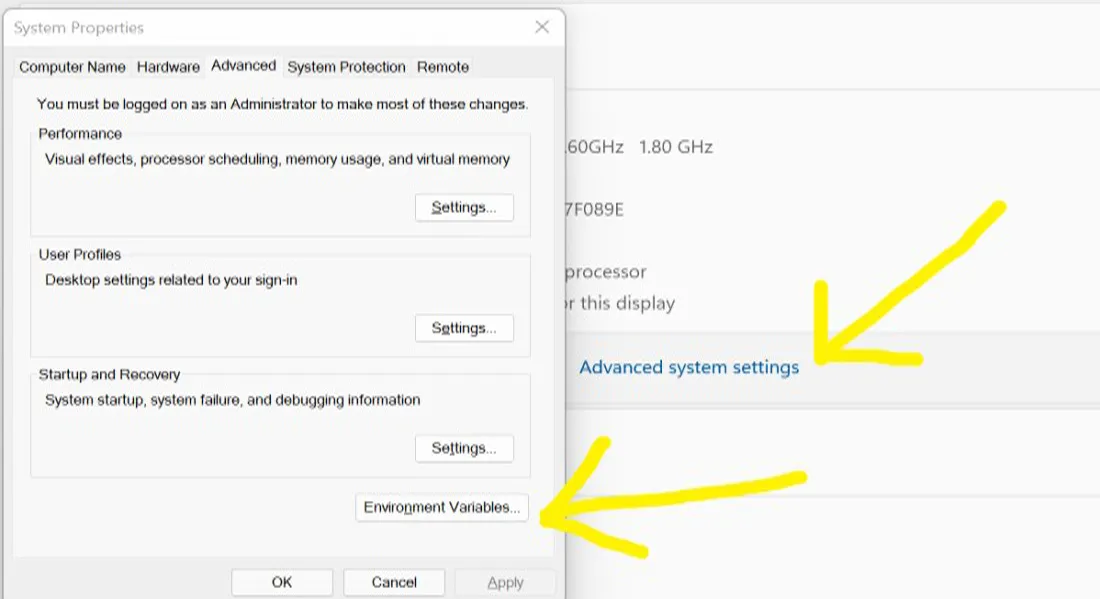
Step 3: In system variables, search “Path” and select Edit. Add a new path by clicking New. Paste the path and click OK.
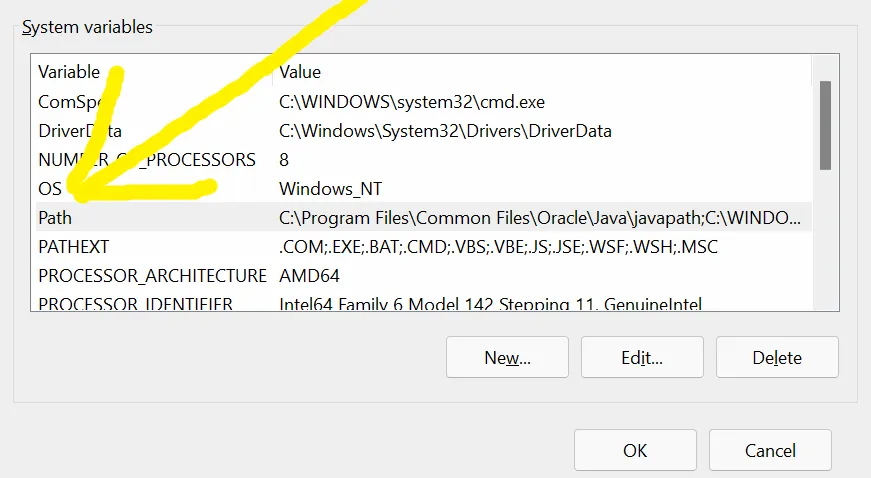
This marks the completion of the installation of MinGW in the system.
Another method to change environment variables for MinGW
Step 1: Go to disk C on your device and search for the MinGW folder. Within the MinGW folder, go to the bin folder and copy the path.
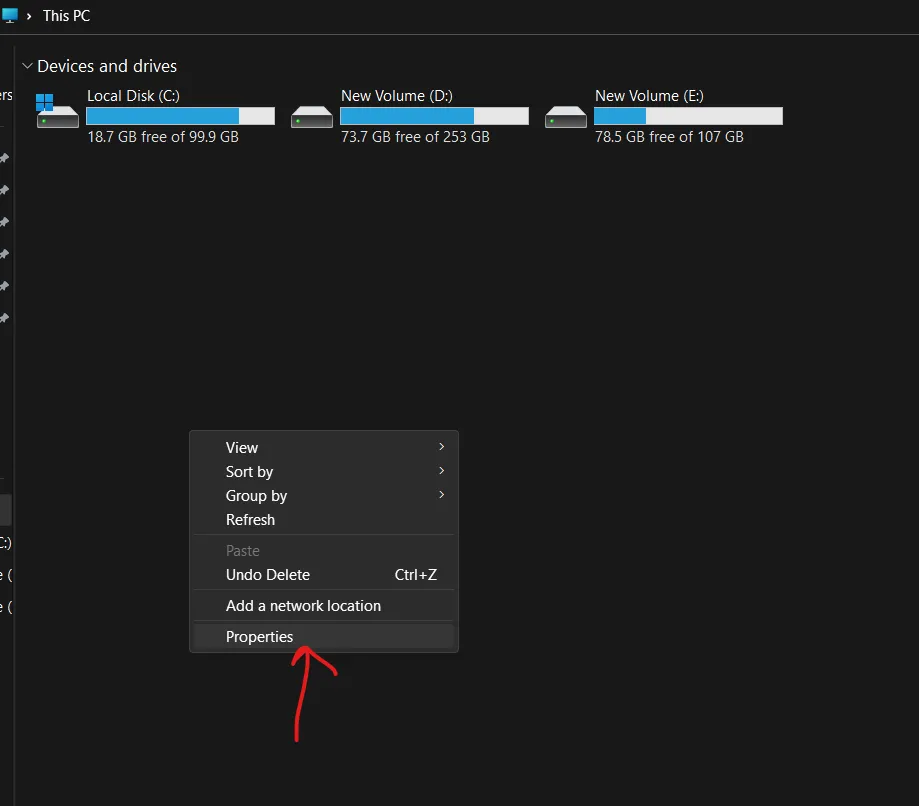
Step 2: Now go to “This PC”, right click and select “Show other properties”, then click on “Properties” indicated by the arrow.
Step 3: Now click on “Advanced System Settings”.

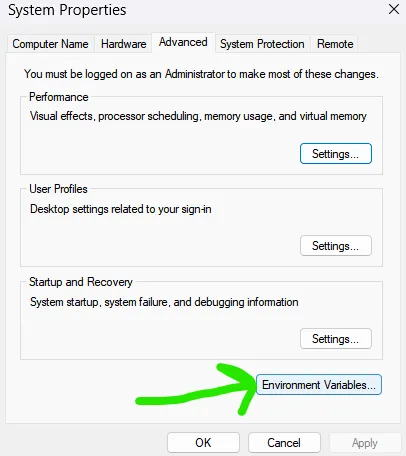
Step 4: Click on “Environmental Variables”.
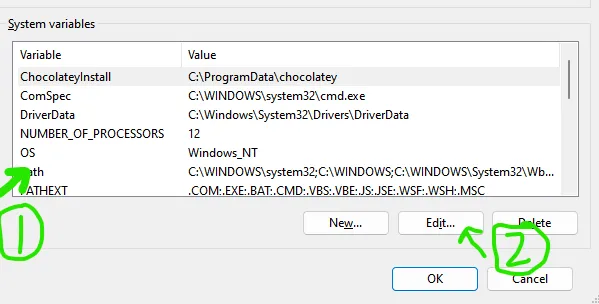
Step 5: Now, in system variables, click “Path” and click the Edit button.
Step 6: Click on the New button and paste the copied path as shown in the photo.
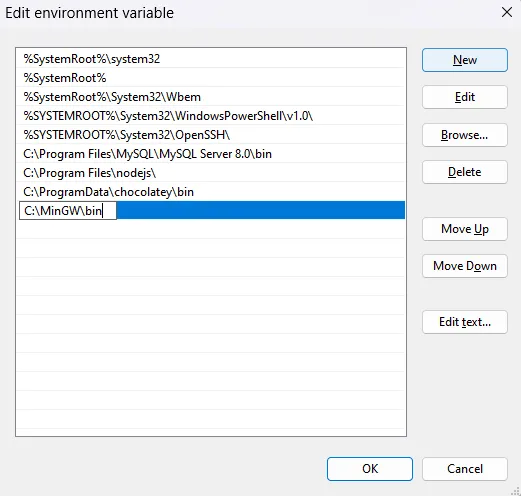
Now click on “OK” in steps 6, 5 and 4, then close all windows and restart your computer.
This marks the completion of the installation of MinGW in the system.
Last update: 06 February 2023.


