

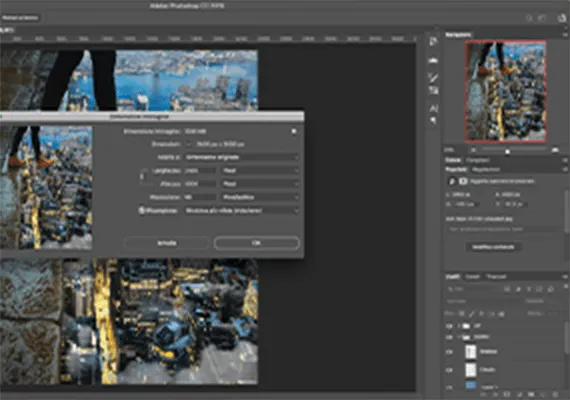
If you’re looking for a solution to change the size of an image easily, quickly and professionally, Photoshop is definitely one of the valid solutions possible. Whether you want to enlarge or decrease the size of an image, Photoshop allows you to do so in a few simple steps.
Knowing how to resize photos with Photoshop is of fundamental importance because it is one of the most common activities to perform on image files. As the images are resized it is important because, doing it incorrectly, it could compromise the quality of your work and the final result after resize might not respect your expectations. However, don't worry, because mastering the resize process is something you learn in a short time: let's see together how to do it!
Resolution (DPI) and Size (Pixels) of an image
When creating an image file with a digital camera or scanner, a certain amount of information is captured, including file size in pixels and resolution. These are often parameters that you can customize at the time of capture of the image: it is important to know the difference between pixels and resolution, because they are mainly related to the final use you want to make of the image.
These are graphic and technical topics that would deserve a detailed study, but this is not the most appropriate location. I also try to simplify the concepts to give you an idea about the differences between these two important parameters.
Resolution
The Resolution (or DPI) of an image, also defined as “density”, refers to the amount of ink points that a printer can deposit within an inch. If, for example, the image you are working on is intended for printing, consider that the ideal is always having a resolution of 300 PPE or more.
Pixels
The Pixels of an image instead define the quantity of “points – pixels” of which the image is composed in height and width, thus defining its size in the screen.
The two parameters can be linked to each other: if we have an image from 1920×1080 pixels with a resolution of 300 DPIs, if we lower the resolution to 96 DPIs, even its pixel sizes will change in proportion. If you want to change only the image resolution, keeping its size unchanged, you can do so without resamping the image: it will change the amount of data inside it (decreasing its weight in KB), but it will remain unchanged (Pixel).
But now we come to practice.
Resize an image
- Within Photoshop, select from the Image toolbar -> Image Size.
- Use the Image Size dialog box to resize the image as you like. This window contains pixel size settings, resolution, and resamping options:
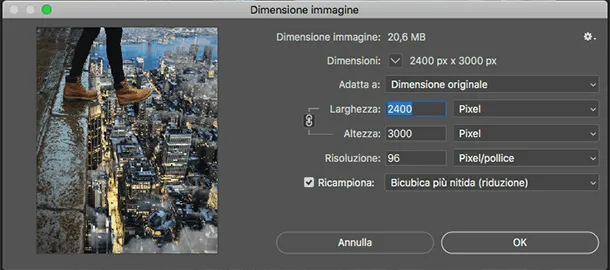
- Agree in the Width and Height fields to change the size of your image. The “catena” icon next to Width and Height, indicates whether the resize of one of the two values will automatically retain the original proportions of the image. If you want to change the size without keeping the initial proportion, click on the chain icon to disable the function.
- You can change the size measurement unit, choosing between Pixel, Percentage, Pollyci, Centimeters, Millimeters, Points, Pica and Columns. Simply click the drop-down menu to select the one you prefer.
- Ask the Resolution if you want to change the “density” of the image.
- Resamping options, instruct Photoshop on what to do if you delete pixels (reducing image size) or create pixels (increasing size).
- Once you set the desired size to resize the image, click OK to confirm the changes.


