

In the following article I will describe how to record your desktop through a free software commonly called OBS. Good reading
OBS Linux/MacOS/Windows
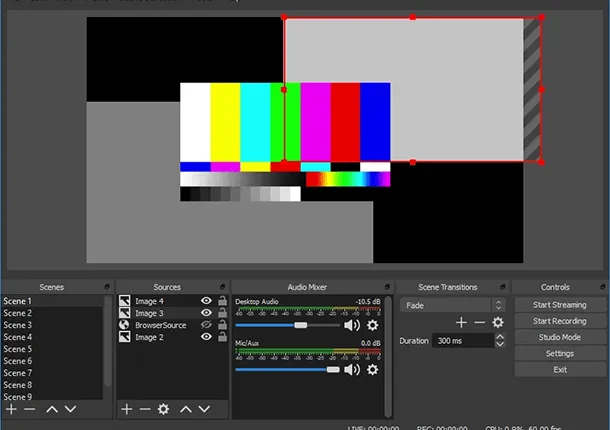
OBS is totally free, open source and without limitation. To use OBS, in any case, there are requirements that your computer must comply with: you must have a computer with Windows 7 or higher, with macOS 10.13 or higher, or with a Linux distribution between compatible ones. Hardware side, there are no particular requirements to be met; in any case it is clear that the more components of the PC (in particular processor and graphics card) are powerful and less risk of lag and slowing down in the recordings you run.
OBS Studio is a software with multiple functions. In addition to enabling PC screen recording, it also allows live transmission on platforms such as YouTube and Twitch.
It also allows you to manage many video and audio sources, even mixing them with each other. If you want, you could, for example, join the video of your webcam at the recording of your screen, or record it from your microphone while doing the steps on your PC.
Download OBS
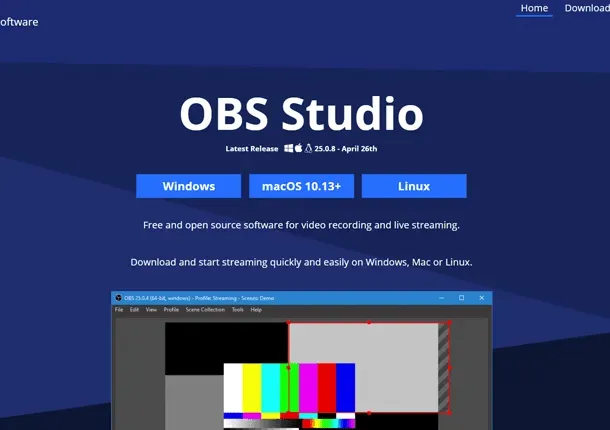
To download OBS, you must first go to the official website of the program. If you are using Windows, then press the Windows button to download the software, while if you are a Mac user, press the MacOS 10.13+ button.
After downloading, start the OBS-Studio-x.x.x-Full-Installer-64.exe installation package for the Windows or obs-mac-x.x.x.dmg version.
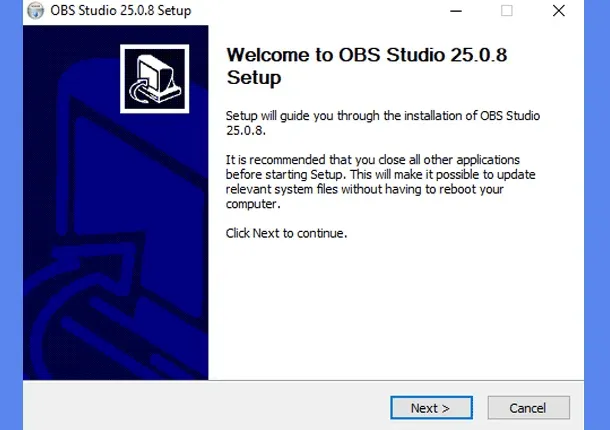
If you are using Windows, press the Next button now to proceed. Press the Next button again to accept the software usage conditions, then press the Install button to start the installation process. At the end of the process, press the Finish button to complete the installation and start OBS Studio automatically.
If you’re using a Mac instead, you just need to drag the OBS Studio icon into the MacOS Applications folder and start the program by double-click (responding Open to first-starting alert). Done this, you are ready to record your computer screen: let's see how right away.
How to register with OBS Studio
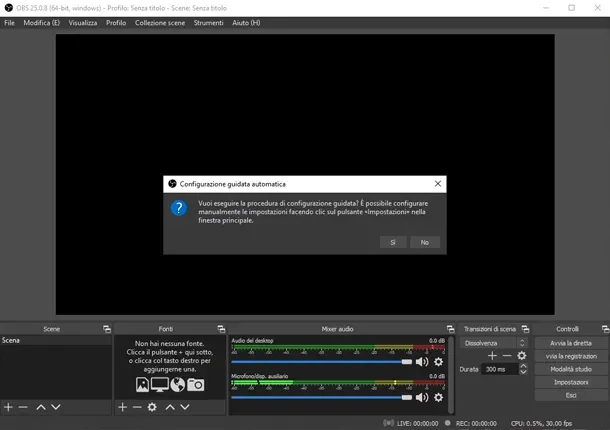
Now that OBS is installed and started, it’s time to configure it to allow screen recording and, if you want, recording the microphone audio. Know that the instructions I'm about to give you are worth both for Windows and macOS, so I'm sure you won't have any trouble following them.
As a first step, then press the Si button in response to the message that proposes the wizard configuration to start the automatic procedure. Now, select the option Optimize only for recordings, I don’t do direct (in today’s example I’ll take care of videos to record locally and not live streams) and press the Next button.
On the next screen, keep the options offered, which will allow you to record the entire screen, and press the Next button. To finish, press the Apply Settings button, so complete the wizard configuration wizard.
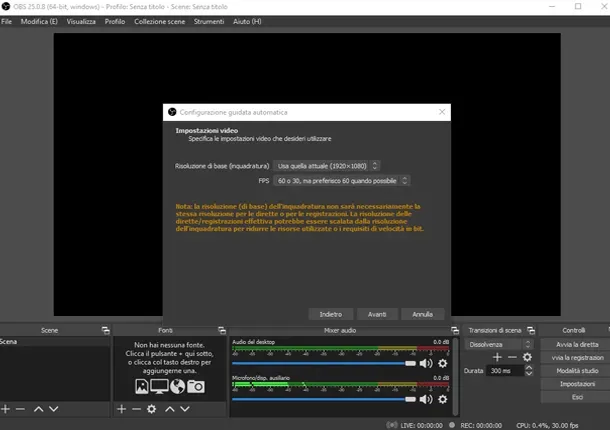
Now that OBS is configured and ready to use, here’s what you need to do to record your PC’s screen.
Press the + button in the Fonti window, at the bottom left, to open the source menu. In this menu you can decide what OBS will have to record. In your case, choose the Capture menu item the screen, to add your screen as a recording source, and press the OK button, to confirm.
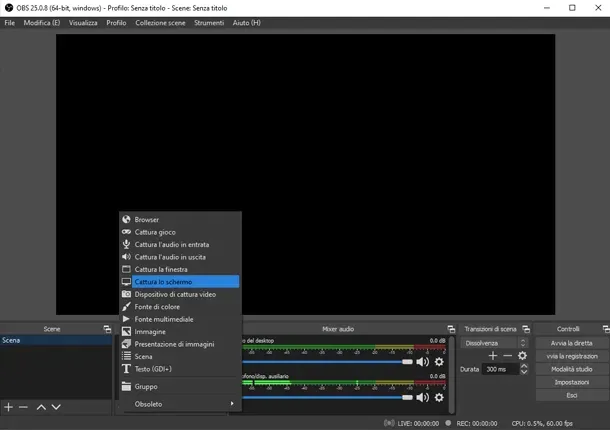
In the preview screen that appears, you can decide to exclude the mouse pointer from the recording, removing the check from the Capture tab the cursor. If you have more than one screen, you can also select the screen to register, through the drop-down menu placed next to the Schermo writing. When you are satisfied with the result, press OK again to complete the addition of the video source.
You can also decide to register a single window, such as your presentation program. To do this, press the + button in the Fonts window located at the bottom left, to open the source menu, and choose the Capture menu item the window.
Press the OK button. Now you can choose the window to catch through the Window menu and you can decide whether to exclude the mouse pointer from the recording, removing the check from the Capture cursor box. Once you have chosen the window to register, press the OK button.
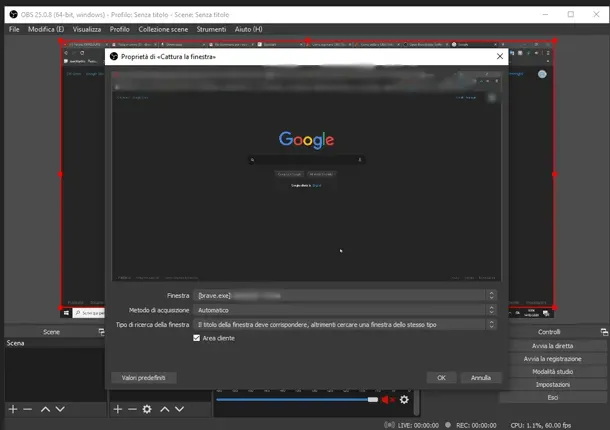
As you have already noticed, capturing the image of the entire screen, OBS will also try to capture the image of the software itself, producing a somewhat peculiar result. Don't worry, however: this effect will disappear as soon as you change window.
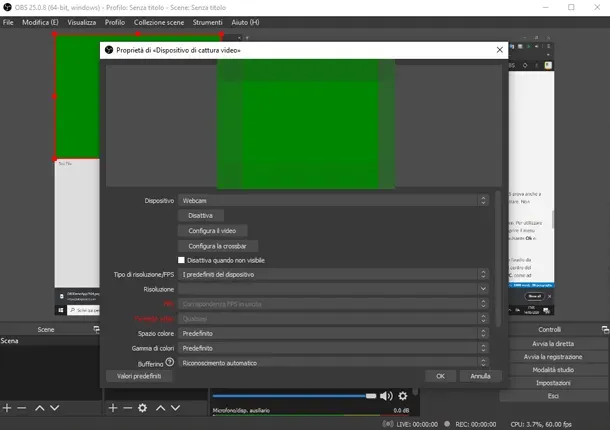
OBS Studio, as mentioned before, even allows you to insert a pane containing the resumption of your webcam. To use this feature, press the + button in the Fonts window, bottom left, and choose the menu item Video Capture Device.
Now press the OK button and, in the preview screen, select from the Device menu the item corresponding to your webcam. Press the OK button now to add the webcam to your source list.
You can move the webcam video source by holding down the box containing the video transmitted from the device and dragging it to the desired location. Similarly, you can resize the webcam video by pressing red dots on the edge of the video itself.
Before starting the recording, I want to explain how to set the audio to record. In the Audio Mixer section, placed in the lower part at the center of the software, there are some channels.
These channels represent the audio of the PC, such as the music or audio of a video, and the audio of the microphone (if connected to the computer).
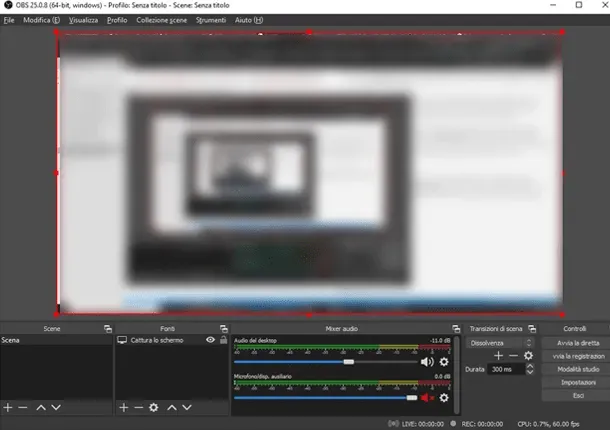
To deactivate or reactivate one or another, simply press the image with the speaker symbol placed under the channel to change. Through the blue line to the left of the icon, you can also adjust the volume of the corresponding channel.
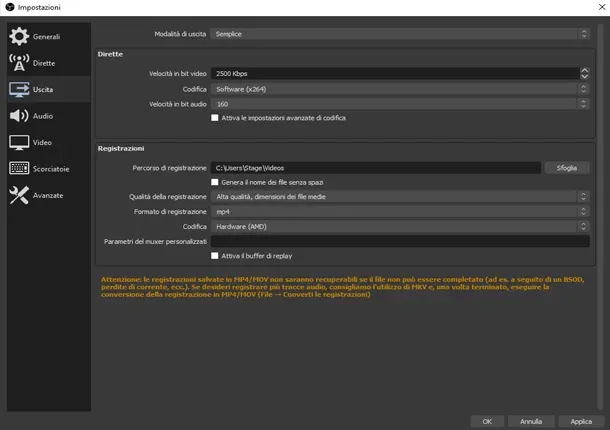
As last step, you have to set the recording quality and decide where to save the file obtained. Press, then, the Settings button at the bottom right and choose the entry of the left-hand menu.
In the Recordings section, you can choose the location to save all future recordings, pressing the Browse button. You can also set the Recording quality through the relative menu: my advice is to maintain the proposed value, i.e. High quality, average file size, and to decrease it only in case of very long recordings or lack of disk space.
Finally, you can choose the Registration Format from the menu with the same name. In this case, I suggest you choose the mp4 format, as it is compatible with almost all devices: you will have no problem in sending and sharing your registration.
Once you complete the changes to the settings, press the OK button, to return to the main screen. Now that everything is ready for registration, press the Start Registration button, to start recording.
When you want to stop the recording, just return to the OBS screen and press Finish the recording. You will then find the file containing the video recorded in the folder you selected previously. Simple, isn't it?


