

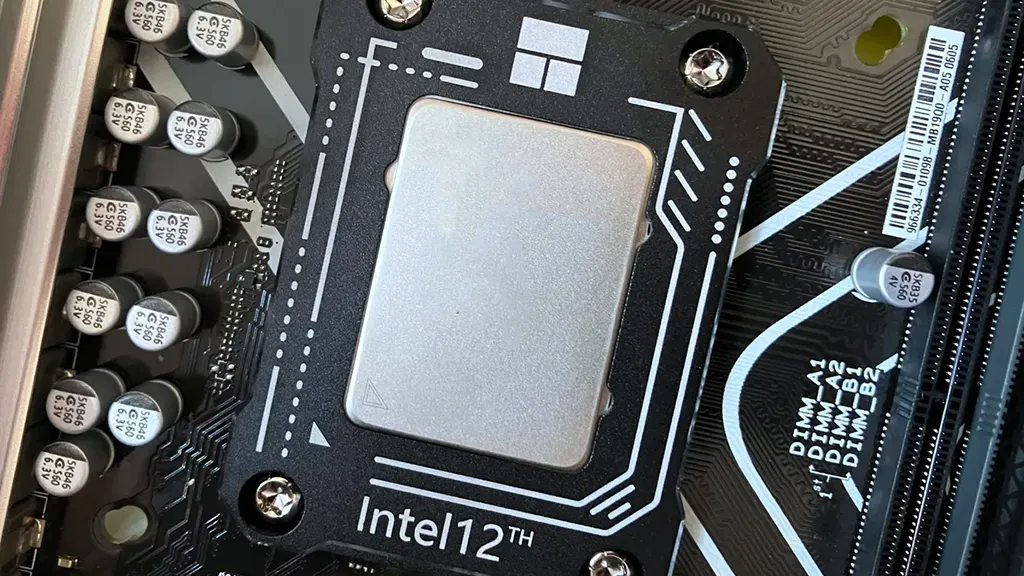
Changing the CPU name displayed in the Windows 11 operating system can be useful for various reasons, such as customizing your PC or for presentation purposes. Although Windows 11 does not offer a direct option to change the CPU name, it is possible to do so through the Registry Editor (Registry Editor). Below are the detailed steps to change the CPU name displayed in the system.
Important notice
The Registry Editor is a powerful tool and incorrect modification can cause significant problems to the operating system. It is highly recommended to back up the registry or create a system restore point before proceeding with the changes.
Steps to Change CPU Name
- Open the Registry Editor
- Press
Win + Rto open the “Execute” dialog box. - Type
regeditand pressInvioto open the Registry Editor. If required by User Account Control (UAC), click “Yes” to confirm.
- Navigate to the Register Key In the Registry Editor, navigate the following key:
HKEY_LOCAL_MACHINE\HARDWARE\DESCRIPTION\System\CentralProcessor\0
- Change the CPU name
- Inside the folder
0, identify the valueProcessorNameString. - Double-click
ProcessorNameStringto open the edit window. - In the “Edit String” window, change the text in the “Date Value” field with the new desired name for the CPU.
- Click on “OK” to save the changes.
- Restart the System To make changes effective, you need to restart your computer.
Verification of Edit
After rebooting, you can check the new CPU name in different ways:
- Using the Task Manager
PressCtrl + Shift + Escto open the Task Manager.
Click on the “Prestations” tab.
Select “CPU” to see the new CPU name at the top of the window. - Using System Settings
PressWin + Ito open the “Settings”.
Click on “System” and then on “Information”.
In the “Device Specifications” section, the new CPU name will be displayed next to “Processor”.
Final considerations
Changing the CPU name is mainly an aesthetic change and does not affect the actual performance of the processor. It is useful for customization or demonstration purposes, but will not provide any tangible improvement to your computer hardware. Always remember to be careful when making changes in the registry, since errors can cause serious problems to the system.
Following these steps, you will be able to customize your CPU name in Windows 11 easily and safely.


