

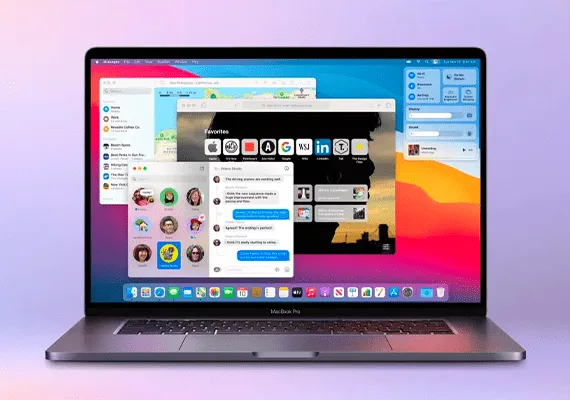
MacOS has a lot of hidden features that can change the way you use your computer.
On the surface, macOS remained unchanged during generations of updates. Dig deeper, however, and you will find a number of useful features that Apple has added every year to its desktop operating system. Whether you're a macOS beginner or have a MacBook for years, these less-known features can help you save a few clicks and potentially make your workflow more productive.
Add a universal media player to the menu bar
On your Mac, you don't have to move back and forth between what you are doing at that time and the audio source to control multimedia playback.
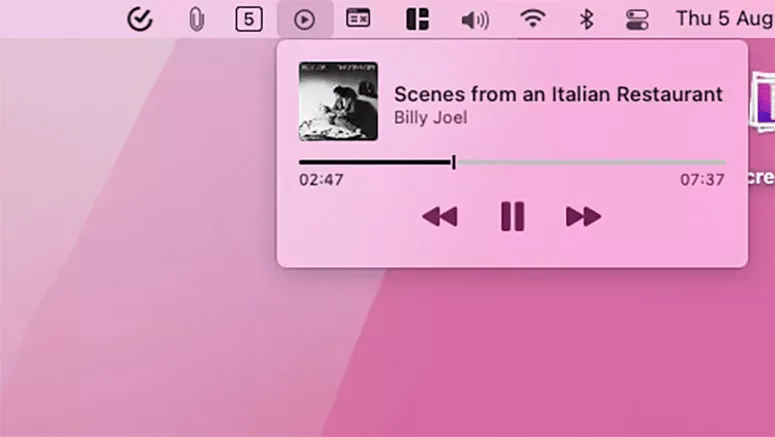
macOS allows you to add a universal media player to the menu bar. With this widget you can pause/reproduce and adjust playback on almost all platforms, from the Apple Music app to a YouTube video played on a browser.
Go to System Preferences> Dock and menu bar> Play and select the “Show in the menu bar” box to enable the media player widget. From the drop-down menu under this option, you can choose to have it always displayed or only when a playback is activated.
Turn the corners of the screen into shortcuts
There are just so many keyboard shortcuts that you can learn and remember. macOS, however, has a better alternative for you: hot corner.
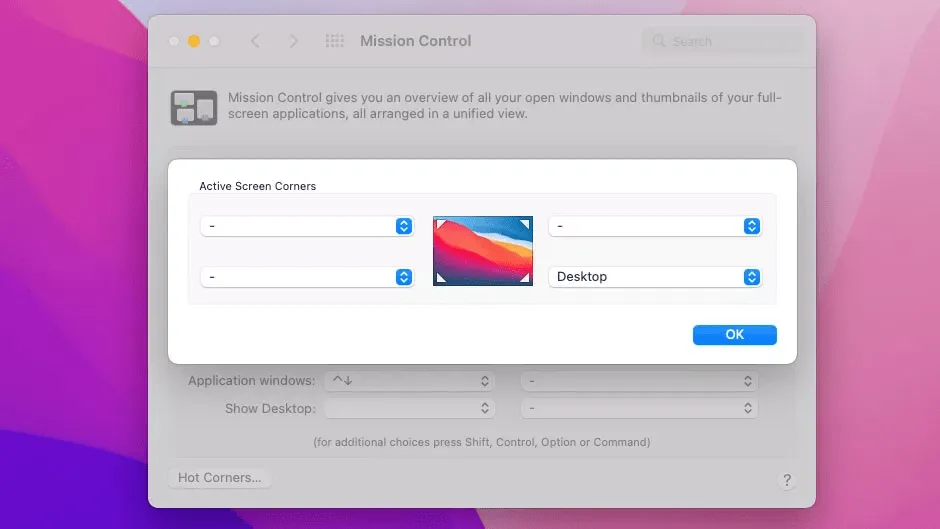
macOS allows you to connect a handful of actions to the four corners of the screen. When you pass the cursor to one of them, your Mac will automatically run the link you set to.
To set the hot corners, visit System Preferences > Mission Control and click “Hot Corners”.
Select the drop-down menu next to the corner you want to configure and choose what should happen when you bring the mouse pointer to it. You can take a quick note, lock the computer, extract the notification center, all simply passing the mouse over one of the corners of the desktop.
Add files and folders to the dock
The icon strip at the bottom of your Mac screen can contain much more than your favorite apps. You can also instantly access your files and folders from the macOS dock.
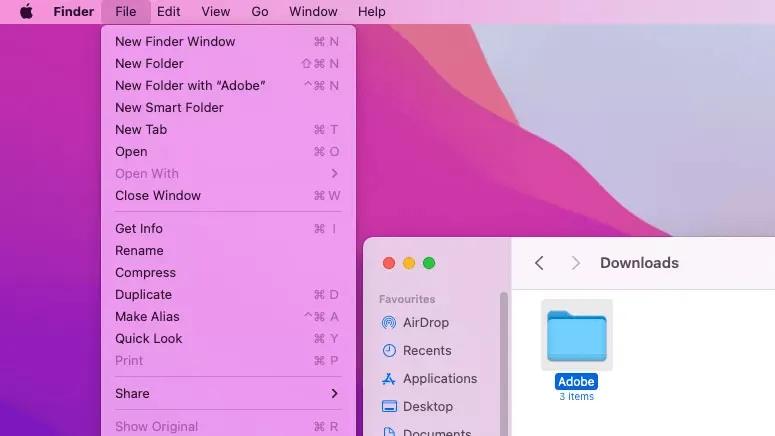
To add a file or folder to the macOS dock, go to its location in the Finder app. Click the item once and open the “File” menu at the top. Press the Shift key on the keyboard to reveal a hidden option “Add to the Dock” and click on it to create a link to the selected file or folder on the dock. Alternatively, you can also press the Ctrl+Cmd+Shift+T key combination.
Use macOS full recording tool and screenshot
You may be familiar with the screenshot of a part of your QuickPlayer display or screen recorder, but your Mac also has a separate all-in-one tool for screenshots.
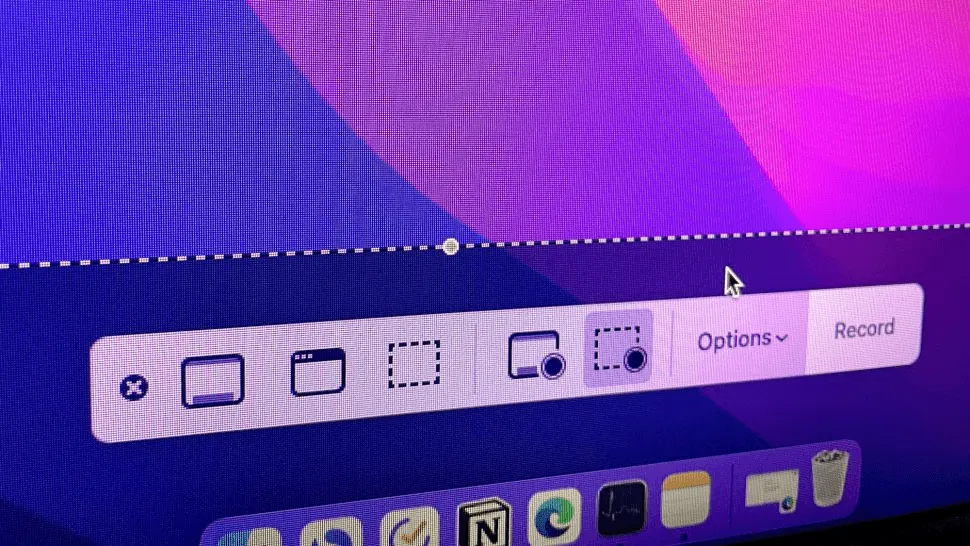
The dedicated MacOS tool to capture screenshots and record screen content is probably its best kept secret. Launch a dashboard-like interface where you will find all the options you need to capture the screen in one place. You can record a particular display area, specify if you want the microphone input and mouse pointer and more.
You can access the screenshot app of macOS from the launchpad or with the shortcut “Cmd + Shift + 5”.
Double-click a window to reduce it to icon
By default, when you double-click a macOS app window, this is enlarged to fit the screen size. In my experience, I found little useful this behavior, but fortunately, macOS allows you to switch to a different action. Instead of magnifying the window, you can alternatively choose to reduce it to icon in the dock by double clicking the title bar.
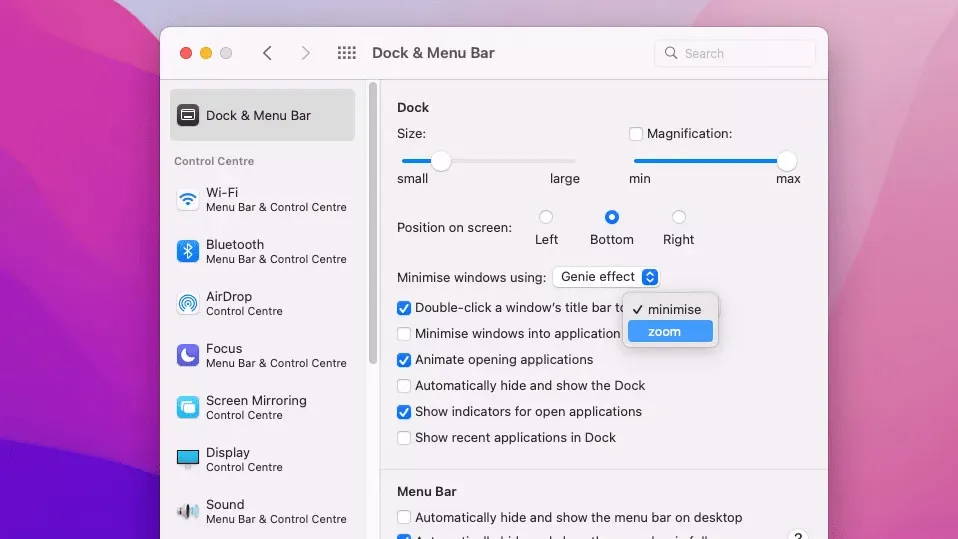
To do this, go to System Preferences> Dock and menu bar and select “reduce to icon” from the drop-down menu “ Double-click the title bar of a window for”.
Automatically start programs at startup
If you often open the same app set as soon as your Mac starts, there is a setting that can save you time every morning. macOS allows you to automate your startup routine and automatically start your favorite apps when you access your computer.
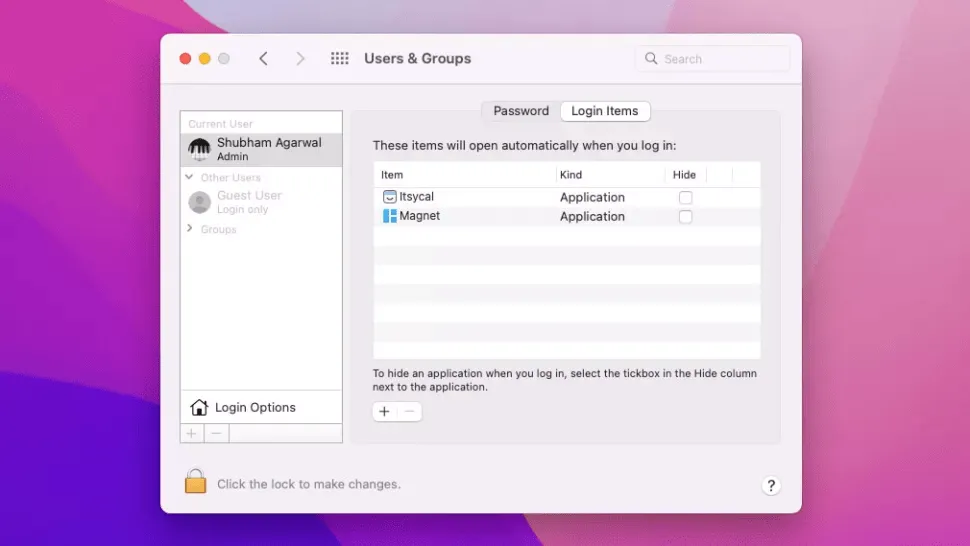
You can set your access elements from System Preferences > Users and groups. Select your username from the left and access the “Logging Options” tab. Click the bottom button. In the pop-up, go to the “Applications” section and double-click the program you want to start at the computer’s automatic startup.
This utility is also not limited to apps only. You can also use it to start images, videos and anything else from the “Finder” app on startup.
Lift the emoji tray
Inserting an emoji on your computer may be a nuisance, especially when the app you are using does not have an integrated option for it. You do not have to deal with this problem on a Mac, since it has an emoji selector.
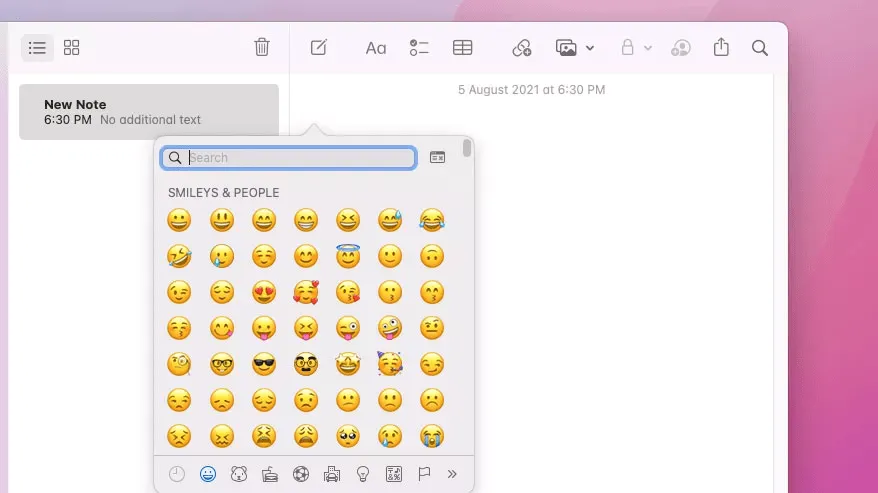
You can recall the macOS emoji tray regardless of where you are typing and easily insert the characters you want in an instant. Also, you can view your Mac’s emoji selector by pressing the shortcut “Cmd + Control + Space” or from the menu bar.
Visit System Preferences > Keyboard to add the emoji bar to your Mac menu bar. In the “Input Sources” section, enable the check box “Show input menu in the menu bar”. Click on the new input icon on the menu bar and press “Show Emoji and symbols” to reveal emoji.


