

If you want to bring your favorite Android games to the big screen with the official Google Play Games app for Windows, follow the steps below.
What is Google Play Games?
The name “Google Play Games” describes different types of apps. For this article, we will focus on the app that you can download on Windows PCs. Do not confuse it with the Android app called “Google Play Games”, which manages the download of apps on your mobile devices.
You can use the Windows app to download and play games on your PC. Use hardware virtualization to emulate Android games on Windows.
Before you continue, make sure you have an average-end Windows PC that can run the Google Play Games app. Check system requirements on the Google Play Games Requirements page and make sure the hardware matches or exceeds it.
How to download and install Google Play Games on Windows 11
- Visit the official website of Google Play Games.
- Click the “Download beta” button.
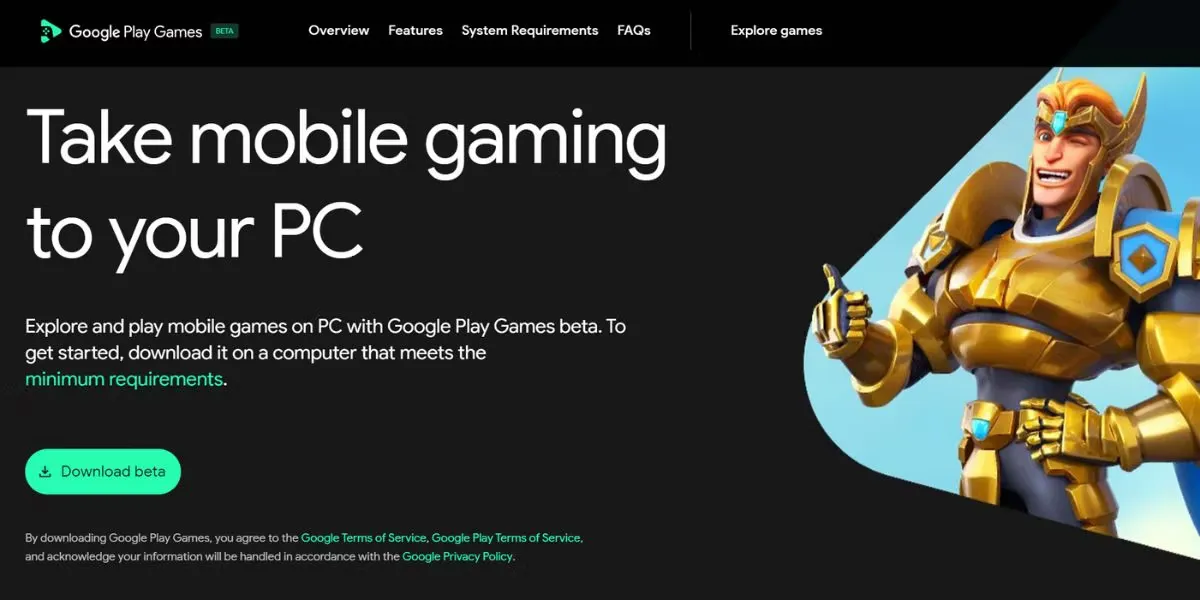
- Wait for the file to be downloaded. Go to the download folder and run the installation file.
- Click Accept to accept the Terms and Conditions.
- Turn off the switch “Help to improve your experience” and click Finish.
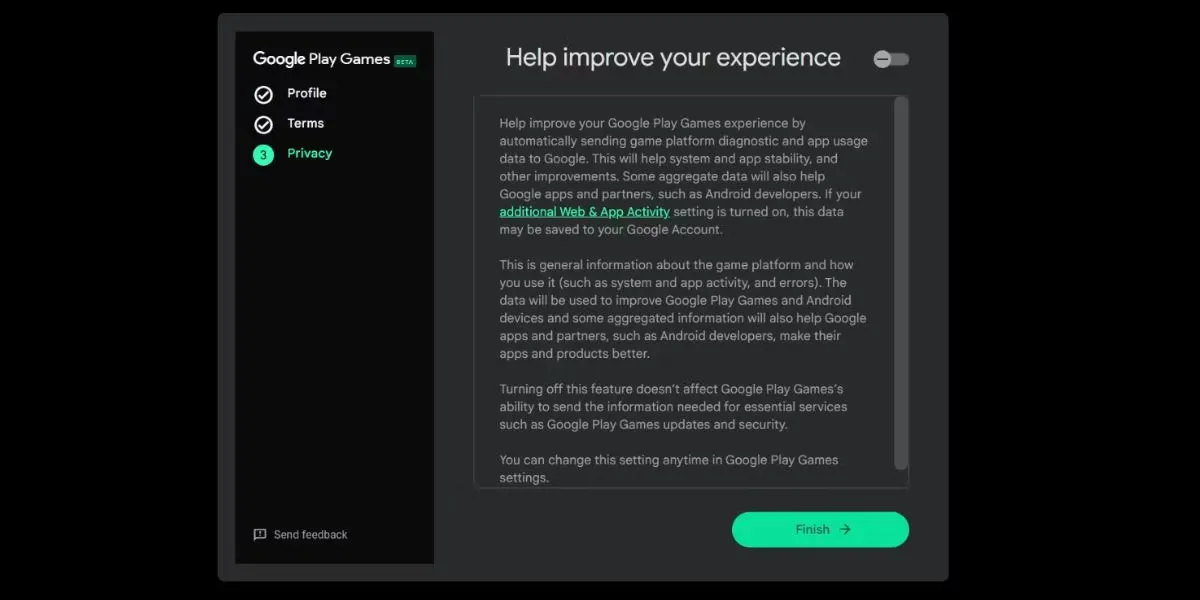
Now you are ready to play Android games on your PC.
How to install and play games using Google Play Games
Now you can browse the game library and install any supported game in the beta program. The current library includes over one hundred popular titles, and they always add new ones.
When installing a game for the first time, you will notice that the Windows virtualization platform will also be installed on your PC. This is normal and necessary to play with Google Play Games. You just need to install it once.
Repeat the following steps to install a game with Google Play Games:
- Launch the Google Play Games app.
- The app will show a list of recommendations to the right, with all the games you played or installed on your phone earlier. Scroll down and click View under the banner “Discover all our games”.
- Click a game box to open its page and then click Install.
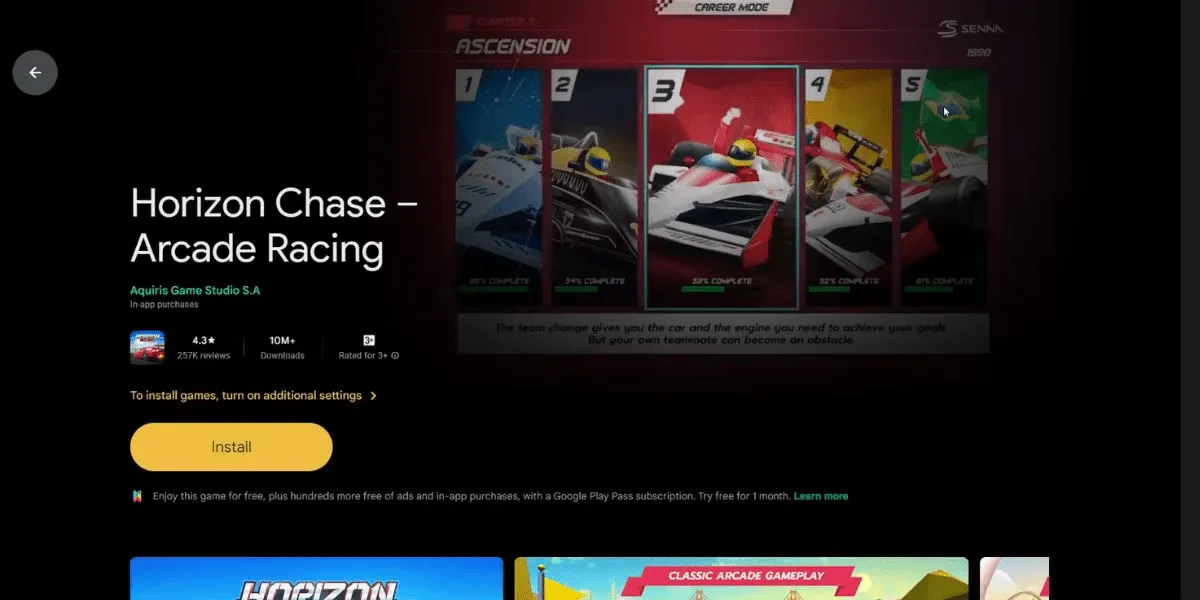
- The app will ask you to “Enable virtualization settings”. Click Continue.
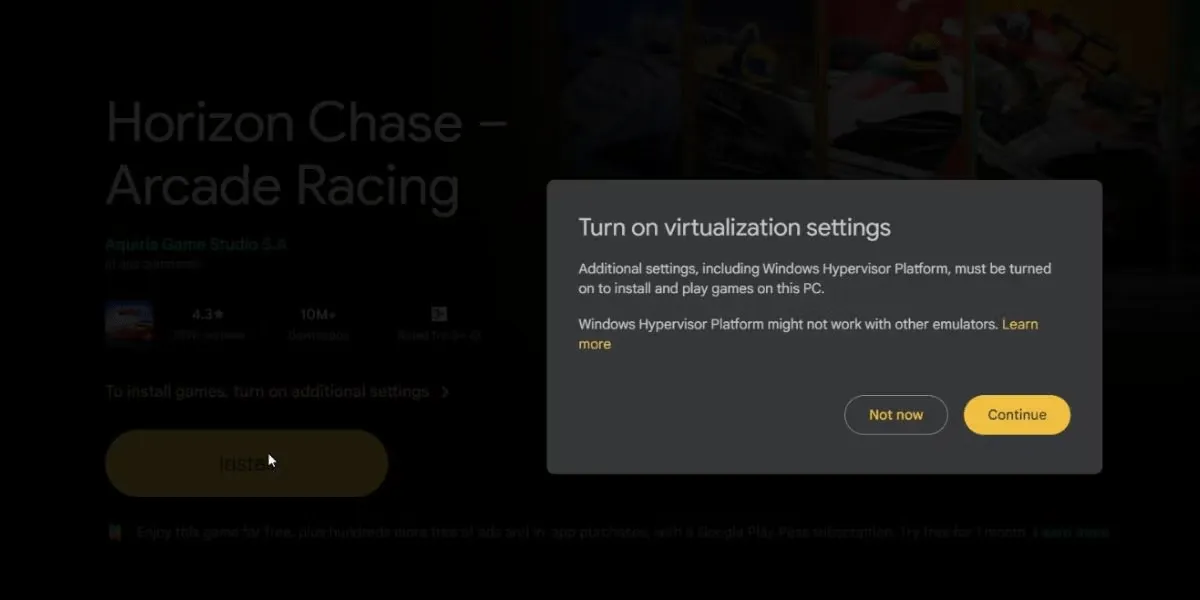
- Click Yes to install the Windows virtualization platform.
- Finally, click OK to update your PC and apply the changes.
Wait for your PC to restart. Once back:
- Launch the Google Play Games app again.
- Go back to the game page and click Install.
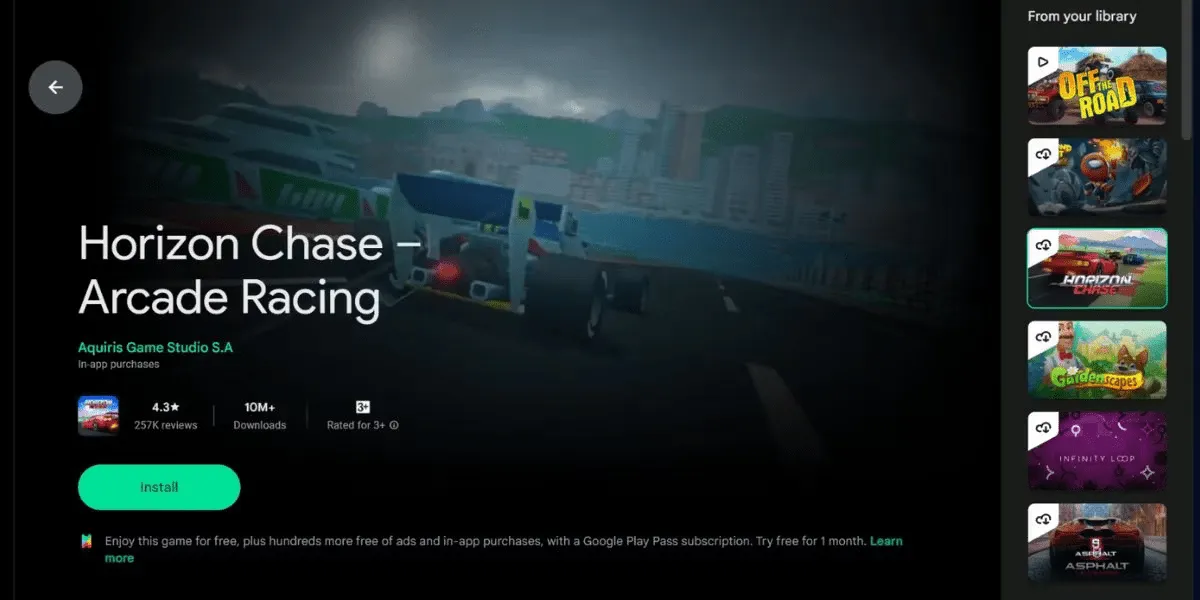
- Click Play to start the game.
The game will start in window mode. Press Alt + Enter to switch to full screen mode.
How to customize game controls on Google Play Games
The default controls of the game may sound strange, as you are playing an Android game on a computer. Fortunately, you can change them through Google Play Games.
Some games allow you to set controls within the game, but if you do not see any such option, repeat the following steps:
- Press Shift + Tab to open the game options menu.
- Click Remove Controls. You will now see the key associations related to the game.
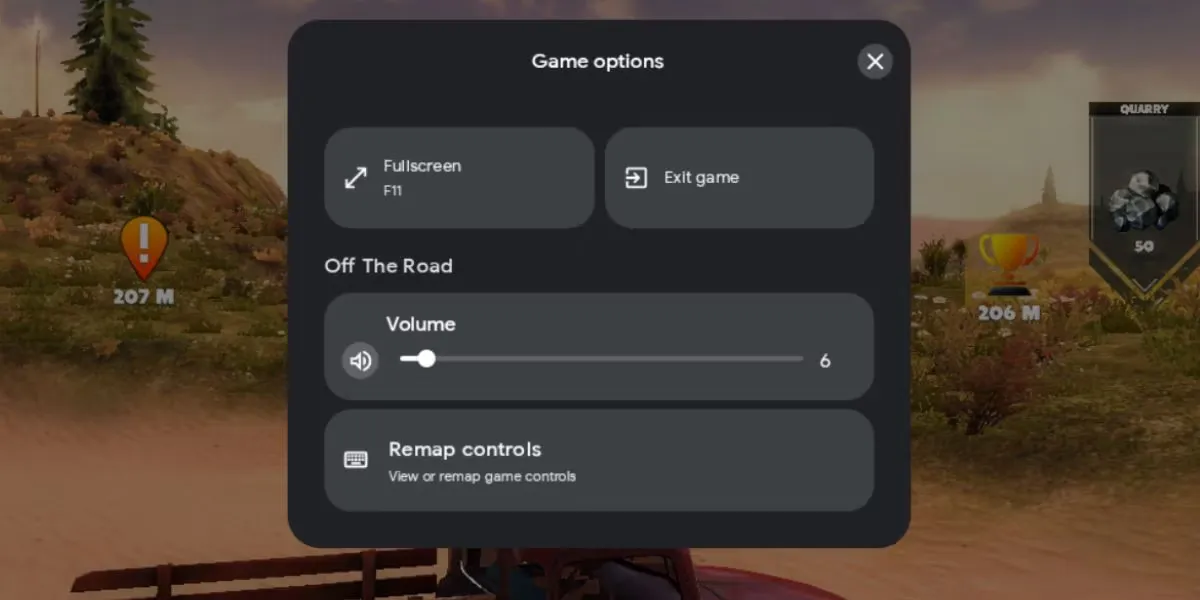
- Now, click the key combination you want to change, then press the button you want to assign. The changes will be saved automatically.
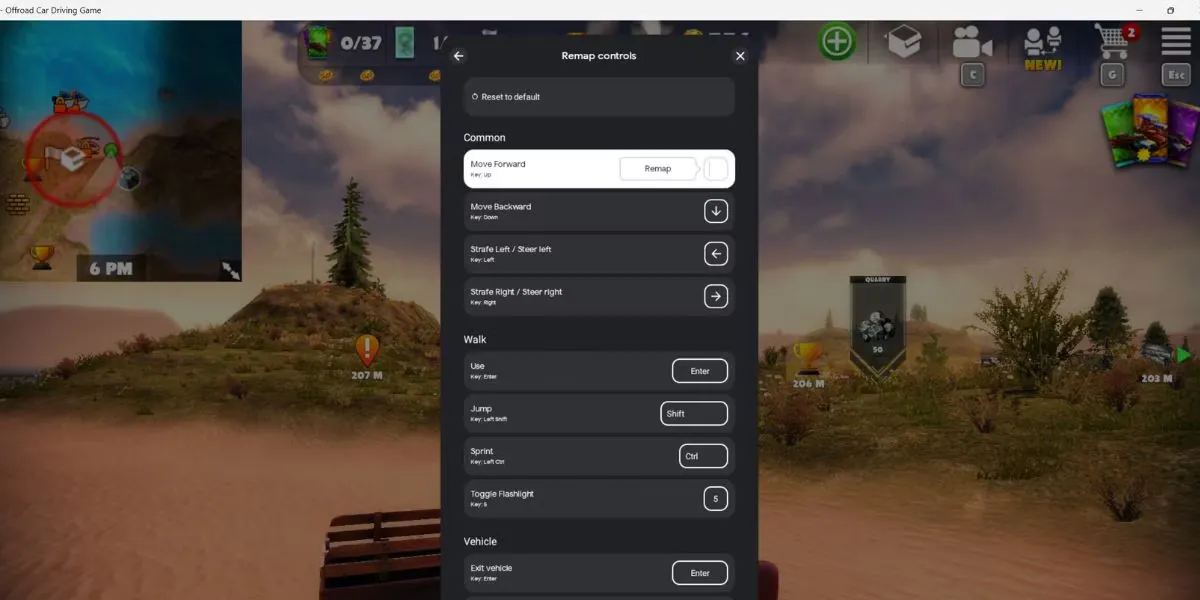
- Finally, click the X button to close the check reset window and return to the game.
The experience with the Google Play Games app for Windows was positive.
The games work well and look great in the app. You may notice some jagged edge in some games due to the lack of anti-aliasing, but it is manageable. Remember that these are mobile games, after all.
A small drawback is that some games do not pause when you press Shift + Tab to open the game options. The games continue to work in the background, and you will need to use the in-game method to pause the game if it exists.
Fortunately, the game experience is smooth and, since the app uses your Google account to log in, the progress will sync automatically on all your devices. You can earn game goals as you do when playing on an Android device.
Google Play Games is not as demanding in terms of resources as other ways to run Android apps on Windows, such as Bluestacks. The app consumes from 800 to 900 MB during the game, which is moderate. However, you will need a PC with at least 8 GB of RAM to run Google Play Games and other apps smoothly.
Now you can enjoy your favorite Android games on your Windows PC thanks to Google Play Games. The performance is decent, and your goals and game progress will sync perfectly. We hope that the game library will include more popular titles in the future.


