

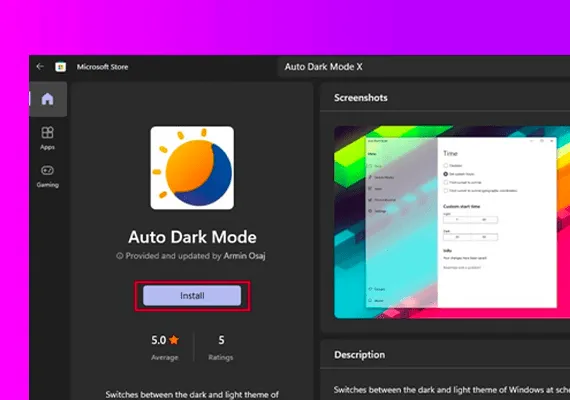
In this article, I will show you how to enable automatic dark mode in Windows 11 using a third-party app created by a developer. The app also has an automatic theme change function.
Download Automatic Darkening Mode from Github or access the page versions .
Alternatively, you can download the app from Microsoft Store by doing click here or simply search Auto Dark Mode in Microsoft Store and the first app that will appear is this.
After installing the app, you will see that the interface is very simple and minimalist. You have the main sections on the left side and the settings on the right side.
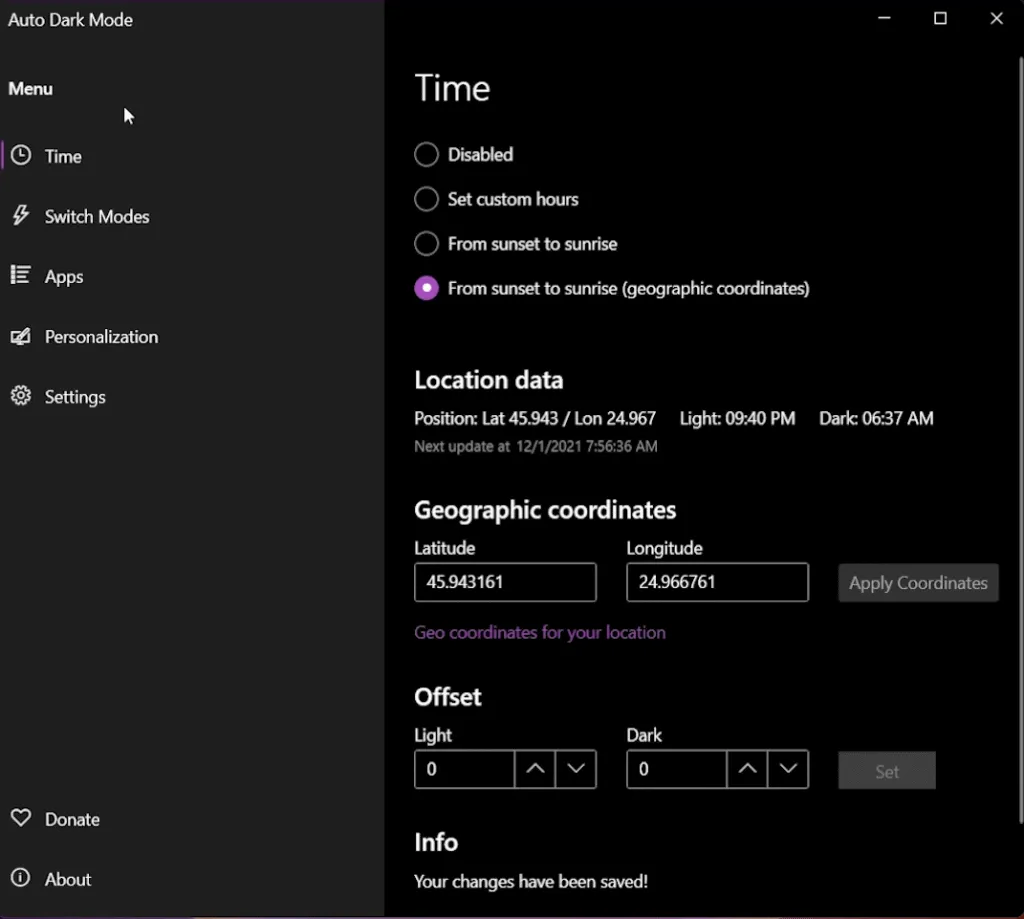
In the tab Time , first of all, make sure you select the preferred settings for Automatic Darkening Mode.
Set customised hours that will activate the change of the theme of Windows 11, you can set the app to switch to the dark mode from sunset to dawn using the location settings from Windows 11 or you can set the app to switch to the dark mode from sunset to dawn ( Geographical coordinates) .
You will need to click on geographical coordinates for your location and on the open website enter your location/city. Copy latitude and longitude values from there, paste them into automatic darkening mode and then click Apply coordinates .
For the last 2 options, you can also set Offset separately for the light or dark theme.
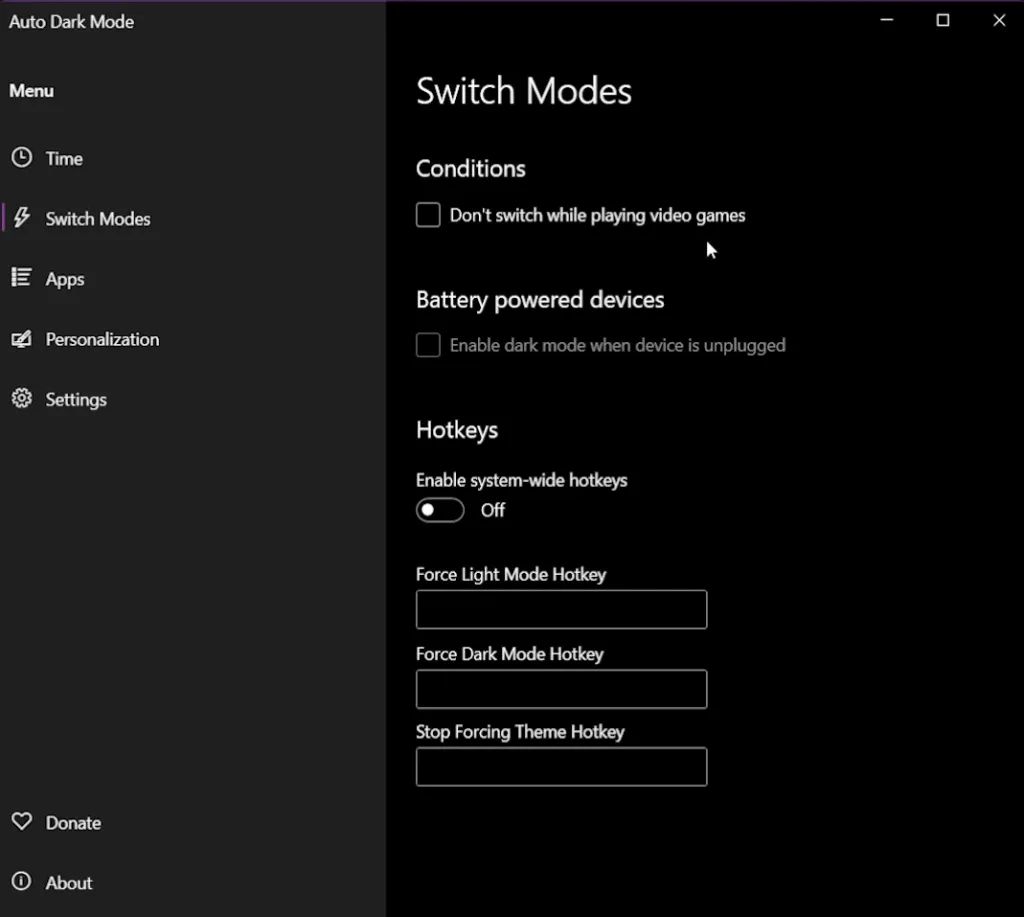
In the tab Change mode , you can customize some other options.
You can enable Don't change while playing video games . This option is useful for those of you who have a low end computer because this option can consume many system resources.
For battery powered devices You can enable dark mode when the device is disconnected, an option that can help you increase the battery life of your device.
You can also set certain keys of quick choice for enabled switches.
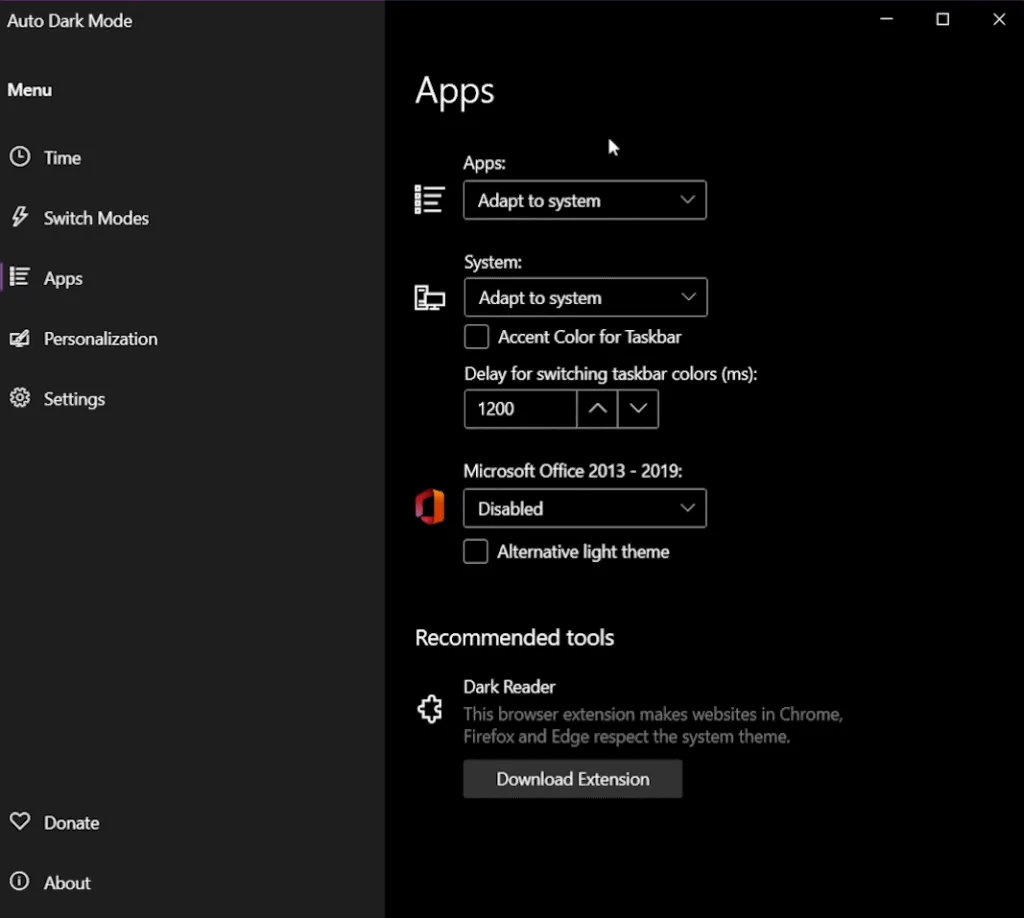
In the tab App , you can customize how certain apps will react to changing the theme.
You can set the options for app in general or for system . You can also customize Microsoft Office separately.
The app recommends installing Darkness , a browser extension that allows websites in Chrome, Firefox and Edge to respect the theme of the system.
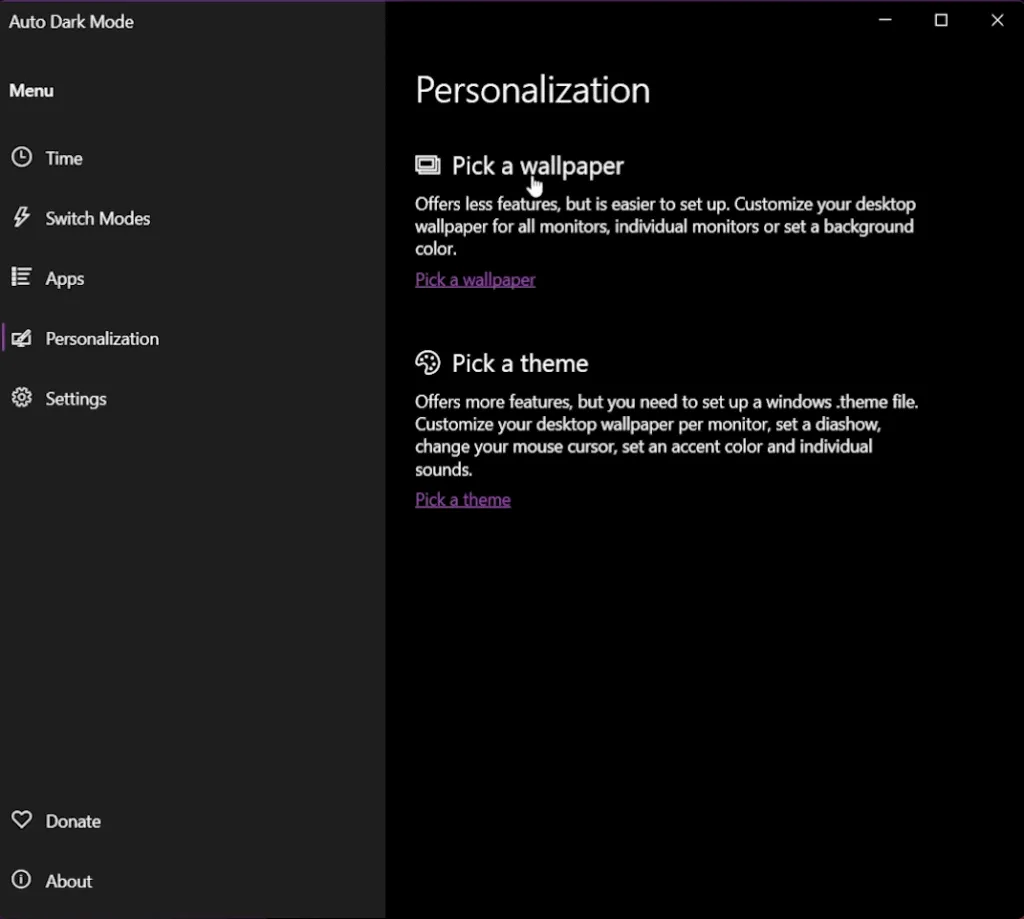
In the tab Customization , you can create a custom switch for background or a Theme switch .
For both options, you can select custom wallpapers or themes for the light or dark theme in Windows 11.
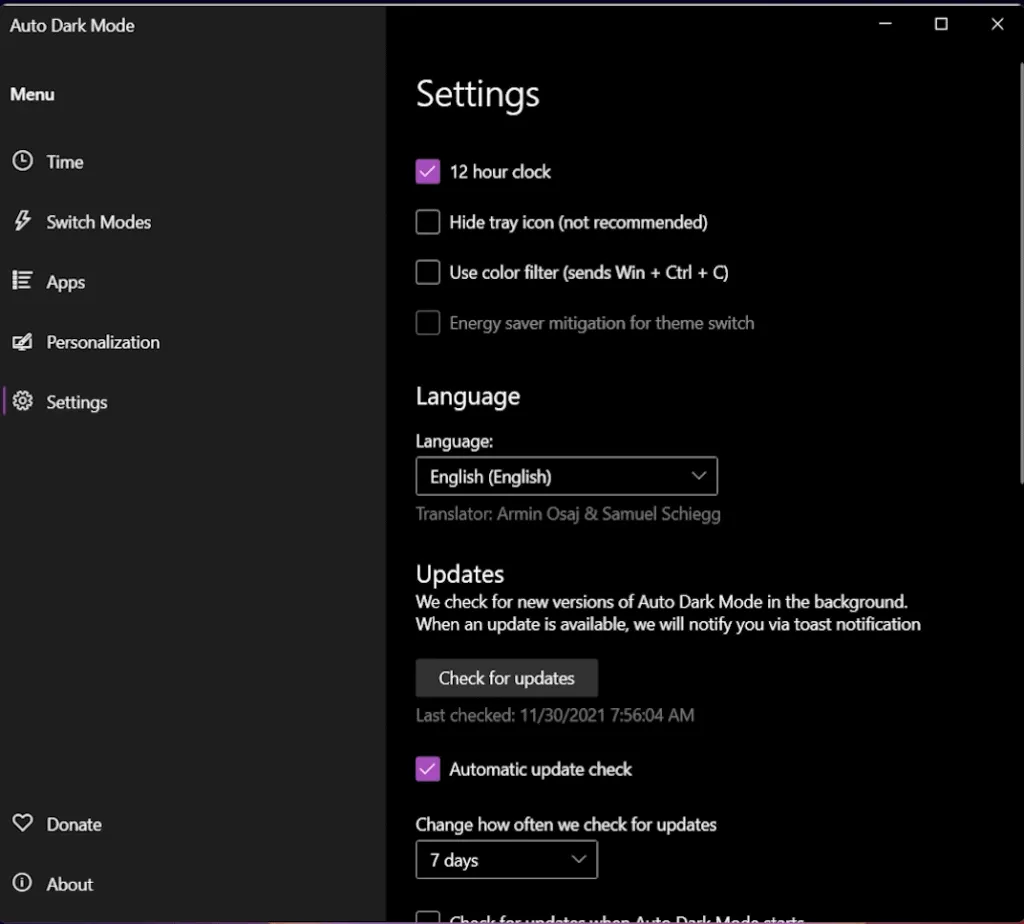
In the tab Settings , you have some extra settings, as far as Updates and Automatic start with Windows , options you should enable.
This is Auto Dark Mode for Windows 11, a useful app that can be used for further customization of the Windows operating system.


