

In the vast universe of video games, there is no truce. This reality is manifested through the tenacious creation of the most advanced emulators for the Nintendo Switch console. Video game enthusiasts from all ages appreciate the versatility of Nintendo Switch, which combines the traditional features of the game consoles with modern hardware.
However, a dilemma arises when you want to play Nintendo games on different devices, such as cell phones or computers. In these situations, emulators come into play. But what is the real chance of success?
For those who love Nintendo Switch but cannot afford to buy a dedicated console, there is a light at the bottom of the tunnel. On the market there are several programs that are the title of best emulator for Nintendo Switch. Thanks to these emulators, you can now enjoy numerous Nintendo games on mobile devices and PCs. Now, even without owning a Switch console, you can play titles like Let’s Go Pikachu, Link’s Awakening, Mario Kart and many more.
However, many of us associate emulators with issues such as slowing frames, unreliable sound reproduction and loss of rescue files, elements that can cause considerable frustration. Unfortunately, games that work smoothly often go unnoticed, obscured by those who have technical difficulties, making it difficult for many to assess which is the best choice.
Another common obstacle is the abundance of options available when looking on the Internet for the “best emulator for Nintendo Switch”. This overabundance of information can confuse a beginner who has never experienced an emulator before. Each emulation program has its own advantages and limits, with variable system requirements. Some work on systems with lower specifications, while others require more substantial resources to ensure good performance.
Yuzu
After the initial approach with homebrew games, Yuzu expanded its range of action, allowing the emulation of Nintendo Switch titles currently available for purchase.
Yuzu was the pioneer as a Switch emulator, developed by the creators of Citra, one of the most popular emulators for Nintendo 3DS, and is made available for free as an open source project. This emulator, written in C++ language, is designed to emulate the essential hardware components of the Nintendo Switch, although some games still have issues, which is why performance in some titles is not optimal.
Despite the power limitations, Yuzu managed to turn Super Mario Odyssey to a frame rate comparable to that of the 2019 Nintendo Switch. During this emulation, no signs of delay or missing parts were found in rendering the background scenario, an amazing result for an emulator. From the beginning, users felt comfortable with Yuzu. Its interface is clear and provides users with all the information they need. An updated list of fully functional games is available on the site, with regular updates on the ongoing activities of the team and a FAQ section useful for troubleshooting when error codes appear.
Features:
- Wide range of compatible games.
- Developed in C++, guaranteeing high portability.
- Ability to perform the most popular and recent titles without significant delays.
- Low resource consumption emulator.
- Yuzu replaces Nintendo's BCAT network service with Boxcat.
- Resize rendering resolution functionality, simulating native, superior or lower resolutions.
- Support for OpenGL and Vulkan graphics modes (experimental).
- Available for Windows and Linux.
- The online multiplayer feature is disabled at the moment, but local multiplayer is possible.
- Possibility to set and use multiple profiles.
- Customization of the user interface with a choice of themes such as dark, light, blue night, etc.
Installation
| MINIMUM REQUIREMENTS | REQUIREMENTS | |
|---|---|---|
| Operating system | 64-bit | 64-bit |
| Processor | Intel i5-4430 or AMD Ryzen 3 1200 | Intel i5-10400 or AMD Ryzen 5 3600 |
| Memory | 8GB RAM | 16GB RAM |
| Data sheet | Support OpenGL 4.6 or Vulkan 1.1 like Intel HD Graphics 520 or Nvidia GeForce GT 1030 | Nvidia GeForce GTX 1650 4GB or AMD Radeon RX Vega 56 8GB |
1. Installation YUZU
- Go on official website by Yuzu and download the emulator. First, download and install the latest version of Microsoft Visual C++, since without it Yuzu will not work. The link is on the website.
- Open the Yuzu setup file you just downloaded and proceed with the installation.
2. Configuration of keys and configuration files
- Next, you need to download the keys to Yuzu from here.
- Download Mod files from here and custom configuration files from here. This step is optional, but it can help optimize some games so that they can work better and without errors.
- Open Yuzu you just installed. You will be shown an error called “Derivation Components Missing”. Click OK for now.
- Click File and open yuzu folder.
- Create a new folder called “keys”. Put the prod.keys file you downloaded in this folder.
- Extract the load.zip file and get a folder called “load”. Put it in the yuzu folder.
- Go to the configuration folder in the yuzu folder and then go to “custom”. Put the Custom Config.zip file you downloaded here and extract it here. You can delete the zip file after extracting it.
- Reboot Yuzu.
3. Set the game folder
- The Yuzu application should indicate “Do double-click to add a new folder to the game list”. Add games for the Nintendo Switch Yuzu emulator.
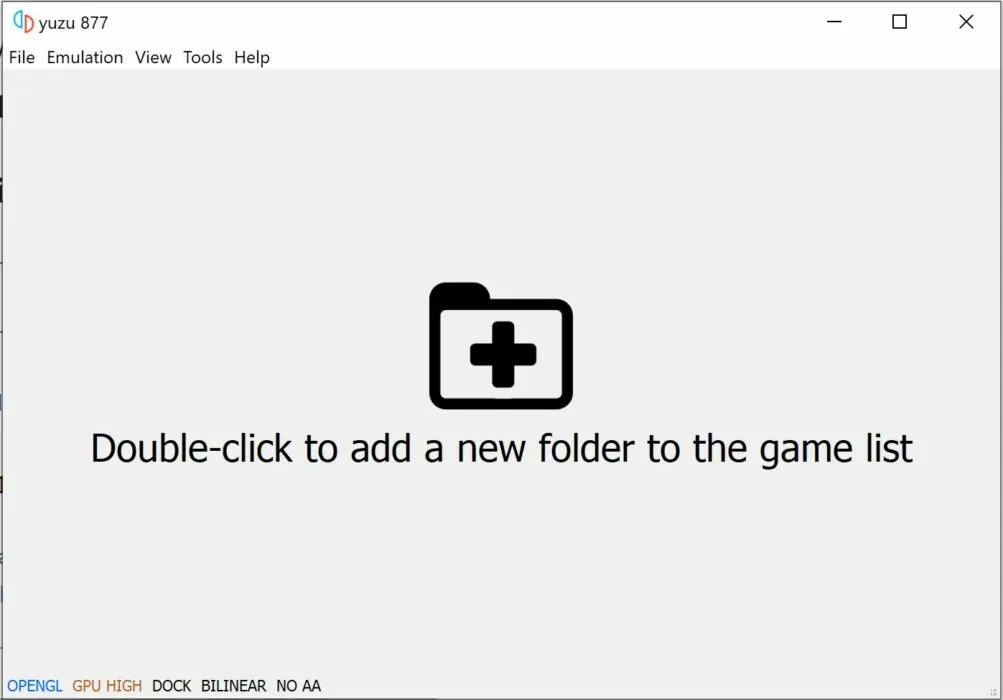
- Then double-click and select the folder where you have your Nintendo Switch games downloaded. You can download them from here and extract them to the “Switch Games” folder in the yuzu folder.
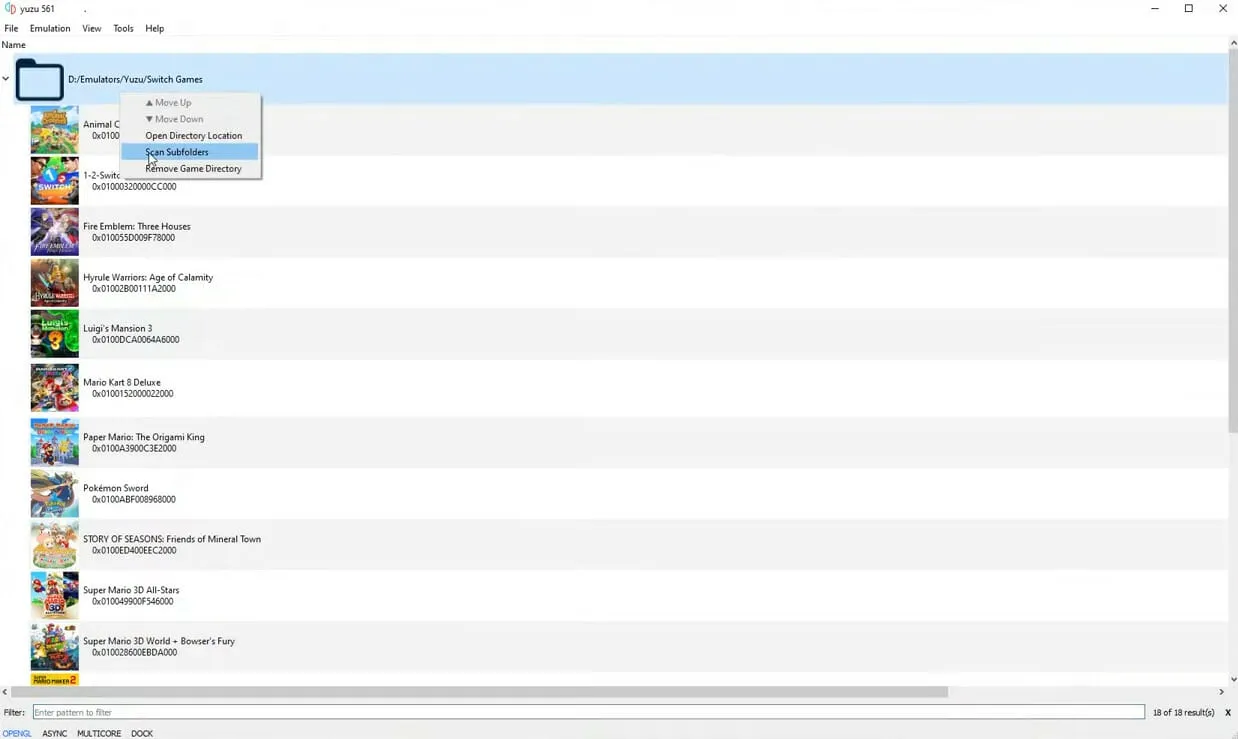
- Right-click the above folder and select “Delete subfolders”.
4. Adjust cpu and gpu settings
- While you opened Yuzu, click on the “Emulation” tab at the top and click on “Configure”.
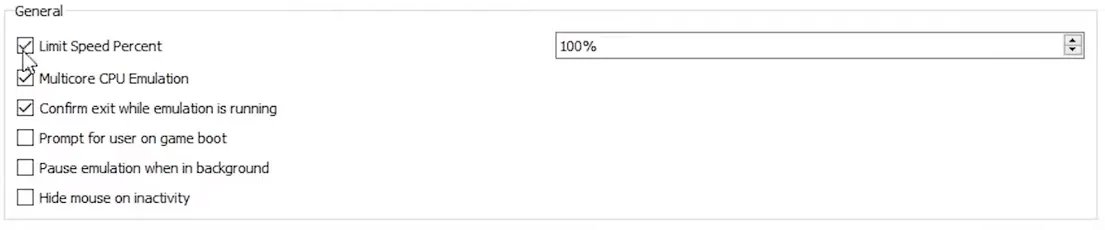
- In General, select the first three options.
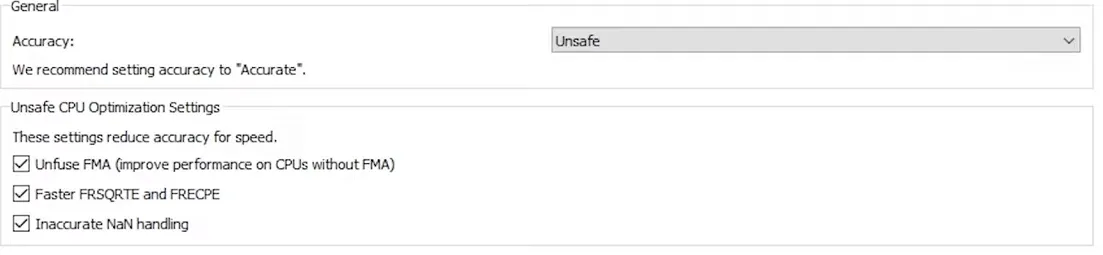
- For the CPU, set the accuracy on Unsure.
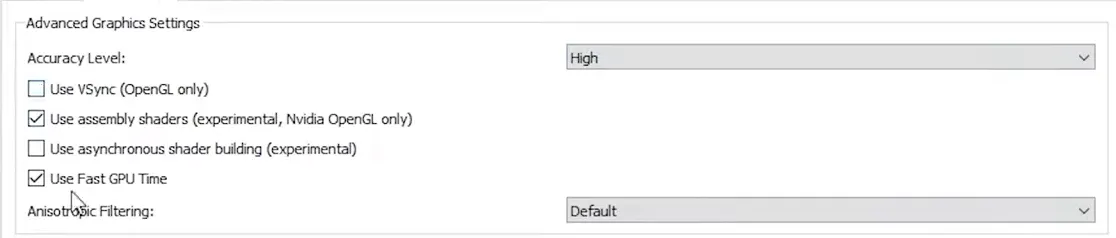
- For Graphics, if you own a Nvidia GPU, set the API on OpenGL; otherwise, if you have an AMD GPU, set to Vulkan. There will also be an Advanced tab on this page. There you set the accuracy on Alta and check the box for “Use assembly shaders”.
5. Performance nvidia settings – only with gpu nvidia
- Open the Nvidia Control Panel, you can right-click it on your desktop and select Nvidia Control Panel.
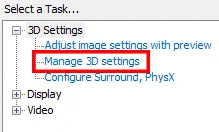
- Go to 3D Settings Manager under 3D Settings.
- Go to Program Settings and click Add, then select yuzu.exe.
- Activate the Thread Optimization and set the power management mode to Prefer high performance. This passage is very important!
- Make sure your OpenGL rendering GPU is set to your Nvidia GPU specification.
Ryujin
Ryujinx stands out as the first multiplatform emulator for Nintendo Switch to offer local wireless support. A high-level emulator for Nintendo Switch has been shown, with some features that make it a prominent option in the emulator landscape. The performance of the games can vary between Yuzu and Ryujinx, with some titles that work better on one rather than on the other. Ryujinx offers a wide range of robust features and stands out for its intuitive interface, accessible to anyone. A unique feature is its programming in C#, different from most other emulators, and compatibility with Windows, macOS and Linux.
The game catalog available on Ryujinx has about 1000 titles, with half considered playable. This information is promptly highlighted for potential users, showing transparency regarding obstacles still to be overcome. The development team, led by Gdkchan, is constantly committed to improving the accuracy, performance, user interface and structure consistency to offer a better experience than expected.
This fast emulator with few margins of error is among the most reliable options. Although it can't still run commercial games for Nintendo Switch, developers work incessantly to perfect it. Ryujinx offers an experience that approaches the console experience, even directly on the desktop, allowing you to play games at 60 fps.
Features:
- Customize screen resolutions and resize.
- Several appearance reports available.
- Automatic mode enables anisotropic filtering automatically.
- Discord Rich feature to show the game Nintendo on Discord.
- Possibility to play online multiplayer with friends, both via LAN and local wireless.
- Support for NVDEC emulation for game videos and cut scenes.
- View game compatibility through the dedicated page for each game.
- Compatible with both Windows and Linux.
Installation
| WINDOWS | MACOS | LINUX | |
|---|---|---|---|
| Operating system | Windows 10, 11 | Big Sur or later | Common Linux distributions |
| Memory | 8GB RAM | 8GB | |
| Data sheet | Support OpenGL 4.5 or better, or Vulkan. | A video card GPU that supports OpenGL 4.5 or higher, or Vulkan. |
1. Installation Ryujinx
- Go to website official Ryujinx and select Windows, Linux or macOS, depending on your device.
- Ryujinx will then begin to download the correct version for your PC's operating system.
- Once you download Ryujinx, extract the folder . zip Download . On Windows, you can do it by opening the folder . zip and choosing Extract all files .
- With the folder . zip for Ryujinx extracted in a position of your choice, go to Ryujinx opening the file of the application called Ryujinx from the extracted files.
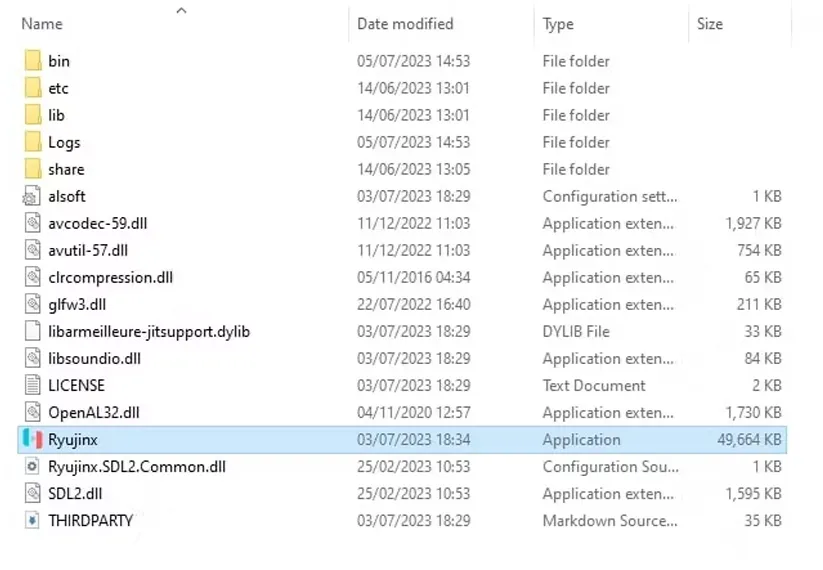
- Following these steps you should be able to start and access the basic functions of the Ryujinx emulator on your PC. However, if you want to start emulating games for Nintendo Switch, there are some changes to Ryujinx you have to make.
2. How to configure Ryujinx
- The first thing you need to configure Ryujinx for the Switch emulation is to verify that the file prod.key is available in the Ryujinx version.
- Open Ryujinx and select File followed by Open Ryujinx Folder. Choose System.
- Check prod.key is located inside the folder.
- If there is no file prod.key in the folder System, you will have to download the file from a site as Prod Keys and copy it to the Ryujinx folder System.
- Subsequently you will have to download the firmware separately for Ryujinx from a site as Prod Keys. Once the firmware is downloaded and ready for use.
- Charge Ryujinx and select Tools, followed by Install firmware .
- From here, if you have a file . xy or . zip for your firmware, select Install firmware from XCI or ZIP.
- If you do not have a firmware file . xy or Install firmware from a directory and choose the directory of the file where the installed firmware is located.
Egg N
You can play the Nintendo Switch games on your mobile phone thanks to Egg NS Emulator. With Egg NS, players can enjoy the Nintendo Switch games on their mobile devices, obtaining a unique control experience. NXTeam Studios has developed the Egg NS emulator in the United States over two years and is now available. NXTeam will continue to optimize the performance, stability and compatibility of this emulator in the future.
Acquiring games via Egg is a slightly complicated process compared to other emulators. There is a legal requirement that requires you to remove the games from your Nintendo Switch console. This requires you to get the Switchdroid folder and game ROM files, operations that require specific skills and technologies. Alternatively, you can get the games from other sources or from other players. Overall, these are complex procedures and new users may find it difficult to use the emulator at first.
Despite the complexity of finding games for this emulator, there is a wide list of compatible games with which you can play with excellent graphics and without delays or distortions. Basically, it is a mobile emulator, and to achieve optimal results it is necessary that the phone have a powerful chipset. As stated on the Egg official website, the emulator works on phones with Snapdragon 855, 855+ and 865 chipsets. A list of compatible phones is also available on the website, accessible via the link provided.
Although Egg Ns Emulator can't play a lot compared to other emulators and offers relatively lower performances, it is expected that there will be considerable improvements and can be a strong competition for other emulators. It is currently in active development and is constantly improved through updates.
Features:
- Wide list of compatible games.
- Excellent performance on mobile devices.
- Maximize your gaming experience.
- Fluid and reactive controls.
- Easy navigable interface.
- Well defined sections.
- Support for multiple languages.
- No advertising.
Installation
In a very simple way this is the download link.
Is it legal to use emulators?
The use of emulators is legal, but it is important to note that sharing or downloading copyrighted ROMs without authorizing copyright holders is illegal. The possession of ROM games that you have legally could be defended as “fair use” but there are no definitive legal precedents in this sense. Basically, the use of emulators in themselves does not constitute an illegal activity from the legal and technical point of view. Therefore, you can use emulators to enjoy your favorite games without legal concerns.
Where to download games?
One of the most common questions about emulation of games. Each emulator has its own website where you can find a list of games compatible with that emulator and you can also download the games directly from their website. Alternatively, you can use third-party websites, torrents and GitHub to find the games to use with emulators.


