


The Windows operating system offers a large customization margin, but some elements, such as the logo shown during the loading phase (boot), remain inaccessible through the standard settings. To change this screen you need to intervene directly on the computer firmware.
Through an open-source utility called Hack, you can replace the default logo with a custom image in a few steps. The complete procedure is illustrated below.
Preliminary Requirements and System Preparation
Before downloading the software, it is essential to ensure that your system meets some technical requirements and prepare the working environment.
1. BIOS Mode Verification (UEFI)
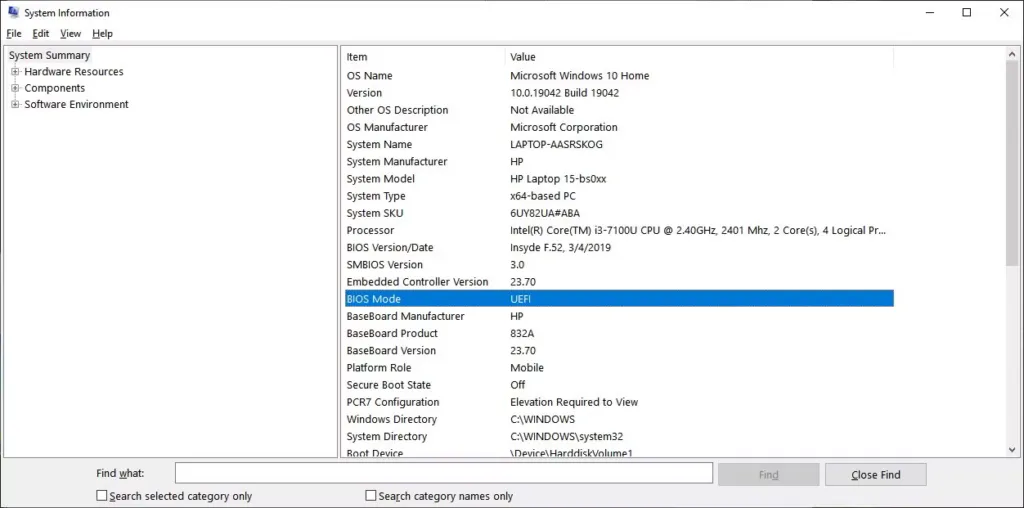
HackBGRT works exclusively on UEFI-based systems. To verify compatibility of your computer:
- Press the key combination Win + R to recall the Execute window.
- Type msinfo32 and press Enter to open the “System Information” window.
- In the right panel, look for the voice BIOS mode. Make sure the value shown is UEFI.
2. Secure Boot activation
In order for HackBGRT to overwrite the boot logo, it is imperative to disable the “Secure Boot” feature from the BIOS/UEFI settings of your motherboard. The procedure varies depending on the manufacturer of the computer.
3. New Logo Creation
The image that will replace the Windows logo must comply with very strict parameters:
- Size: It must be a perfect square, preferably 200×200 or 300×300 pixels.
- Format: It must be saved strictly as a 24-bit Bitmap (.bmp).
- Nomenclature: The file must be renamed in splash. b.
Security Note: Since HackBGRT modifies low-level boot files (EFI partition), it is highly recommended to create a system restore point or a USB recovery drive before proceeding.
Installation and Configuration of HackBGRT
Once the preparatory phase is completed, you can proceed with the installation of the software.
- Download and Extraction: Download the latest version of HackBGRT (usually in .zip format) from the official repository on GitHub. Extract the contents of the archive into a folder easily accessible.
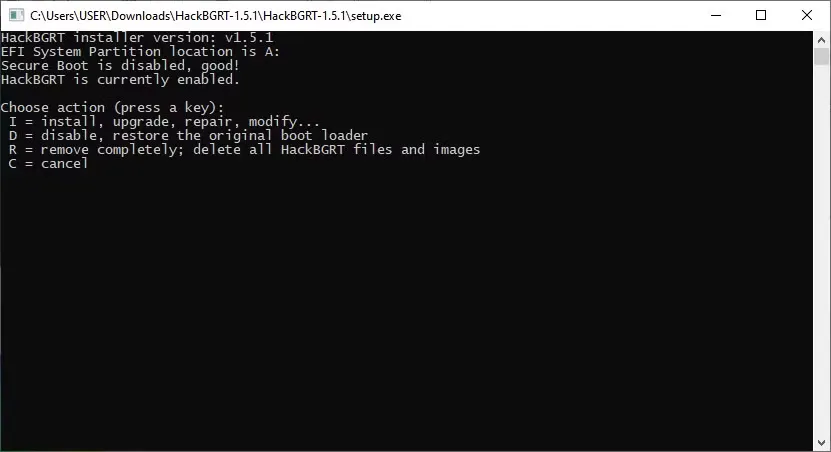
- Start of the Setup: Within the extracted folder, run the file setup. ex. Grant administrator permissions if required by the system.
- Start of Installation: A Command Prompt window will open. Press the button I on the keyboard to start the installation process.
- Configuration File Management: The program will automatically open a text file in Block Notes containing the configuration parameters. For a standard installation, no changes are required. Just close the Notepad window.
Custom Logo Insert
By closing the Notepad, HackBGRT will automatically start Microsoft Paint. This step is crucial to insert your image into the hidden system partition.
- Inside Paint, select File > Open and navigate the section This PC.
- A new system unit will be displayed temporarily mounted by the program (often labeled as “SYSTEM” or assigned to letter A:). Open this partition.
- Follow the path EFI > Hack.
- Within this folder, copy and paste the file splash. b previously prepared, accepting the Windows request to overwrite the existing file.
- Close Paint and any other related window. The Command Prompt will show a confirmation message of the installation. Press any button to exit.
On the next computer restart, the classic Windows logo will be replaced by the custom image.
How to Restore the Original Logo
In case of problems or if you want to return to factory settings, the recovery procedure is extremely simple:
- Run the file again setup. ex HackBGRT used for installation.
- In the Command Prompt window, press the button D.
- The software will confirm the restoration of the default logo. Close the program and restart the system.


