

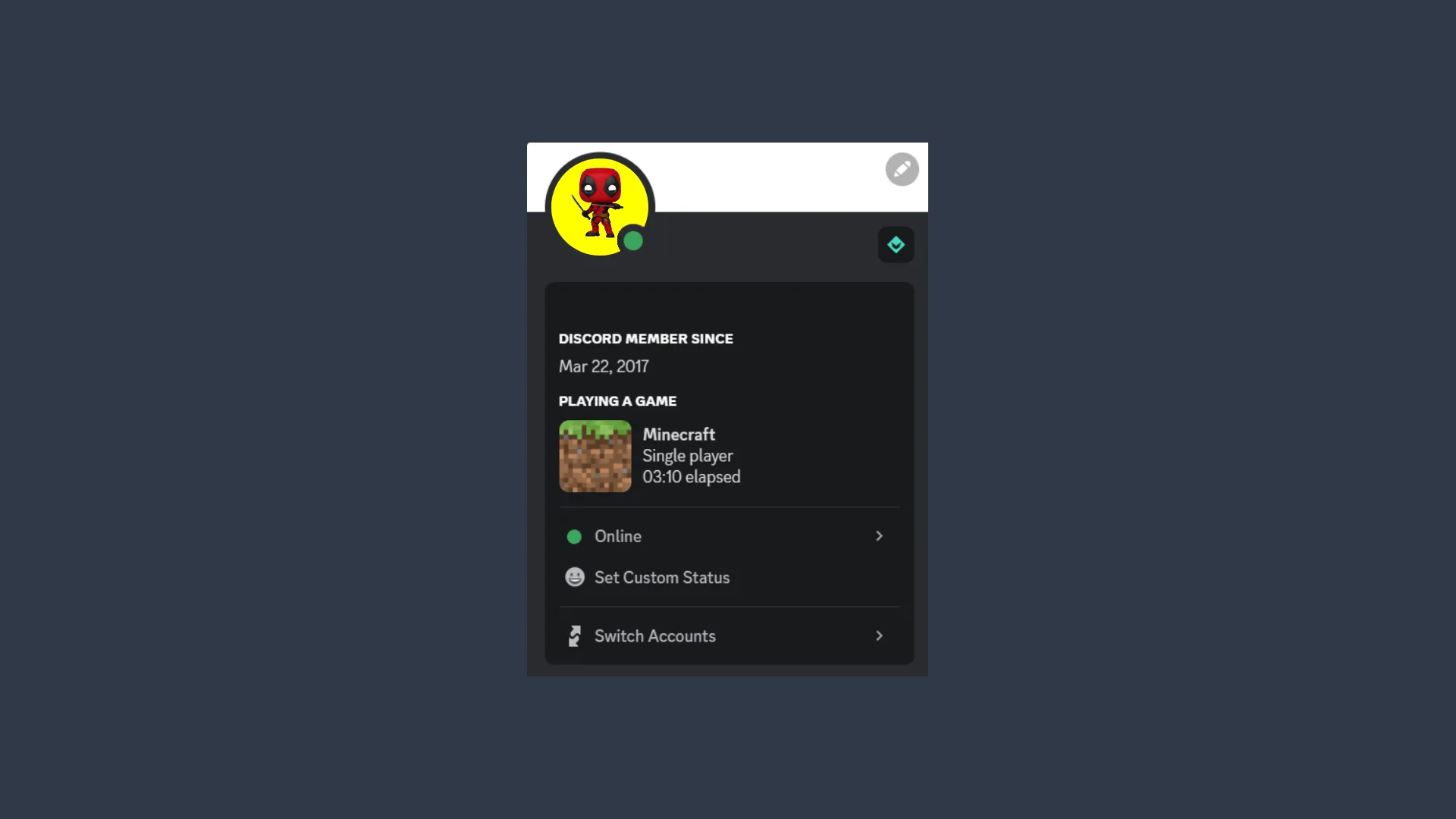
Discord offers users a unique way to express themselves through their online presence, especially by showing which game they are currently playing. Although this function is fun, it can also be customized for various purposes, such as playful jokes or transmit specific messages to friends. This article will guide you through the steps to add a custom play status on Discord using the desktop application.
Access to User Settings
To begin with, you need to open the Discord application on your computer. The custom game status feature can be set only through the desktop version, since it is not available on the web version. Here's how to proceed:
- Open up: Launch the Discord application on your computer.
- Navigate to User Settings: Find the gear icon (.) in the bottom left corner of the Discord window and click on it to open the User Settings.
Add a Custom Game
Once you are in the User Settings, the next step is to add a custom game status. Follow these steps:
- Select “Play Activity”: In the left sidebar, find and click on the “Play Activity” option.
- Add a Game: Click the “Add” button. This will open a drop-down menu.
- Choose a Program: From the drop-down menu, select the program or game you want to show as your custom status.
- Confirm the Added: After selecting the program, press the “Add Game” button. You will notice that the selected game will appear next to your status “You are Playing”.
Customize Game Name
After successfully adding the game, you can customize its name as you prefer. Here's how to do:
- Back to User Settings: Return to the User Settings menu.
- Change the Game Name: There will be an option to give the game a custom name. Enter the desired name in the supplied field.
- Finalize Changes: Once you enter the custom name, this will appear next to your state on Discord.


