---
title: "Convert Files on Windows for Free with File Converter"
description: "A free tool that adds file conversion to your right-click menu. Learn about supported formats, custom profiles, and how to use it on Windows 11."
url: "https://www.alemasone.com/en/convert-files-windows-free-file-converter/"
language: "en"
published: 2026-04-13
updated: 2026-09-20
categories: ["Software and Tools"]
translations:
it: "https://www.alemasone.com/it/convertire-file-su-windows-gratis/"
es: "https://www.alemasone.com/es/convertir-archivos-windows-file-converter/"
fr: "https://www.alemasone.com/fr/convertir-fichiers-windows-file-converter/"
pt: "https://www.alemasone.com/pt/converter-ficheiros-windows-file-converter/"
de: "https://www.alemasone.com/de/dateien-kostenlos-konvertieren-windows-file-converter/"
---
# Convert Files on Windows for Free with File Converter
File Converter adds conversion to your **right-click menu** in File Explorer: select one or twenty files, right-click, choose the format, and you're done. It is free, open source (GPL v3 license), and uses the same conversion engines as much more famous programs, starting with FFmpeg.
Compared to online converters, it has two major advantages: your **files never leave your computer**, and there are no size limits, waiting queues, ads, or watermarks.
## What it converts
| Category | Output formats |
|-----------|-------------------|
| Audio | MP3, WAV, FLAC, AAC, OGG |
| Video | MP4, MKV, WEBM, AVI, OGV, GIF |
| Images | PNG, JPG, WEBP, ICO |
| Documents | PDF |
It accepts much more for input: almost all common audio and video formats, RAW files from cameras, Office documents, and Photoshop files.
Three uses that alone justify installing it:
- **[extracting audio from a video](/en/install-ffmpeg-windows-command-line/)**, by converting the video to MP3 or another audio format;
- **turning a video clip into an animated GIF**, without uploading it to external sites;
- **converting documents and presentations to PDF**. However, this feature relies on Microsoft Office: if it is not installed, Office formats will not convert.
## Installation
1. Download the latest version from the official website [file-converter.io](https://file-converter.io/) or from the [GitHub release page](https://github.com/Tichau/FileConverter/releases). Avoid download portals: they often host repackaged copies with unwanted additions.
2. Run the installation, which is standard and does not bundle any other programs.
3. Once finished, you will find **File Converter** in your File Explorer right-click menu.
> **On Windows 11, this option is hidden one level deeper.** The Windows 11 right-click menu only shows a few items; those from installed programs are under **Show more options**. To skip that step, open the full menu directly using Shift + F10, or right-click while holding down Shift.
## How to use it
The sequence is always the same: **select files** → **right-click** → **File Converter** → **the format you want**.
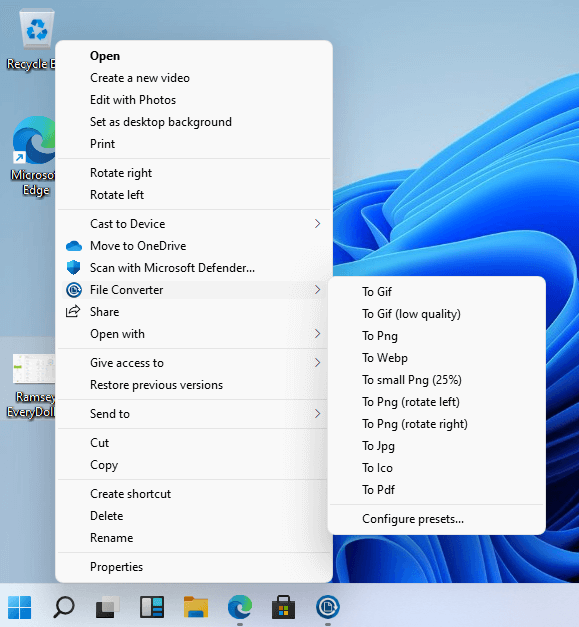
Converted files are saved in the same folder as the originals, which remain untouched. If you select multiple files, it converts them all one after another, with a small window showing the progress of each that closes automatically when finished. This is where you save more time compared to online sites, where you have to upload and download files one by one.

> **Shorten the menu.** In the program settings, disable any profiles you will never use and keep only the three or four you actually need: this prevents the menu from becoming a list of twenty items. From there, you can also duplicate a profile and change its quality, resolution, and bitrate—for example, creating an "MP3 for car" and a "lightweight MP4 for phone."

## Alternatives, and when to choose them
**[HandBrake](https://handbrake.fr/)** is the right choice when you are mainly working on videos: it gives you control over encoding, subtitles, cropping, and conversion queues. It is more complex and does not live in the right-click menu.
**[FFmpeg](https://ffmpeg.org/)** is the engine used by almost all converters, including File Converter. From the command line, it has no limits, but you will need to learn the syntax. For repetitive tasks on many files, it has no rival.
**Online converters** are useful in two cases: when you are on a computer where you cannot install anything, or if you need an unusual format. Otherwise, they have three drawbacks: you upload your files to someone else's server, they have size limits, and they run at the speed of your internet connection.
**What is already built into Windows:** for quick cropping or basic conversion, the Photos and Media Player apps do the bare minimum without needing to install anything. If you have PowerToys, you also have image resizing from the right-click menu.
## Things to know
- **Converting between compressed formats always results in quality loss.** Converting from one MP3 to another MP3 with different settings re-compresses something that is already compressed: if you have the original, start from that.
- **Videos take time**, and this depends mostly on your processor.
- **Copyright-protected files will not convert**, and this is not a flaw in the software.
- **You need disk space**: converted files are added to the originals, which can add up when dealing with a folder full of videos.
## FAQ
### Is it truly free?
Yes. It is open source under the GPL v3 license: no paid version, no locked features, no watermarks, and no ads. If you want to support it, you can make a donation or report issues on GitHub.
### Do my files remain private?
Yes, because all conversion happens on your computer, even without an internet connection. No files are uploaded to external servers.
### Does it degrade file quality?
When converting between compressed formats, you always lose something with any program. You can minimize the loss by increasing the quality in the profiles, but the rule of thumb is to start from the best original version you have.
### Why don't I see the option in the menu?
On Windows 11, it is under **Show more options**. If you don't see it there either, restart File Explorer (via Task Manager) or your computer: menu items are registered during installation.
### Can I convert multiple files at once?
Yes, and that's the main reason to use it: select all the files, choose the format once, and the program will convert them in a queue while showing you the progress.
### Does it also convert Word documents to PDF?
Yes, but only if Microsoft Office is installed on your computer. Otherwise, it uses the "Export to PDF" feature of whichever program you use to open the document—which almost everyone has these days, including LibreOffice.
### Is there a version for Mac or Linux?
No, it only works on Windows because it integrates directly into the File Explorer menu. On Mac, you can achieve something similar using Finder Quick Actions, which allow you to convert images and resize videos via the right-click menu.