

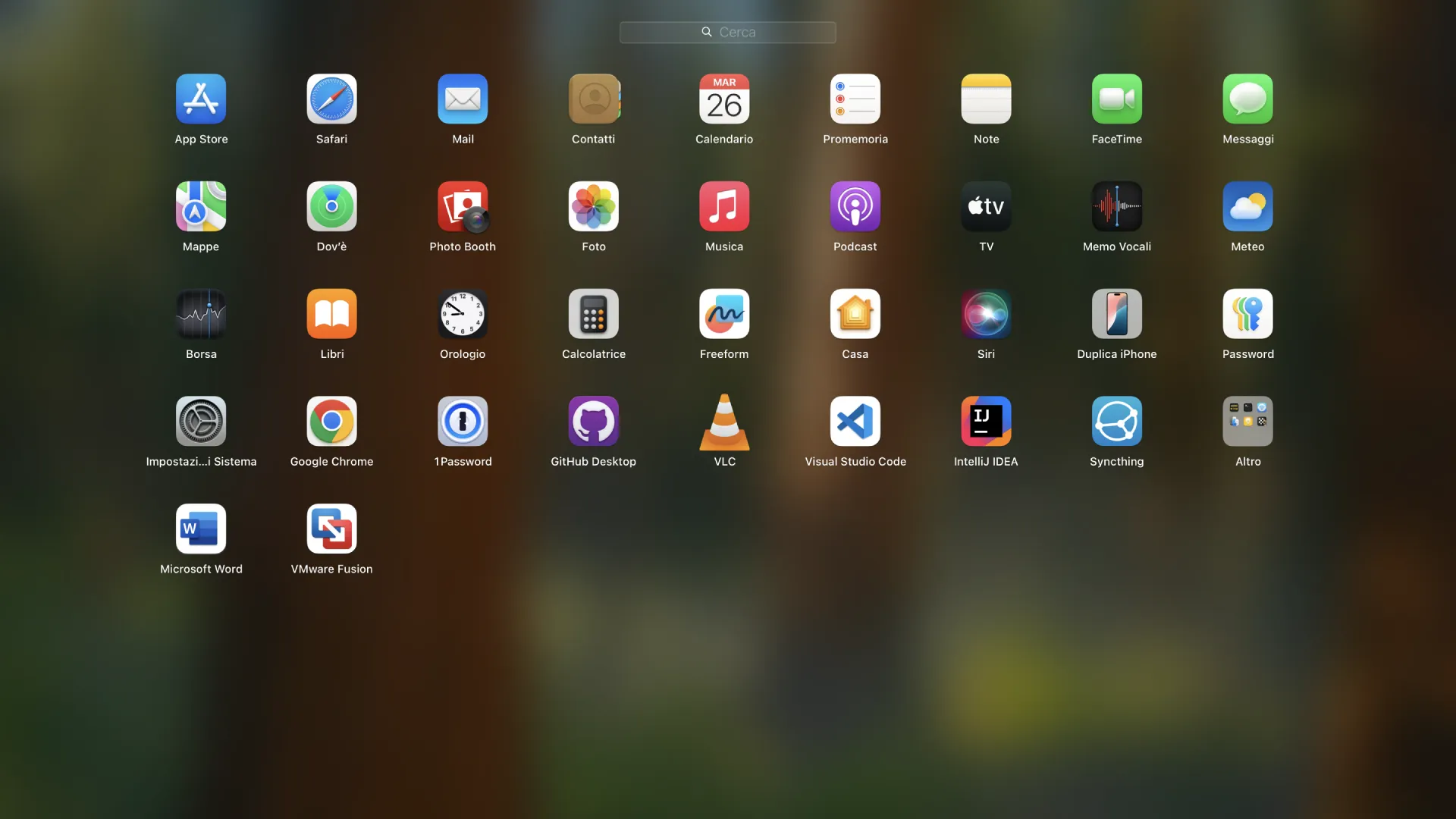
The Launchpad of macOS, introduced with OS X 10.7 Lion, is a key tool to quickly access installed applications on your Mac. This system allows you to organize apps, create folders and manage access to apps downloaded from the App Store or from other sources. Although the customization options in the Launchpad are limited in system preferences, there is an advanced mode that allows you to change the number of visible rows and columns in the Launchpad.
How to Change the Number of Columns and Rows in the Launchpad
By default, the Launchpad displays 5 rows and 7 columns of app icons. However, you can customize this display using the macOS Terminal. Below are the necessary commands to change the number of rows and columns:
- Change the Number of Columns To increase or decrease the number of columns in the Launchpad, open the Terminal and enter the following command:
defaults write com.apple.dock springboard-columns -int XWhere “X” represents the desired number of columns (for example, if you want 6 columns, replace “X” with 6). - Change the Number of Rows Similarly, to change the number of rows, enter this command:
defaults write com.apple.dock springboard-rows -int XReplace “X” with the number of rows you want.
Apply Changes
After changing the number of rows or columns, you must restart the Dock to apply the changes. To do this, run the command:
defaults write com.apple.dock ResetLaunchPad -bool TRUE; killall Dock
This command closes and restarts the Dock, thus updating the Launchpad display with the new settings.
Restore Predefinite Settings
If you want to return to the default configuration (5 rows and 7 columns), you can do this in two ways:
- Restore Predefined Values
Using the following commands, you can return the Launchpad to the default values:defaults write com.apple.dock springboard-rows -int 5
defaults write com.apple.dock springboard-columns -int 7 - Delete Custom Settings
Another way to restore the original settings is to delete the changes made:defaults delete com.apple.dock springboard-rows
defaults delete com.apple.dock springboard-columns
In both cases, do not forget to run the command again to restart the Dock:defaults write com.apple.dock ResetLaunchPad -bool TRUE; killall Dock


