

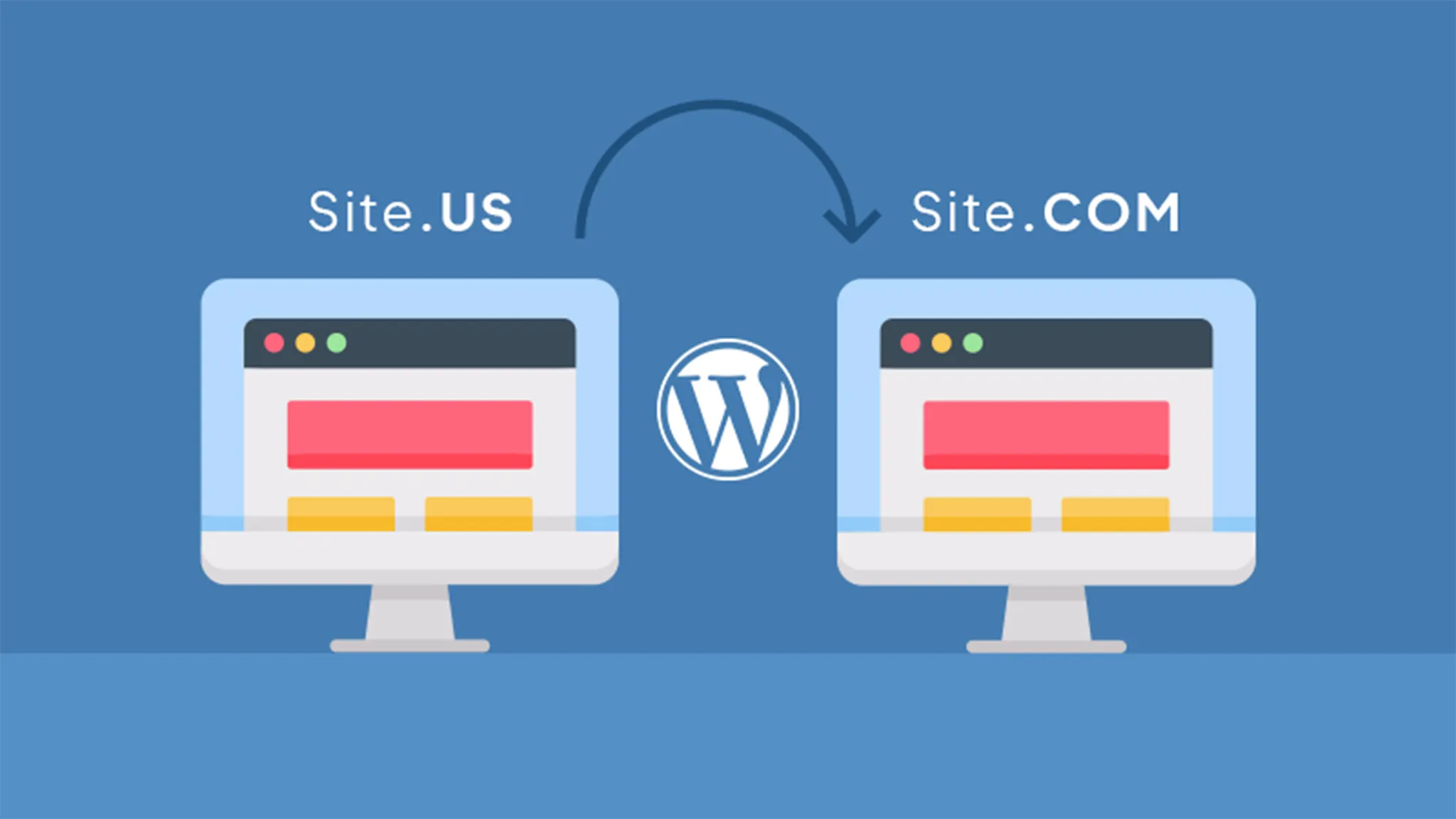
Changing the domain name of your WordPress site is an important decision that involves advantages and disadvantages. If you have a site already started, it is essential to carefully consider this choice and follow the correct steps for a smooth transition.
Why change the Name of the Dominion?
There are several valid reasons why you may want to change the domain name of your website:
- Change of Company Name: If your company changes its name due to a focus acquisition or change, it is logical to update the domain name to maintain consistency and facilitate customer search.
- Rebranding: A rebranding may require a new domain name that better reflect the brand image and voice, also improving marketing activities.
- Change of Dominion Extension: You may want to change only the extension of the domain (for example, from .org to .com) to instill greater trust in visitors.
Is it necessary to buy a New Domain?
Before migrating your WordPress site to a new domain, you will need to buy a new domain name through a domain registrar. This involves an annual cost usually less than $20. During the transition period, it is advisable to keep both domains active for at least six months, using 301 redirects to direct visitors from the old to the new domain.
How to Change the Domain Name in WordPress
Change the main domain of your WordPress site involves some steps:
- Access the WordPress Dashboard: Modify the URL of the site in the general settings of WordPress.
- Update the wp-config file. php: Edit the wp-config file. php to reflect the new changes.
- Verify Domain Change Implementation: Make sure the domain change has been successfully implemented.
Change the Dominion in WordPress
Before starting, it is important to take some precautions:
- Complete Backup of the Site: Make a complete backup of the site before making any changes.
- FTP client: Use an FTP client like FileZilla to access the site server. The server credentials will be required, which can be found in the hosting provider's admin panel.
Step 1: Edit the URL in WordPress Settings
Login to WordPress and go to Settings > General:
- WordPress Address (URL) and Site Address (URL): Enter the new address in both fields and save the changes. This will temporarily make the site inaccessible until all steps are completed.
Step 2: Configure Permanent Redirections and Notifying Search Engines
After changing the domain, you must permanently redirect the old URLs to the new domain and notify the search engines of change:
- Redirections 301: Access the site via FTP and edit the .htaccess file, adding the following code:
   #Options +FollowSymLinks
   RewriteEngine on
   RewriteRule ^(.*)$ http://www.esempio.com/$1 [R=301,L]
Replace “www. example.com” with the new domain.
- Notifying Google: Use Google Search Console to inform Google of the domain change. This procedure is simple and takes only a few minutes.
Following these steps, you can change the domain name of your WordPress site effectively and smoothly.


