


In Excel, there are several ways to resize cells according to your needs. Let’s see together what are the main methods to change the column width and row height, adapting them to your best work.
1. Use the context menu to resize cells, rows or columns
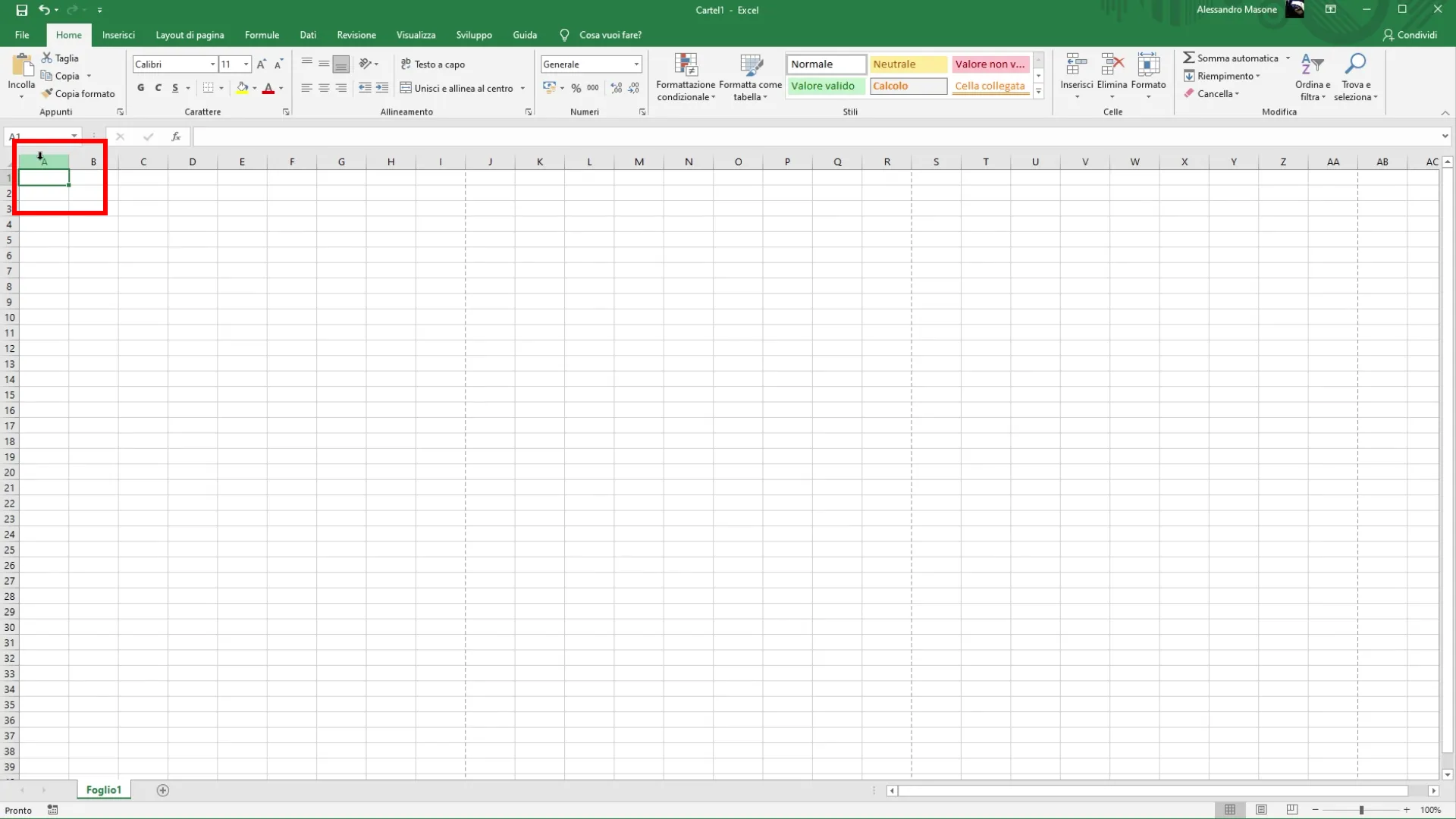
The first method to resize cells is through the context menu. This approach is simple and fast. To change the width of a column, right click on the letter that identifies the column, such as “A”, “B”, “C”, and so on. To change the height of a row, right click on the number that identifies it, for example “1”, “2”, “3”. You can also select multiple rows or columns simultaneously to apply resize to multiple cells at once.
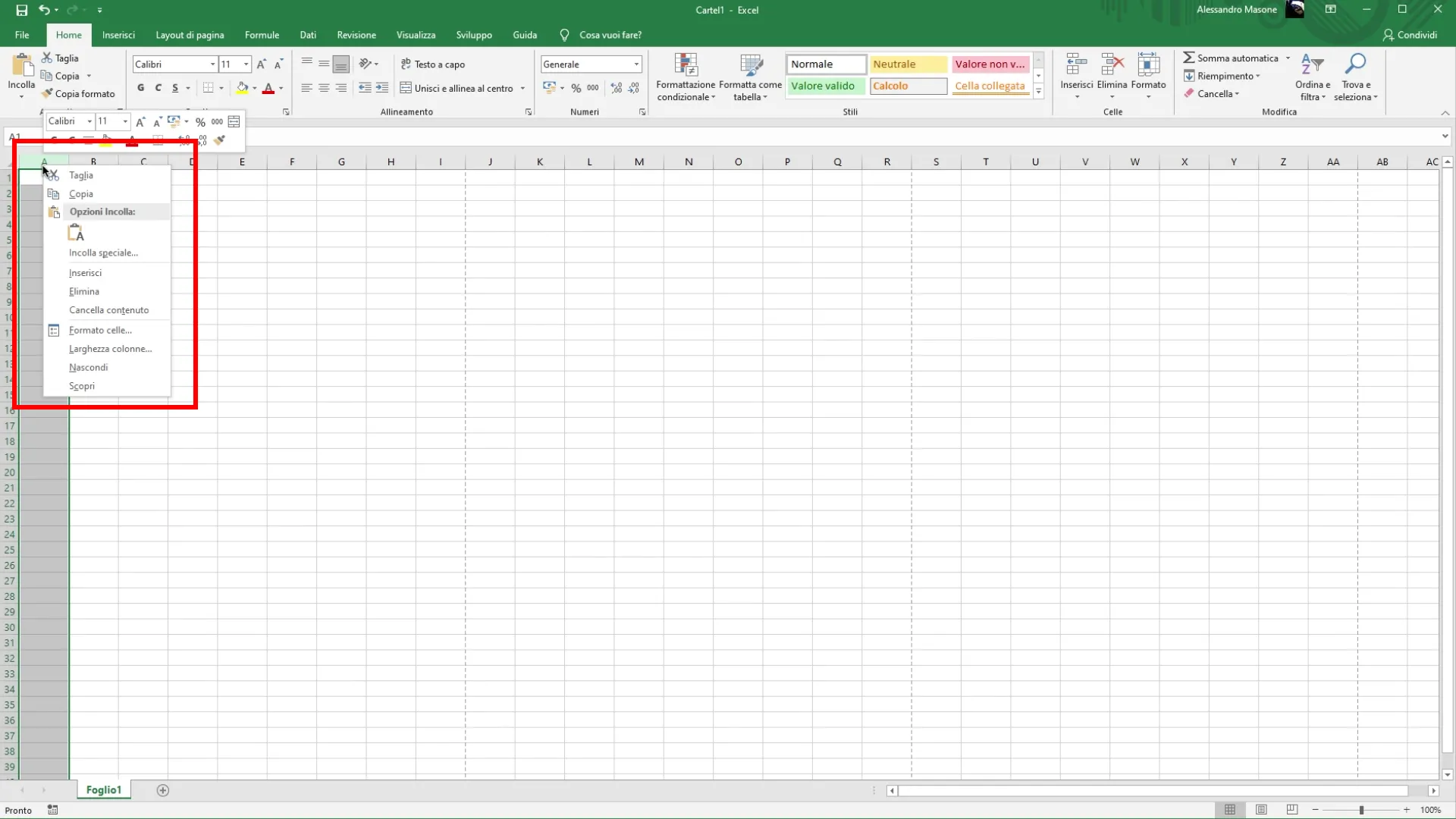
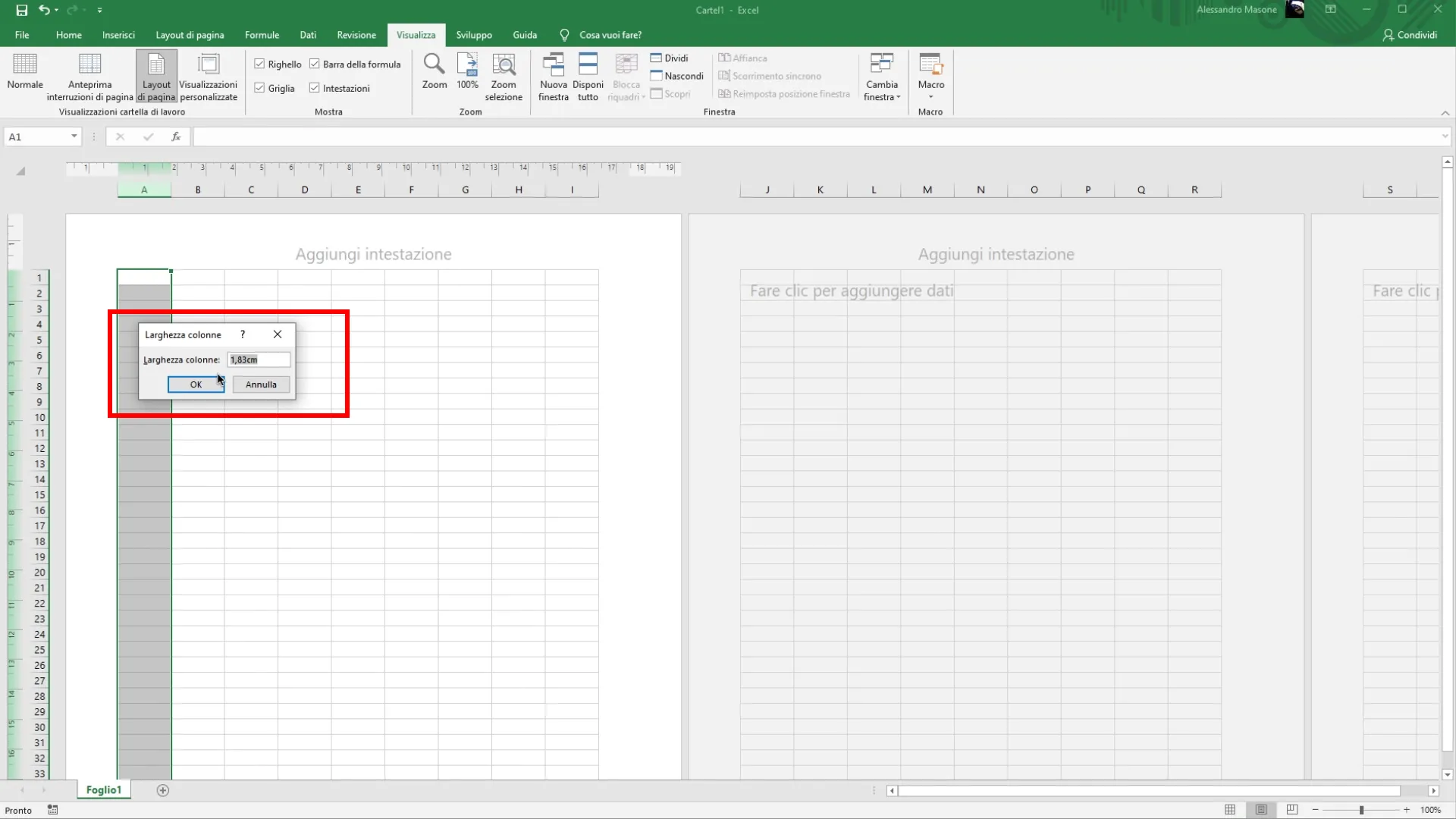
After making this selection, you will open a small menu that will allow you to choose the option “Altitude Row” or “Larghezza Column”. Here you can manually insert the value you want for each size.
2. Edit cells with page layout for greater control
Another method that allows you to work more accurately is to use the “page layout” mode. This mode gives you better control thanks to the display of the measuring units. Go to the View tab in the main menu of Excel.
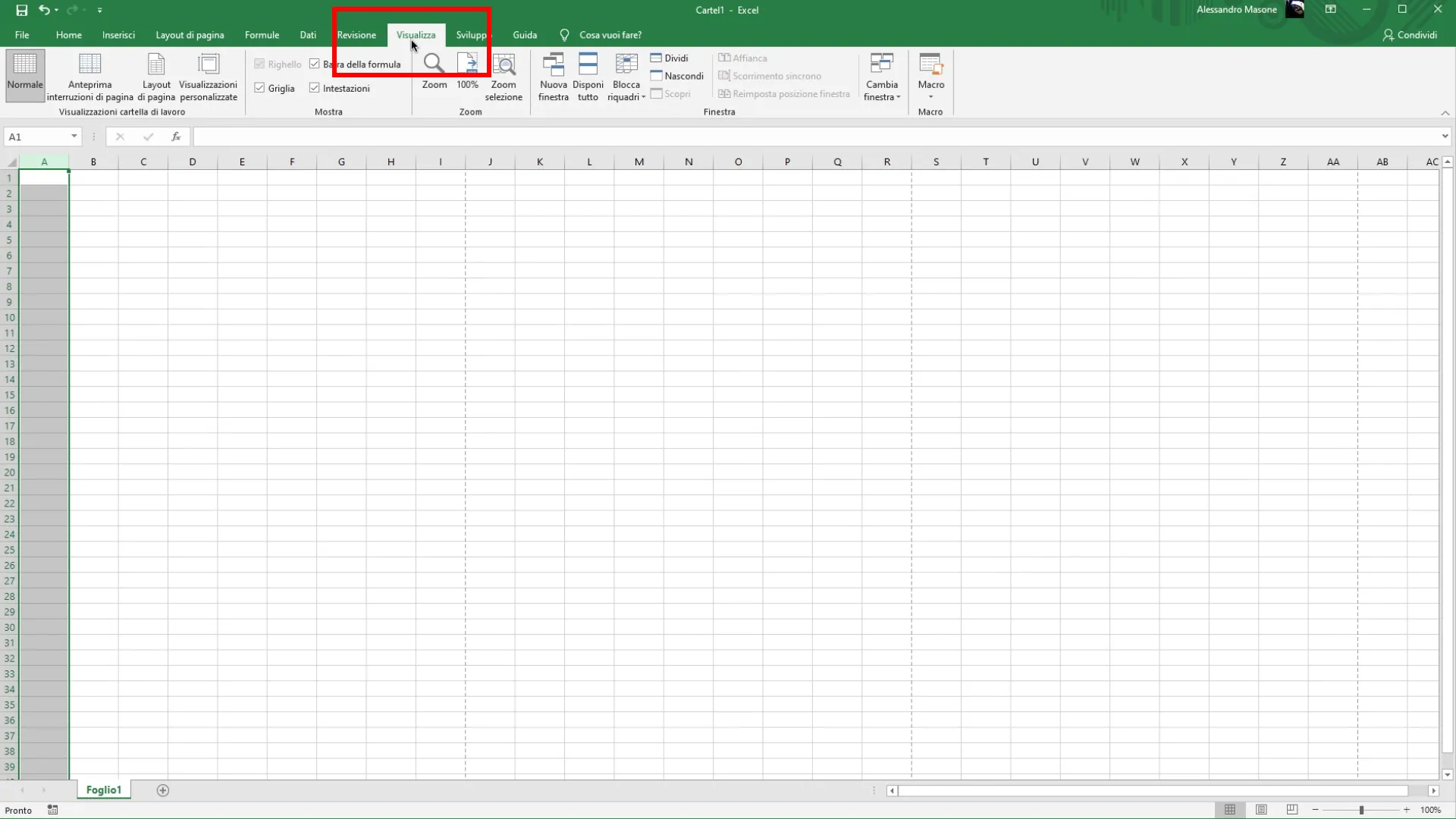
In the “View workbook” section, select the “page layout” option.
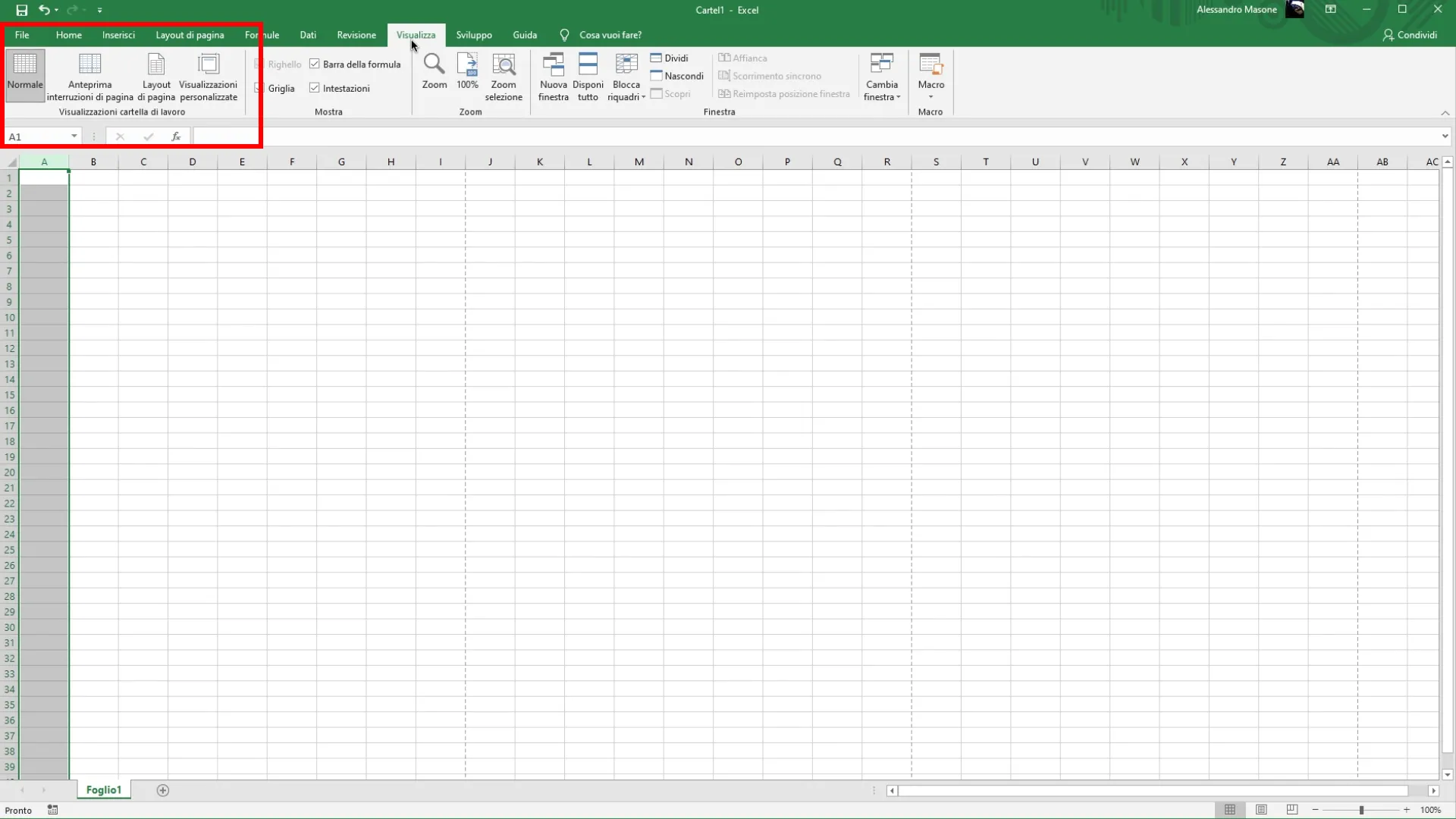
When the Page Layout mode is active, you can use the same resize method described above.
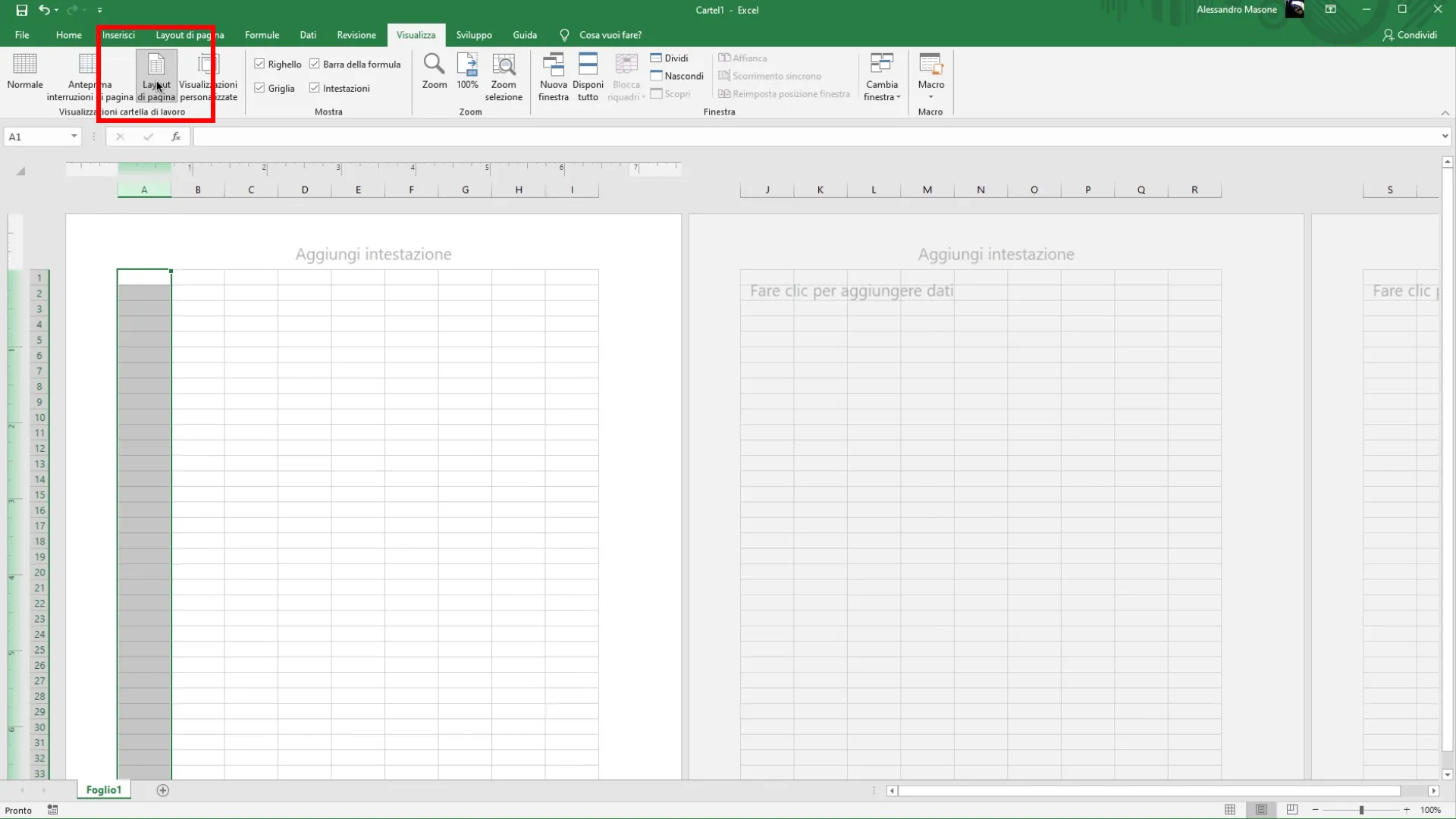
The main difference is that, in this mode, you will see the units of measurement (such as centimeters or inches), which allows you to have a clearer idea of the size of the cells while changing them.
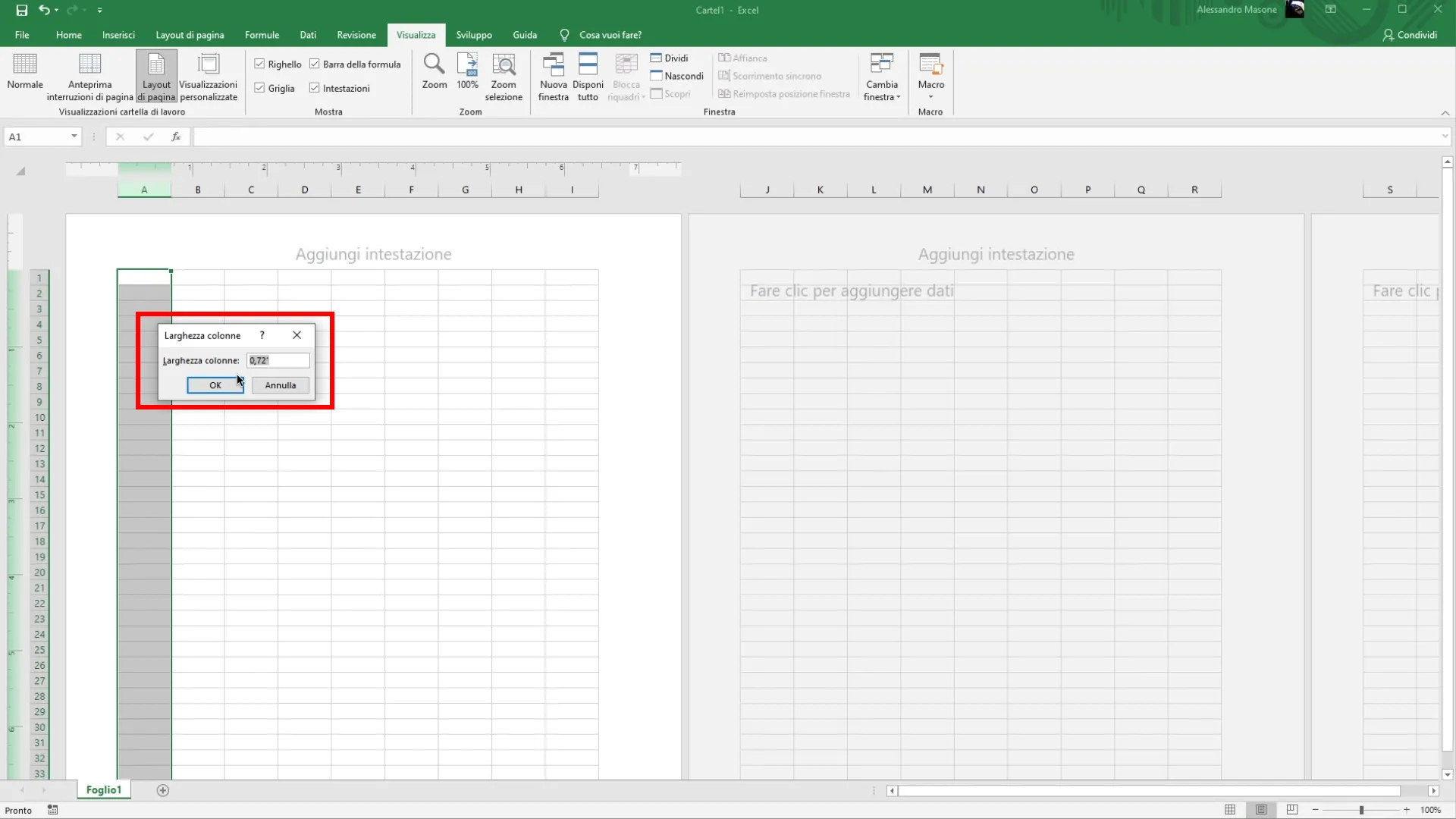
3. Change the measurement unit for even greater control
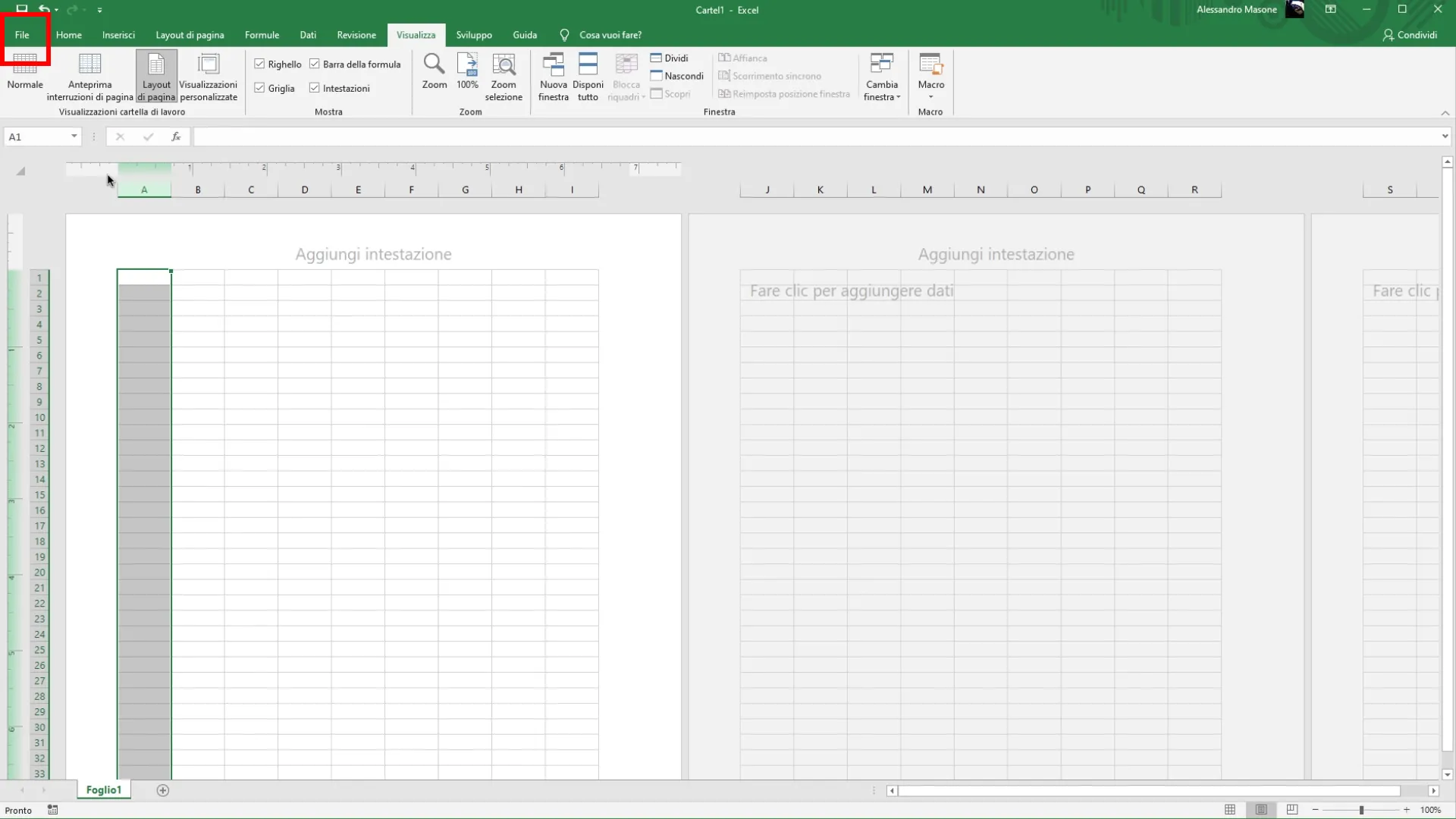
If you want to have even greater control over the size, you can also change the default measurement drive in Excel. This allows you to choose between inches, centimeters or pixels, depending on your needs. Click on the “File” tab.
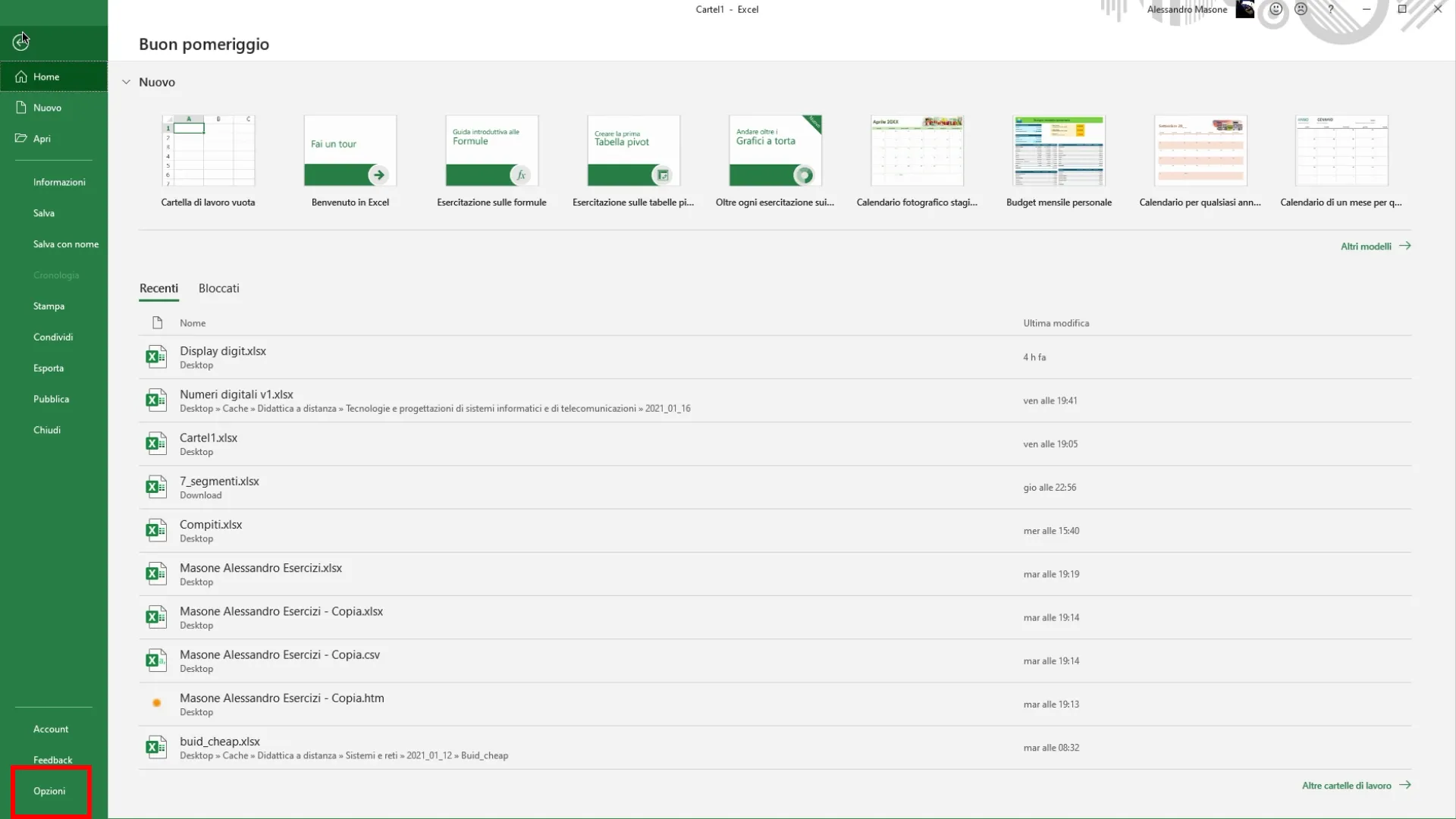
Then on “Options”, which is located on the bottom left.
In the options window, select “Advanced Settings” from the side menu.
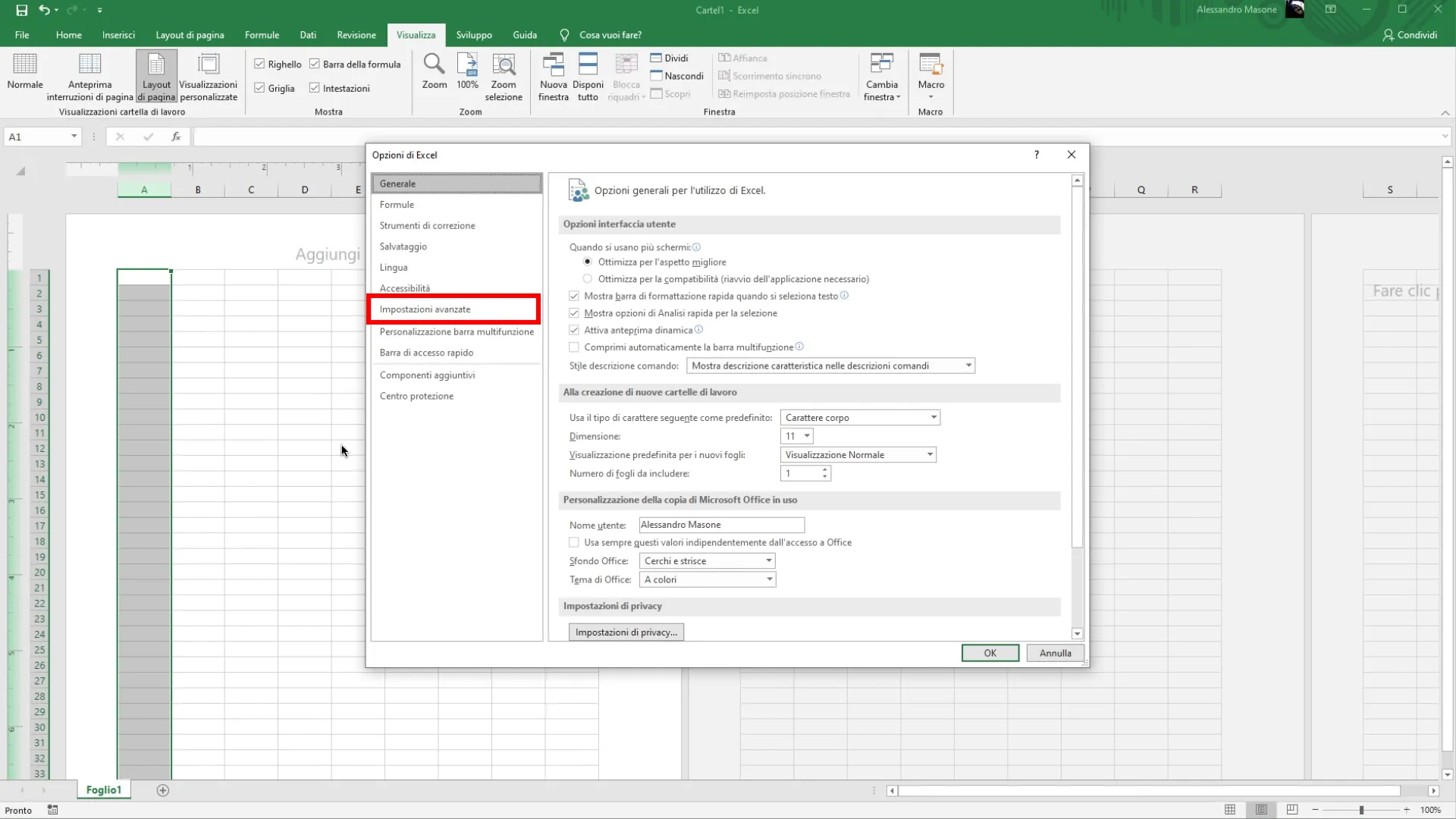
Scroll to the “Setting” section
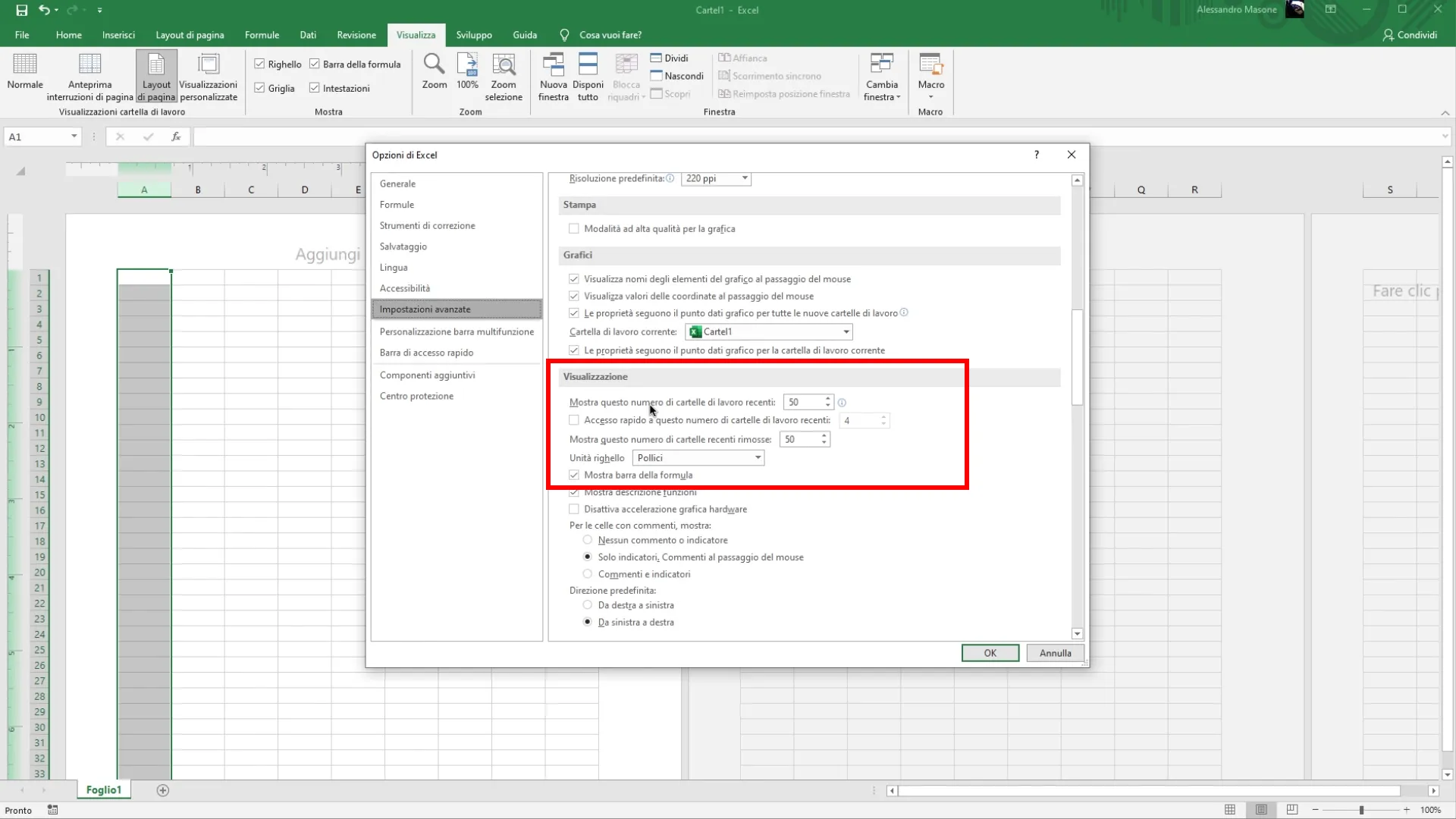
you will find the option to change the ruler’s measurement unit. You can choose from Pollyci, Centimetri or Pixel.
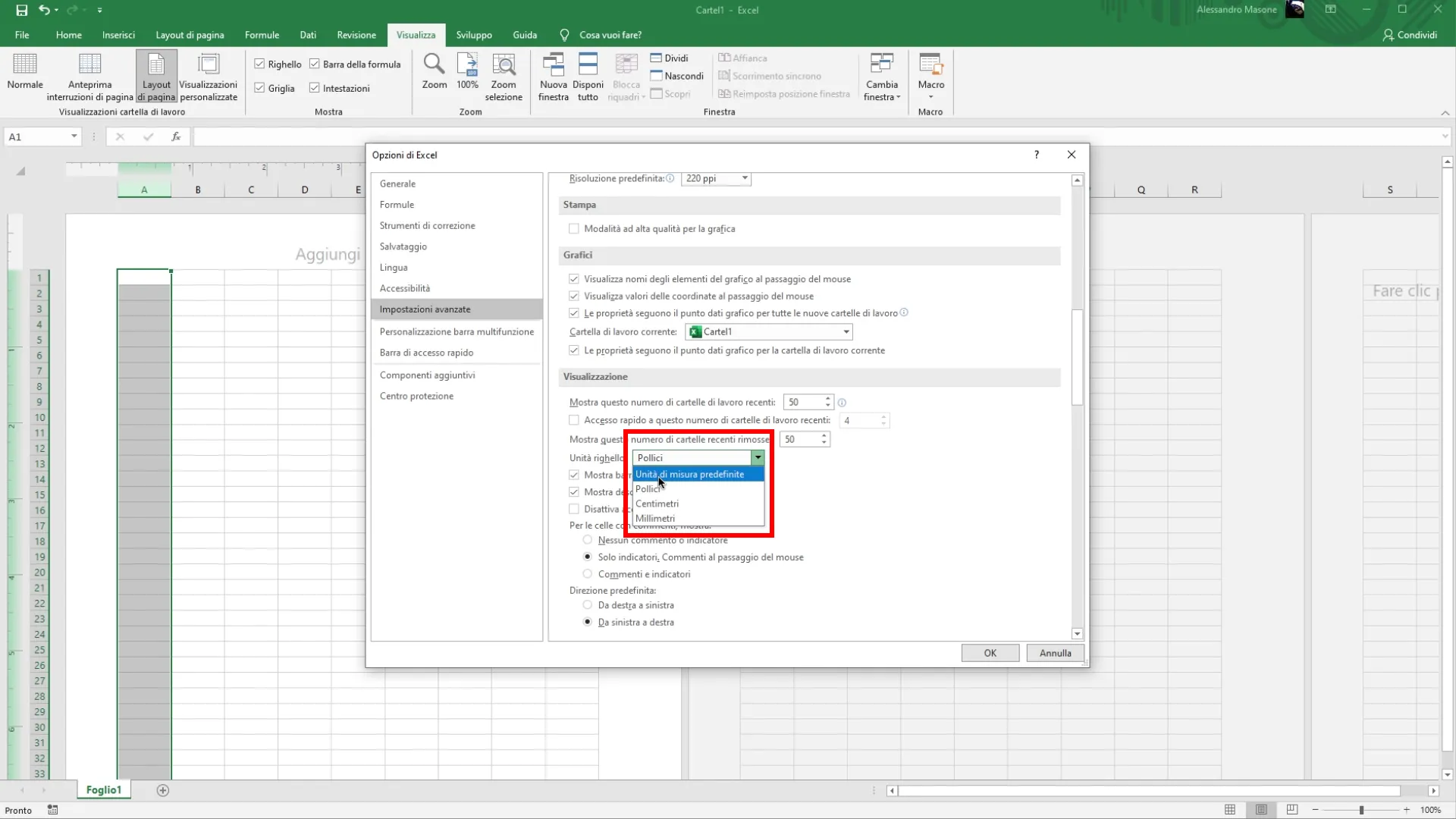
After selecting the unit you prefer, click on “OK” to apply the changes. Now, when you return to using the first resize method, you will see that the measuring units have been updated and you can work with the new settings.
With these three methods, you can easily resize cells in Excel, choosing the approach that best suits your work style and your precision needs. Whether you prefer fast control or greater customization, Excel offers you different tools to work efficiently.


