If you are looking for ways to view and edit Apple notes on your Windows PC without using a native app, this article is what it does for you. Here are some methods to access notes from Apple (iPhone, iPad and Mac) devices on Windows without any built-in app.
How to access Apple notes via iCloud
If you want to use the services developed by Apple as Apple Notes on devices from other manufacturers, you will need to use the iCloud website. To view Apple notes on Windows, visit the iCloud website from your Windows computer.
To get notes from Apple devices, make sure Apple device notes are synced to iCloud, follow the following instructions to sync Apple notes to iCloud:
- On iPad or iPhone, open the Settings app. Find your name and go to iCloud, then enable the activation button next to “Note”.
- If you are using a Mac, click on the Apple logo on the top left corner and select System Settings, then on your name and app using iCloud activate Notes.
After syncing notes on Apple devices, they will be accessible from non-Apple devices via iCloud. Let's see the ways to access notes on Windows.
- Open your computer and visit the iCloud website using a web browser.
- Login to your account.
- Click the Notes section on the iCloud site and all your synchronized notes will be displayed.
- Now you can see all the notes and edit them. From here, you will also be able to create new notes.
How to access Apple notes through a progressive web application
Accessing notes on Windows using a progressive web application is a great way to avoid using a browser-like interface and display notes in an app-like interface.
Progressive web applications are simply conventional web applications enhanced with modern web technologies. They provide an experience similar to an application by offering the content of the website with a single click. Google Chrome and Microsoft Edge both allow you to create a web application to access Apple notes. We will guide you on how to create a web application on these web browsers.
- Access the iCloud website on Chrome or Edge. Login to your account and go to the Notes section.
- On Chrome, click on the three-point icon in the upper right corner, choose Save and share and create a shortcut.
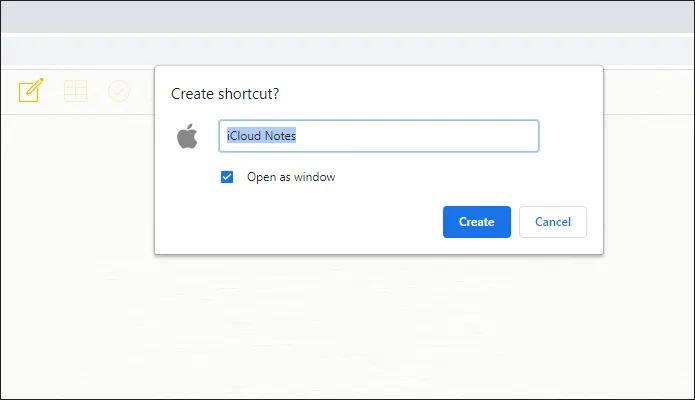
- After clicking Create Link, check the blank box next to Open as window and then click Create. You can also rename the app with this option.
- Now the connection or app will appear on the desktop and will also be displayed during the search.
- If you’re browsing Edge, click on the three-point icon located in the upper right corner and choose App, then click on the Ask installation option as an app. Rename the app and click Install.
Now your Apple Notes app is ready on Chrome and Edge.