

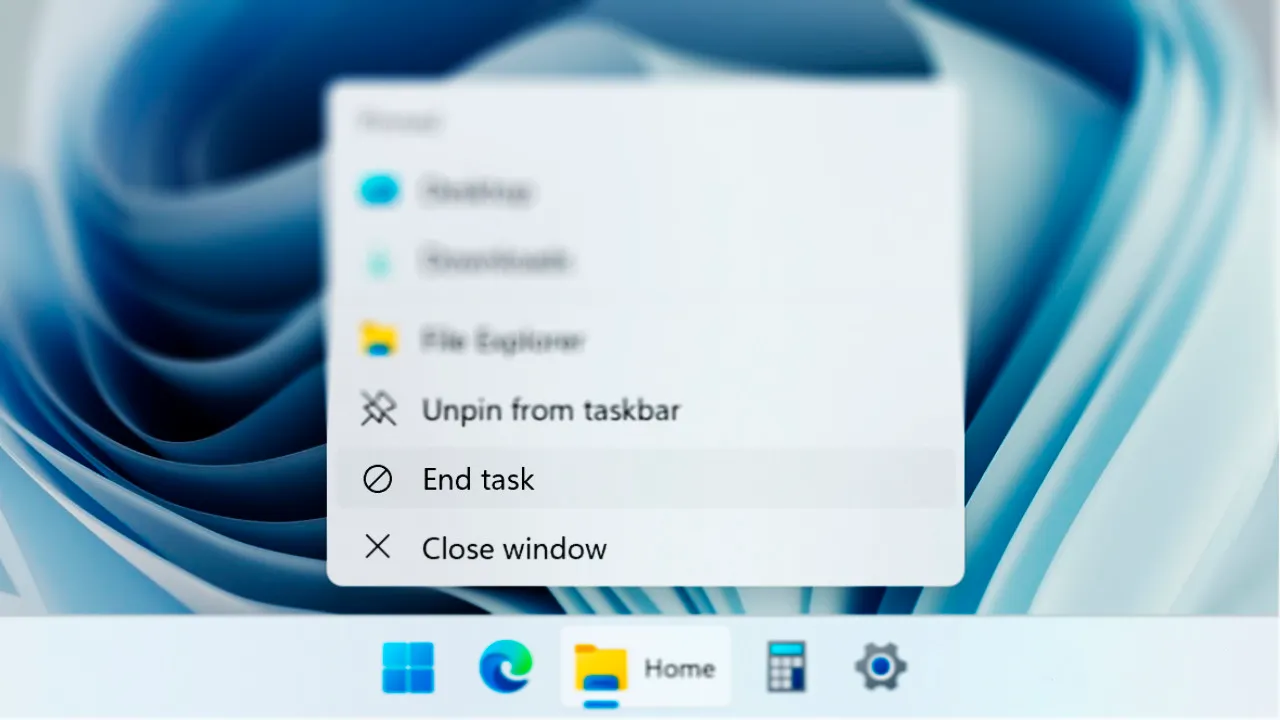
With the Windows operating system, close programs can take place through different options, including window commands or Task Manager. In previous versions, such as Windows 10, a quick “Termin Task” option was available by right-clicking on open applications in the Taskbar. However, with the launch of Windows 11, Microsoft removed this feature. The good news is that now you can reactivate it, even if it is not enabled by default.
Difference between “Termina Attività” and “Chiudi Finestra”
The main difference between “Termina Attività” and “Chiudi Finestra” is how they manage program processes.
- End of Activity: It strongly closes both the program window and the associated process. This means that all the resources used by the program are released, eliminating any abnormal blocks or arrests.
- Close Window: It just closes the visible window of the program, but the process can continue to work in the background. This may be problematic if the application does not respond or freezes, as it may require additional actions to close it permanently.
In summary, “Close Window” works for most daily operations, but “Termina Activity” is useful in case of blocked or malfunctioning programs, where forced closing is required.
How to Enable “Termin Activities” on Windows 11
By default, Windows 11 only shows the “Close Window” option when right-clicking an icon in the Taskbar. However, you can enable “Termin Activities” by following these simple steps:
- Open the menu Start and select Settings (or use the Windows + I keyboard shortcut).
- Go to section System and then select For developers.
- Find the option Thermal Activity and activate the switch to enable it. Make sure the setting is on Activated.
- If you want to disable this feature in the future, just return to this section and turn off the option.
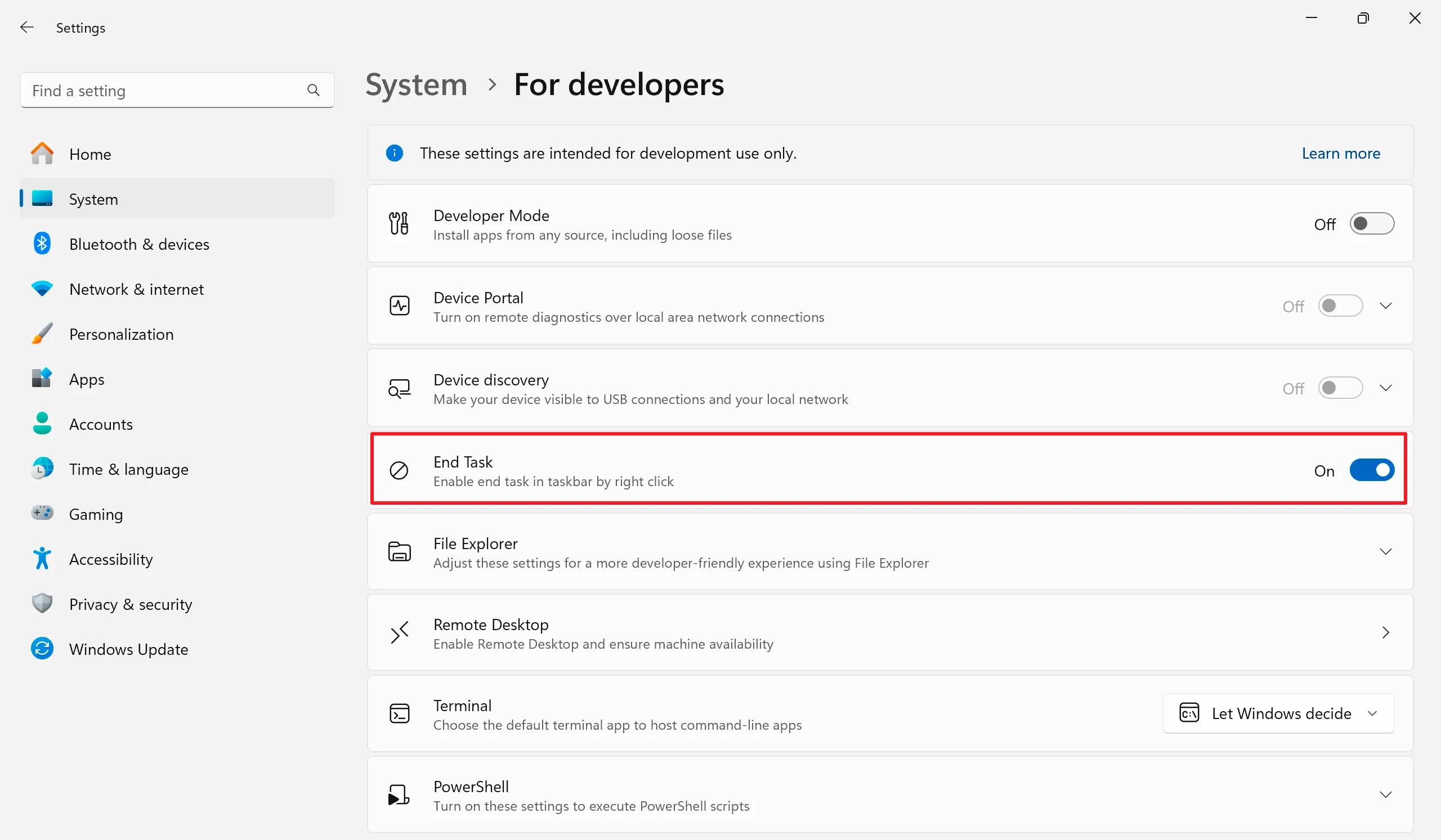
Use “Termin Activities” on Windows 11
After enabling “Termin Task”, it will be available whenever you right-click an icon in the Taskbar. You will find this option next to “Close Window”. Although “Close Window” can be enough in most cases, “Termin Activity” becomes essential when you want to completely close a program, especially if it is blocked or does not respond.
This option can be faster than opening the Manager of Activities, where you should manually search the program and close the process from there. However, if the context menu does not open, the Task Manager always remains the best solution to forcefully close applications.


